How to fix
Install Apps from Unidentified Developer
on Windows
Unlock seamless app installations on Windows 10 and 11 with expert tips for handling unidentified developers. Expert-tested solutions await!

Why does How to Install Apps from Unidentified Developer on MacOS Sierra occur?
- Gatekeeper in MacOS Sierra prohibits downloading applications from unknown developers
- Users often can't find needed applications on The App Store or from identified developers
- Unsigned applications may contain malware or malicious programs
- Applications signed by an Apple certificate are considered safer
- Disabling Gatekeeper decreases the level of security
Repairs Windows system files, removes malware, and restores a clean OS state — without reinstalling.
Hello all. I would like to know if it’s possible to download applications from unknown developers? As far as I know, Gatekeeper in MacOS Sierra prohibits that, but still I’m wondering maybe there is a way to bypass this restriction? Thanks for any comments.
Lots of MacOS Siera users complain about the restriction to download applications from unknown developer. On the one hand, this might be really frustrating as people often can’t find needed applications on The App Store or identified developers only. On the other hand, prohibition to download unsigned applications adds some extra points to Mac OS Sierra's security and malware resistance. Applications with no identified developer are questionable and are often called third-party software. That’s because they may contain malware or malicious programs behind the main installer. In the meanwhile, the applications that are signed by an Apple certificate guarantees that the application is safe or, if it’s not, Apple has all the rights to remove the certificate and notify about malicious activities.
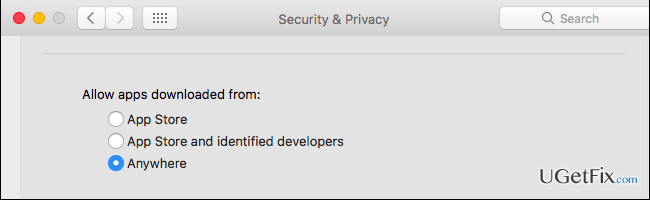
Nevertheless, if you have some applications from unidentified developer in you download wish list, it’s possible to download them even if MacOS Sierra officially states that this is not. While “Allow applications downloaded from App Store” or “Allow applications downloaded from App Store and identified developers” options are set by default in Mac OS Sierra, there is a hidden “Allow applications downloaded from nowhere.” To disable this preference, you have to perform these simple steps:
- Open the Terminal application that is situated in the /Applications/Utilities/ folder.
- Type sudo spctl --master-disable command and press return.
- Enter the admin password.
- After that, launch System Preferences and go to the Security & Privacy.
- Select General tab find Allow applications downloaded from: section, which has three options.
- Mark the option Anywhere and exit System Preferences.
That’s it. Now you should try to download and launch applications from unknown developers and everything should work.
NOTE: by enabling applications from anywhere you turn off Gatekeeper, which means that you decrease the level of security. Therefore, we would highly recommend installing a professional software that would perform a real time scan and check your PC for malware, errors, and similar problems continuously. For this purpose, you can try using [rev id=”MacKeeper”].
In case you decide that you’re enough of applications on Mac Store, turn on Gateway by performing the steps indicated above, just type sudo spctl --master-enable command instead of the given one.
Bottom line
To install apps from unidentified developers on MacOS Sierra, you can disable Gatekeeper by using the Terminal application and changing the security settings in System Preferences. However, be aware that this reduces your system's security. If these steps do not work, consider looking for alternative applications from identified developers.




Report an issue
What's wrong with this guide? We review every report and update or remove content.
Report received — thank you. We'll review and fix it.
You need a free account to submit a report.
Be the first to comment