How to fix
Install Google Bard as an app
on Windows
Transform your Windows 10 or Windows 11 experience by installing Google Bard as an app. Maximize your productivity with expert-tested tips.

Why does How to install Google Bard as an app on Windows occur?
- No dedicated desktop application for Google Bard
- Need for installation as a Progressive Web App (PWA)
- Browser compatibility issues
- User unfamiliarity with creating shortcuts
- Potential issues with browser settings
Repairs Windows system files, removes malware, and restores a clean OS state — without reinstalling.
Hello. Is there a way to install Bard as an application in Windows? Any suggestions would be appreciated.
Google Bard is a Google conversational AI chatbot that uses natural language processing to provide more human-like responses to complex questions. It was created in response to the growing popularity of OpenAI's ChatGPT[ref en-1] and is based on the LaMDA family[ref en-2] of large language models.
One of the benefits of using Google Bard is that it allows users to interact with the AI chatbot in a more conversational and human-like manner. Bard was built to handle complex queries and provide informative and accurate responses on a wide range of topics.
While Google is working on integrating Bard directly into its Chrome browser, there is currently no dedicated desktop application for the technology. Users can still install the Bard AI experience on Microsoft Edge and Google Chrome as a Progressive Web App (PWA).[ref en-3]
Progressive web apps allow websites to be installed on a computer as native apps, providing a variety of benefits such as the ability to work offline, automatic updates, notifications, and simple installation and uninstallation. However, it is the developer's responsibility to implement these features. This guide will show you how to install Bard as an app on Windows using two different browsers. Step-by-step instructions are provided below.
Method 1. Use Google Chrome
Install:
- Open Google Chrome.
- Open Bard (web).
- Click the Customize and Control (three-dotted) button in the top-right corner.
- Select the More tools menu and choose the Create shortcut option.
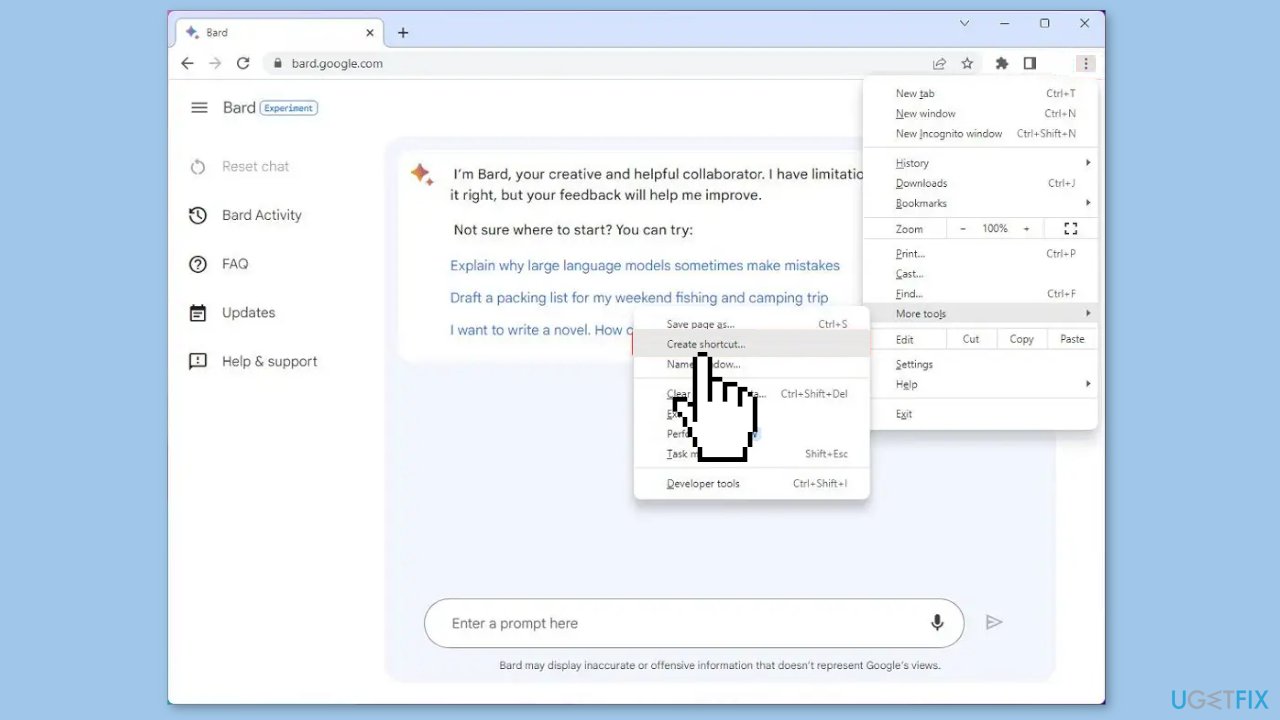
- Check the Open as a window option.
- Click the Create button.
Uninstall:
- Open Google Chrome.
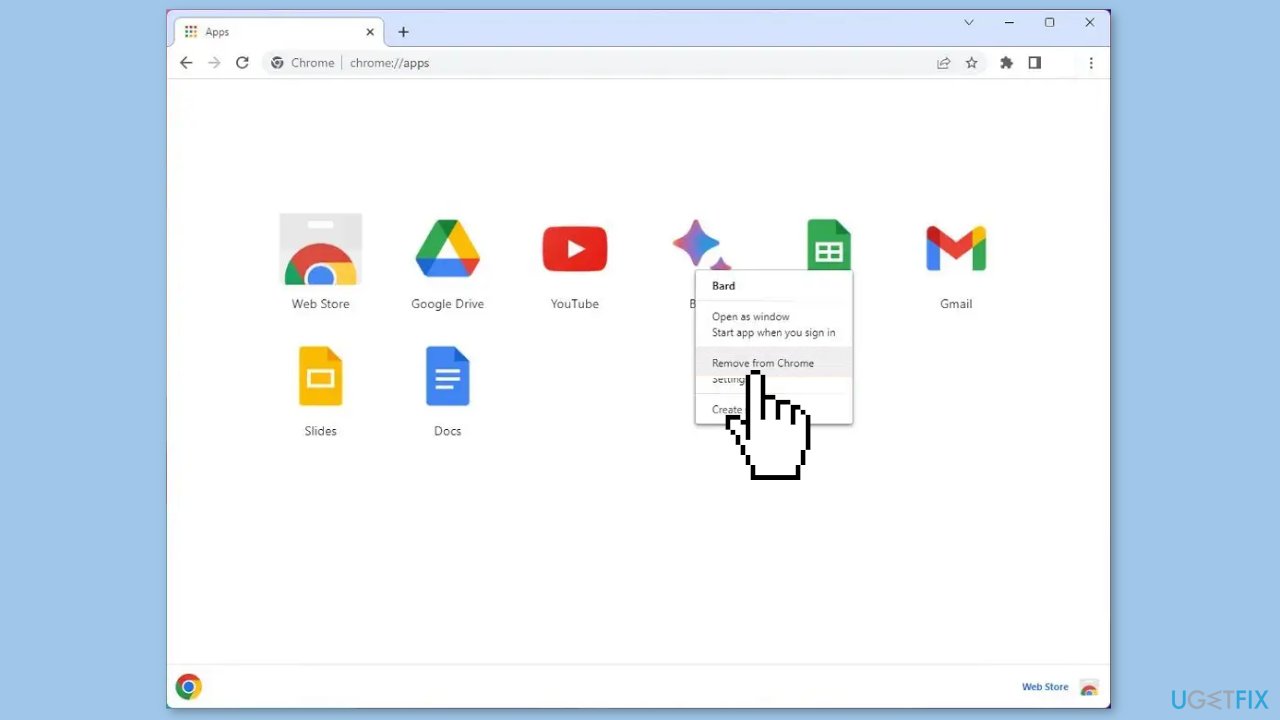
- Type or paste this URL on the search bar: chrome://apps
- Press Enter to navigate to the Chrome apps settings page.
- Look for the Google Bard app icon.
- Right-click the Google Bard app icon.
- Select the Remove from Chrome option from the context menu.
Alternatively, you can also remove the Google Bard app from the Settings menu:
- Open the Settings menu by clicking on the three-dotted button on the top right corner of the Chrome window.
- Click on Apps under Settings.
- Select Apps & features and look for the Google Bard app.
- Click on the Google Bard app and select Uninstall.
- You can also remove the app from the Start menu.
- Open the Start menu and locate the Google Bard app.
- Right-click the app and select Uninstall from the context menu.
- Confirm the uninstallation if prompted.
Method 2. Use Microsoft Edge
Install:
- Open Microsoft Edge.
- Open Bard (web).
- Click the Settings and more (three-dotted) button in the top-right corner of the browser window.
- From the drop-down menu, select the Apps option.
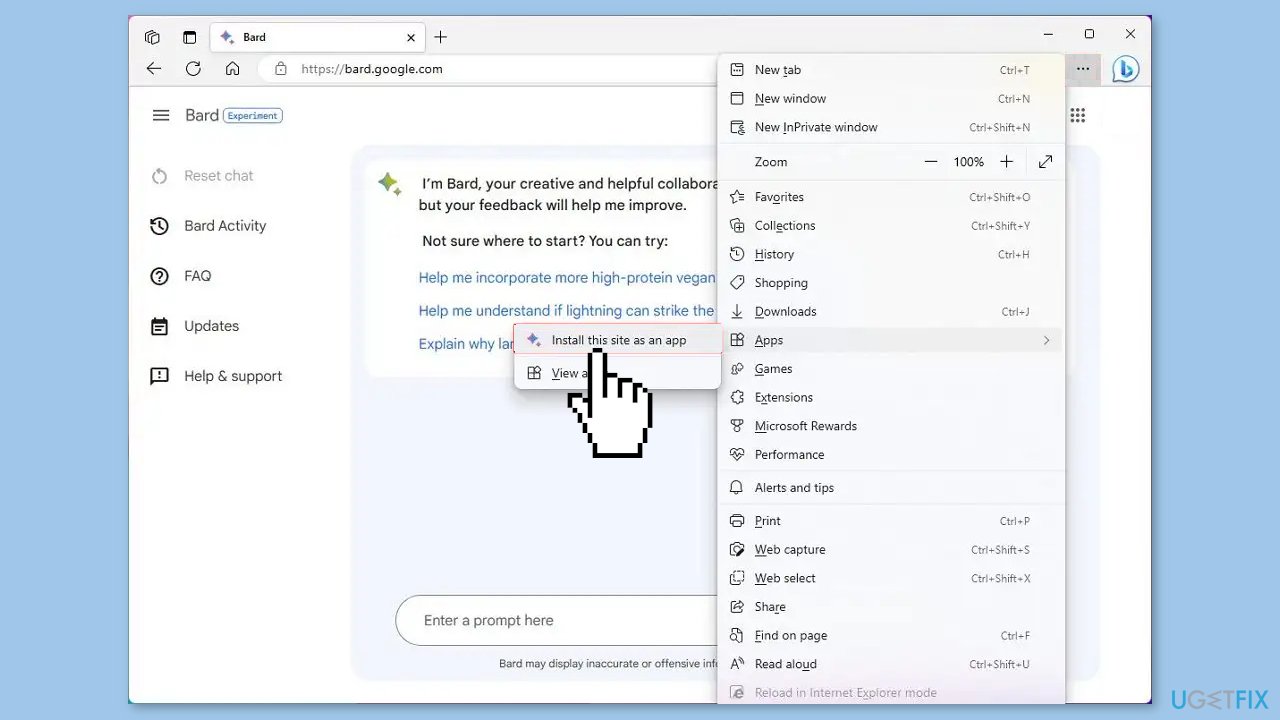
- Look for the Install this site as an app option and click it.
- Click the Install button to confirm the installation.
Uninstall:
- Open Microsoft Edge.
- Click the Settings and more (three-dotted) button in the top-right corner.
- Select the Apps submenu and choose the View apps option.
- Click the More settings (three-dotted) button in the top-right corner and select the Manage apps option.
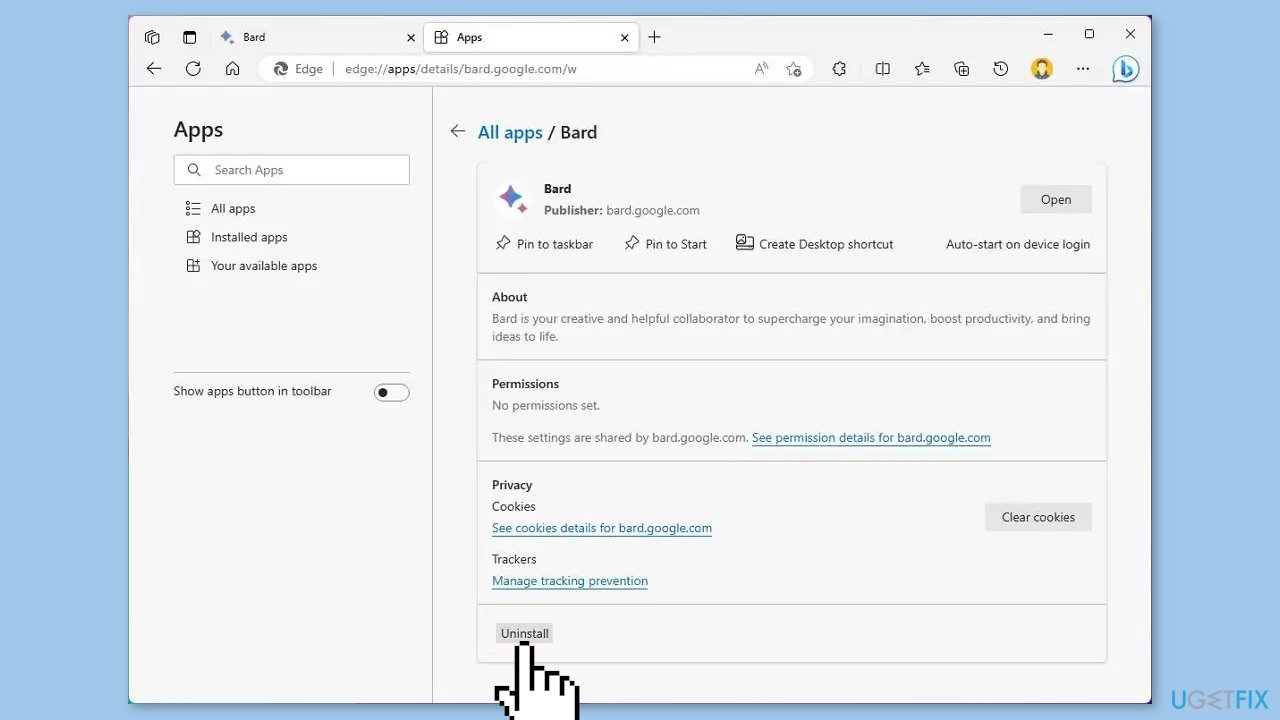
- Under the Installed apps section, click the Details button for the app.
- Click the Uninstall button.
- (Optional) Check the Also clear data from Microsoft Edge option.
- Click the Remove button.
- Alternatively, you can also uninstall the app from Settings > Apps > Install apps, selecting the app and clicking the Uninstall button. Or, from the Start menu, right-click the app, and select the Uninstall button.
Bottom line
To install Google Bard as an app on Windows, you can use Google Chrome by creating a shortcut and checking the 'Open as a window' option. If you encounter issues, you can uninstall the app through the Chrome apps settings or the Settings menu. If none of these solutions work, consider checking for updates or seeking further assistance.
Frequently asked questions
To install Google Bard as a Progressive Web App, open Google Chrome, navigate to the Bard website, click on the three-dot menu in the top right corner, and select 'Install Google Bard'. This will create a shortcut on your desktop and in your Start menu.
Yes, after installing Google Bard as a PWA, right-click the app icon on the desktop or in the Start menu and select 'Pin to taskbar' for quick access.
Yes, you can adjust settings within Google Bard by accessing the app's menu, just like any other application on Windows 10 or Windows 11.




Report an issue
What's wrong with this guide? We review every report and update or remove content.
Report received — thank you. We'll review and fix it.
You need a free account to submit a report.
Be the first to comment