How to fix
Manage Windows 10 notifications
on Windows
Master Windows 10 notifications with expert tips to optimize your settings for a seamless experience. Get it right with our updated guidance!

Why does How to manage Windows 10 notifications occur?
- Windows 10 has a new notification system that may differ from previous versions
- Notifications can appear on the lock screen, raising privacy concerns
- Users may not be accustomed to the frequency of notifications
- The Windows 10 Anniversary Update introduced more notifications
- Users may want to manage notifications from specific apps
Repairs Windows system files, removes malware, and restores a clean OS state — without reinstalling.
I recently updated my OS to Windows 10. I used to run Windows 8 and I was pretty content about not being bugged by all sorts of notifications all day long. I completely understand where the Microsoft developers are coming from, but is there a way to disable these notifications?
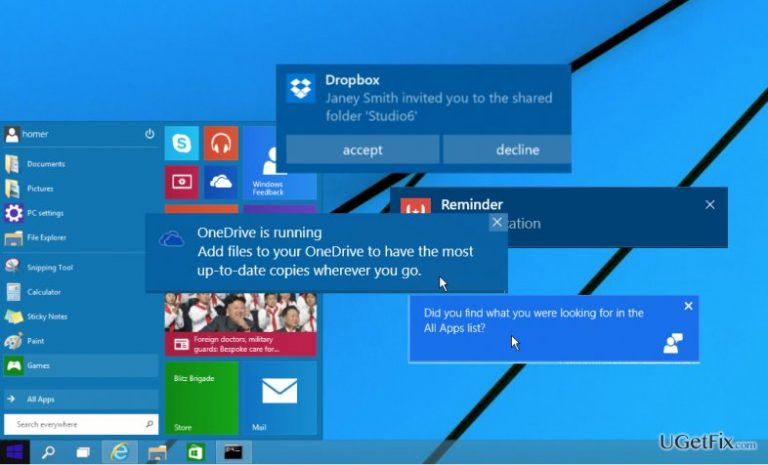
Every change needs an adaptation period to get used to. Windows 10 is a major new step for Microsoft so the notification system it uses may not be exactly what we are accustomed to. Nevertheless, the new version of the OS is still under development, and you can expect new adjustments every once in a while. For instance, Windows 10 Anniversary Update has brought the Windows users even more notifications but at the same time given them more freedom over their management. Thus, the users who have been complaining about the system and app notifications interfering with their computer use or their privacy can settle down. Now, you can disable notifications from showing up on Windows lock screen, pick the apps you actually want to keep up with or even get rid of any sorts of alerts completely.
Below we provide instructions which should help you manage your Windows 10 notifications and, hopefully, enhance your overall computer use experience.
How to manage notifications on your Windows 10?
First of all, we would like to address the privacy oriented readers. You have probably already noticed that notifications from various apps and system processes appear on the Windows lock screen. This means that the computer does not have to be logged into in order to see what is going on in the system. This may raise some concern for the people who like to keep their computers private. To disable all lock screen notifications:
- Go to Settings menu
- Navigate to System
- Click Notifications & actions
- Disable Show notifications on the lock screen function
To disable lock screen notifications for certain apps only:
- Go to Settings
- Navigate to System
- Choose Notifications & actions
- Go to Get notifications from these senders
- Locate the desired application
- Turn on the Keep notifications private on the lock screen function
As we have already sorted out the privacy issues, let us continue with the management of notifications that you wish or do not want not be displayed on your PC. For this purpose, Microsoft offers you a notification priority system. This system allows picking higher and lower priority applications and customizing the appearance of their notifications. This can be achieved by following these steps:
- Go to Settings menu
- Navigate to System
- Choose Notifications & actions
- Go to Get notifications from these senders
- Locate the application in question
- Navigate to Priority of notifications in the action center and select the desired level of priority (top, high or normal)
Nevertheless, if you wish to get rid of notifications completely, simply go to the Settings menu, click System, then go to Notifications & actions and under the Notifications section turn off the option allowing to Get notifications from apps and other senders.
Bottom line
To manage notifications on Windows 10, you can disable lock screen notifications entirely or customize settings for individual apps. If these solutions do not resolve your issue, consider checking for further updates or seeking additional support.
Frequently asked questions
To customize notification settings, go to Settings > System > Notifications & actions, where you can toggle notifications on or off for individual apps.
Yes, you can turn off all notifications by going to Settings > System > Notifications & actions and toggling off 'Get notifications from apps and other senders'.
You can manage notification priorities by adjusting the settings for each app in the Notifications & actions menu, allowing you to set which notifications are more prominent.




Report an issue
What's wrong with this guide? We review every report and update or remove content.
Report received — thank you. We'll review and fix it.
You need a free account to submit a report.
Be the first to comment