How to fix
Merge folders and files
on Windows
Easily merge folders and files in Windows 10 and Windows 11 for better organization. Follow our proven tips, expert-tested for optimal efficiency.


Why does How to merge folders and files in Windows occur?
- Combining contents of multiple folders or files into a single location
- Organizing files for easier access
- Consolidating data from various sources
- Preventing duplicate files to save disk space
- Reducing clutter for better file management
Repairs Windows system files, removes malware, and restores a clean OS state — without reinstalling.
Hello. Is it possible to merge folders or files in Windows? If yes, how can I do it?
In Windows, merging files and folders means combining the contents of two or more folders or files into a single folder or file. This process is useful for organizing files, consolidating data from multiple sources, and transferring files from one computer to another.
Merging files and folders creates a centralized location for related files and data. This can help to reduce clutter and make finding files easier. When working with large amounts of data, merging files and folders can also be beneficial. Combining multiple files into a single file or folder can make data management and transfer easier.
Merging files and folders has the advantage of saving time and improving organization. For example, if you have a folder with multiple sub-folders containing similar content, merging them into a single folder can help you find specific files. Merging files and folders can also aid in the prevention of duplicate files, saving disk space and reducing confusion.
In Windows, there are several ways to merge files and folders, including using the built-in File Explorer, PowerShell, or third-party software. Each method has advantages and disadvantages, and the best method will depend on the user's specific needs and preferences. Continue reading our guide for step-by-step instructions.

Method 1. Use File Explorer
When you attempt to move a folder with the same name as an existing folder at the same level, File Explorer will automatically detect this and prompt you to merge the two folders. To accomplish this:
- Rename the folder you want to move with the same name as the existing folder.
- When the Confirm Folder Replace prompt appears, select Yes to merge the folders and move their contents to the destination folder.
- If there are duplicate files, choose the Replace or Skip option as needed.
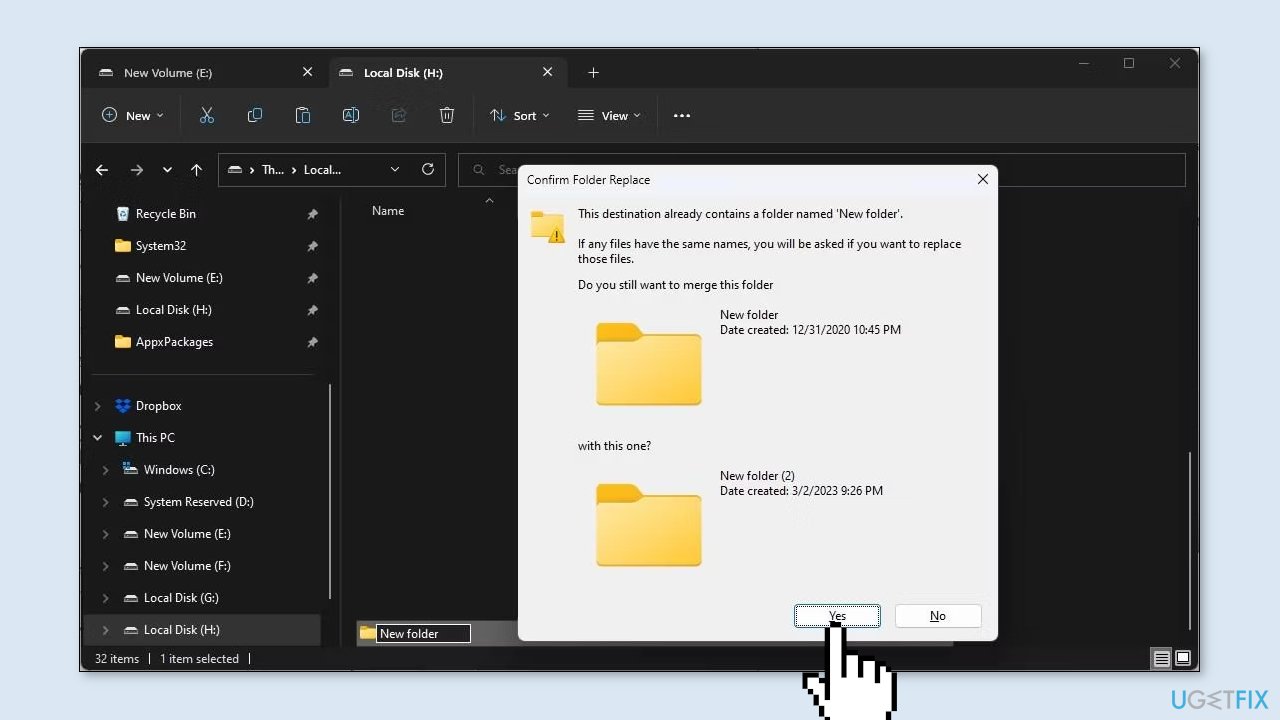
Alternatively, you can cut and paste the folder with the identical name and select the merge option. However, this method can be time-consuming when dealing with many folders. For a more efficient solution when working with a large number of folders, you can use a PowerShell script hack to merge folders on Windows.
Method 2. Use PowerShell
PowerShell is a versatile automation shell utility that can help you automate daily tasks by using essential PowerShell cmdlets to create scripts. Additionally, you can use a PowerShell script to merge multiple folders in Windows 10 and 11. This method is convenient and saves time compared to manually copying and pasting folders.
However, before using the script, you must enable running scripts in Windows PowerShell. Once enabled, you can directly copy and paste the script into the PowerShell window without having to run it as a .ps1 file. To change the execution policy in the Settings app and allow the local PowerShell script to run, follow these steps.
- Press the Windows key + I to open the Settings app.
- Open the Privacy & security tab in the left pane.
- Click on For developers under the Security section.
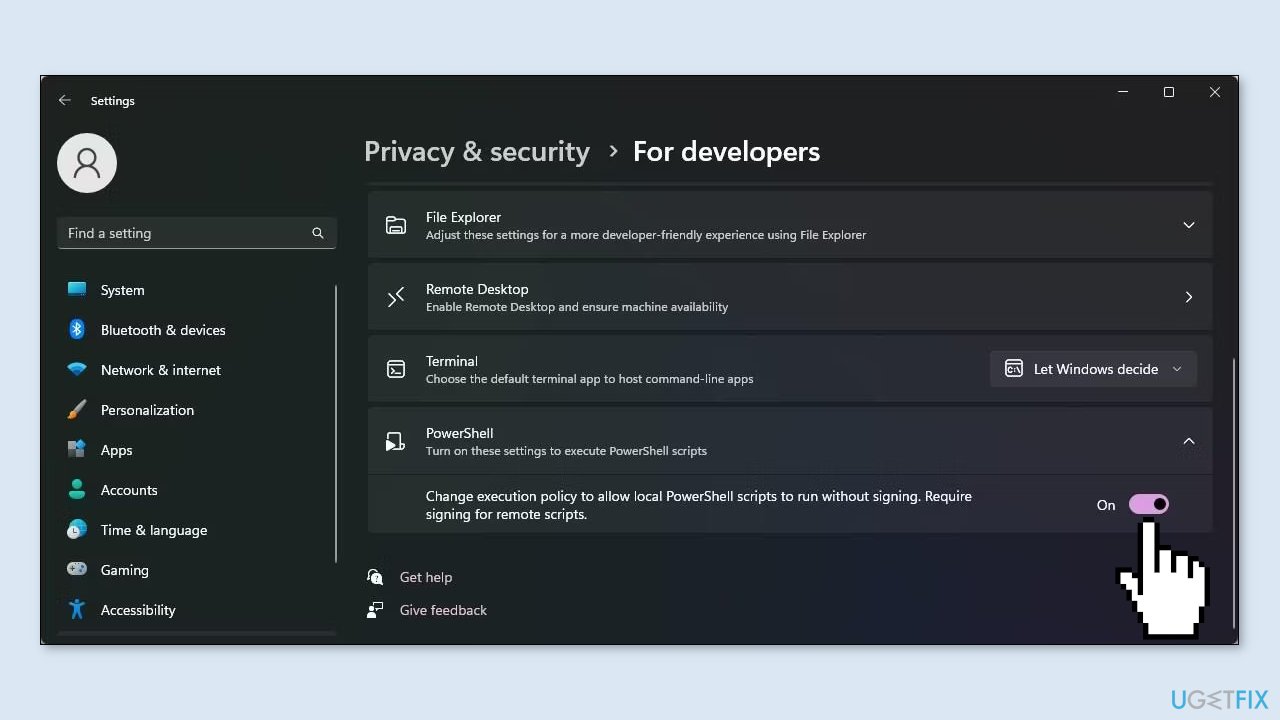
- Scroll down and click to expand the PowerShell section.
- Toggle the switch to turn on Change execution policy to allow local PowerShell scripts to run without signing. Require signing for remote scripts.
- Press the Windows key and type powershell.
- Click on Windows PowerShell from the search results and select Run as administrator.
- Copy and paste the following script into the PowerShell window:
$sourcePath = "F:\New folder"
$destinationPath = "E:\New folder"
$files = Get-ChildItem -Path $sourcePath -Recurse -Filter "*.*"
foreach($file in $files){
$sourcePathFile = $file.FullName
$destinationPathFile = $file.FullName.Replace($sourcePath, $destinationPath)
$exists = Test-Path $destinationPathFile
if(!$exists){
$dir = Split-Path -parent $destinationPathFile
if (!(Test-Path($dir))) { New-Item -ItemType directory -Path $dir }
Copy-Item -Path $sourcePathFile -Destination $destinationPathFile -Recurse -Force
}
else{
$isFile = Test-Path -Path $destinationPathFile -PathType Leaf
if(!$isFile){
Copy-Item -Path $sourcePathFile -Destination $destinationPathFile -Recurse -Force
}
}
}
- In the above command, replace E:\New folder and F:\New folder with the source and destination file paths, respectively.
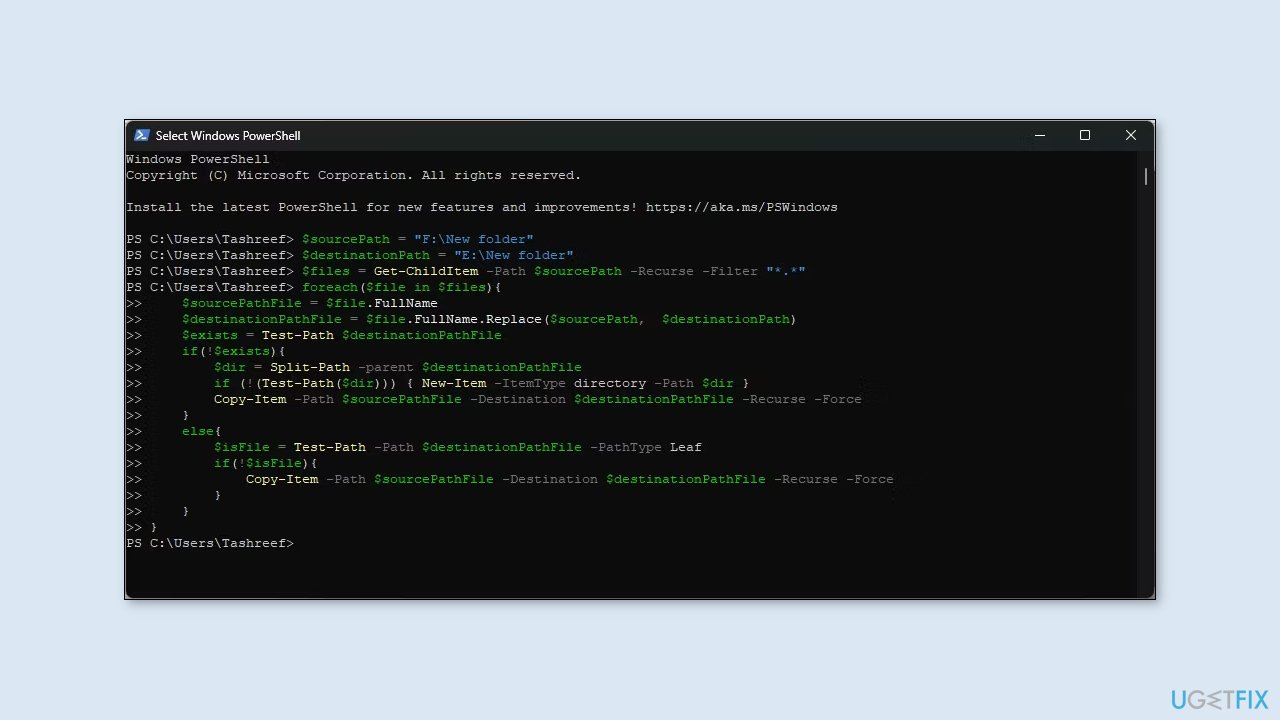
- To find the file path, right-click on the folder name you want to merge and select Copy as the path.
- The above command will merge the contents of the E:\New folder with the F:\New folder. It will skip any duplicate file conflict to leave the original files in the destination folder unaffected. You can repeat the script with different file paths to merge more folders.
- If you encounter any error, check if the file path for the destination and source is correct.
Bottom line
To merge folders and files in Windows, you can use File Explorer by renaming folders or cutting and pasting them. Alternatively, PowerShell or third-party software can be utilized for this process. If these methods do not work, consider seeking additional technical support.
Frequently asked questions
To merge folders in Windows 10, simply drag and drop one folder into the other; if there are duplicate files, you will be prompted to choose whether to overwrite or skip the files.
Yes, you can select multiple files from different folders, right-click, and choose 'Copy' or 'Cut', then navigate to the destination folder and paste them there.
When merging folders in Windows 10 or Windows 11, you will receive a prompt to either replace the existing files or keep both versions, allowing you to manage duplicates effectively.




Report an issue
What's wrong with this guide? We review every report and update or remove content.
Report received — thank you. We'll review and fix it.
You need a free account to submit a report.
Be the first to comment