How to fix
Mute websites in Google Chrome
on Windows
Easily mute websites in Google Chrome on Windows 10 or 11 for a distraction-free browsing experience. Expert-tested solutions, fixed in minutes.

Why does How to mute websites in Google Chrome occur?
- Autoplay videos on websites
- Browser version older than Chrome 64
- Mute tabs feature was not effective
- Settings not saved after closing the browser
- Unexpected loud sounds from websites
Repairs Windows system files, removes malware, and restores a clean OS state — without reinstalling.
Is it possible to mute all autoplay videos on websites? I heard Google Chrome has this feature. How can I enable it?
There’s nothing worse to have your computer’s speakers set to the maximum and entering a website that has a surprise for you - autoplay video. This might not only scare you a lot but wake up your family members who won’t be glad to be woken up in the middle of the night too.
Fortunately, Google Chrome users should no longer need to remember to check the sound of computer’s speakers or turning them off every time they decide to browse the web. On the 25th of January Google released[ref en-2] an updated version of the browser that includes mute websites feature.
Google Chrome had mute tabs feature[ref en-4] before. However, it was not very comfortable. Once the browser was closed and reopened again, autoplay videos/audios continue screaming and annoying users as soon as they visit such website.
Hence, Google announced the news about brand new mute websites in Google Chrome feature last summer[ref en-1] which will be included in Chrome 64. However, the recent version of the browser is already here and can save you from unwanted sounds for all. Once you enable this feature, the settings will be saved even if you close the browser.
Therefore, in order to mute websites in Google Chrome, you have to update the browser[ref en-3] and follow the instructions given below.
Steps to mute websites in Google Chrome
First of all, mute websites feature is available on Chrome 64 or later version of the browser. Therefore, if you are using an older version, you should update it first. If you are using the latest version of Chrome, proceed to Step 2.
Step 1. Update Google Chrome
- Open the browser.
- Click the Menu (three dots in the right upper corner of the browser).
- Navigate to Help.
- Click on About Google Chrome.
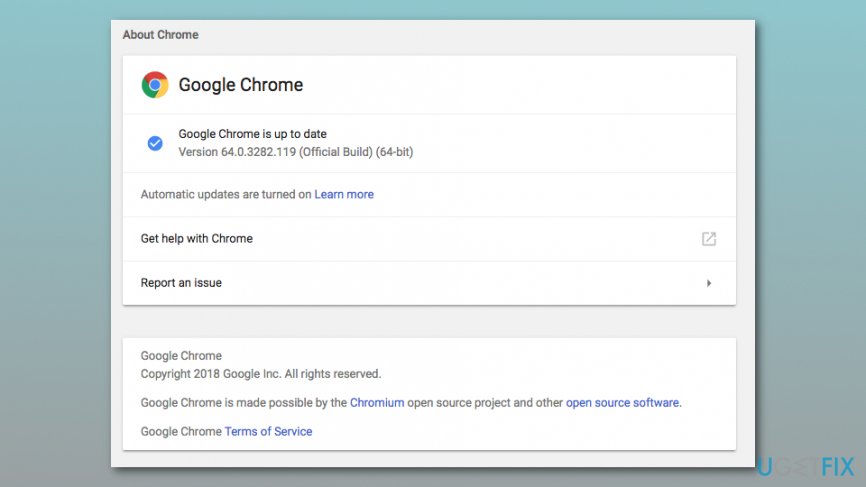
Update to chrome - If there’re any updates, install them and relaunch the browser to apply the changes.
Step 2. Mute websites in Chrome
- Open the website that bothers you with autoplay videos or audios.
- Right-click the browser’s tab.
- Choose Mute site option from the menu.
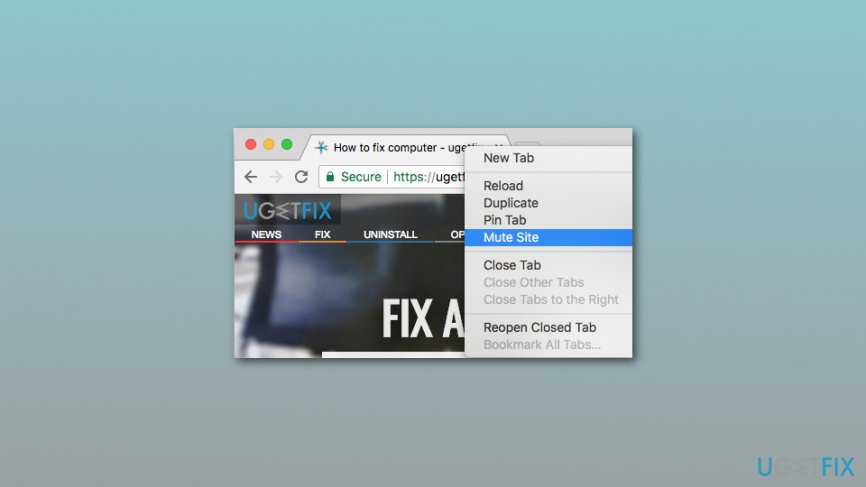
Mute site feature on chrome
That’s it, the website you just have muted will no longer bother you with sounds. However, if you want to reject these changes, you can do it easily too. Just access the same site, right-click the tab and choose Unmute site option.
Enable Chrome flag to mute websites easier
Google Chrome allows creating a shortcut to mute annoying website quicker. For that, you can enable a Chrome flag:
- Open the browser and type this address into the URL bar: chrome://flags.
- In the Search flags box at the top of the page enter #enable-tab-audio-muting and click Enter.
- You will see Tab audio muting UI control option which is Disabled by default. Switch it to Enabled.
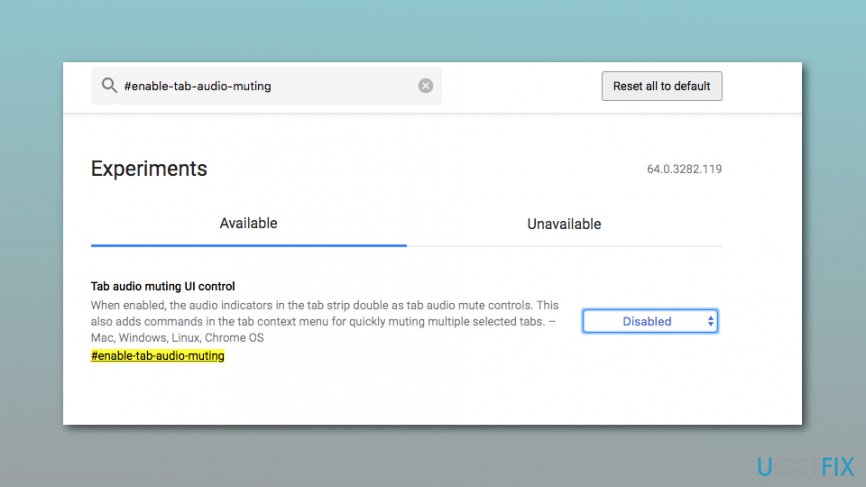
Tab audio muting ui control - At the bottom of the page, you will receive a notification “Your changes will take effect the next time you relaunch Google Chrome.” Click “Relaunch Now” button.
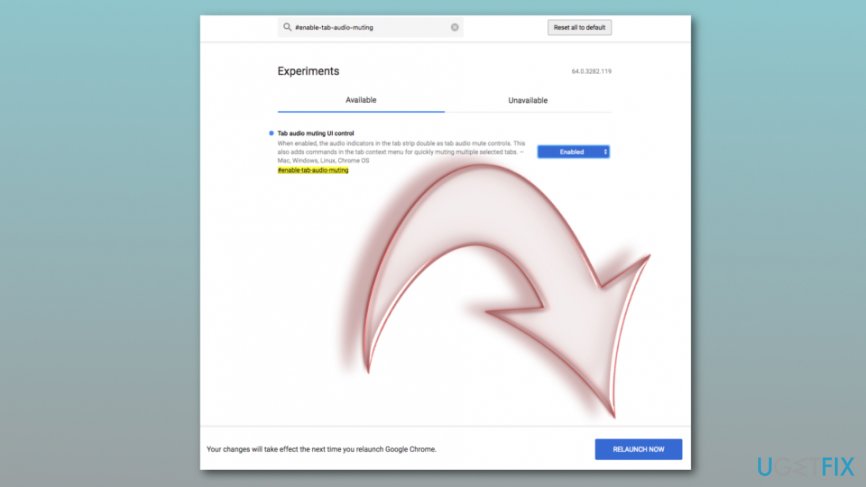
Relaunch google chrome
Since then, you can click on a speaker icon that shows up on the browser’s tab to mute only one tab. Meanwhile, other tabs with the same website won’t be affected.
Bottom line
To mute websites in Google Chrome, first ensure you update the browser to version 64 or later. Then, follow the steps to mute specific websites that have autoplay videos. If these solutions do not work, consider checking for additional browser settings or extensions.
Frequently asked questions
Right-click the tab of the website you want to mute and select 'Mute site' from the context menu. This will prevent any audio from that site while using Chrome on Windows 10.
You can mute all websites by clicking on the speaker icon in the tab of any open website and selecting 'Mute site'. This will apply to all tabs for that specific website in Windows 11.
Try updating Chrome to the latest version or resetting your browser settings, as these actions can resolve issues with the mute feature on Windows 10.




Report an issue
What's wrong with this guide? We review every report and update or remove content.
Report received — thank you. We'll review and fix it.
You need a free account to submit a report.
Be the first to comment