How to fix
Password Protect Folders
on Windows
Secure your files on Windows 10 or Windows 11 with easy folder password protection techniques. Expert-tested tips ensure your data remains safe, updated…

Why does How to Password Protect Folders on Mac occur?
- Users share the computer with others
- Curious family members may access private files
- Roommates or colleagues might check personal documents
- Need for privacy regarding pictures or sensitive information
Repairs Windows system files, removes malware, and restores a clean OS state — without reinstalling.
I am not the only one who uses Mac, so I would like to password protect some of the folders. I am sure it’s possible to do it, but could you explain to me how?
Users who share the computer with others often want to password protect folders on Mac or other computers. There’s no doubt that setting a passcode can prevent curious family members, roommates or colleagues from checking your pictures or secret documents.
Many third-party tools can help to protect your personal information. However, if you do not want to install additional software or research which program is the best for you, you can take advantage of built-in features of the Mac OS X and protect files without additional software.
Before starting, we highly recommend thinking about strong password[ref en-1] and writing it down. Of course, you should keep that piece of paper in the secret place only you know. Trust us; it’s easy to forget or get lost between different passwords!
Two methods for protecting folders on Mac using built-in tools
Mac users can take advantage of Disk Utility and exploit ZIP command in Terminal to password protect their folders on the computer.
Method 1. Protect Folders on Mac using Disk Utility
Disk Utility[ref en-2] is a built-in program in Mac which allows erasing, formatting, repairing or partitioning hard drives. However, this tool also allows creating an encrypted disk image of the folder you want to keep in private.
- Open Disk Utility.
- Go to File > New Image > Image from Folder.
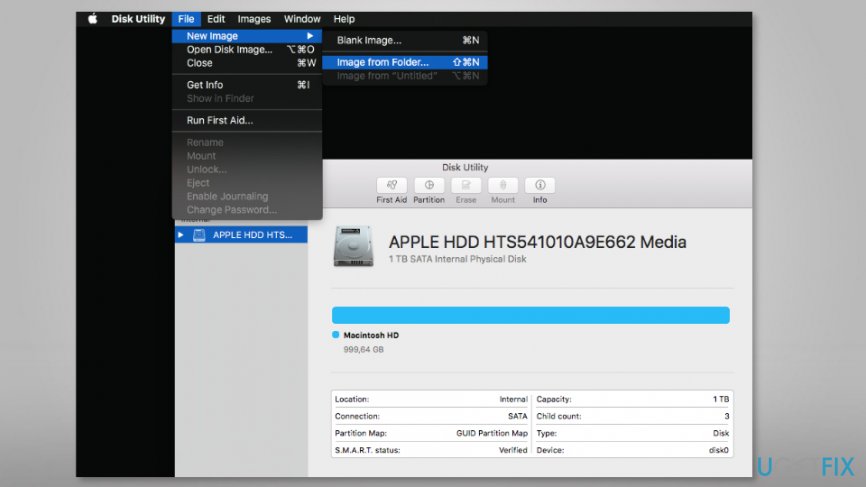
Protect folders on mac using disk utility - Here click the folder you want to encrypt and hit Choose button.
- In the Save As box, you have to enter the name of the DMG file and set the location where you want to store it.
- Then you have to choose the type of Encryption (128-bit or 256-bit AES).
- Type your password and then Verify it in the pop-up window. Then click Choose.
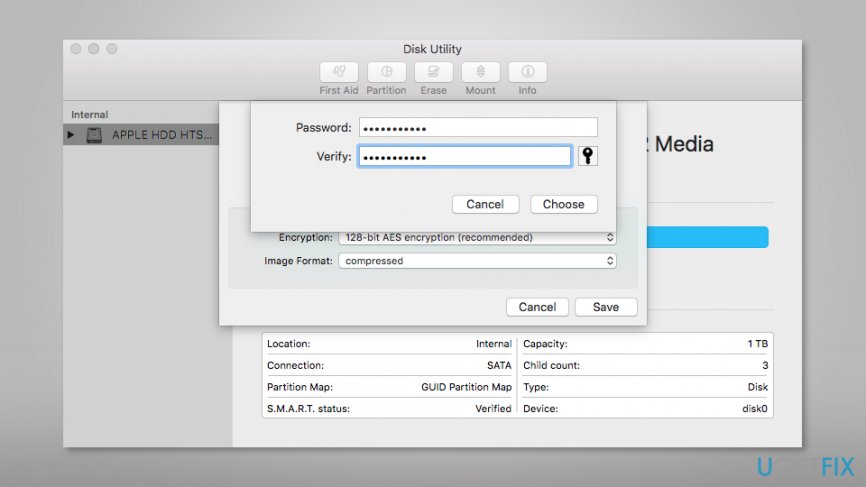
Password protect folders on mac using disk utility - From the Image Format drop-down menu, choose read/write option. Click Save.
- The progress dialog box shows up. Once you see “Operation successful” message, click Done button.
In order to access this folder, you have to double-click the DMG file, enter your password, and click OK. When you finish using files, you have not to forget to keep them protected. For that, you have to:
- right-click the disk image icon that is created on your desktop;
- from the pop-up menu choose Eject “Name of Disk Image” option.
TIP: You should also entirely delete files once you create the disk image. If you are afraid of terminating your files, you should backup them to the external storage device and then remove them from Mac.
Method 2. Password protect files on Mac using Terminal
Terminal[ref en-3] allows protecting files with a password by executing zip command:
- Open Applications folder.
- Go to Utilities.
- Open Terminal.
- Change the directory to your file location. The further instructions are made when the folder is on Mac’s desktop. If your file is in a different directory, change the path name or move your folder to the Desktop to simplify the task. If your file is on Desktop, enter this command to Terminal:
cd Desktop - Now enter the second command, but before that, you have to change the name of “ProtectedFolder.zip” to your preferred ZIP archive’s name and replace “FolderToProtect” with the folder
zip -e ProtectedFolder.zip.zip FolderToProtect/*
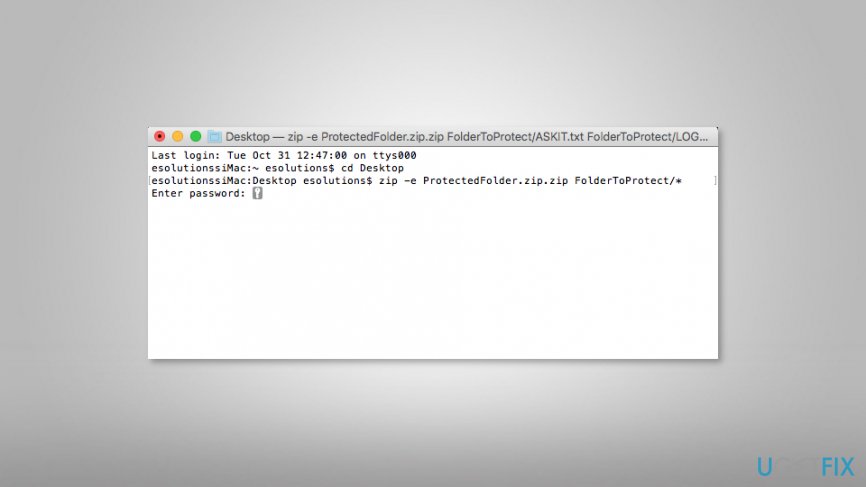
IMPORTANT: If the folder you want to protect contains subfolders, you have to change the “-e” to “-er” at the beginning of the command:
zip -er ProtectedFolder.zip.zip FolderToProtect/*
Bottom line
To password protect folders on Mac, you can use the built-in Disk Utility to create an encrypted disk image or utilize the ZIP command in Terminal. If these methods do not work for you, consider researching third-party tools for additional protection.
Frequently asked questions
Windows does not have a built-in feature to password protect folders directly; however, you can use third-party software or the built-in BitLocker feature to encrypt drives.
Yes, using reputable third-party software can provide additional security for your folders, but always ensure you download from trusted sources to avoid malware.
In Windows 11, you can right-click the folder, select 'Properties', go to the 'General' tab, click 'Advanced', and check 'Encrypt contents to secure data' to encrypt the folder.




Report an issue
What's wrong with this guide? We review every report and update or remove content.
Report received — thank you. We'll review and fix it.
You need a free account to submit a report.
Be the first to comment