How to fix
Perform repair install
on Windows
Perform a repair install in Windows 11 to fix issues while keeping your files intact. Quick and easy, with expert-tested tips and zero traces left.

Why does How to perform repair install in Windows 11 occur?
- Corrupted system files
- Issues with system updates
- Minor performance issues
- Specific OS glitches
- Failed Windows updates
Repairs Windows system files, removes malware, and restores a clean OS state — without reinstalling.
I've been experiencing constant system crashes and performance issues on Windows 11. Despite trying various troubleshooting steps like updating drivers, running antivirus scans, and even performing system restores, the problems persist. What can I do next? Should I reinstall Windows?
There are several ways Microsoft gives you in order to repair a malfunctioning Windows device - from things like System Restore or Windows reset to repair-installing or fully reinstalling. While the solution depends on the situation at hand and personal preference, performing in-place upgrade is the most common tactic used.
Why choose repair-installing?
There are several scenarios where repair-installing Windows can be beneficial. If your system files are corrupted and causing errors, or if you're facing issues with system updates, a repair installation can resolve these problems. It is also useful for fixing minor performance issues and addressing specific OS glitches. Unlike a complete reinstallation, this method keeps all your personal files and installed applications intact, saving you time and effort.
When to consider a repair installation
When ordinary troubleshooting fails to resolve persistent issues, you could consider about having a repair installation done. A repair installation may be necessary, for example, if corrupted system files cannot be repaired using the System File Checker (SFC) and Deployment Imaging Service and Management Tool (DISM) commands, or if Windows updates are not successful even after utilizing the Windows Update Troubleshooter. If previous performance adjustments haven't improved the overall speed of your machine, this is also a viable choice.
Preparing for it
Before starting a repair installation, it's important to get adequately prepared. While the process should keep your data intact, you should still back up your important files - just in case. This ensures that in case anything goes wrong, your data remains safe.
You'll need to download the Windows 11 ISO file or use the Media Creation Tool to get the installation media. Having these ready beforehand will make the process easier. Additionally, you should also disconnect any unnecessary peripherals (such as printers and external drives), and uninstall third-party security software, if applicable.
The process and what to expect
During a repair installation, you'll essentially be performing an upgrade over your current system. In order to repair any damage or errors, this procedure replaces the essential system files with new copies from the installation ISO. You won't have to reinstall anything or lose any data because your installed apps, personal files, and settings are all kept exactly as they are.
The repair installation can take some time, depending on the speed of your computer and the extent of the issues being resolved. After the process, your system should be more stable and perform better, with the problems that prompted the repair installation resolved.
Below you will find detailed instructions on how to perform repair install in Windows 11. However, if you are having persistent system issues, you can first try repairing it with a powerful PC repair application [d1].
Create Windows ISO
- Download Windows 11 Installation media from the official Microsoft website.
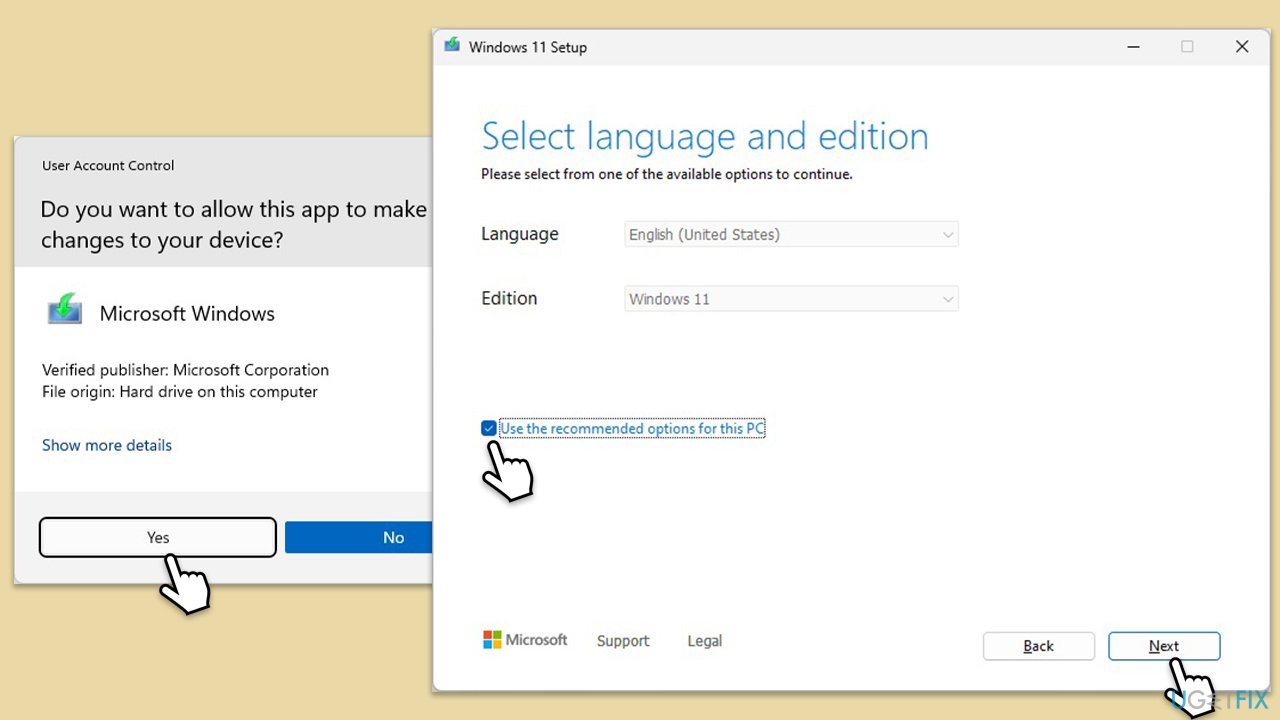
- Double-click the MediaCreationTool.exe file to launch it.
- When UAC shows up, click Yes.
- Accept license terms.
- Select Language and Edition (make sure it matches the one you have currently installed) or simply mark the Use the recommended options for this PC and click Next).
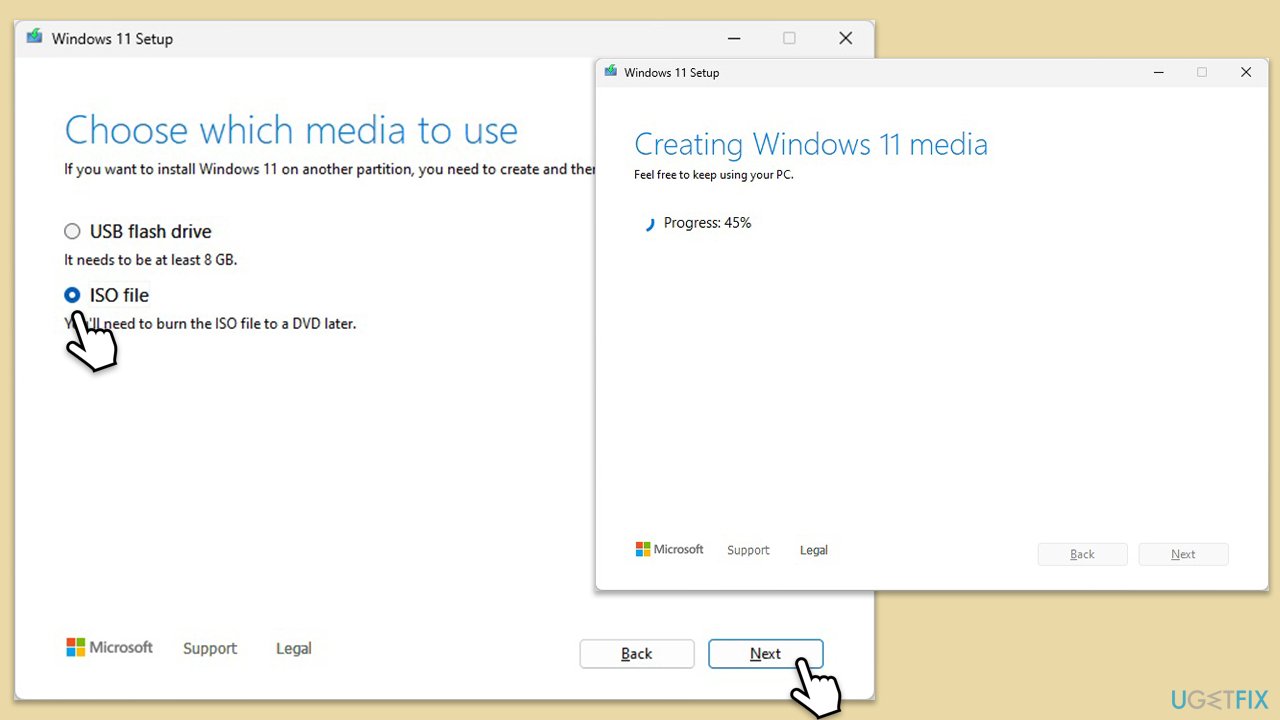
- Select the ISO file and click Next.
- Pick the location for your ISO file and wait till all the needed files are downloaded, then click Finish.
Repair-install Windows
- Go to the location of your ISO file, right-click, and select Mount.
- Run the setup.exe file.
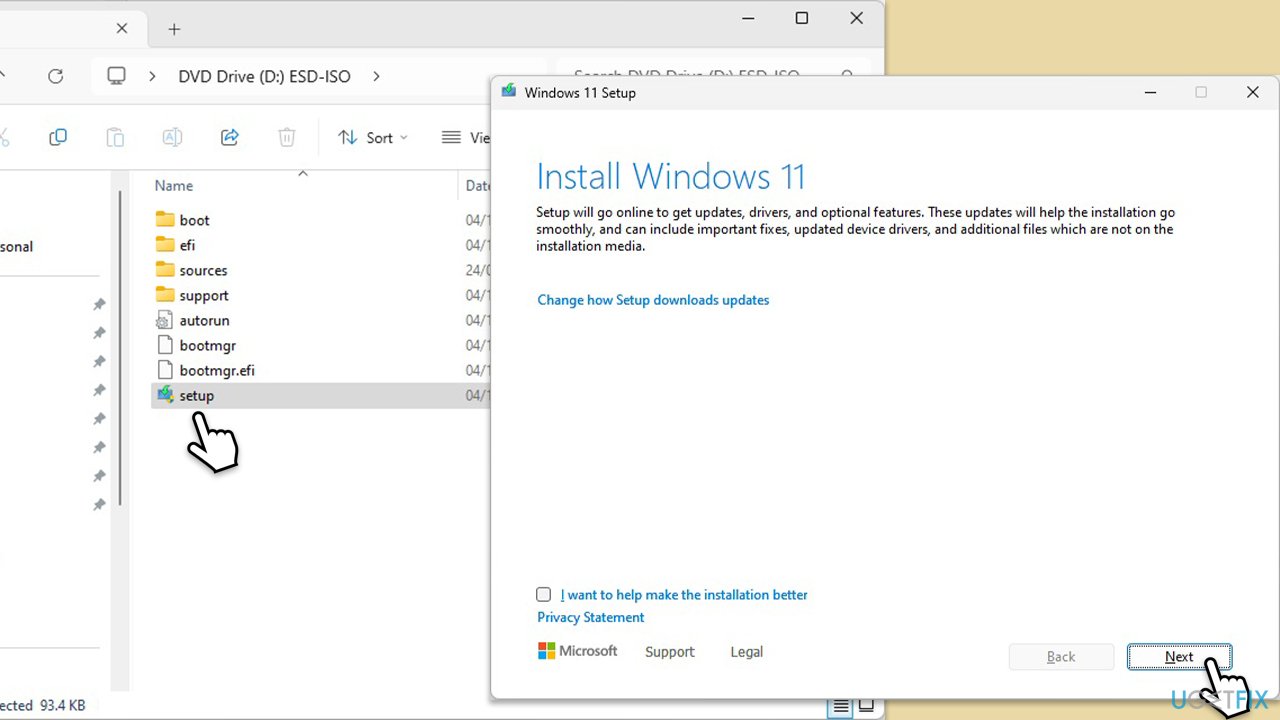
- You will be asked whether you want to update Windows to the latest version - pick Not right now and click Next.
- Accept Terms and Windows will make several checks to ensure everything is fine.
- Click Change what to keep.
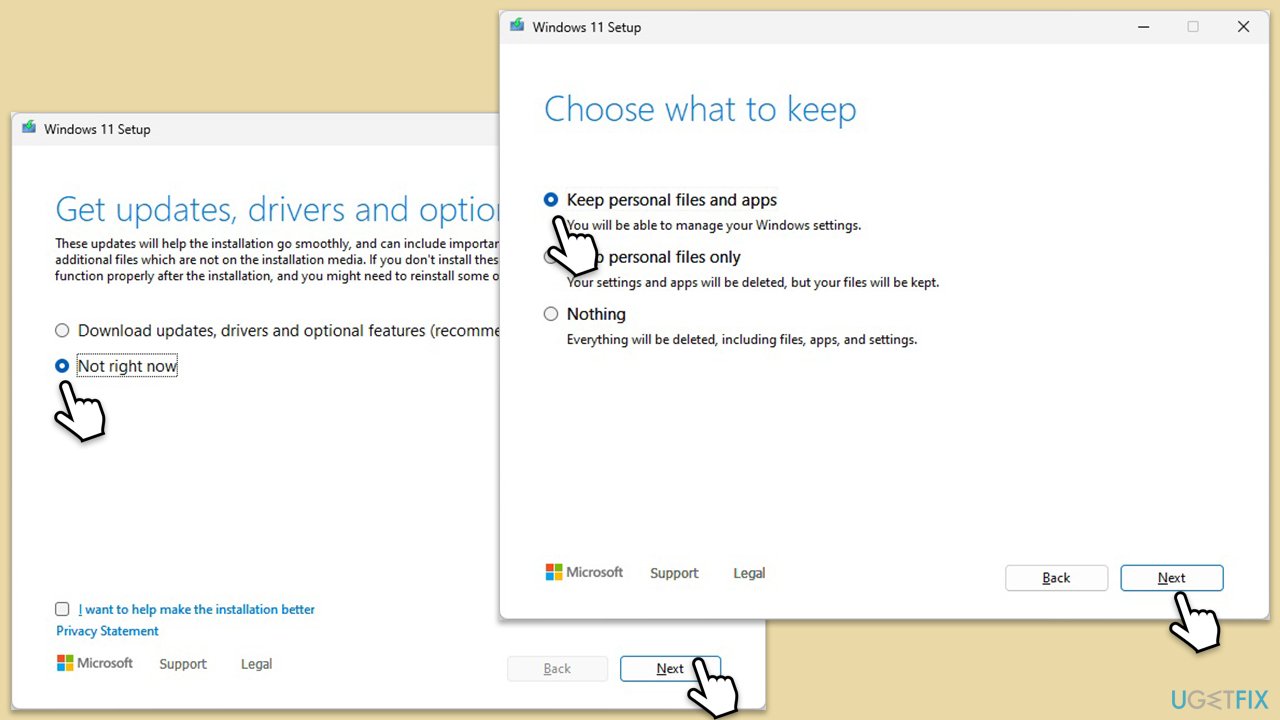
- Here, you have several options: Keep your files and apps, Keep files only, or Keep nothing - choose what suits you the best. Click Next.
- Finally, click Install to begin the installation process.
Bottom line
To address persistent issues, consider performing a repair installation of Windows 11. This method can resolve problems without losing personal files or installed applications. If these steps do not work, consider a complete reinstallation of Windows.
Frequently asked questions
A repair install in Windows 11 is a process that reinstalls the operating system while keeping your personal files, settings, and applications intact. This method can help fix system issues without a complete system reset.
To perform a repair install in Windows 11, you need to download the Windows 11 ISO file and run the setup.exe file from within your current Windows installation. Follow the prompts and select the option to keep your files and apps.
No, a repair install in Windows 11 is designed to preserve your installed applications and personal files, ensuring minimal disruption to your setup. However, it's always a good practice to back up important data before proceeding.




Report an issue
What's wrong with this guide? We review every report and update or remove content.
Report received — thank you. We'll review and fix it.
You need a free account to submit a report.
Be the first to comment