How to fix
Permanently Delete Files
on Windows
Easily and permanently delete files from the Windows 10 or Windows 11 Recycle Bin, ensuring no traces are left behind. Expert-tested for your peace of m…


Why does How to Permanently Delete Files from Windows Recycle Bin occur?
- Files in the Recycle Bin do not disappear entirely from the computer
- The Recycle Bin keeps logs of deleted files including their original location
- Metadata of deleted files accumulates in the C: partition
- Low disk space notifications occur when the C: drive is congested
- Emptying the Recycle Bin is necessary to free up space
Repairs Windows system files, removes malware, and restores a clean OS state — without reinstalling.
Recycle bin takes up so much space on my computer! How can I reduce the size of this folder and free up some space on my computer?
Everyone of us wants to keep our computer hard disk spacious and clean, so we use the Recycle Bin to dump all the unnecessary documents, programs and other files there. However, not all users may realize that the files sent to this folder don’t disappear from the computer entirely. The folder keeps logs of all the deleted files, including their original location on disk, size and time of removal, so that these document could be restored, if needed. This means that in order to get rid of them for good, it is important to remove files from dustbin as well. In this article, we will discuss a couple of methods to clean the INFO files from the trash bin quickly and efficiently.
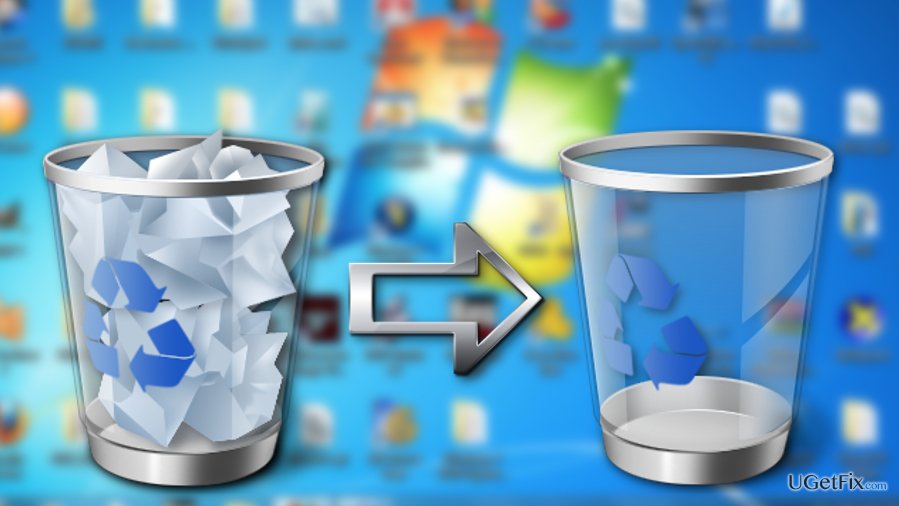
When you drag-and-drop or simply send some file to the Recycle Bin by clicking delete, you merely transfer information from one place to another. Since the Recycle Bin folder is typically located in C:\$Recycle.Bin directory, all the metadata of the deleted files will pile up in C: partition. Soon, you may start noticing notifications such as “Low Disk Space,” “You are running out of disk space on (C:) drive” popping up on your computer. These warnings will occur when trying to download or create new content on the congested partition, preventing the smooth system performance and diminishing overall computing experience. So, emptying the recycle bin is probably the quickest and simplest trick to free up some valuable space on the hard drive and stop the annoying “running out of space” notifications.
How to empty Windows Recycle Bin and free up some space on your computer?
Before you take any actions regarding Recycle Bin cleanup, you should first go through this folder and make sure it does not contain any files you may need in the future. If you accidentally deleted a file, or simply want to recreate some erased item for some other reason. In order to do that:
- Right-click on the selected item
- From the drop-down menu select Restore
You will find the restored files in their original locations from which they were deleted.
Permanently delete all files from the Recycle Bin:
In order to wipe out all the items located in the Recycle Bin folder you should:
- Right-click on the Recycle Bin icon located on your desktop and select Empty Recycle Bin.
- OR double-click on the Recycle Bin and click on the Empty Recycle Bin option located on top of the folder window.
- If you are using Windows 10, go to Settings -> System -> Storage. Then, select This PC and click on Temporary files and recycle bin. In the new window find and click the option Empty recycle bin. Press Delete to confirm.
Delete individual files from the Recycle Bin:
In case you are hesitant about deleting all files from the Recycle Bin, but still, want to gain some extra space on the computer’s hard disk, you should try removing individually selected files.
- Open the Recycle Bin folder
- Select files you want to delete by press-holding the Shift key
- When you are done selecting files, release the shift key and right-click on one of the selected files and select Delete Permanently option (alternatively, you can press the quick key combination Shift + Del to perform the same action).
Bottom line
To permanently delete files from the Recycle Bin, you can empty the bin to remove all files or review its contents to ensure no needed files are lost. If these methods do not resolve the issue, consider using disk cleanup tools or checking for other large files on your system.
Frequently asked questions
To permanently delete files from the Recycle Bin in Windows 10, right-click the Recycle Bin icon and select 'Empty Recycle Bin'. This will remove all files in the bin permanently.
Yes, in Windows 11, you can bypass the Recycle Bin by selecting the file you want to delete, holding down the Shift key, and pressing the Delete key.
Windows 10 does not have a built-in feature for automatic permanent deletion of Recycle Bin files, but you can use third-party software or create a task in Task Scheduler to achieve this.




Report an issue
What's wrong with this guide? We review every report and update or remove content.
Report received — thank you. We'll review and fix it.
You need a free account to submit a report.
Be the first to comment