How to fix
Permanently delete Microsoft account
on Windows
Discover how to permanently delete your Microsoft account on Windows 10 or 11 effortlessly. Follow our expert-tested guide for a clean slate, zero trace…

Why does How to permanently delete Microsoft account occur?
- Transitioning to a different Microsoft account
- Change in personal details
- Employment shifts
- Desire for a new digital identity
- Privacy concerns
Repairs Windows system files, removes malware, and restores a clean OS state — without reinstalling.
So I have recently purchased Mac so I will be moving on from my Windows PC. As a result, I want to delete my Microsoft account permanently, so I'd like to have some assistance on how to make sure it is removed properly.
Microsoft, one of the world's leading technology companies, introduced the Microsoft account as a single sign-on service. With its inception, the idea was to create a unified login system where users could access various services, from Outlook to OneDrive, with a single identity.
Over the years, this feature has grown in its utility and has become an integral part of the Windows experience. Today, almost every Windows user leverages a Microsoft account, not just for email but also to synchronize settings, preferences, and even files across different devices.
The account provides benefits such as cloud storage through OneDrive, access to Microsoft Office applications online, a consolidated calendar, contact list, and the ability to seamlessly purchase and download apps from the Microsoft Store.
However, like all digital entities, there are moments when users might need a fresh start. Some might consider transitioning to a different Microsoft account due to various reasons – a change in personal details, employment shifts, or simply the desire for a new digital identity.
Others might wish to distance themselves from the platform altogether for privacy or personal preferences. Whatever the reason, permanently deleting a Microsoft account is an available option.
But to undertake this action, there are several steps that must be followed to ensure the complete and secure removal of all associated data and connections. These steps are pivotal in ensuring the user's digital safety and in confirming that no residual data remains in the vast expanse of Microsoft's servers.
In the realm of computer maintenance and troubleshooting, it's noteworthy to mention the utility of tools like the [d1] PC repair tool. Such tools can prove invaluable in rectifying various PC issues, encompassing challenges like DLL errors, the dreaded Blue Screen of Death (BSOD), unexpected system crashes, and more. Investing in such tools often means ensuring a smoother and more reliable computing experience.
Things to do before you permanently delete your Microsoft account
Before diving into the process of permanently deleting a Microsoft account, it's essential to undertake some preparatory steps. A Microsoft account isn’t just a login, it's a gateway to a multitude of services, subscriptions, and stored data. Simply hitting "delete" without prior consideration can lead to unintended consequences, from loss of data to continued charges for services.
Hence, before making the final decision, you should ensure that you've thoroughly assessed and managed all connected elements of your account. Here's a list of considerations and actions one should take before deletion:
- Backup important data. Ensure that all essential files, photos, documents, and other data stored on OneDrive or any other Microsoft service are backed up to a separate location. This ensures that no crucial data is lost post-deletion.
- Review subscriptions. Check for any active subscriptions linked to the Microsoft account, such as Microsoft 365, Xbox Live, or any app subscriptions from the Microsoft Store. These should be canceled to avoid continued charges.
- Verify email contents. If using Outlook or Hotmail, go through emails and contacts to ensure you've saved important correspondence or contact details elsewhere.
- Check for digital purchases. If you've bought apps, games, or other digital content through Microsoft, remember that deleting the account will mean losing access to these purchases.
- Update linked services. If you've used your Microsoft account as a login for other services or platforms, ensure that you change the login details for these services.
- Use up remaining credits. If you have any Microsoft credits or gift card balances, utilize them, as they will be voided upon account deletion.
- Inform contacts. If your Microsoft account is your primary email or communication tool, it might be a good idea to inform contacts about the change to prevent any communication gaps.
By meticulously going through the list and making necessary adjustments, can can ensure a seamless transition when deleting their Microsoft account without unexpected repercussions.
How to permanently delete a Microsoft account?
- Go to the Microsoft account page: Open a web browser and navigate to the official Microsoft account page.
- Sign in: If you're not already logged in, you'll be prompted to sign in using the Microsoft account credentials you wish to delete. Then, follow the account closure link.
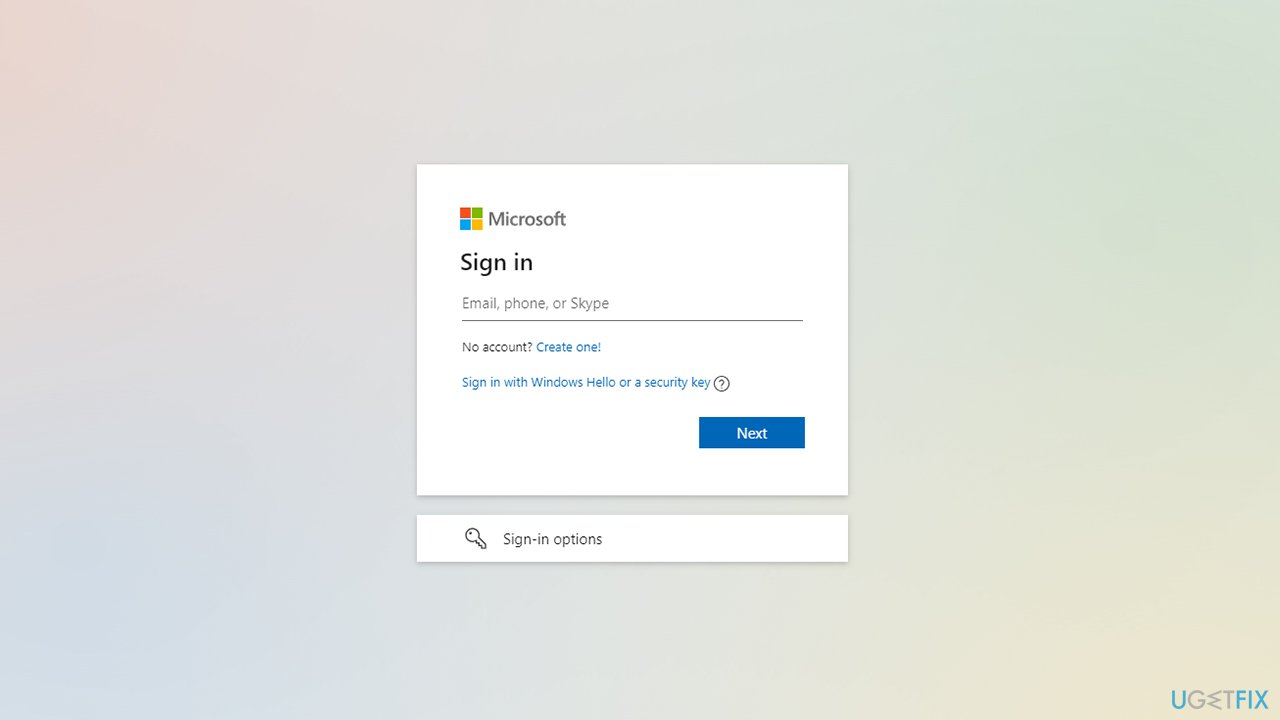
How to permanently delete microsoft account sign in - Read the information: Before proceeding, Microsoft will present you with a list of things to check and understand before deletion. This will reiterate many of the points previously discussed, such as data loss and subscription cancellations. Click Next when ready.
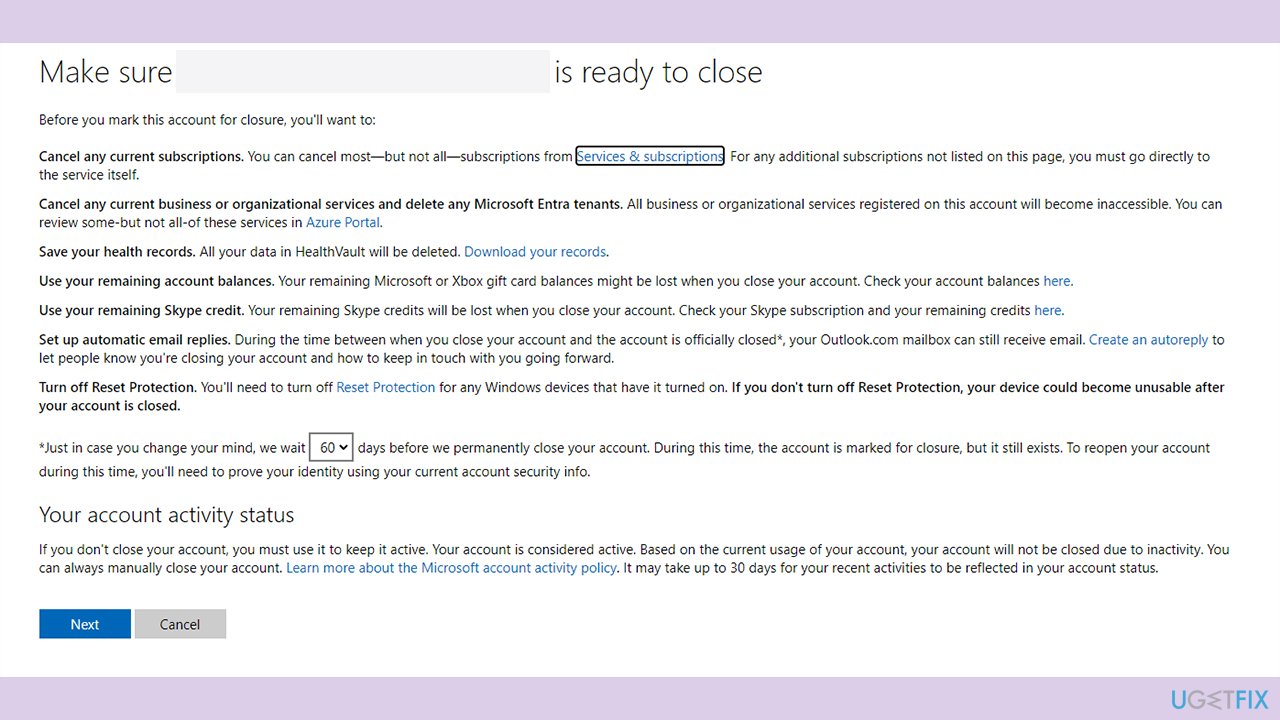
How to permanently delete microsoft account confirm removal - Mark the checkboxes: There will be a series of checkboxes ensuring you understand the ramifications of the deletion. Read and check each box.
- Select a reason: Scroll down, and you'll find a dropdown menu asking for a reason for your account deletion. Choose the one that fits your situation best.
- Finalize account closure: Once all checkboxes are marked, click on the "Mark account for closure" button.
- Wait for the grace period: Microsoft has a 60-day grace period before the account is permanently deleted. This is a safeguard to ensure you can retrieve your account if you change your mind or realize you've forgotten something important. If you wish to reactivate the account during this period, simply log back in.
- Permanent deletion: After the 60-day grace period, the account will be permanently deleted from Microsoft's servers, and you won't be able to retrieve it.
Remember, account deletion is irreversible. It's vital to ensure all data and connections are backed up or adjusted before going through with this action.
Bottom line
To permanently delete your Microsoft account, follow the outlined steps to ensure all associated data is securely removed. If you encounter issues during the process, consider using PC repair tools to address any related problems. If none of the solutions work, seek further assistance from Microsoft support.
Frequently asked questions
To permanently delete your Microsoft account, go to the Microsoft account closure page, sign in, and follow the on-screen instructions to confirm your account deletion.
Yes, deleting your Microsoft account will remove access to all Microsoft services and settings linked to that account, including your OneDrive files and personalized Windows settings.
Before deletion, make sure to back up any important data, unlink services, and switch to a local account if you want to retain access to your Windows device.




Report an issue
What's wrong with this guide? We review every report and update or remove content.
Report received — thank you. We'll review and fix it.
You need a free account to submit a report.
Be the first to comment