How to fix
Personalize Windows 10 Start menu
on Windows
Transform your Windows 10 Start menu with easy personalization tips. Boost productivity and style! Expert-tested for optimal results.

Why does How to Personalize Windows 10 Start menu occur?
- Unwanted default apps in the Start menu
- Need for quick access to frequently used applications
- Desire for a personalized user interface
- Preference for a simplified workflow
- Need to organize apps into groups
Repairs Windows system files, removes malware, and restores a clean OS state — without reinstalling.
I’ve just installed Windows 10. In the Start menu are apps I am not going to use. Is there a way to remove them and add useful programs?
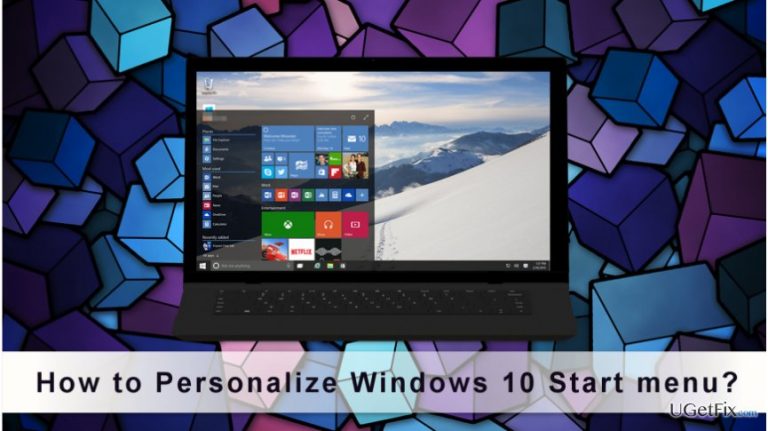
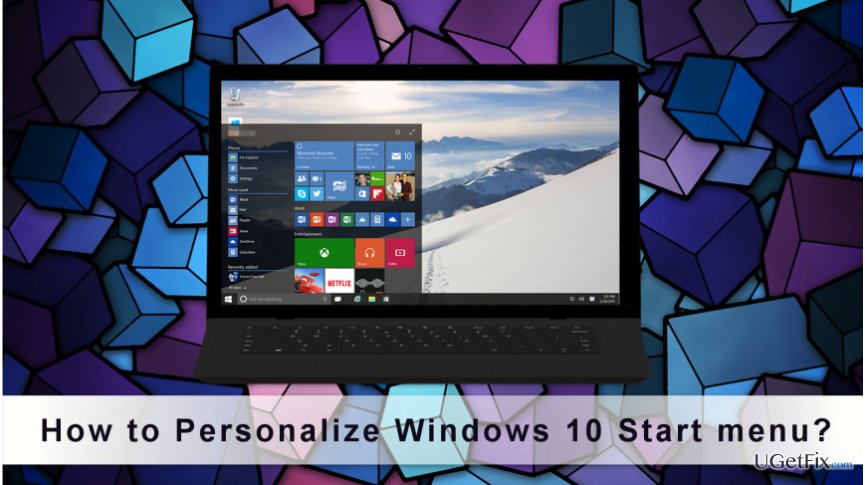
Windows 10 presented a never seen Start Menu that is a mixture of classic Windows Start Menu and modern Metro interface that we have first seen on Windows 8. This start menu is unique because it can be customized based on each user’s needs and preferences. The menu is divided into two sections. The left section includes quick access to the most used applications, Settings, Power, All apps options or other folders or programs that you might choose individually. Meanwhile, the right column has Life Tiles. You can unpin unnecessary apps and pin your preferred ones, arrange or rename them, and create groups of apps. Thus, users have a possibility to personalize Windows 10 Start menu in order to simplify the work with the computer.
How to Personalize Windows 10 Start menu?
Our team suggests five simple and basic tips that will help to make Windows 10 Start menu convenient and useful.
1) Resize the Start Menu
One of the unique customization features that Microsoft offered to Windows 10 users is a possibility to narrow or expand the Start Menu:
1. Click the Start button and select the top or side border.
2. Drag it to the left, right, up or down in order to change the size to your preferred.
Moreover, you can make the Start menu in full screen:
1. Go to Settings and choose Personalization.
2. Choose Start option and turn on Use Start full screen.
2) Pin and unpin apps
Follow these steps to add new apps to the Start menu:
1. Click Start button.
2. In the left column find the app you want to pin in “Most used” and “All apps” list.
3. Drag and drop it to the right column (or right-click it and choose “Pin to Start” option).
Useful tip: If you want, you can resize the tiles. Right-click on it and choose “Resize" option. You will be allowed to choose one of the four size options: small, medium, wide and large.
In order to unpin apps from the Start menu follow the steps below:
1. Click Start button.
2. Right-click app you do not want to see on the right Start menu column.
3. Choose “Unpin from Start" option.
3) Group apps
Apps in the right sidebar can be added to various groups. For instance, you can create a group for Microsoft Office programs and add Word, Excel, Powerpoint and other programs. In order to group apps, follow the steps below:
1. Open Start menu.
2. Click on the app and move it up or down until you will see a group divider.
3. When the group divider shows up, release the app.
4. Do the same with all apps you want to add to the same group.
Useful tip: in order to rename groups, you have to click on the tile. Then you will see that the tile bar turned into the text box. Thus, type there your preferred group name.
4) Customize the left side of the Start menu
Previously described tips focus on customization of the right side of the Start menu. However, useful adjustments can be done on the left as well.
1. Go to Start and open Settings.
2. Open Personalization option and go to Start section.Here you can turn on/off few features, such as showing suggestions, the list of most used or recently added apps, or show recently opened items in Jump Lists.
3. Click “Choose which folders appear on Start” option at the end of the window. Here you can remove or add File Explorer, Settings, Documents, Downloads, Music, Pictures and Videos folder to the Start menu.
5) Change Start Menu color
The last tip has nothing in common with an organization. However, setting your favorite color gives a little touch that makes OS more personalized.
1. Go to Start and choose Settings.
2. Select Personalization option.
3. Choose Colors section. Here you can choose your preferred color or let Windows automatically pick an accent color from your background.
4. Scroll down to “More Options” section. Here you can turn on/off transparency effects, decide where accent color is used (“Start, taskbar, and action center” or “Tile bars”) and choose between light ad dark default app mode.
Bottom line
To personalize the Windows 10 Start menu, you can resize the menu, pin and unpin apps, and create groups of apps. If these steps do not resolve your issues, consider resetting the Start menu settings or seeking further assistance.
Frequently asked questions
To change the size of the Start menu, click and drag the edges of the menu to your desired size, or go to Settings > Personalization > Start and toggle the 'Use full screen' option.
Yes, right-click on any app in the Start menu or from the All Apps list, and select 'Pin to Start' to add it to your Start menu.
Yes, you can change the background color by going to Settings > Personalization > Colors and selecting your preferred color under 'Choose your color'.




Report an issue
What's wrong with this guide? We review every report and update or remove content.
Report received — thank you. We'll review and fix it.
You need a free account to submit a report.
Be the first to comment