How to fix
Prevent IP from changing all the time
on Windows
Stop your IP from changing constantly on Windows 10 or Windows 11 with these easy tweaks. Enjoy a stable connection, expert-tested solutions included.

Why does How to prevent IP from changing all the time occur?
- Dynamic IP addresses are assigned by the ISP from a pool of available addresses
- IP addresses can change each time a device reconnects to the network
- The nature of portable WiFi devices can lead to frequent IP changes
- Dynamic IP addresses are designed to maximize the efficient use of a limited number of IP addresses
- Static IP addresses remain constant and are manually assigned
Repairs Windows system files, removes malware, and restores a clean OS state — without reinstalling.
I use a portable WiFi that I can use everywhere and I have noticed that my IP is constantly changing, even though I connect to the internet using the same device. Why is that? Can I make it so I have the same IP all the time?
IP address, or Internet Protocol address, is a unique identifier assigned to each device connected to a network. It functions similarly to a postal address, allowing data to be routed to the correct destination across the internet. When a device connects to the internet, it is assigned an IP address, which can either be dynamic or static, determining how it is managed and used within the network.
IP addresses operate within a structured framework, consisting of a series of numbers divided into segments. This structure allows for efficient routing and delivery of data packets to the appropriate destination. The process begins when a device initiates a request to connect to a network; the network then assigns an IP address to the device, ensuring it can communicate effectively with other devices and servers. In other words, the IP address is actually "borrowed" from your Internet provider.
Many users notice that their IP addresses change frequently, even when using the same router or portable WiFi device. This can be attributed to the nature of dynamic IP addresses. Dynamic IP addresses are assigned by the Internet Service Provider (ISP) from a pool of available addresses and can change each time a device reconnects to the network. This system is designed to maximize the efficient use of a limited number of IP addresses.
In contrast, static IP addresses remain constant over time. They are manually assigned to a device and do not change, providing a permanent address for that device within the network. Dynamic IP addresses offer several advantages, such as simplifying network management for ISPs and ensuring that IP addresses are efficiently utilized. However, they can be less reliable for certain applications, such as hosting a website or running a server, where a consistent address is required.
Static IP addresses, on the other hand, offer stability and consistency, making them ideal for situations where a reliable connection is essential. They are particularly beneficial for businesses that host their own websites, provide email services, or operate servers. However, static IPs can be more expensive and require more effort to manage, as they need to be configured and maintained manually.
For users who need a static IP address, the process involves contacting their ISP and requesting a static IP. This may incur additional costs, as ISPs often charge a premium for static IP services. Once obtained, the static IP address can be manually configured on the user’s device or router, ensuring a permanent and unchanging address.
For detailed instructions on how to configure a static IP address, please refer to the guidelines provided below.
Step 1. Checking your IP address type
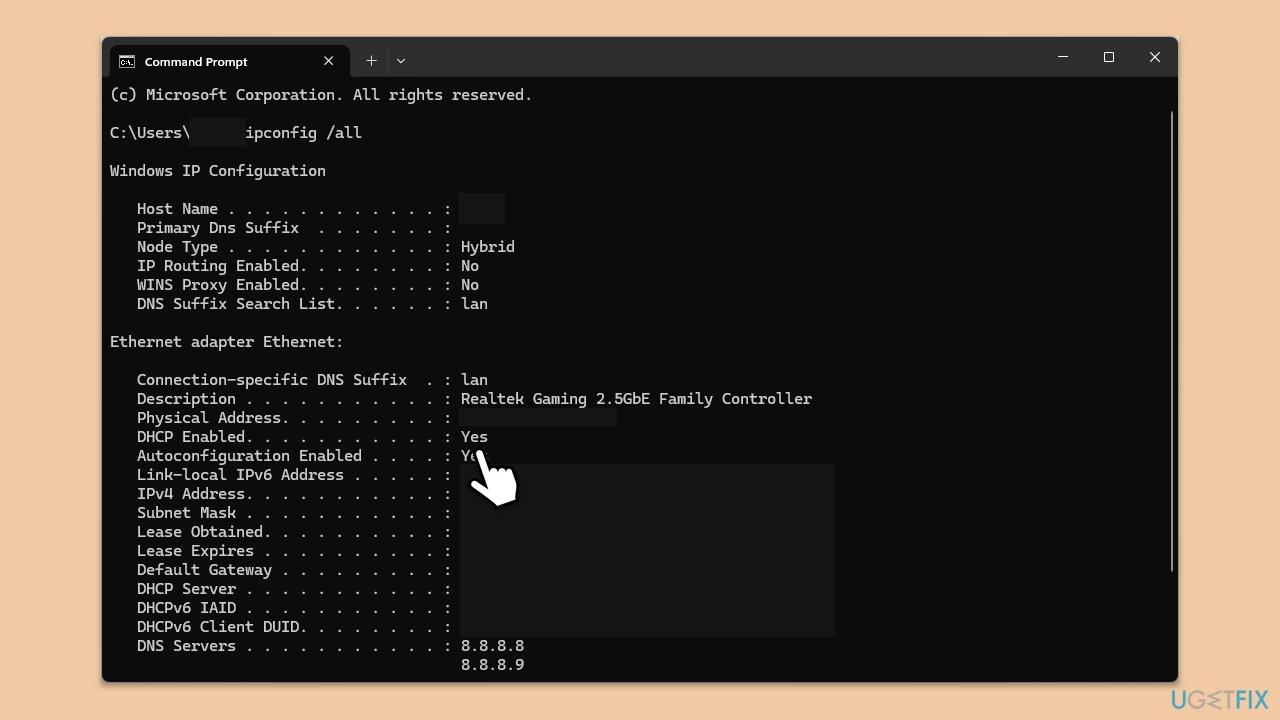
To determine whether your IP address is static or dynamic, you can use the Command Prompt on a Windows device. This method provides a clear and quick way to find out your IP address information.
- Type cmd in Windows search and press Enter.
- In the new window, type in the following command and press Enter:
ipconfig /all - Look for the line labeled DHCP Enabled. If it says Yes, you have a dynamic IP address. If it says No, you have a static IP address.
Step 2. Contacting your ISP for a static IP
If you need a static IP address, you will need to contact your Internet Service Provider (ISP). They can provide you with a static IP, often for an additional fee. This ensures your IP address remains constant.
- Call your ISP's customer service number.
- Request a static IP address for your account.
- Note that this option is often not free, depending on your ISP.
- Follow any additional instructions provided by your ISP to complete the process.
Step 3. Configuring your router with a static IP
Once you have obtained a static IP from your ISP, you will need to configure your router to use it. This step ensures that your network uses the static IP address you were assigned.
- Access your router's settings by typing its IP address into your web browser's address bar.
- Log in with your router's username and password.
- Navigate to the network settings or WAN settings section.
- Find the option to manually enter your IP address and enter the static IP address provided by your ISP.
- Save the changes and restart your router if necessary.
Step 4. Configuring your device with a static IP
In addition to configuring your router, you may need to configure individual Windows devices on your network to use a static IP address. This step ensures that specific devices maintain their assigned IP addresses.
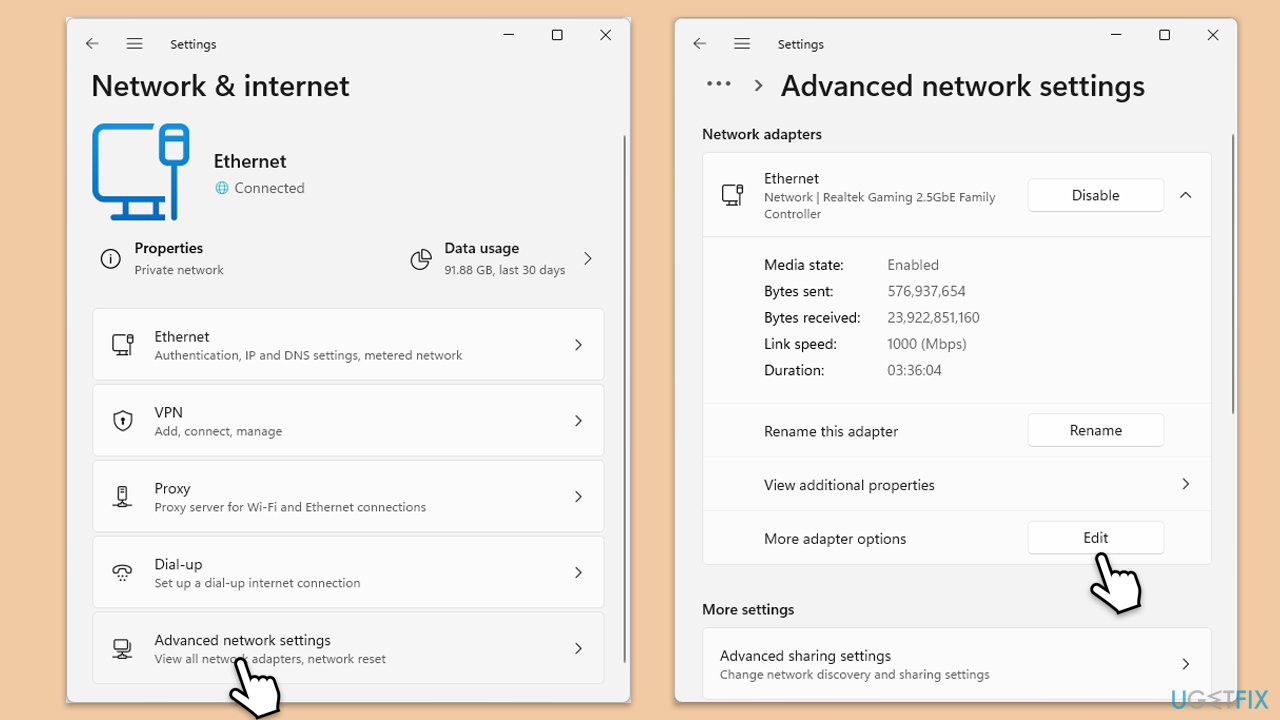
- Right-click on Start and pick Settings.
- Go to the Network & internet section.
- Navigate to Advanced network settings.
- Under Network adapters, expand your connection, e.g., Ethernet.
- Under More adapter options, click Edit.
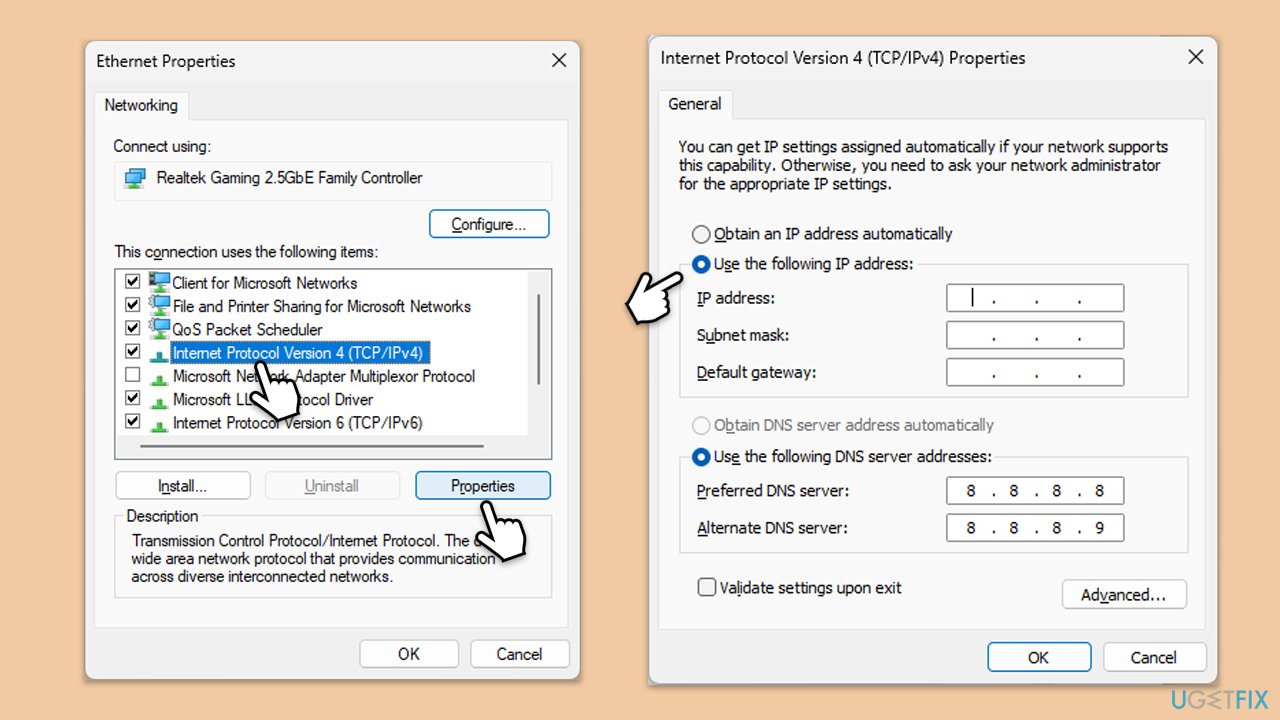
- Select the Internet Protocol Version 4 (TCP/IPv4) option and click Properties.
- Here, select Use the following IP address and type in the information provided by your ISP.
- You can also alter the DNS server if you want.
- Click OK once done and restart your PC.
Bottom line
To maintain a consistent IP address, consider requesting a static IP address from your ISP or configuring your device to use a static IP. If these solutions do not work, you may need to explore alternative networking options or consult with your ISP for further assistance.
Frequently asked questions
To set a static IP address, go to Settings > Network & Internet > Status, then click on 'Change adapter options'. Right-click your active network connection, select 'Properties', choose 'Internet Protocol Version 4 (TCP/IPv4)', and then enter your desired IP address.
Using a static IP address can improve network stability, making it easier to connect to devices like printers and servers without IP conflicts. It also allows for easier remote access and management.
If configured correctly, a static IP address should not affect your internet connectivity; however, ensure that the IP address is not already in use by another device on the network to avoid conflicts.




Report an issue
What's wrong with this guide? We review every report and update or remove content.
Report received — thank you. We'll review and fix it.
You need a free account to submit a report.
Be the first to comment