How to fix
Prevent others from adding or removing apps
on Windows
Secure your Windows 10 or Windows 11 device by preventing unauthorized app changes. Expert-tested tips for optimal configuration, fixed in minutes!

Why does How to prevent others from adding or removing apps on Windows occur?
- Limited access for regular users
- Unintentional system modifications
- Installation of unreliable software
- Deletion of necessary programs
- Security and stability concerns
Repairs Windows system files, removes malware, and restores a clean OS state — without reinstalling.
From next week, I'll be sharing my computer with somebody and I wish to apply some restrictions, which I'll use a different user account for. However, I don't know how to restrict them from installing new apps on Windows. Can you provide me with a solution for this?
User accounts in Windows are intended to assist in controlling and managing system access. Different levels of permissions can be assigned to each account; regular users, for example, have limited access to system features and settings, while administrators have complete control over the system. Administrators have the ability to install and remove apps by default, but depending on how the system is set up, regular users might have limitations.
For a number of reasons, you might want to keep other people from downloading or removing apps from a Windows machine. For instance, if numerous users share a computer, you might wish to protect against unintentional system modifications, make sure that only reliable software is installed, or stop them from deleting necessary programs. Restricting who can install or remove apps helps improve the security and stability of the system.
There are several ways to restrict the ability to install or uninstall apps in Windows. Two of the most common methods involve using the Group Policy Editor or the Registry Editor.
The Group Policy Editor is a powerful tool available in Windows Professional and Enterprise editions that allows administrators to configure settings for individual users or groups of users. By adjusting specific policies, you can prevent others from accessing installation features, effectively stopping them from adding or removing applications.
The Registry Editor, another method, is available in all editions of Windows. It involves making changes directly to the Windows Registry, a database that stores low-level settings for the operating system. By modifying certain registry keys, you can disable the ability to install or uninstall programs.
The instructions on how to perform these steps are provided below; if you have any problems with your Windows, you can always rely on [d1] repair software, capable of removing junk and malicious files, repairing the Windows registry, and remediating other issues that could contribute to problematic Windows operation.
Method 1. Use the Group Policy Editor
Group Policy Editor allows you to control various settings on your computer, including restricting the installation and uninstallation of apps. This method works by configuring specific policies that apply to all standard users.
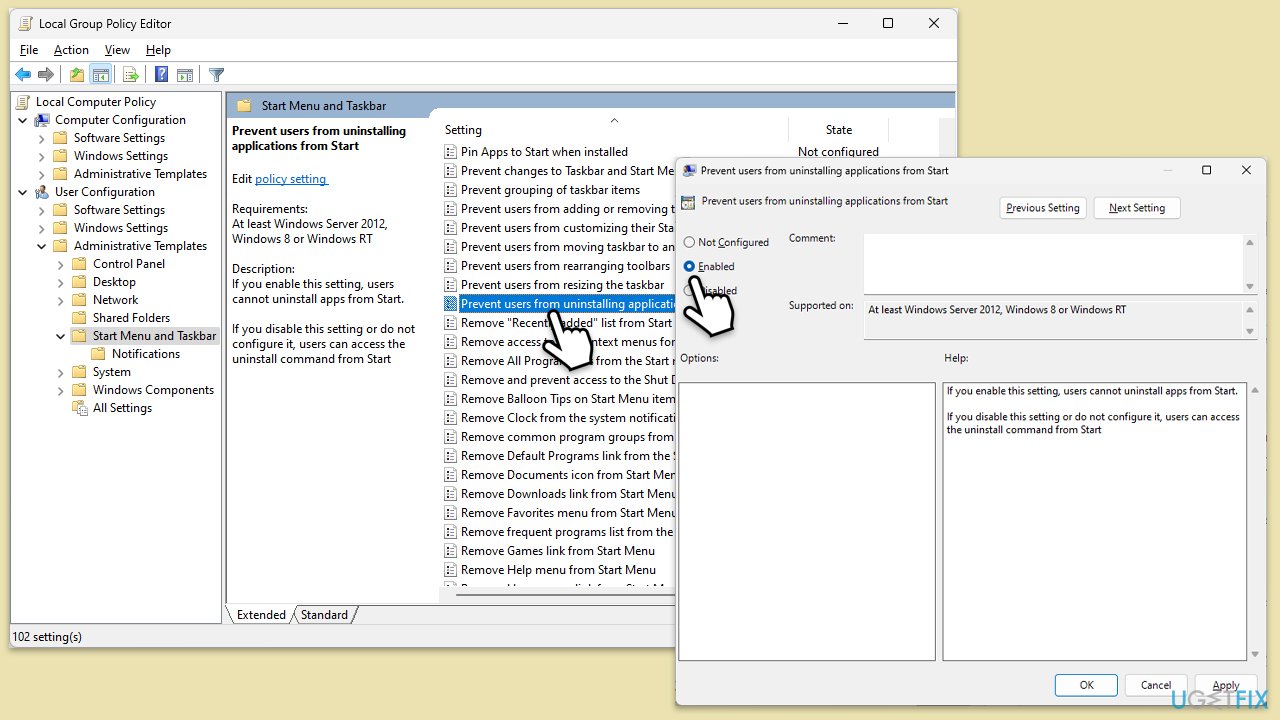
- Type gpedit.msc in Windows search and press Enter.
- Navigate to to the following location:
User Configuration > Administrative Templates > Start Menu and Taskbar - Double-click on Prevent users from uninstalling applications from Start setting which you can find on the right.
- Select Enabled and click Apply, then OK.
Note that, if you are using Windows 10/11 Home edition, you won't be able to use Group Policy Editor. Instead, follow one of the solutions below.
Method 2. Modify the Registry Editor
The Registry Editor lets you directly modify Windows settings, including disabling the ability to install or uninstall apps. This method is effective across all editions of Windows.
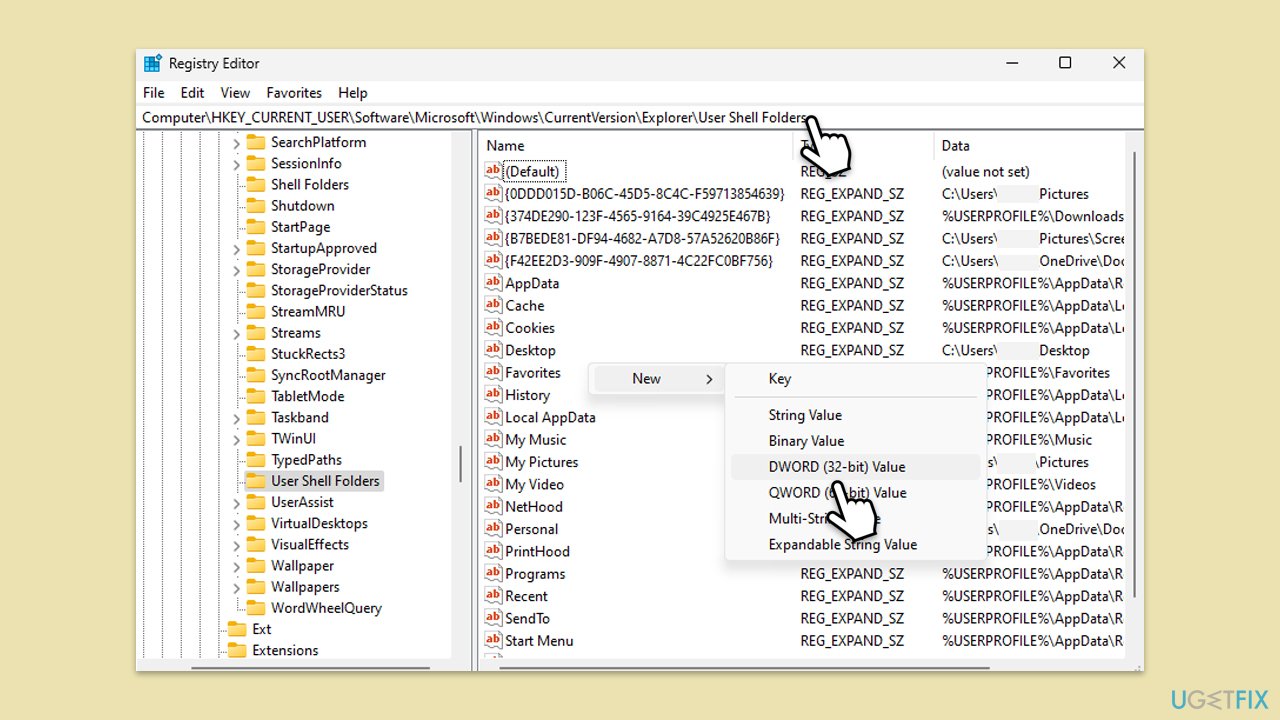
- Type regedit in Windows search and press Enter.
- Navigate to the following location:
HKEY_CURRENT_USER\Software\Policies\Microsoft\Windows\Explorer - On the right side of the window, check if the NoUninstallFromStart exists.
- If the key does not exist, create it.
- Right-click on empty space on the right pane and select New > DWORD (32-bit) Value, then name it NoUninstallFromStart.
- Double-click the entry and set the value to 1 to disable app installations and uninstallation.
Method 3. Create a standard user account
Windows 11
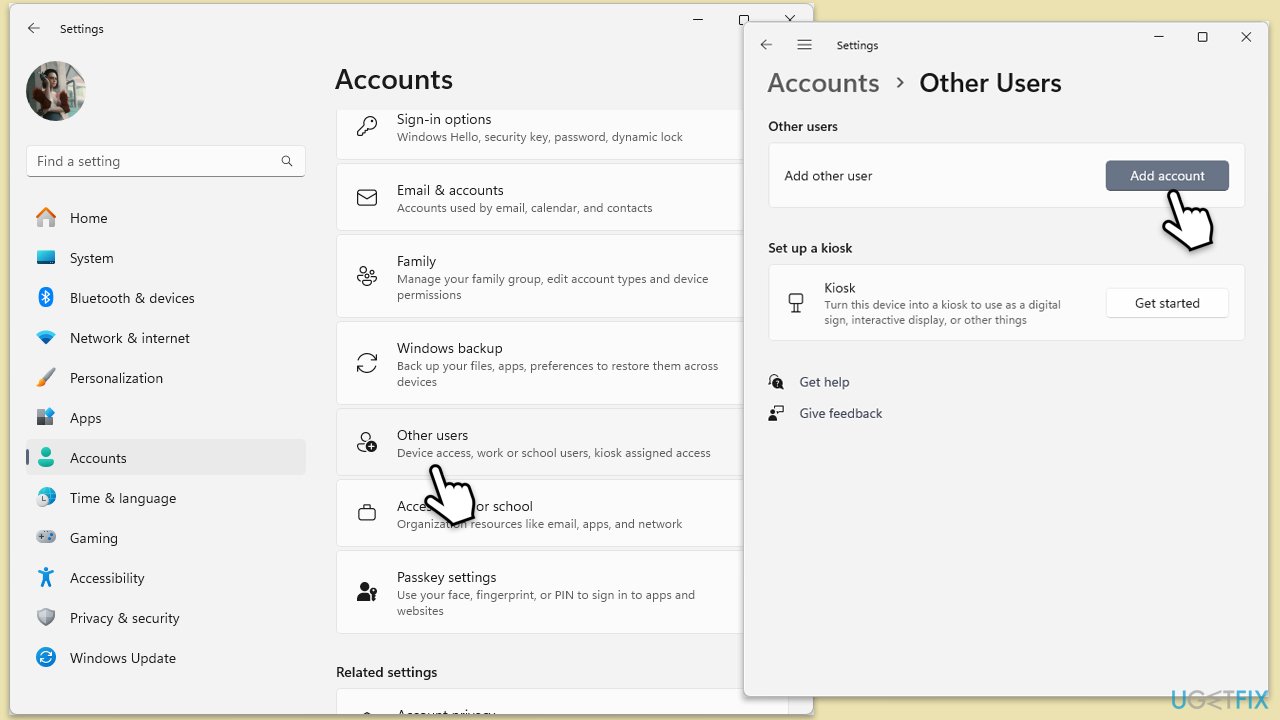
- Open Windows Settings.
- Go to Accounts then Family/Family & other users.
- Under Other users, click Add account/Add someone else to this PC.
- Follow the prompts to create a new user account. If you don't have Microsoft account details, you can choose I don't have this person's sign-in information followed by Add a user without a Microsoft account.
- Assign a username and password for the new account and complete the setup.
Windows 10
- Right-click on Start and select Settings.
- Go to Accounts > Family & other users.
- Click Add account under Other users.
- Choose Add a user without a Microsoft account.
- Follow the prompts to create a new standard user account.
Method 4. Disable Windows Installer service
This method works by stopping the service that manages software installations.
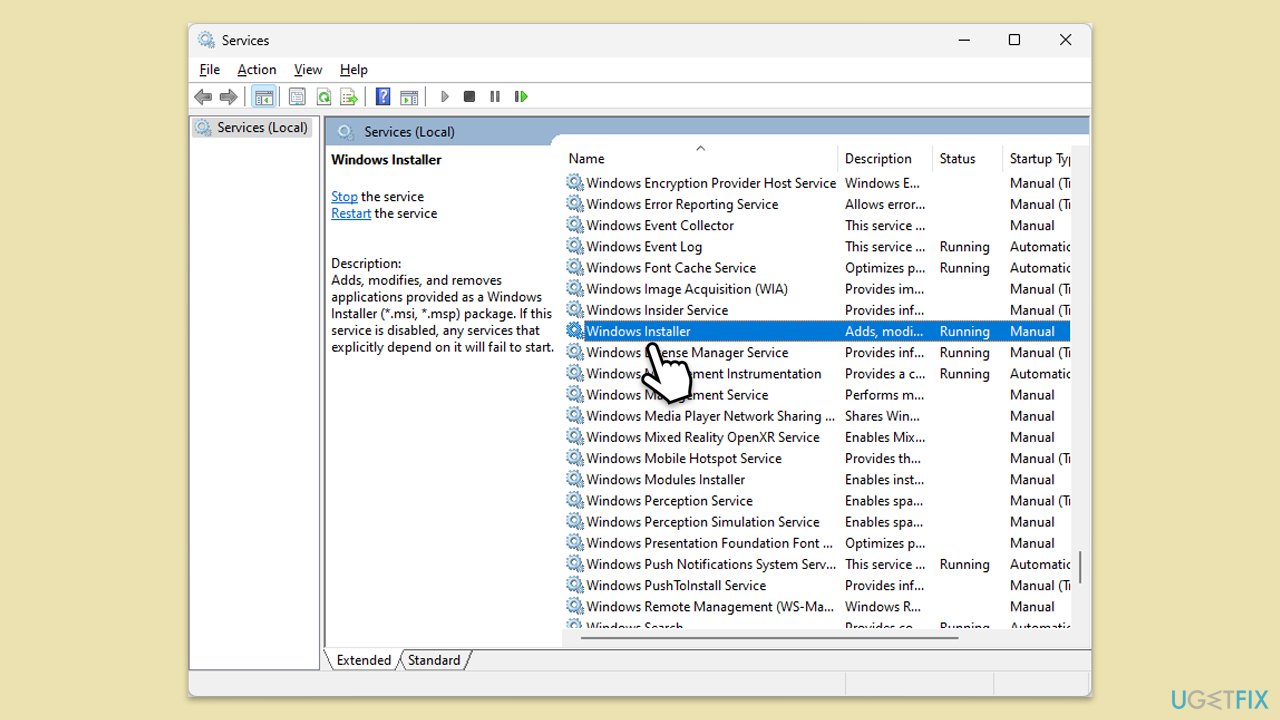
- Type Services in Windows search and hit Enter.
- Scroll down to find Windows Installer in the list.
- Right-click on it and select Properties (or double-click the service).
- Under the Startup type, click on the drop-down menu and select Disabled.
- Click Apply and OK.
Bottom line
To prevent others from adding or removing apps on Windows, you can use the Group Policy Editor or the Registry Editor. These methods allow you to restrict installation features and modify registry keys to disable app management. If these solutions do not work, consider using repair software to address any underlying issues.
Frequently asked questions
You can restrict app installation by navigating to Settings > Apps > Apps & features, and selecting 'Block' under 'Choose where to get apps'.
Yes, you can use the Group Policy Editor in Windows 10 or Windows 11 to prevent users from uninstalling apps by configuring the appropriate policy settings.
To manage app permissions, go to Settings > Privacy, where you can adjust permissions for camera, microphone, and other features that apps may access.




Report an issue
What's wrong with this guide? We review every report and update or remove content.
Report received — thank you. We'll review and fix it.
You need a free account to submit a report.
Be the first to comment