How to fix
Protect your privacy on public WiFi networks
on Windows
Safeguard your privacy on public WiFi networks while using Windows 10 or Windows 11. Follow expert-tested tips to secure your connections today!

Why does How to protect your privacy on public WiFi networks occur?
- Public WiFi networks often lack security measures like passwords.
- Hackers can easily access devices connected to unsecured networks.
- Sensitive information can be intercepted during transmission.
- Public WiFi can expose users to malware attacks.
- Identity theft can occur due to data leaks on public networks.
Repairs Windows system files, removes malware, and restores a clean OS state — without reinstalling.
Hello. I have recently seen a movie about Snowden it really changed my view on online privacy. I am often visiting a cafe next to me and using WiFi provided there to do several tasks for work and random browsing as well. I also found out that hackers could break into my computer with the help of public WiFi. Can you give me any tips on how to better protect myself while using a public WiFi connection? Much appreciated.
WiFi[ref en-1] network is definitely amazing, as it allows us to connect to the internet without the need of using any cables, which makes portable browsing effortless. The weird sounds of dial-ups and similar outdated technologies are the things of the past, and we are continually greeting new technology that helps us to browse faster and more comfortable.
We merely connect our mobile phone, personal computer, laptop, tablet, and similar devices to WiFi using a router[ref en-2] that is tied to a specific location. While private connections are used for home or office networks, public ones are dominant in cafes, restaurants, bars, train stations, hair salons, etc.
If we are using a secured WiFi in our homes, office or a friend’s apartment, we are prompted to enter the password, which immediately arises the feeling of safety. However, public WiFs also pose certain risks, mainly related to privacy.
While the no password policy allows everybody to connect to the WiFi quickly, it also enables attacks to illegally enter devices and perform malicious tasks, such as installing malware or stealing sensitive information like usernames, passwords, banking details, etc. Such data leak can result in severe consequences, namely identity[ref en-3] theft or stolen money from the bank account.
When you access the website, including online banking, social network or email, while connected to the public WiFi network, the login information goes through the router and can be, therefore, stolen. Obviously, nobody would like their personal data to be disclosed in such a way, so we created a guide that will help you protect your privacy on public WiFi networks.
Below you will find several tips that can help you with your online safety while using public WiFi. Alternatively, you can stop using public connections altogether, which is also not an optimal choice.
Tip 1. Use a secure sites only
It’s not advisable to perform important operations, such as money transactions or bank balance checking while connected to the public Wi-Fi. Hackers are eager to receive credit card details, so don’t give them a chance to scam you. To prevent this from happening, use a specialized secure web browser (Google Chrome, Mozilla Firefox, Opera) and make sure to visit a secure website (marked with a padlock icon at the left side of the URL address). Besides, make sure that the website’s name starts with the https:// because S stands for secure socket layer.

Tip 2. Turn Off Public Network sharing
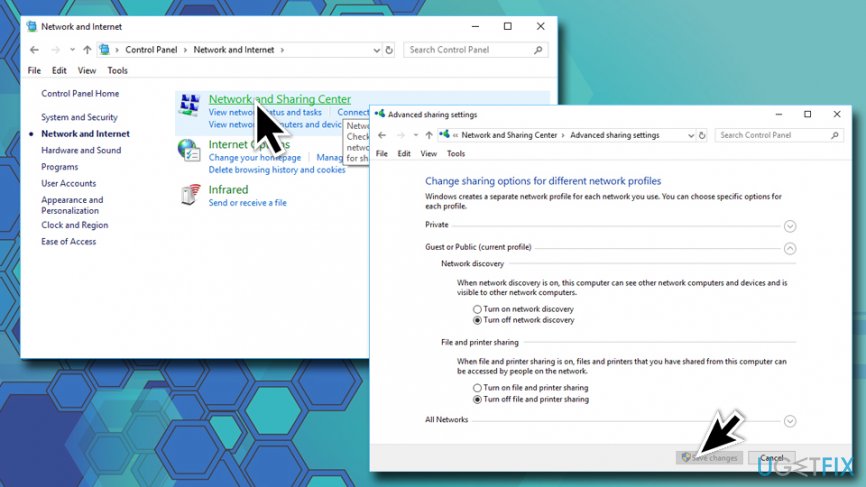
Network sharing is a handy service as it allows resource sharing with the printer, public folders, etc. However, it’s advisable to use network sharing only when connected to work or home network. To turn off public network sharing, perform these steps:
- Type in Control Panel into the search box and hit Enter
- Go to Network and Internet > Network and Sharing center and click Change Advanced Sharing Settings
- Select Public profile and turn off File Sharing, Network Discovery, and Public Folder Sharing
Tip 3. Enable Firewall
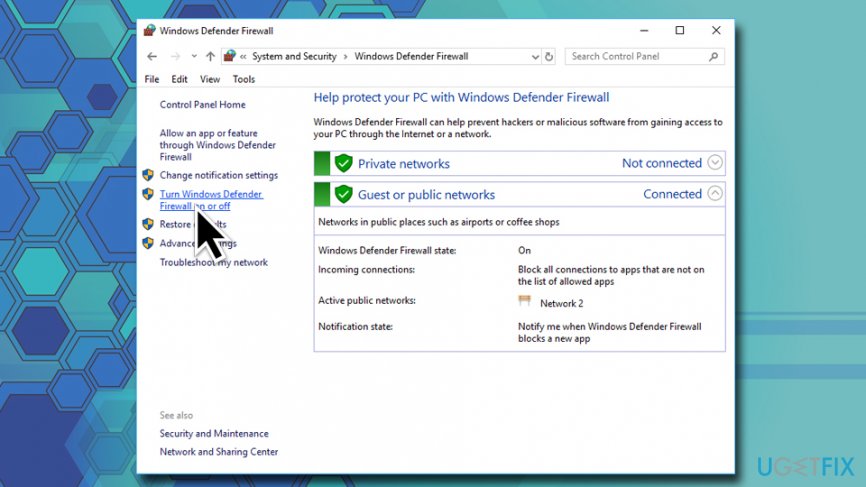
Before connecting to the public WiFi, make sure that the Windows Firewall is enabled.
- Type in Firewall into the search box and press Enter
- Click on the Turn Windows Firewall on or off
- If Windows Firewall is disabled, make sure to enable it
Tip 4. Use a Virtual Private Network
In other words, use a private browsing or a so-called incognito mode. Private browsing mode prevents the current browsing activity from being remembered in the browsing history. On top of that, it may hide the real-time browsing information from hackers. To protect your IP fully use a VPN[ref en-4] hiding software as an addition.
Tip 5. Make sure to use a professional anti-virus
Windows 10 OS has an inbuilt antivirus, Windows Defender. It features a high virus detection and prevention rate and is considered to be sufficient for protecting the system. If you are using another Windows version, select a reliable anti-virus, which is tested by security experts and has an updated virus database. In addition to the primary protection software, we would recommend using a second option anti-virus, for example, [d1].
Tip 6. Install all available Windows Updates
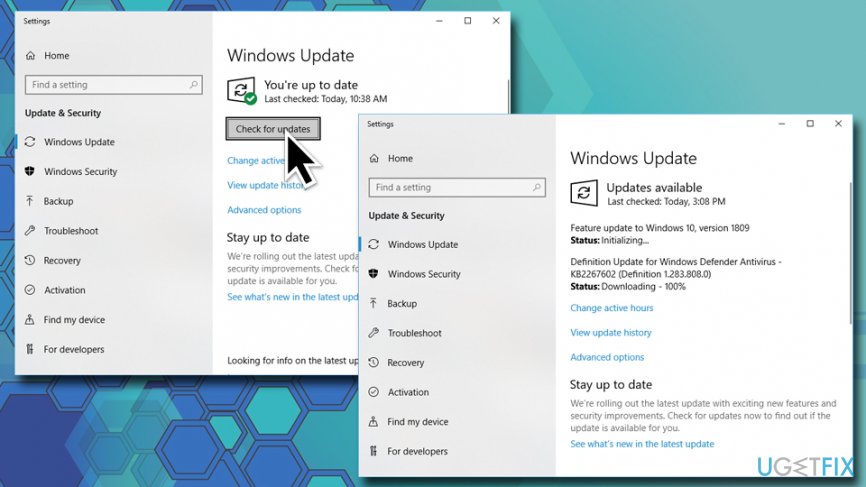
An outdated operating system is more vulnerable, especially if it lacks crucial security updates that Microsoft releases regularly. Therefore, if you presume that in the near future you will have to use a public Wi-Fi network, especially for some important activities to perform, make sure to install all available updates using Windows Update service:
- Type in Update into the search box
- Select Check for Updates and then click on Check for Updates
- Windows will download and install the new updates automatically
- Do not forget to restart your machine
Tip 7. Do not get tricked by intriguing pop-ups
You must have heard about potentially dangerous or malicious pop-ups that may lead to malware infection or personal information leakage. Be careful with the following notifications:
- Prize giveaways;
- Online surveys;
- Fake error messages or BSOD;
- Offers to use a “secured” web browser or toolbar;
- Security warnings that contain a telephone number (tech-support-scam);
- Online virus scanners.
Tip 8. Create a strong password
If you are going to access the websites that require the login information (e.g., online banking, social network, email, etc.) make sure to set a password that would be difficult to guess. This way, you will minimize the risk to provide hackers easy access to your personal information.
We hope that using these tips, you will be able to protect your privacy on public WiFi networks much better.
Bottom line
To protect your privacy on public WiFi networks, consider using a VPN, enabling two-factor authentication, and avoiding sensitive transactions. If these measures do not work, seek professional assistance or avoid using public WiFi altogether.
Frequently asked questions
In Windows 10, enable the 'Public' network profile in your WiFi settings, which turns on the firewall and restricts file sharing. Additionally, consider using a VPN to encrypt your internet traffic.
In Windows 11, go to Settings > Network & internet > Wi-Fi, and ensure that 'Network discovery' and 'File and printer sharing' are turned off. Also, activate the 'Use a VPN' option to further secure your connection.
Yes, you can disable location services by going to Settings > Privacy > Location and toggling off the location access for your device. This helps enhance your privacy while connected to public networks.




Report an issue
What's wrong with this guide? We review every report and update or remove content.
Report received — thank you. We'll review and fix it.
You need a free account to submit a report.
Be the first to comment