How to fix
Reboot home and small office router to get rid of VPNFilter
on Windows
Optimize your Windows 10 or 11 network by rebooting your home or small office router to eliminate VPNFilter. Expert-tested solutions inside!

Why does How to reboot home and small office router to get rid of VPNFilter occur?
- VPNFilter malware infection
- Potentially compromised devices
- Failure to reboot router
- Failure to reset to factory settings
- Infection spreading across the network
Repairs Windows system files, removes malware, and restores a clean OS state — without reinstalling.
I have heard the news about the Russian-related malware, called VPNFilter! I think my device might be infected. However, I'm still not sure. It would be very helpful if you would explain how to detect this threat and how to reboot my router in case it is necessary. Thanks!
VPNFilter is a malware that might be developed by infamous Russian hacking group known under the names of Fancy Bear, Pawn Storm, APT-28, and Sofacy Group[ref en-1]. According to the analysis, this cyber threat dangerous and might make the device unusable or collect sensitive data.
FBI urges people to reboot their rooters to make sure that the 3-stage VPNFilter malware would be eliminated[ref en-2]. Although, people keep asking how to know whether their devices are infected. Experts have managed to gather the list of potentially compromised devices[ref en-3]:
- Netgear DGN2200, R6400, R7000, R8000, WNR1000, and WNR2000;
- Linksys E1200, E2500, and WRVS4400N;
- QNAP TS251 and TS439 Pro;
- Mikrotik 1016, 1036, and 1072;
- TP-LINK R600VPN.
However, cybersecurity researchers advise all users to take precautionary measures and power cycle their devices to make sure that VPNFilter removal is successful. For that check the instructions below and learn how to reboot your router. Afterward, the second and third stage of the malware won't persist on the device.
If you want to remove VPNFilter completely, the router must be reset to the factory state. We strongly advise you to do so, as it will ensure that the malware won't reappear on the device after some time. Also, other devices on the network will be protected from the infection.
Guide on how to reboot your router and reset factory settings
Note that it is critical to reset the factory settings in order to get rid of VPNFilter. Unfortunately, if you fail to do so, there is a substantial risk that the infection might spread across the network and other devices. We strongly recommend you to pay extreme attention during the procedure.
Method 1. Power Cycle the device
Most of the routers can be rebooted easily. All you need to do is search for the restart button on the router and hit it for approximately 10 seconds.
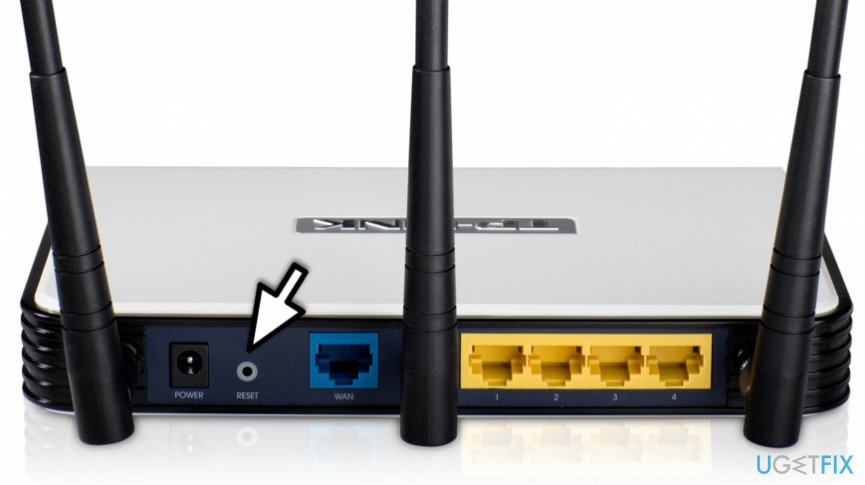
The power light should start blinking, and once the device is power cycled, it remains in solid color. Although, other more sophisticated routers have apps that allow to do it remotely.
You can find the instructions on how to reboot each of the affected routers here:
Bottom line
To eliminate VPNFilter, it is crucial to reboot your router by power cycling it and resetting it to factory settings. This ensures the malware does not persist and protects other devices on the network. If these methods do not resolve the issue, further investigation may be necessary.
Frequently asked questions
To reboot your home router, unplug the power cord, wait for about 10 seconds, and then plug it back in. Once the router is back online, check your Windows 10 device to ensure the VPNFilter threat is eliminated.
Yes, rebooting your router can help remove VPNFilter, as it resets the connection and clears any malicious configurations. After rebooting, ensure your Windows 11 device has updated security settings.
After rebooting, check your Windows 10 firewall and antivirus settings to ensure they are active and up-to-date. Additionally, consider running a full system scan to detect any lingering malware.




Report an issue
What's wrong with this guide? We review every report and update or remove content.
Report received — thank you. We'll review and fix it.
You need a free account to submit a report.
Be the first to comment