How to fix
Reinstall Realtek HD Audio Manager
on Windows
Reinstall Realtek HD Audio Manager on Windows 10 or 11 effortlessly and enhance your audio experience. Expert-tested instructions inside!

Why does How to reinstall Realtek HD Audio Manager occur?
- Audio driver issues
- Missing Realtek HD Audio Manager
- Icon missing from system tray
- Application not launching
- Not found in Task Manager
Repairs Windows system files, removes malware, and restores a clean OS state — without reinstalling.
Hello, after a recent OS update, I have issues with the Realtek HD Audio control panel. I tried reinstalling drivers, but nothing is changed. I used various sources, and none of them helped me to fix the issue. I downloaded the driver from the official Realtek site even. Most recently, I discovered the issue with my headphones not working too. Can you help me with this?
Realtek HD Audio Manager is a handy application that is found on most Windows desktop and laptop computers currently. It helps to control the way sound is played and is also packed with various features. The application is shipped along with Realtek’s High Definition Audio Driver, one of the most used sound drivers on the planet, as it can provide outstanding Dolby, DTS, and Surround Sound options. The software can be easily accessed via the system tray - users can control the volume level, configure speaker settings, enhance sound effects, apply room corrects, and perform other changes when it comes to sound.
The software was created by Realtek Semiconductor Corporation, which is located in the Hsinchu Science-based Industrial Park, Taiwan.[ref en-4] It all began in 1987 and since then developed into a worldwide organization Realtek. Nowadays, this corporation is known for producing high-quality products and has earned an excellent reputation.
Even though the manager is very handy for numerous Windows 10 system users, some people run into problems when trying to use the app. Different types of issues that are related to the Realtek HD Audio Manager get reported daily by the users themselves in online forums and message boards, and social networks.[ref en-1]
Unfortunately, these types of problems can start from audio driver issues to not working applications or devices. The most common problems that relate to this driver are:
- Realtek HD Audio Manager missing.
- Realtek HD Audio Manager icon missing.
- Realtek HD Audio Manager not launching.
- Realtek HD Audio Manager not found in Task Manager.[ref en-5]
- No sound.
You may receive the pop-up window with a specific error code or the message that informs about Install failure when Realtek HD Audio Manager causes issues on your computer. There are several reasons for the software to malfunction, and the best solution is to reinstall the software or drivers - it usually solves issues associated with the program. Nevertheless, you should check out other solutions that we provide below, as well.
Windows is a versatile operating system that is packed with various features and can be customized based on every user's needs. However, because of various configurations and other options, the OS suffers from multiple bugs, incompatibility issues, etc.
Microsoft always tries to fix these inconsistencies by releasing new patches that not only provide the necessary security updates[ref en-2] to prevent malware from entering[ref en-3] but also cause problems with drivers or other software. Due to this, users are often prompted to reinstall Realtek HD Audio Manager to make it function properly again.
However, there is the possibility that hardware problems cause various issues. You should check the devices like the sound card or speakers to make sure this is not the issue in particular.
Before you begin, try the following
In most cases, if the Realtek HD Audio Manager icon is missing from your system tray, it indicates that audio drivers are missing altogether. Nevertheless, in some cases, the icon might simply not be shown for some reason, but the program might still be there. To check that, navigate to the following folder:
C:\\Program Files\\Realtek\\Audio\\HDA
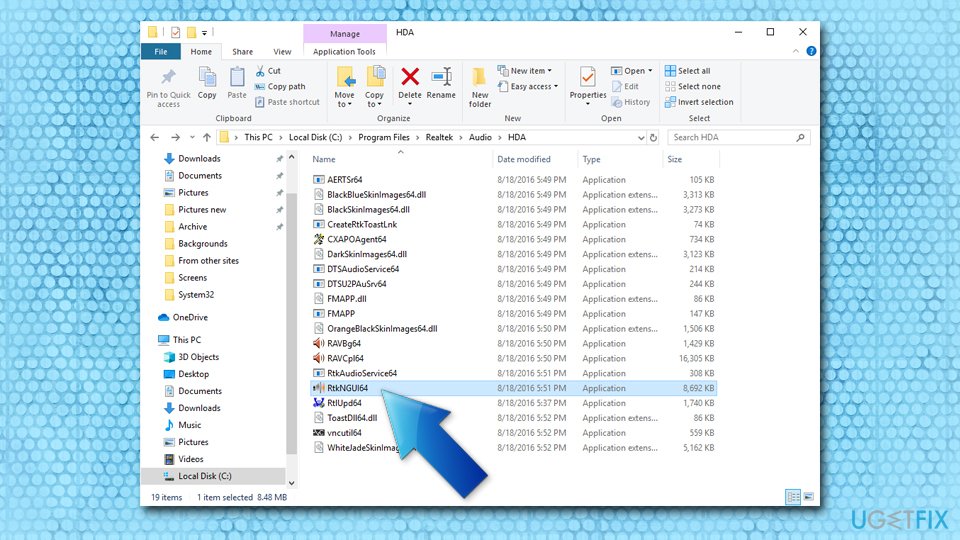
Realtek HD Audio Manager should be under the name of RtkNGUI64, or similar - the application name may vary depending on your system configuration. Double-click it, and you will be able to open the program without any troubles.
If you could not find the folder or Realtek HD Audio Manager executable is missing entirely, the issue may lie within system files. In such a case, install [d1] and run a system scan to see if any problems can be fixed before you perform any manual solutions. Be aware, however, that the application only touches issues that are related to the Windows operating system itself, but cannot fix malfunctions of third-party programs.
Method No. 1. Uninstall Realtek HD Audio Manager via the Device Manager
As evident, you need to uninstall the manager before you can reinstall it. For that, you need to reach the Device Manager:
- Right-click on Start and pick Device Manager.
- Locate Sound, video and game controllers section and expand it.
- Right-click on Realtek High Definition Audio and choose Uninstall device from the menu.
- Make sure you tick Delete the driver software for this device option in the next step and click Uninstall.
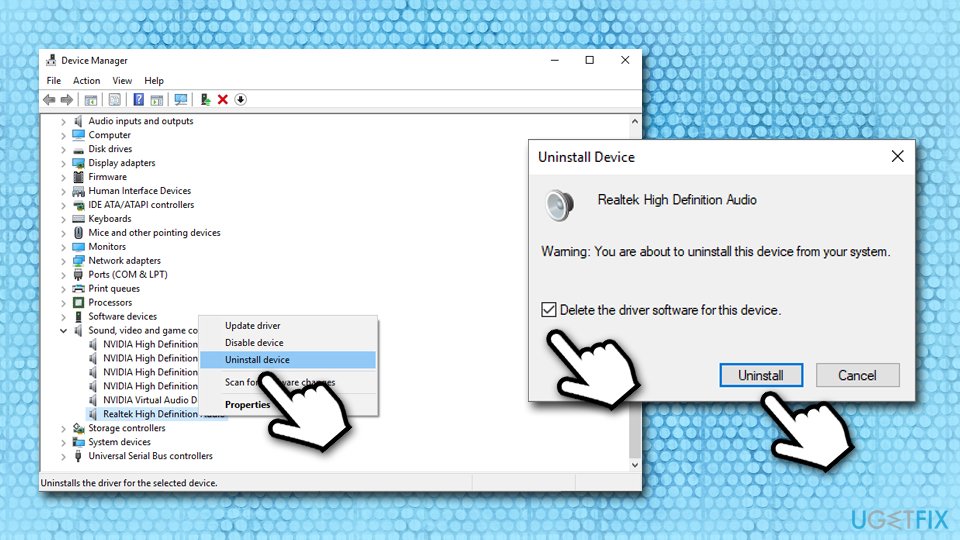
Reinstall realtek hd audio manager uninstall device - Once done, click on Action > Scan for hardware changes from the menu.
- Windows will scan the drivers and download the required ones automatically.
Method No. 2. Download the Realtek HD Audio Manager driver manually
While the first method should work for most users, others reported that issues with the Realtek HD Audio Manager persisted afterward. The solution for this would be downloading the software manually - either from the official developers' website or from Windows Catalog.
- Go to the official website of Realtek.
- Select High Definition Audio Codecs (Software) and begin the download.
- Follow the on-screen instructions and install it.
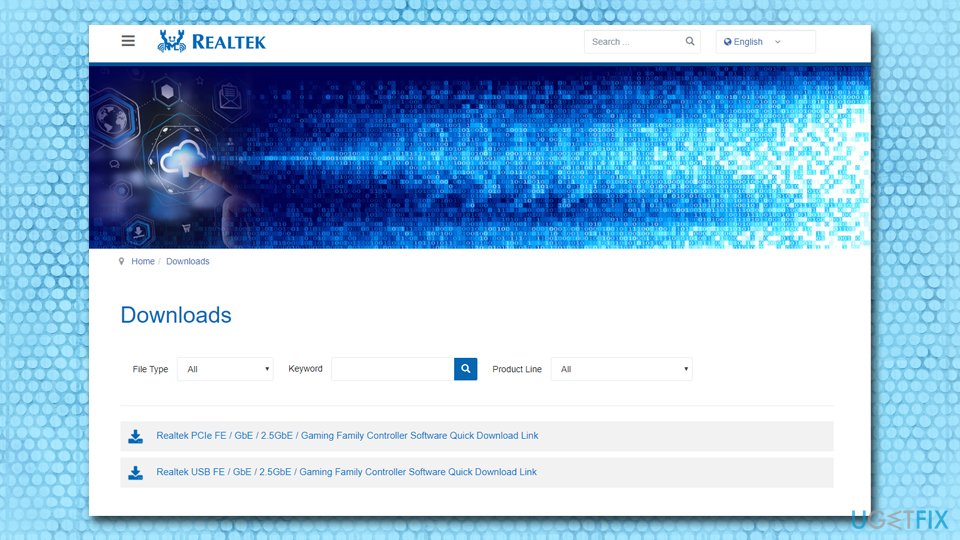
Reinstall realtek hd audio manager download software from official site
Alternatively, you can use Windows Catalog to find the relevant driver:
- Go to the official Microsoft Update Catalog website.
- Type in the "Realtek" keyword into the search box.
- Soft the search results by date.
- Find the newest driver appropriate for your system and hit the Download button.
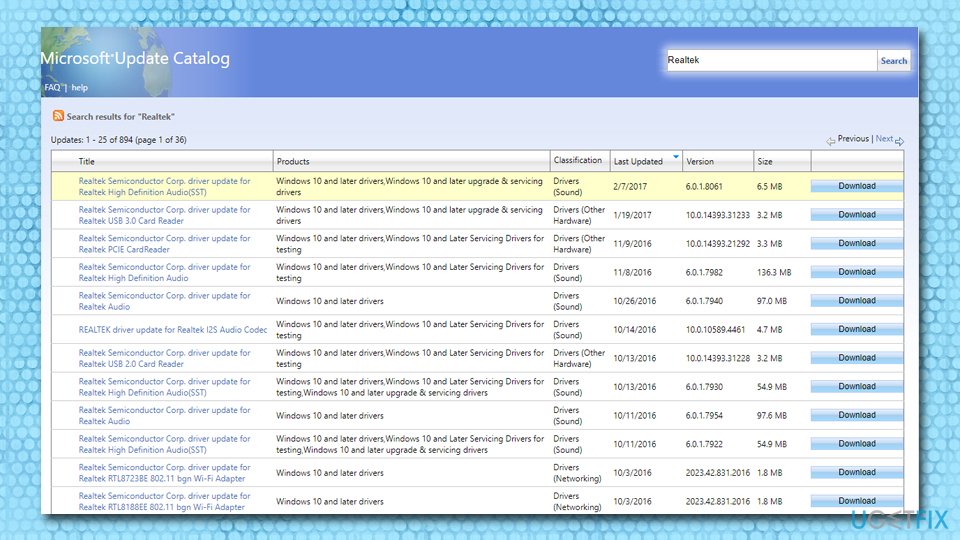
Reinstall realtek hd audio manager download from microsoft - Proceed with the installation by following on-screen instructions.
Method No. 3 Enable Realtek HD Audio Manager startup
In some cases, enabling the automatic startup via the Task Manager can help resolve the issue. Here's how to do it:
- Press Ctrl + Shift + Esc to open Task Manager.
- Go to the Startup tab.
- Locate Realtek HD Audio Manager.
- Right-click and pick Enable.
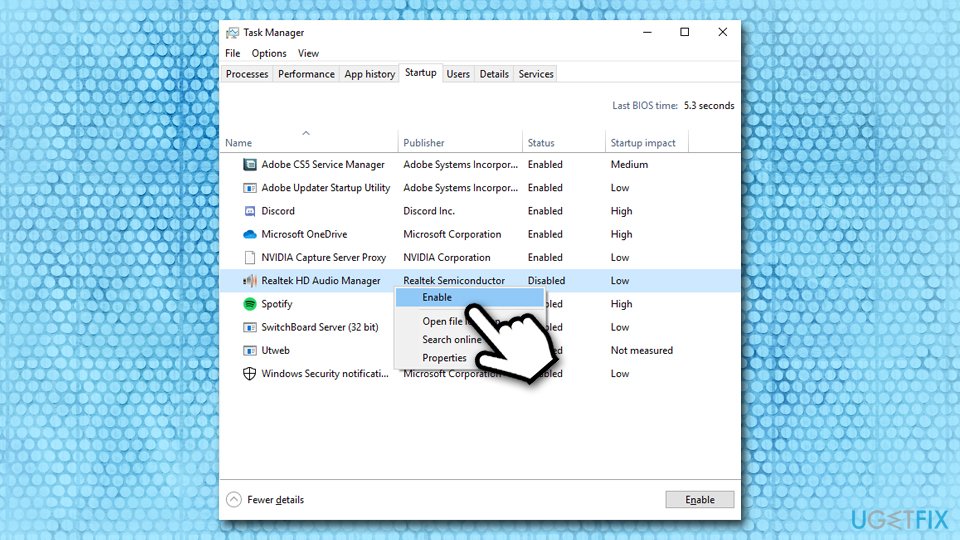
Reinstall realtek hd audio manager enable via task manager
Method No. 4. Disable Microsoft UAA Bus Driver to fix conflicts
- Go to Device Manager.
- Expand the System Devices.
- Find Microsoft UAA Bus Driver for High Definition Audio.
- Right-click on it and choose Disable from the drop-down.
- Open Windows Settings and go to Apps & Features.
- Click on Realtek High Definition Audio Driver and hit the option with Uninstall the driver.
- Go back to Device Manager and right-click on the disabled Microsoft driver.
- Click on Uninstall from the drop-down menu.
- Now you can try to reinstall the Realtek HD Audio Driver.
Method No. 5. Update sound drivers
- Right-click on Start button and pick Device Manager.
- Expand the Sound, video and game controllers section.
- Right-click on Realtek High Definition Audio and select Update Driver.
- Pick Search automatically for updated driver software.
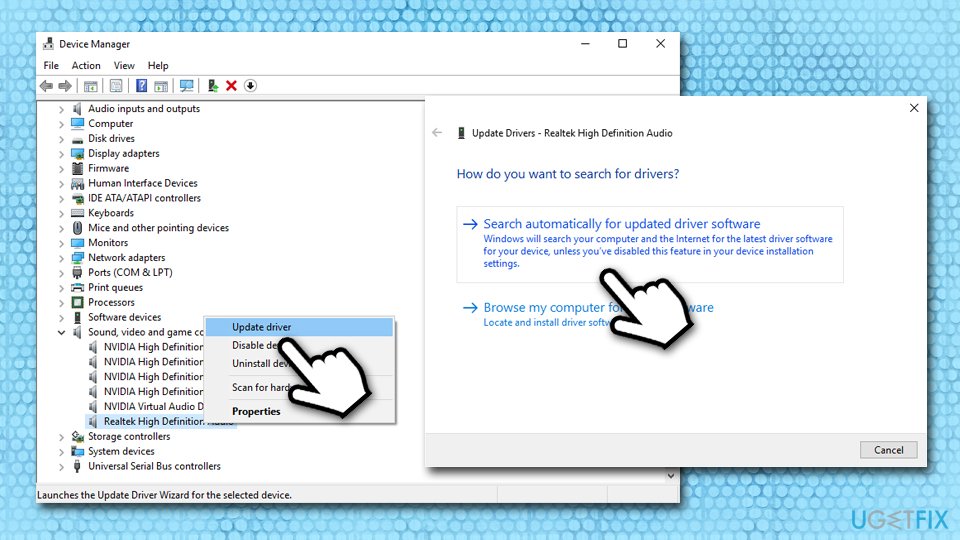
Reinstall realtek hd audio manager update audio drivers - Wait till Windows installs the latest driver.
- Reboot the computer.
You can also rely on tools like [rev id="DriverFix"] which can provide the automatic solution for any driver issues because the application scans the system and checks if any updates are needed, so the drivers are downloaded and all the pieces are compatible with
Method No. 6. Restore the system to the previous point
System Restore is one of the most effective methods to make malfunctioning software to work again. Proceed with the following instructions:
- Press Win + R on your keyboard.
- Enter rstrui.exe and press OK.
- Select Show more restore points and choose from the list.
- Pick which Date and Time you want to restore your computer to.
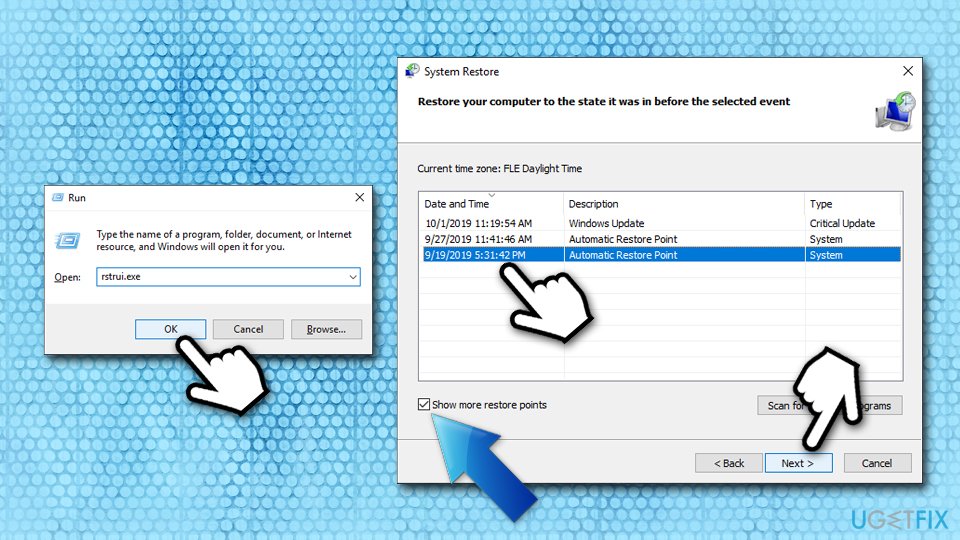
Reinstall realtek hd audio manager use system restore - Confirm the restore point and proceed with the process.
Method No. 7 Add legacy hardware
- Go to Device Manager.
- Click on the Sound, video and game controllers.
- Choose the Action tab.
- Select Add legacy hardware from the menu.
- Click the Next button and select the checkmark for Search for and install the hardware automatically.
- Click on Next and manually install the driver.
Bottom line
To fix issues with the Realtek HD Audio Manager, you can try reinstalling the audio drivers, checking for updates, or ensuring the application is properly installed. If these solutions do not resolve the problem, consider reaching out to support forums or the official Realtek site for further assistance.
Frequently asked questions
To reinstall Realtek HD Audio Manager on Windows 10, go to Device Manager, find your audio device under 'Sound, video and game controllers', right-click and select 'Uninstall device'. After that, restart your computer, and Windows will automatically reinstall the driver with the Realtek HD Audio Manager.
Yes, on Windows 11, you can reinstall Realtek HD Audio Manager by accessing the Device Manager, uninstalling the audio device, and then rebooting your PC to prompt Windows to reinstall the necessary drivers.
If Realtek HD Audio Manager does not appear after reinstalling, ensure that the Realtek drivers are correctly installed by downloading them from the official Realtek website or your PC manufacturer's support page for Windows 10 or Windows 11.




Report an issue
What's wrong with this guide? We review every report and update or remove content.
Report received — thank you. We'll review and fix it.
You need a free account to submit a report.
Be the first to comment