How to fix
Remove Bing AI in Microsoft Edge
on Windows
Easily remove Bing AI from Microsoft Edge on Windows 10 or Windows 11 with our expert-tested guide. Achieve a cleaner browsing experience in minutes!


Why does How to remove Bing AI in Microsoft Edge occur?
- Privacy concerns
- Performance issues
- Personal preference
- Desire for a basic browsing experience
Repairs Windows system files, removes malware, and restores a clean OS state — without reinstalling.
Hello. Is there a way to remove Bing AI from Microsoft Edge on my Windows PC?
Microsoft Edge is a web browser created by Microsoft that comes standard with Windows. It provides a number of features, including Bing AI, which is a collection of artificial intelligence and machine learning technologies that assist users in making more informed decisions and obtaining the information they require more quickly.
Microsoft began a beta launch of a version of its search engine, Bing, in the form of an A.I. chatbot powered by GPT-4, the most recent iteration of OpenAI's large language model ChatGPT, on February 7th. This new Bing AI Chatbot can generate answers to any query without directing users to other websites. The Bing AI Chatbot can draft emails, write essays or poems, assist with purchasing decisions, create comparison charts, analyze data, and perform other tasks.
While Bing AI can be beneficial to many users, some may prefer to avoid it. There are several reasons why someone would want to uninstall Bing AI from Microsoft Edge. As an example:
- Privacy concerns: Some users may not want their browsing data and personal information used to provide personalized search results or recommendations.
- Performance issues: Bing AI may slow down Microsoft Edge or cause other performance issues on certain devices.
- Personal preference: Some users may simply prefer a more basic browsing experience without personalized recommendations or search results.
If you are concerned about privacy or performance issues related to Bing AI, or if you simply prefer a more basic browsing experience, there are several options for disabling or removing these features from Microsoft Edge. You can follow the step-by-step instructions below.
Solution 1. Change Microsoft Edge Settings
- Open Microsoft Edge.
- Click on the Settings (three-dotted) button located in the top-right corner of the window.
- Select the Settings option from the drop-down menu.
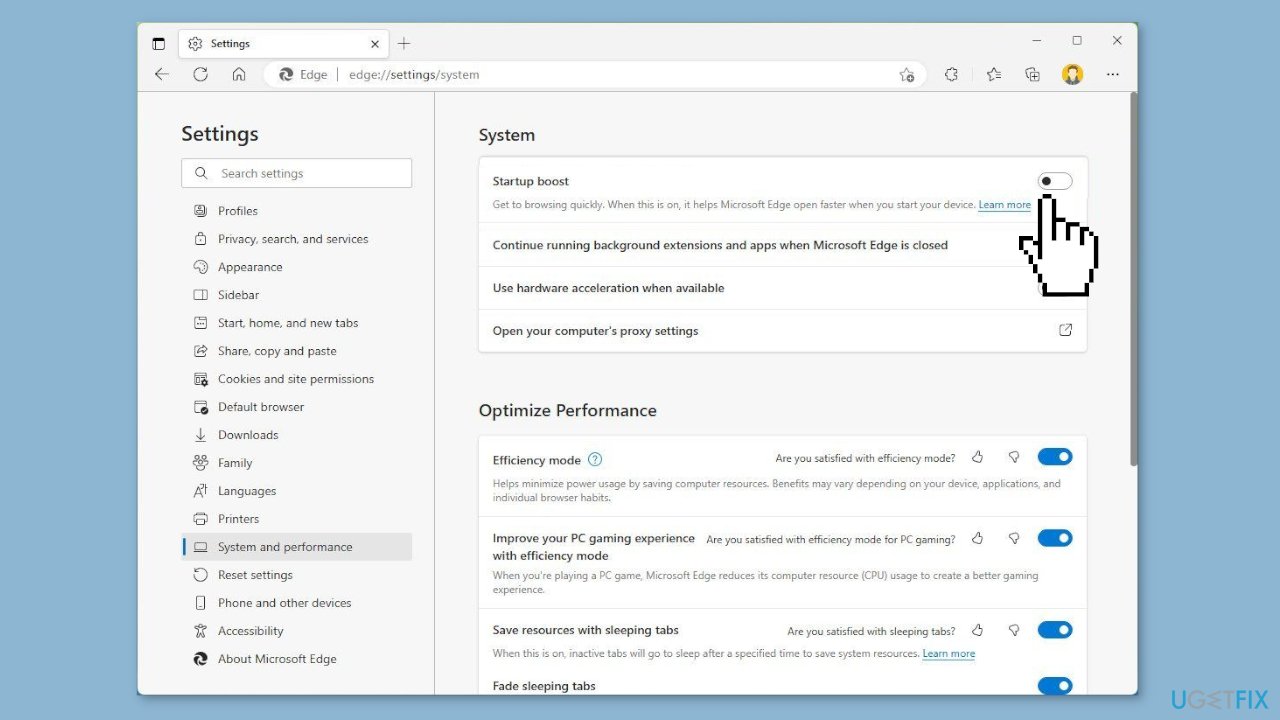
- Click on System and performance.
- Turn off the Startup boost option.
- Right-click on the Microsoft Edge app button in the Taskbar.
- Select the Pin to taskbar option.
- Right-click on the Microsoft Edge app button in the Taskbar again.
- Right-click on Microsoft Edge in the context menu.
- Select the Properties option.
- In the Target setting, append the following option after a space:
--disable-features=msUndersideButton
- Click the Apply button to save the changes.
- Click the OK button to close the Properties window.
Solution 2. Uninstall Bing Search
- Open the Start menu.
- Click on the Settings icon (gear icon).
- In the Settings window, click on Apps.
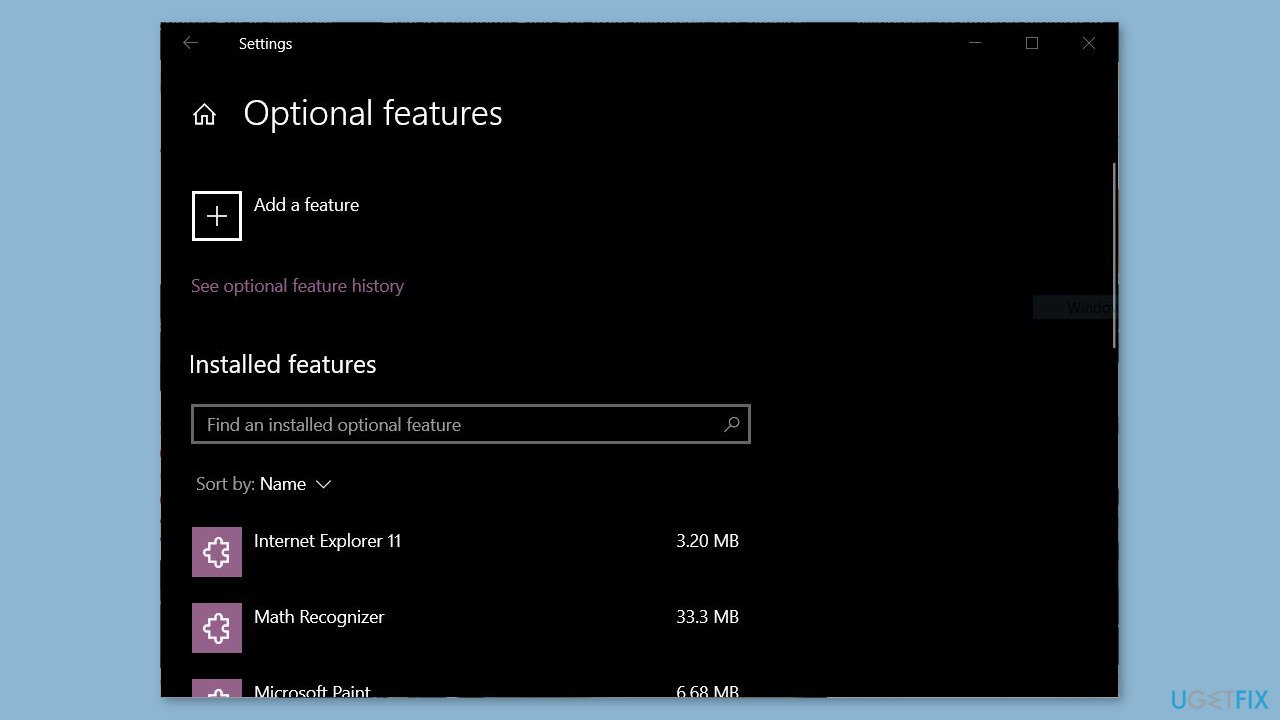
- Scroll down and click on Optional features.
- Look for Microsoft Bing Search in the list of installed optional features.
- Click on the Microsoft Bing Search option to select it.
- Click on the Uninstall button.
- Follow the prompts to complete the uninstallation process.
Solution 3. Modify the Registry
- Open the Start menu.
- Search for regedit and click on the top result to open the Registry Editor.
- Browse to the following path:
HKEY_LOCAL_MACHINE\SOFTWARE\Policies\Microsoft
- Right-click on the Microsoft key, select New, and click on Key. Name the key Edge and press Enter.
- Right-click on the newly created Edge key, select New, and click on DWORD 32-bit (Value). Name the key HubsSidebarEnabled and press Enter.
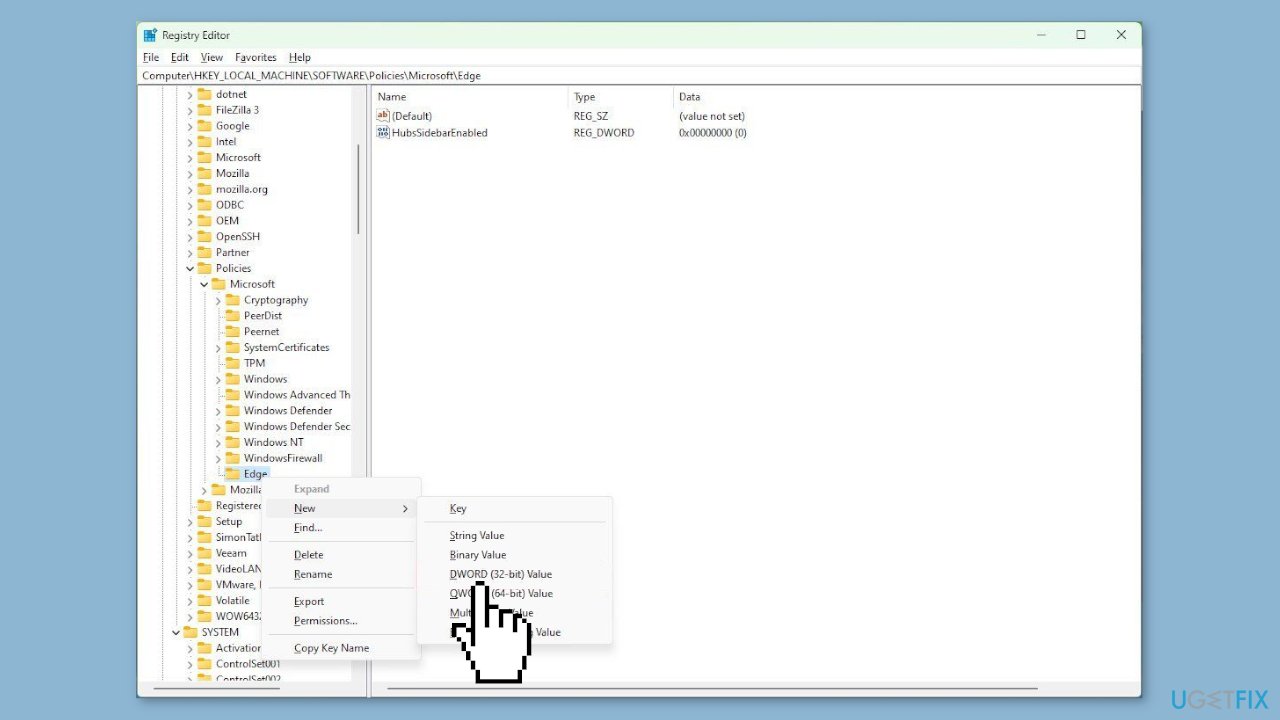
- Double-click on the newly created HubsSidebarEnabled key and set its value to 0. Click the OK button to save the changes.
- Open Microsoft Edge.
- Type the following path in the address bar and press Enter:
edge://policy
- Click the Reload Policies button to apply the changes.
- After completing the steps, Microsoft Edge should no longer show the Bing (Discover) icon or sidebar.
Bottom line
To remove Bing AI from Microsoft Edge, you can change the settings by turning off the Startup boost option and adjusting other preferences. If these steps do not resolve the issue, consider exploring additional options or seeking further assistance.
Frequently asked questions
To disable Bing AI in Microsoft Edge on Windows 10, open Edge, go to Settings > Privacy, search, and services, and turn off the 'Show suggested content' option.
While you cannot completely remove Bing AI, you can change your default search engine to another provider in Edge settings to minimize its use.
To stop Bing AI pop-ups in Edge on Windows 11, navigate to Settings > Cookies and site permissions, and adjust your pop-up settings to block them.




Report an issue
What's wrong with this guide? We review every report and update or remove content.
Report received — thank you. We'll review and fix it.
You need a free account to submit a report.
Be the first to comment