How to fix
Remove default Keyboard Language
on Windows
Easily remove the default keyboard language in Windows 10 or 11 to streamline your experience. Expert-tested tips ensure zero traces left.

Why does How to remove default Keyboard Language in Windows occur?
- User prefers a different language for personal preference
- Software applications perform better in another language setting
- Operating system reverts to original language during specific activities
- System permissions may restrict changes to language settings
- Certain software or configurations may interfere with language modifications
Repairs Windows system files, removes malware, and restores a clean OS state — without reinstalling.
Hi, I have two languages on my keyboard - one of my own country that English. I do not use the keyboard of my language ever, so I'd like to remove it. How do I do that?
Windows operating systems include a number of customizable features, such as the option to change language settings. This customization is especially important when installing Windows in a nation like Germany, where the system defaults to the local language, which in this case is German. This automatic option seeks to create an intuitive and smooth user interface by matching the operating system's language to the user's native language.
But occasionally, as a user, you might want to modify or remove this default language setting. There are several reasons why one would desire to implement such a modification. You might prefer to use the operating system in a different language due to personal preference or specific requirements of software applications that perform optimally in another language setting.
In addition, one common complaint from users is that when they engage in specific activities, such as gaming, the operating system has the tendency to revert back to the original language. The user experience may be hampered by this automatic transfer, especially for individuals who need or prefer to utilize a different language for their activities.
While it may seem like an easy task to remove default language from Windows, it can prove challenging for some. Standard methods for changing or removing the default language settings do not always work for every user. This can be due to a variety of factors, including system permissions, the presence of certain software, or specific configurations within Windows that prevent the usual methods from being effective.
Ultimately, if you're encountering persistent issues with language settings or other related problems in Windows, utilizing a professional PC repair tool [d1] can help resolve any underlying issues that might be causing the problem.
Method 1. Remove from the Time & Language settings
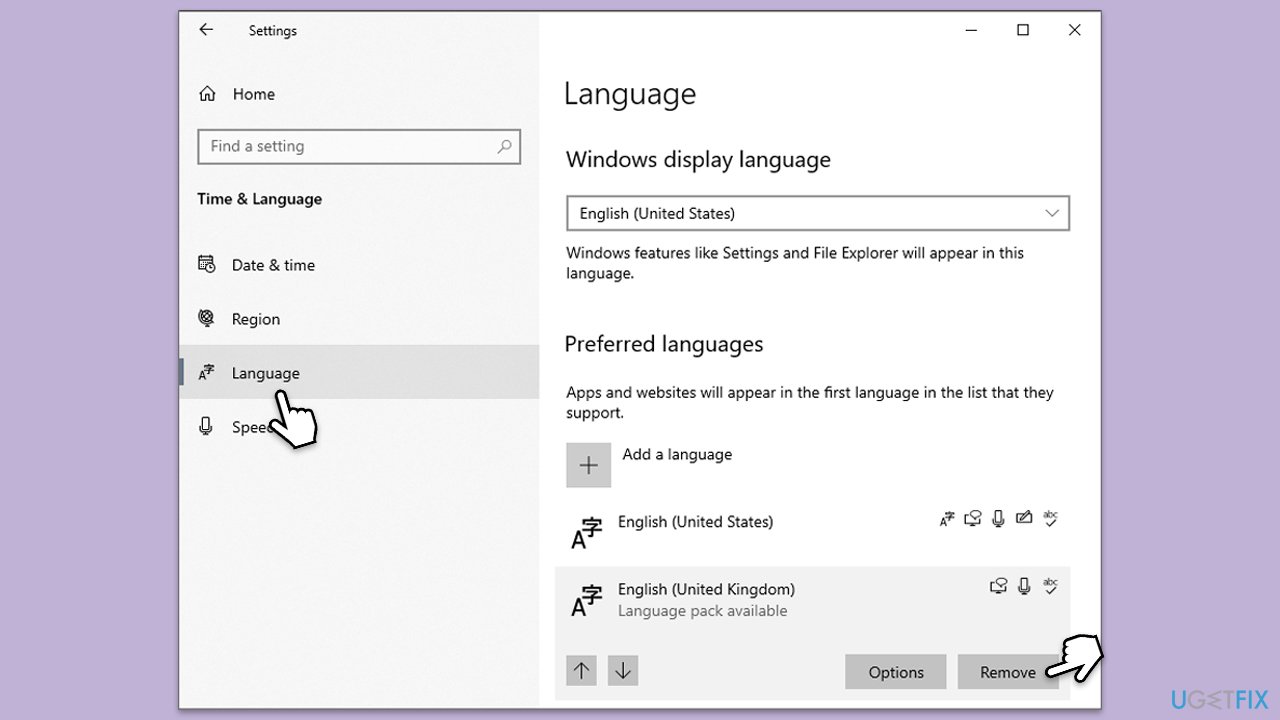
First, you should try a simple method if you haven't done so - using Windows settings - to remove the default keyboard language in Windows. Here's how:
- Right-click on Start and pick Settings.
- Select the Time & Language section.
- Click on the Language section on the left.
- Find the language you want to get rid of and select it.
- Click the Remove button.
Method 2. Set the default keyboard input
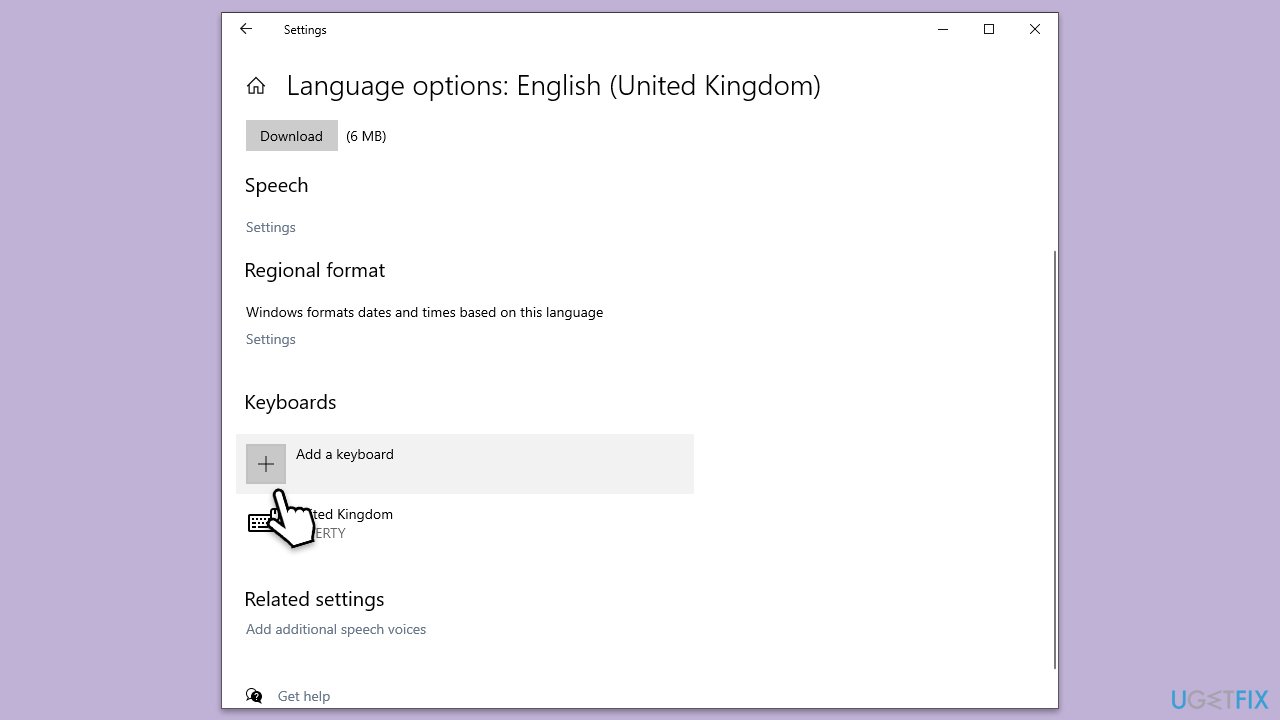
It is also vital to ensure that your keyboard input matches the language you want to use.
- Right-click on Start and pick Settings.
- Select the Time & Language section.
- Click on the Language section on the left.
- Make sure that your preferred language is listed as default, for example, English.
- Click on the Options button next to it.
- Click Add keyboard.
- Select the correct keyboard layout and remove every other keyboard layout you don't need.
- Close down everything and reboot your PC.
Method 3. Make the language visible
It might be that the language you want to remove is not visible. Thus, you need to expose hidden languages to see it.
- Right-click on Start and pick Settings.
- Select the Time & Language section.
- Click on the Language section on the left.
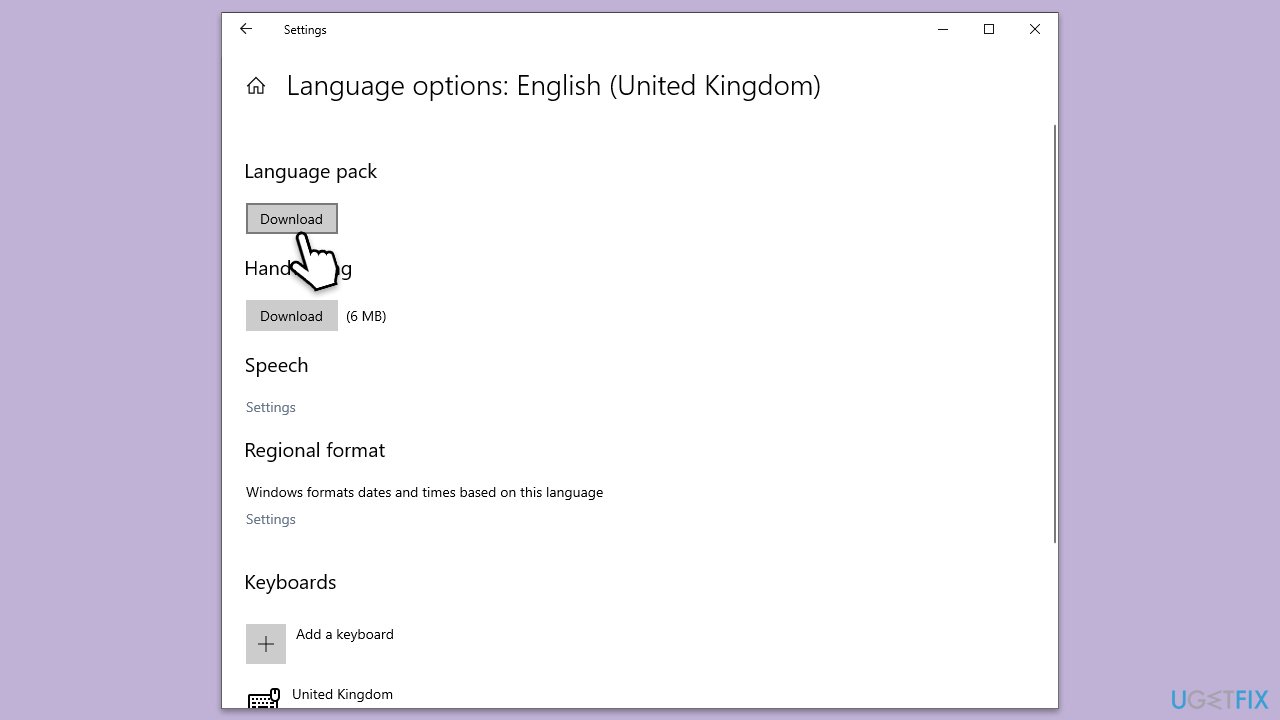
- Select Install Language Pack the the bottom of the list.
- Find the language you want to remove and select it.
- Pick Options next to the Language pack and click Download.
- Once the language is installed, you should be able to see it on the list of installed languages and remove it using the first method.
Method 4. Check Sync settings
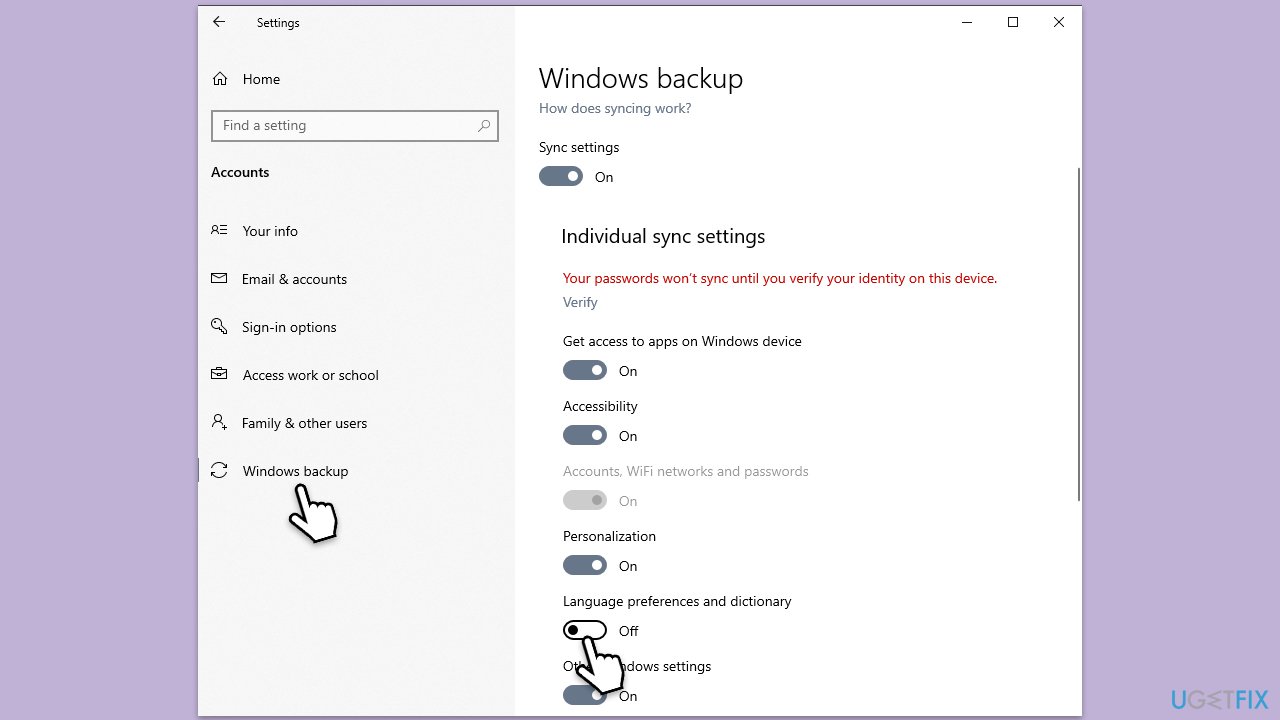
Incorrect sync settings might also result in an issue where you can't remove the default keyboard language in Windows.
- Right-click on Start and pick Settings.
- Select Accounts.
- Select Windows backup on the left.
- Under Individual sync settings, toggle the Language preferences switch to turn it off.
Method 5. Use PowerShell to remove default keyboard language
You can always force Windows to do what you want using elevated PowerShell (or Command Prompt).
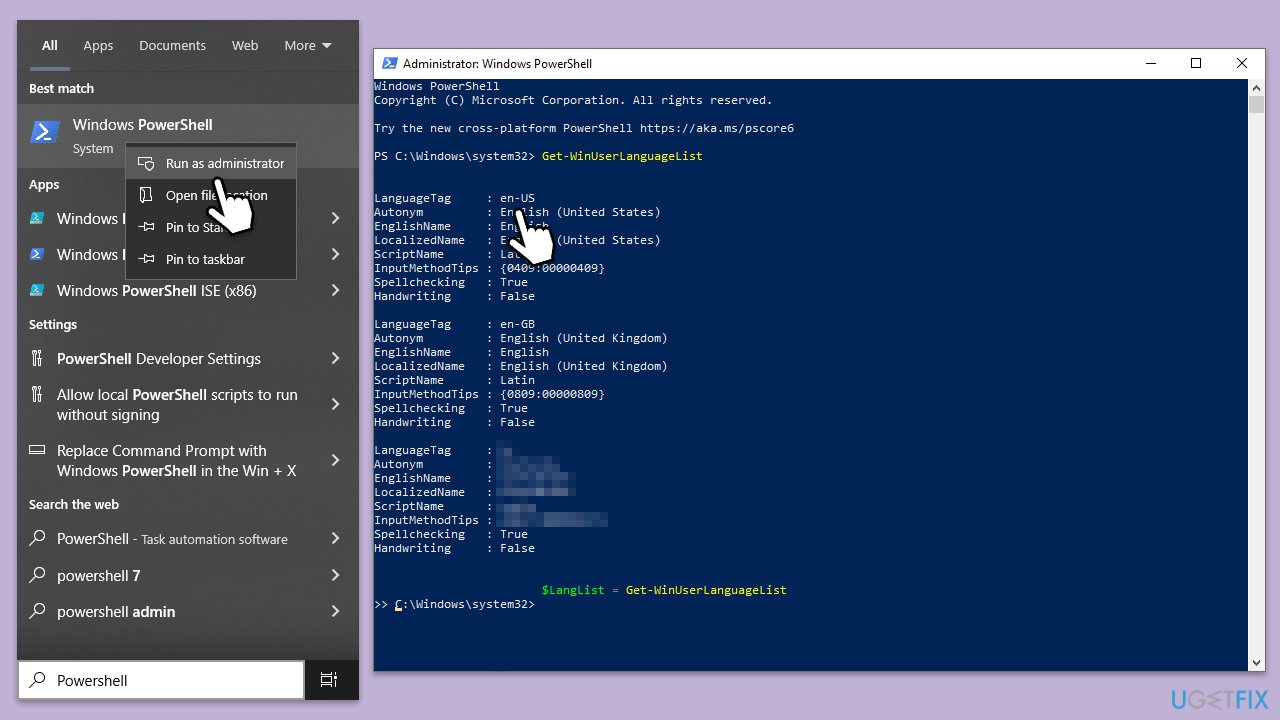
- Type PowerShell in Windows search.
- Right-click on the PowerShell result and select Run as administrator.
- When asked if you want to allow changes, click Yes.
- In the new window, copy and paste the following command, then press Enter:
Get-WinUserLanguageList - You will get a list of available languages. Make a note of the language you want to remove, for example, en-US.
- Next, copy and paste the following commands, pressing Enter after each:
$LangList = Get-WinUserLanguageList
$MarkedLang = $LangList | where LanguageTag -eq "en-US" (replace en-US with your language, keep the quotation marks)
$LangList.Remove($MarkedLang)
Set-WinUserLanguageList $LangList -Force - Restart your PC.
Method 6. Use Registry Editor
If nothing else works, try using Registry Editor. Make sure you create a backup of the registry before modifying it.
- Type regedit in Windows search and press Enter.
- When Registry Editor opens, navigate to the following location:
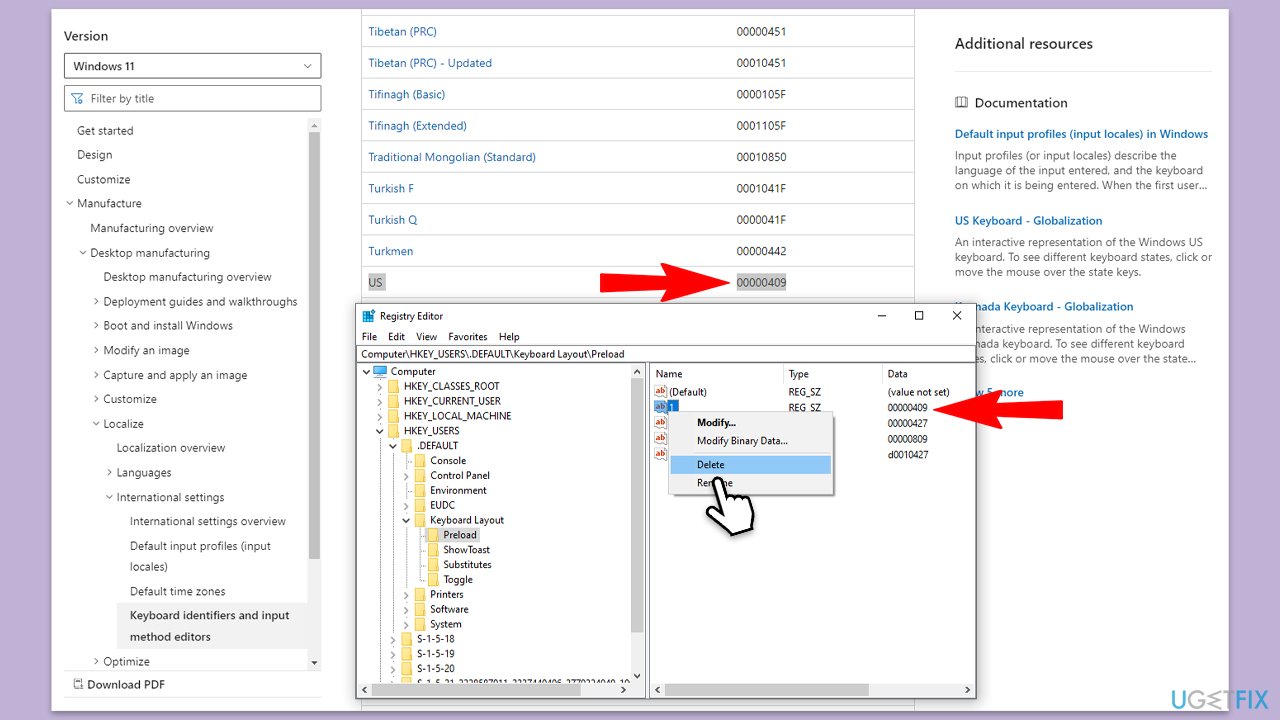
Computer\HKEY_USERS\.DEFAULT\Keyboard Layout\Preload - Open your browser and go to the list of codes for languages in Windows.
- Find the code for the language you want to delete.
- Go back to Registry Editor, and find the corresponding code from the list.
- Right-click on that entry and click Delete.
- Confirm when prompted.
- Restart your PC.
Bottom line
To remove the default keyboard language in Windows, you can try adjusting the settings in the Time & Language section. If you encounter persistent issues, consider using a professional PC repair tool to resolve any underlying problems.
Frequently asked questions
To remove a default keyboard language in Windows 10, go to Settings > Time & Language > Language, select the language you want to remove, and click on 'Remove.'
Yes, in Windows 11, you can remove a keyboard language by navigating to Settings > Time & Language > Language & region, selecting the language, and clicking 'Remove.'
If you can't remove the keyboard language in Windows, ensure you have another language set as your default and then try removing the unwanted language again.




Report an issue
What's wrong with this guide? We review every report and update or remove content.
Report received — thank you. We'll review and fix it.
You need a free account to submit a report.
Be the first to comment