How to fix
Remove „Edit with Paint 3D“ Option from the Context Menu
on Windows
Easily remove the "Edit with Paint 3D" option from your Windows 10 or 11 context menu. Streamline your experience with expert-tested tips.

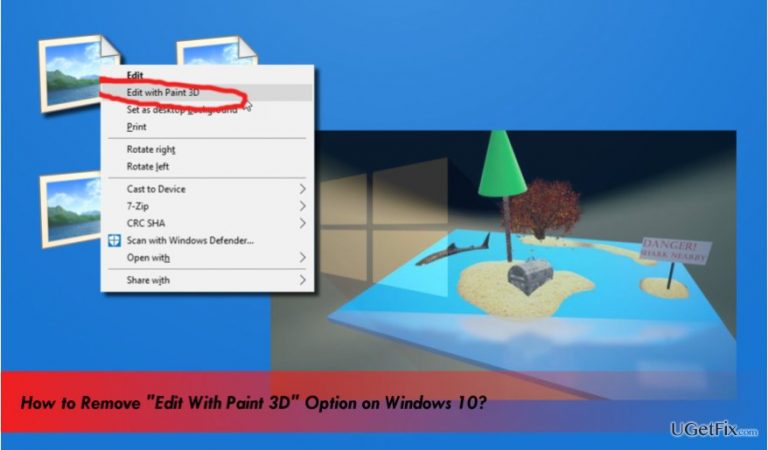
Why does How to Remove „Edit with Paint 3D“ Option from the Context Menu occur?
- Users prefer classic Paint due to its simplicity
- The introduction of Paint 3D in the Creators Update
- Confusion caused by multiple 'Edit' options
- Accidental opening of files with Paint 3D
- Paint 3D replaces the classic Paint in search results
Repairs Windows system files, removes malware, and restores a clean OS state — without reinstalling.
I‘m not going to use Paint 3D. I want to remove the „Edit with Paint 3D“ because it confuses it with other options and accidentally open files with 3D Paint. Is it possible to disable it?
Paint is one of the default Windows applications. Throughout the long year of its existence, people got used to it and grasped each function that the classic Paint offers. However, the Creators Update released this spring brought some significant changes, which touched the classic Paint as well. Microsoft has introduced the 3D Paint. The new app comes into Windows 10 system by default with the Creators Update and above versions and excludes the classic Paint from the apps list. Consequently, when the PC owner looks for Paint via search, he/she finds 3D Paint instead. Besides instead of Open with Paint option, right-click on the selected picture (JPEG, BMP, PNG, GIF, TIF, and TIFF image file types) displays „Edit with Paint 3D for image file formats.“
The new 3D Paint allows people to manipulate shapes and colors in a new (3D) dimension, customize, edit, and share the created pictures within Paint community, attach customized stickers, and much more. However, many Windows 10 users opt for using the classic Paint due to its simplicity. If you want to enable the classic Paint on your Windows 10, follow the instructions provided on this post. If you are using a classic Paint app or a third-party paint tool to edit pictures, you can disable the „Edit with Paint 3D“ option from the context menu.
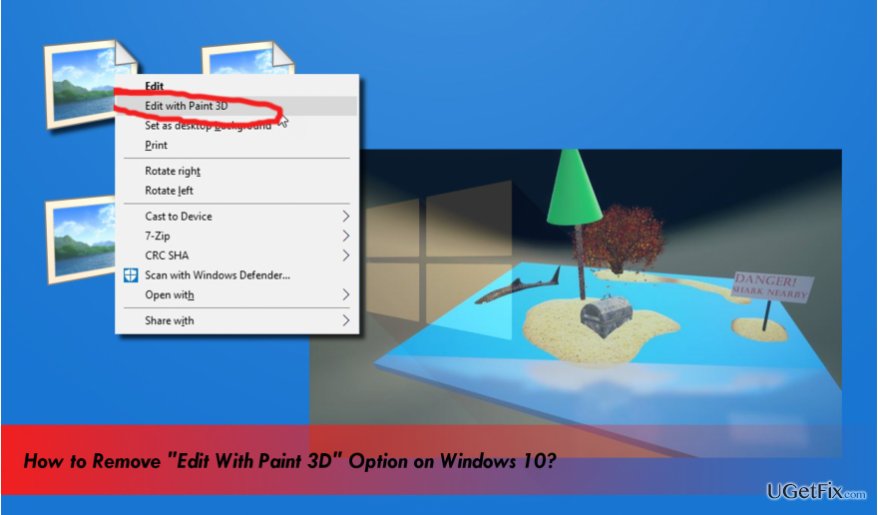
Removing the „Edit with Paint 3D“ option from context menu
IMPORTANT: Before performing the steps given below, we would strongly recommend you to create a System Restore Point or backup Windows Registry. This way, you will prevent the system from damage if you would delete or modify the wrong key.
- Press Windows key + R, type regedit, and press Enter.
- Press Yes on the UAC to open the Registry Editor.
- Use the left pane to navigate to the HKEY_LOCAL_MACHINE\SOFTWARE\Classes\ SystemFileAssociations\.bmp\Shell key.
- Under the Shell key, find the 3D Edit key. Right-click it and select Delete. This way, you will remove the "Edit with Paint 3D" option from the BMP image files.
- To disable the Edit with Paint 3D option from all image file types, you will have to perform the steps listed above with all below-given registry keys:
HKEY_LOCAL_MACHINE\SOFTWARE\Classes\ SystemFileAssociations\.jpeg\Shell
HKEY_LOCAL_MACHINE\SOFTWARE\Classes\ SystemFileAssociations\.jpe\Shell
HKEY_LOCAL_MACHINE\SOFTWARE\Classes\ SystemFileAssociations\.jpg\Shell
HKEY_LOCAL_MACHINE\SOFTWARE\Classes\ SystemFileAssociations\.jpg\Shell
HKEY_LOCAL_MACHINE\SOFTWARE\Classes\ SystemFileAssociations\.png\Shell
HKEY_LOCAL_MACHINE\SOFTWARE\Classes\ SystemFileAssociations\.gif\Shell
HKEY_LOCAL_MACHINE\SOFTWARE\Classes\ SystemFileAssociations\.tif\Shell
HKEY_LOCAL_MACHINE\SOFTWARE\Classes\ SystemFileAssociations\.tiff\Shell - Finally, close Registry Editor and reboot your PC.
TIP: when you remove the „Edit with Paint 3D“ option, we would strongly recommend running a scan with [d1] to optimize the system. Otherwise, the system may get clogged with outdated registries, app leftovers, malware leftovers, duplicate files and other useless content.
Bottom line
To remove the 'Edit with Paint 3D' option from the context menu, users can modify the Windows Registry. It is recommended to create a System Restore Point or backup the Windows Registry before making changes. If these steps do not resolve the issue, consider using a third-party paint tool.
Frequently asked questions
You can remove it by modifying the Windows Registry; navigate to HKEY_CLASSES_ROOT\SystemFileAssociations\image\shell and delete the 'Edit with Paint 3D' key.
Currently, the most effective way to disable the option is through the Registry Editor, as Windows 11 does not provide a built-in setting for this.
No, removing this option will only eliminate it from the context menu and will not affect other image editing tools you may have installed.




Report an issue
What's wrong with this guide? We review every report and update or remove content.
Report received — thank you. We'll review and fix it.
You need a free account to submit a report.
Be the first to comment