How to fix
Remove Facebook Birthdays from Calendar
on Windows
Easily remove Facebook birthdays from your Windows 10 calendar with our expert-tested guide. Optimize your settings for a clutter-free view today!

Why does How to remove Facebook Birthdays from Calendar in Windows 10 occur?
- Facebook integration with Calendar
- Installed Facebook app on computer or mobile phone
- Synchronized birthday notifications from Facebook
- Cluttered calendar with unnecessary reminders
- Expanded Facebook friend list with distant acquaintances
Repairs Windows system files, removes malware, and restores a clean OS state — without reinstalling.
I am using a Calendar on Windows 10. However, I found one feature extremely annoying. All events and birthdays are synchronized with it. While I don’t mind about the events, I want to disable birthday notifications. Is there a way to do it?
Windows 10 allows integration of Facebook and other social networks and email services. As a result, all the information provided there might end up into one place - your Calendar. Facebook events and birthdays might not only bother you when you open the application but directly from the lock screen. What is more, these notifications might pop up on the desktop and disturb you.
Undoubtedly, such activities are annoying. However, the Facebook integration to Calendar might also bother Windows 8.1 users. Most of the time birthday notifications are synchronized because a user has installed Facebook app on the computer or mobile phone.
Indeed, the issue has been reported not only on computers. Windows Mobile users also suffer from the same problem. However, there’s a simple way to get rid of this annoying issue, and it does not require uninstallation of the Facebook app.
Undoubtedly, this Calendar’s feature was created in order to help users not to forget their friend’s, colleague’s or family member’s birthday. However, nowadays Facebook friend-list have expanded a lot. We have people whom we haven’t talked in a while, former co-workers, classmates with whom we have never been close, etc. The list if full of people we have no intentions of saying “Happy Birthday.”
Therefore, this feature seems to be not only useless but annoying too. It just only clutters the calendar and uses the space that could be filled with important reminders. We have no doubts that you can remember your relatives and closest friend’s dates of births. If not, you can create a reminder manually.
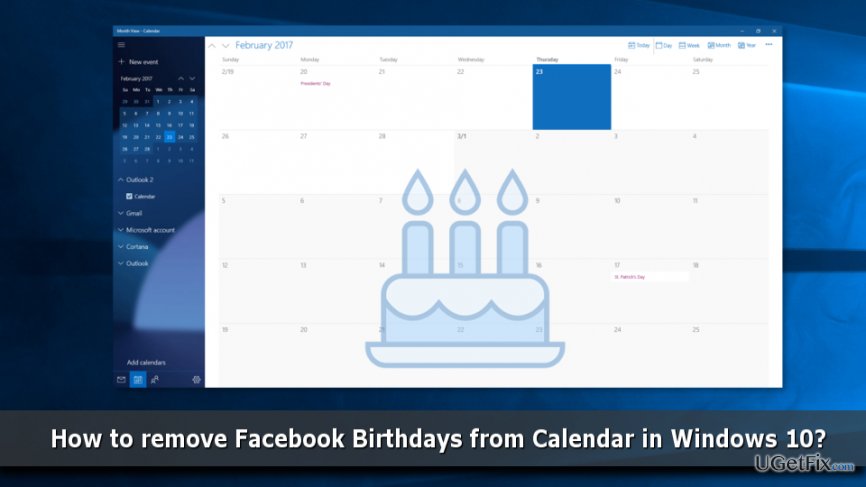
Follow these steps to remove Facebook birthdays from the Calendar
Decluttering your Calendar and getting rid of useless reminders about birthdays will definitely help to improve your productivity and organize your life better. Fortunately, this tasks is not hard to achieve. In order to get rid of Facebook birthdays, follow these steps:
- Type Calendar in Windows search box and click Enter to find the program.
- Open the app.
- In the top left corner, you should see the three lines. Click on them to expand the panel.
- Under Outlook section, you should find various features, such as Room, Family, Calendar, Holiday, Birthdays, etc. that are pre-selected.
- Unmark Birthdays option.
If you want to remove Facebook birthdays from the mobile app, please follow these simple steps:
- Open Calendar app.
- In the top left corner, you should see the three lines that expand the panel. Tap on them.
- Under your user name, you should see various features, such as Family, Room, Calendar, Holidays, Birthdays, etc.
- All these entries are pre-selected, so unmark the checkbox near Birthdays option.
Within these few easy steps, you can clean the calendar from undesired Facebook Friend’s birthdays. If you ever want to import them again, you just need to put back the tick near Birthdays option.
Bottom line
To remove Facebook birthdays from your Calendar, you can adjust the settings in the Calendar app to disable birthday notifications. If this does not resolve the issue, consider creating manual reminders for important dates instead.
Frequently asked questions
Open the Calendar app, click on the three horizontal lines in the top left corner, and look for 'Facebook Birthdays' under the 'Calendars' section.
Yes, the process is similar; go to the Calendar app, access the 'Calendars' section, and uncheck or remove 'Facebook Birthdays'.
No, removing Facebook Birthdays from your Windows 10 or Windows 11 calendar does not affect your Facebook account; it only removes the visibility of those events from your calendar.




Report an issue
What's wrong with this guide? We review every report and update or remove content.
Report received — thank you. We'll review and fix it.
You need a free account to submit a report.
Be the first to comment