How to fix
Remove Focus Sessions from Clock App
on Windows
Easily disable Focus Sessions in the Clock App on Windows 10 or 11. Boost your productivity with our expert-tested guide, updated 2025.

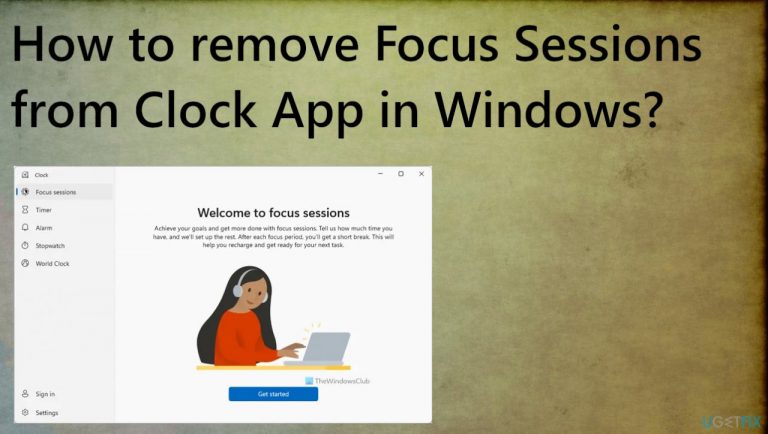
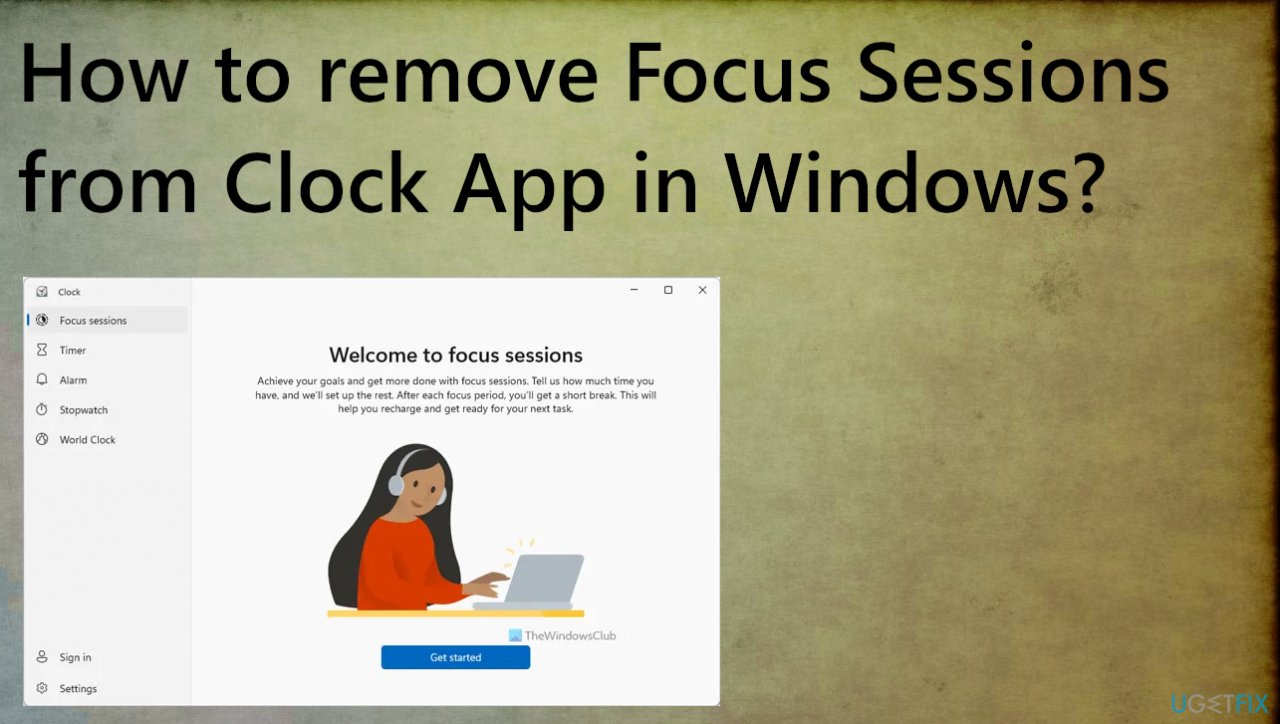
Why does How to remove Focus Sessions from Clock App in Windows occur?
- Focus Sessions feature included in the Clock app
- User complaints about unwanted default setting
- Recent updates may have reintroduced the feature
- Third-party applications or malware affecting system settings
- Need for app or OS updates to fix issues
Repairs Windows system files, removes malware, and restores a clean OS state — without reinstalling.
Hello. What's up with the Focus Sessions in Clock App. It bothers me a lot, and I cannot find the answer why this setting automatically appears when I open the Clock app to set a timer, for example. It always starts with the Focus Sessions tool. Please, help me
Focus Sessions on Windows is a feature included in the Clock app. It should help you focus on the work for a longer time and stay productive. It can help increase productivity and lets you focus on particular tasks, track time spent on a specific job, and take a break after the predefined time.
People are not happy with the feature. User reports filled up the forums like Reddit and Microsoft answers community with complaints.[ref en-1] The application feature even got implemented on Windows 10 and 11 after particular updates, so people have more reasons to know how to remove Focus Sessions from Clock App in Windows.
Some of the users say that completely disabling the feature can help to not see the unwanted function by default on the Clock app. others state that it is possible to get rid of it with the recent upgrade with the application or even Windows updates. It is common to receive fixes for common issues with buggy apps or updates[ref en-2] when you renew the feature or the operating system to the latest version.
It is possible that Microsoft addressed the issue with the upgrade, so checking for a newer version of the app or the OS might fix the problem for you, and you do not need to remove Focus Sessions from Clock App in Windows yourself or search for other solutions. You can also try to sign in with another account, using an MS account to sign in, for example, and check if that happens too.
Sometimes these system features and functions can be affected by third-party applications or malware[ref en-3] leftovers from the past that altered some files or settings. It is always recommended to frequently check the machine with security programs and applications like [d1] because tools like this can help secure the machine and repair affected or even damaged system files. It seems that the Clock app is integrated with the Focus Sessions by default now with Windows 11. It might be just an adjustment issue for users.
1. Update the Windows to apply pending changes
- Press the Windows key + I at the same time to open the Settings app.
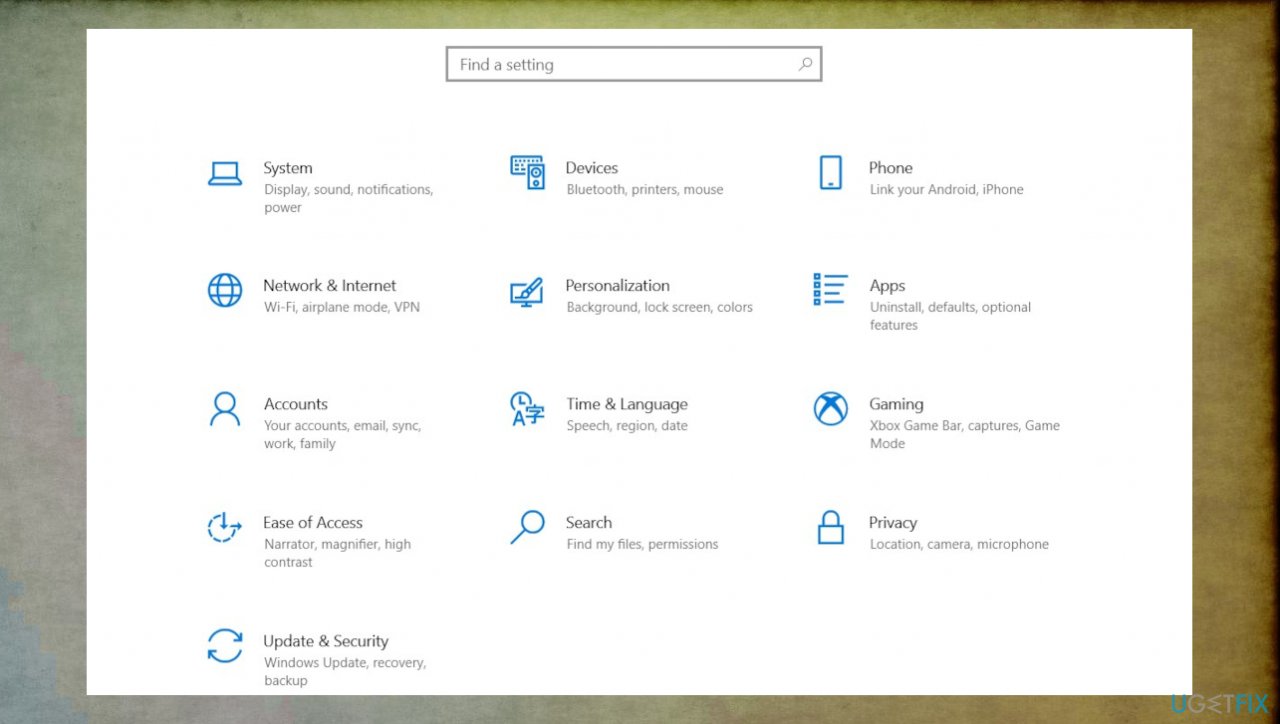
Focus session inclock app settings - Then choose Update & security.
- Then click Check for updates and install any pending updates if any are available.
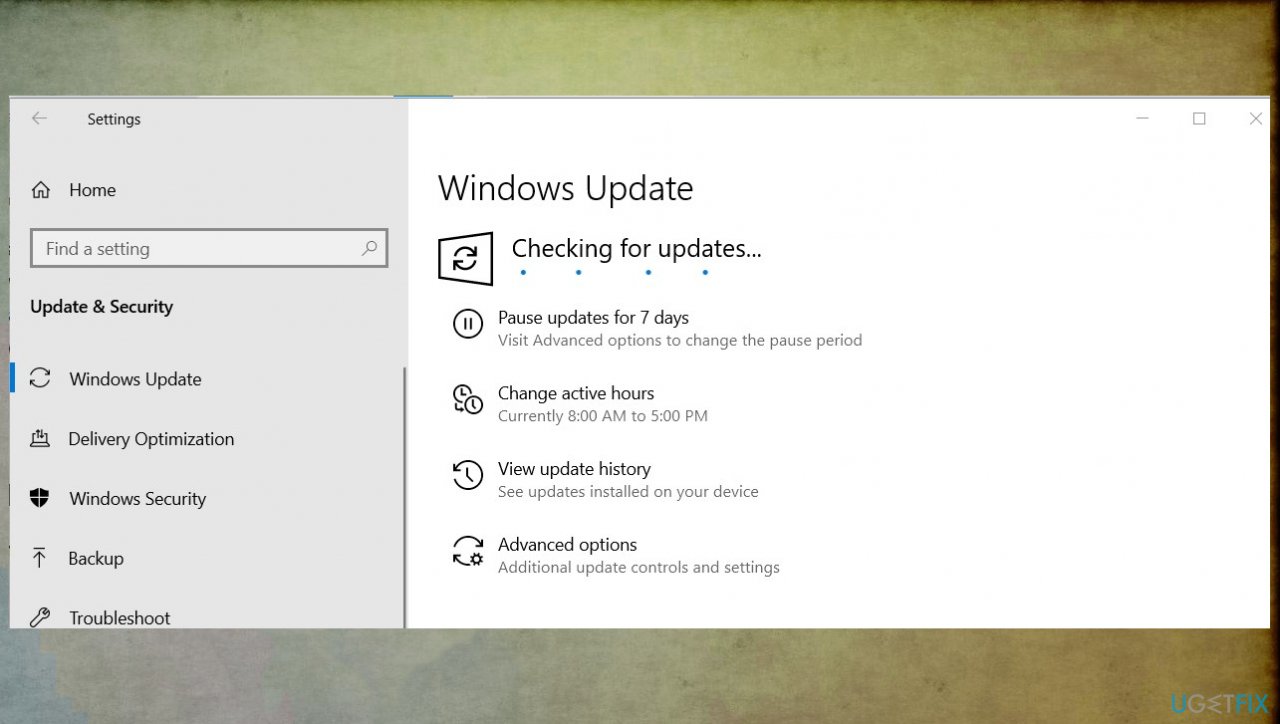
Focus session inclock windows update
2. Update the Clock app to alter preferences automatically
- Select Start.
- Go to Microsoft Store by searching for it.
- After you've opened the Microsoft Store app, select Library.
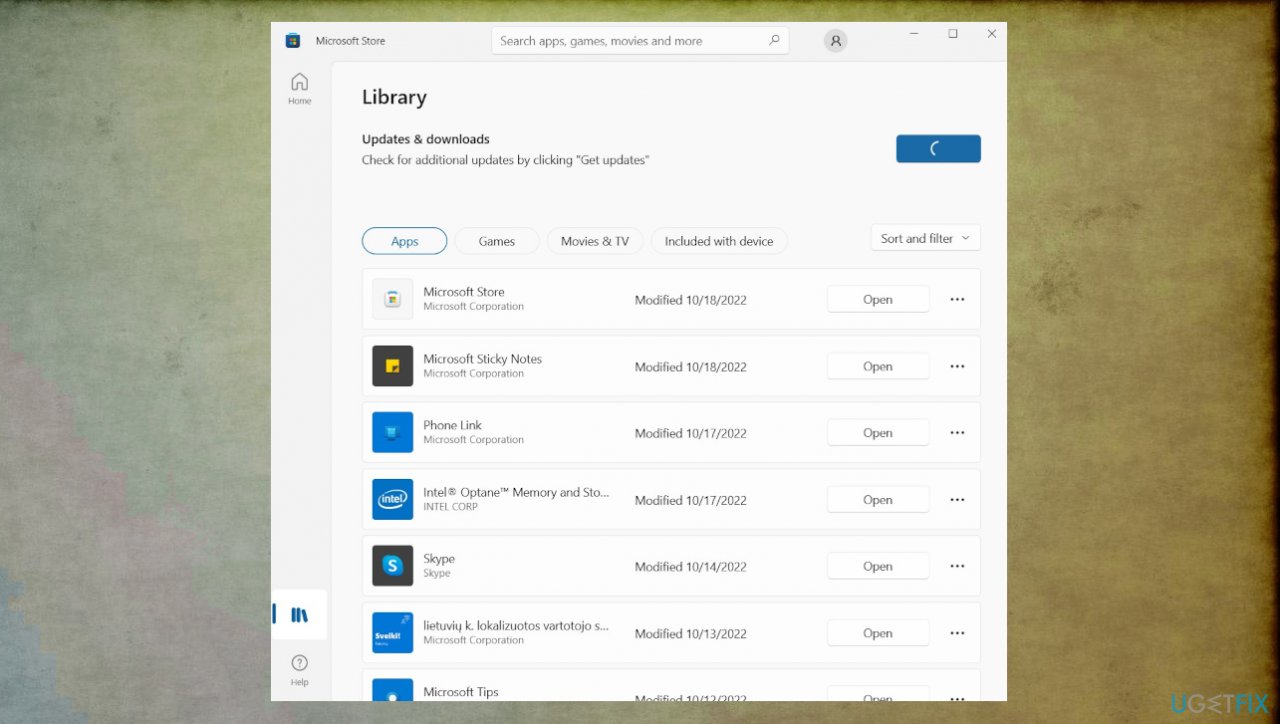
Focus session inclock app microsoft store - Click Get updates.
- If any are there for the needed app - choose what to update.
3. Repair the app
- Navigate to Settings.
- Click on Apps.
- Select Apps & features.
- Locate the Clock app.
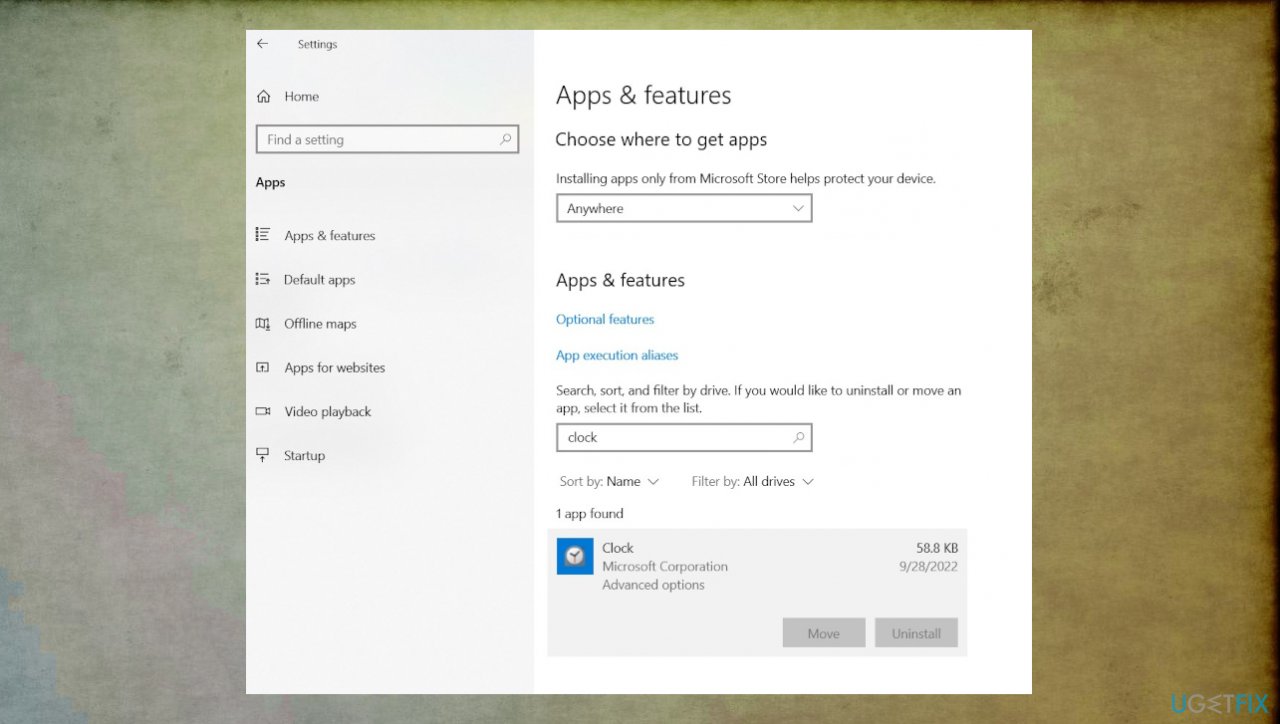
Focus session inclock app closk app - Click on the three dots and select Advanced options.
- Then hit the Repair button.
- Wait for the process to end. You can also choose to reset the app.
4. Repair corrupted system files
- Open Command Prompt by searching for CMD in the search bar.
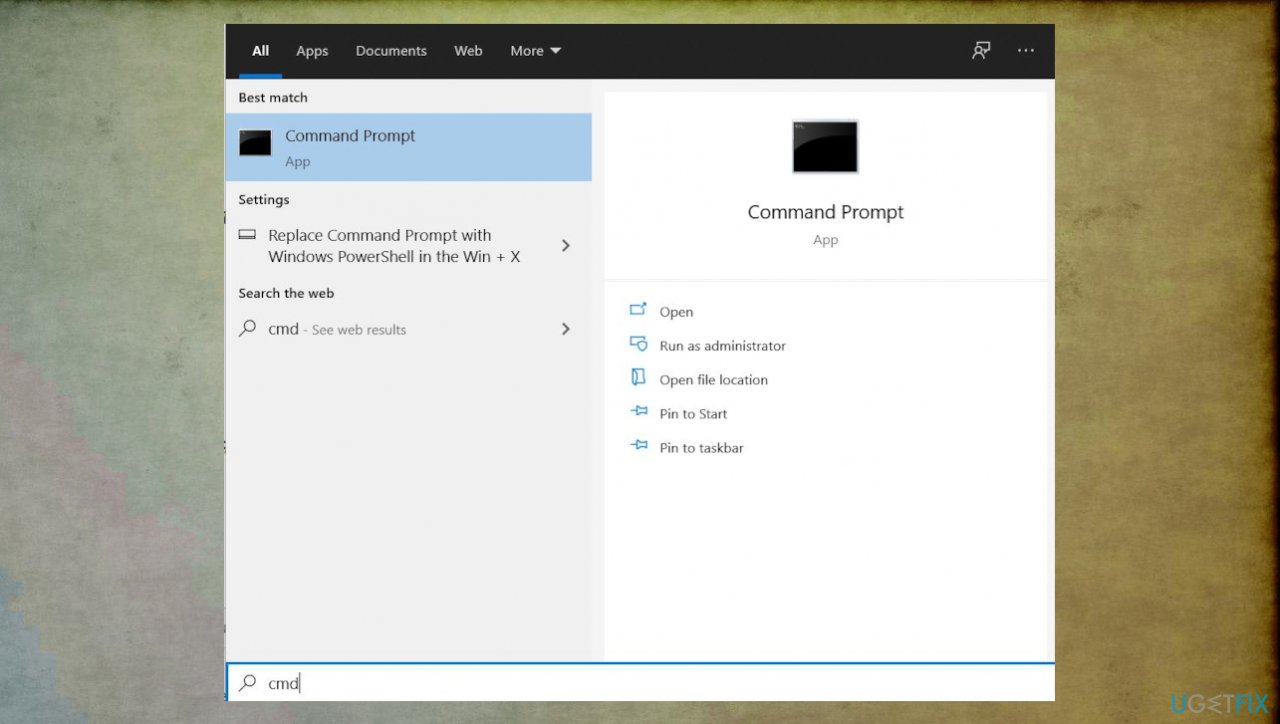
Focus session inclock cmd - Make sure to run it with admin rights.
- Use the following command and press Enter:
sfc /scannow - Reboot your system.
- Then use the following command lines, pressing Enter after each:
DISM /Online /Cleanup-Image /CheckHealth
DISM /Online /Cleanup-Image /ScanHealth
DISM /Online /Cleanup-Image /RestoreHealth
Bottom line
To remove Focus Sessions from the Clock app, you can try disabling the feature, updating the app or operating system, or signing in with a different Microsoft account. If these solutions do not work, consider checking for third-party applications or malware that may be affecting your system.
Frequently asked questions
To disable Focus Sessions, open the Clock app, go to the Focus Sessions tab, and toggle off the 'Focus Sessions' option in the settings.
No, removing Focus Sessions will not affect your timer settings; you can still use the timer and other features in the Clock app.
While you can remove the Focus Sessions feature, the Clock app itself cannot be uninstalled as it is a built-in application in Windows 10.




Report an issue
What's wrong with this guide? We review every report and update or remove content.
Report received — thank you. We'll review and fix it.
You need a free account to submit a report.
Be the first to comment