How to fix
Remove login screen recommendations and suggestions from Microsoft
on Windows
Eliminate unwanted login screen recommendations on Windows 10 and 11 for a cleaner experience. Expert-tested tips ensure results in minutes.

Why does How to remove login screen recommendations and suggestions from Microsoft occur?
- Ads displayed on the login screen
- Political messages appearing on the login screen
- Forced installation of Microsoft Edge
- Introduction of Windows Spotlight with ads
- Dissatisfaction with Bing news articles
Repairs Windows system files, removes malware, and restores a clean OS state — without reinstalling.
Hello, I have recently noticed that the login screen on Windows is showing all sorts of stuff I'd want not to see - ads and political messages I don't care about. I want my login screen to be clean and have no ads like that in it. Can you help me remove these?
As an operating system, Windows has evolved quite a bit since version 1.0 all the way back in 1985.[ref en-3] With the newest Windows 11, the OS is the most advanced it has ever been, and many of the changes are welcomed by users - they improve reliability, stability, ease of use, security, and other aspects that are important for everybody.
In between these releases, Microsoft also ships various updates that also add to the user experience. Unfortunately, not all the changes are welcomed by the users, and many complain about various issues this has caused over the years. For example, the forced MS Edge installation outraged many people, and the backlash was rather warranted, as a choice is important for any computer user.[ref en-1]
Lockscreen and login screen has been present on Windows for a while, and users were happy to customize their experience. In older system versions, such as Windows 7, a default background image was shown to users - these were usually rather bland and incorporated Windows logos or related wallpapers.
Windows Spotlight was introduced in Windows 10 and has changed the login screen quite a bit. It added many new background wallpapers from locations all over the world, most of which look spectacular. Not all changes were positive ones, however, as people started noticing news articles and ads from Bing soon after.
It is understandable that Microsoft would want to implement ads as much as possible, as it is a for-profit company. However, many people were dissatisfied with the content of ads and news articles from Bing being promoted, some even referring to it as "propaganda."[ref en-2]
Whether it can be considered as such is to each person to decide individually but wanting to stop login screen recommendations and ads is a completely reasonable request. Luckily, Windows 10 and 11 have multiple settings that can be changed in order to remove unwanted content from the login screen - we discuss all the options below.
1. Disable Tips, tricks, and suggestions
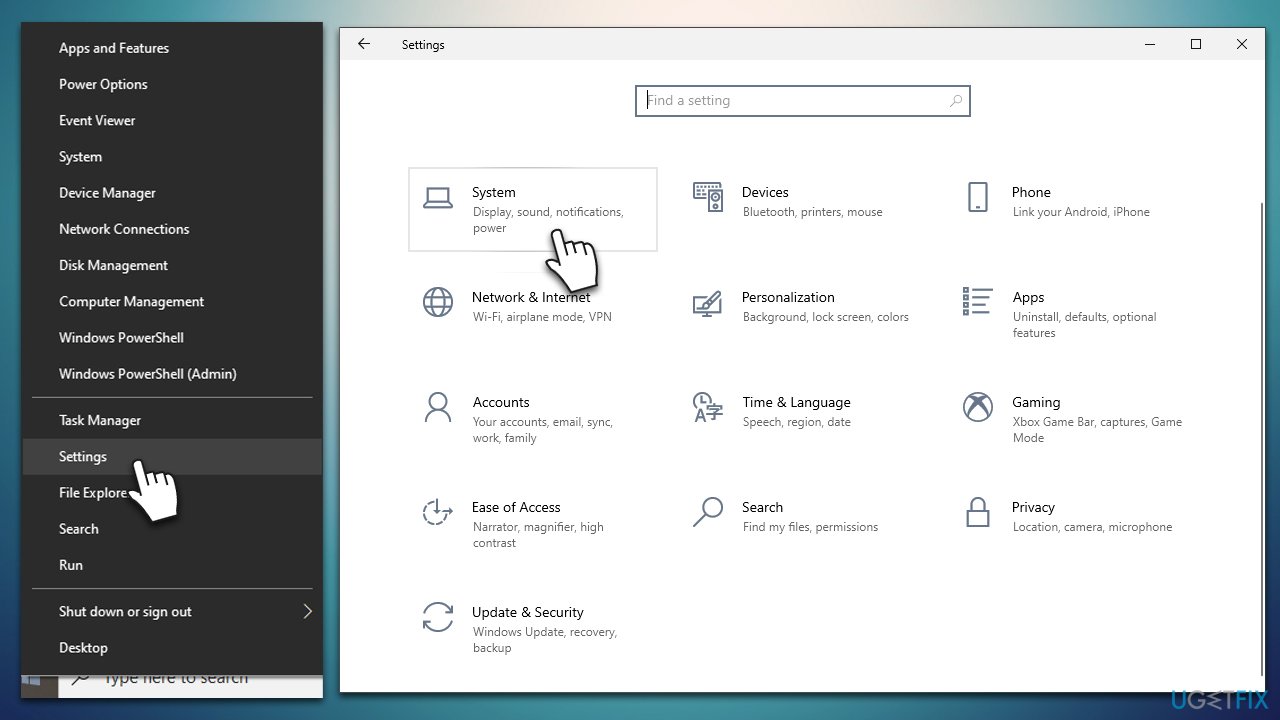
- Right-click on Start and pick Settings or type Settings in Windows search and press Enter
- Go to the System section
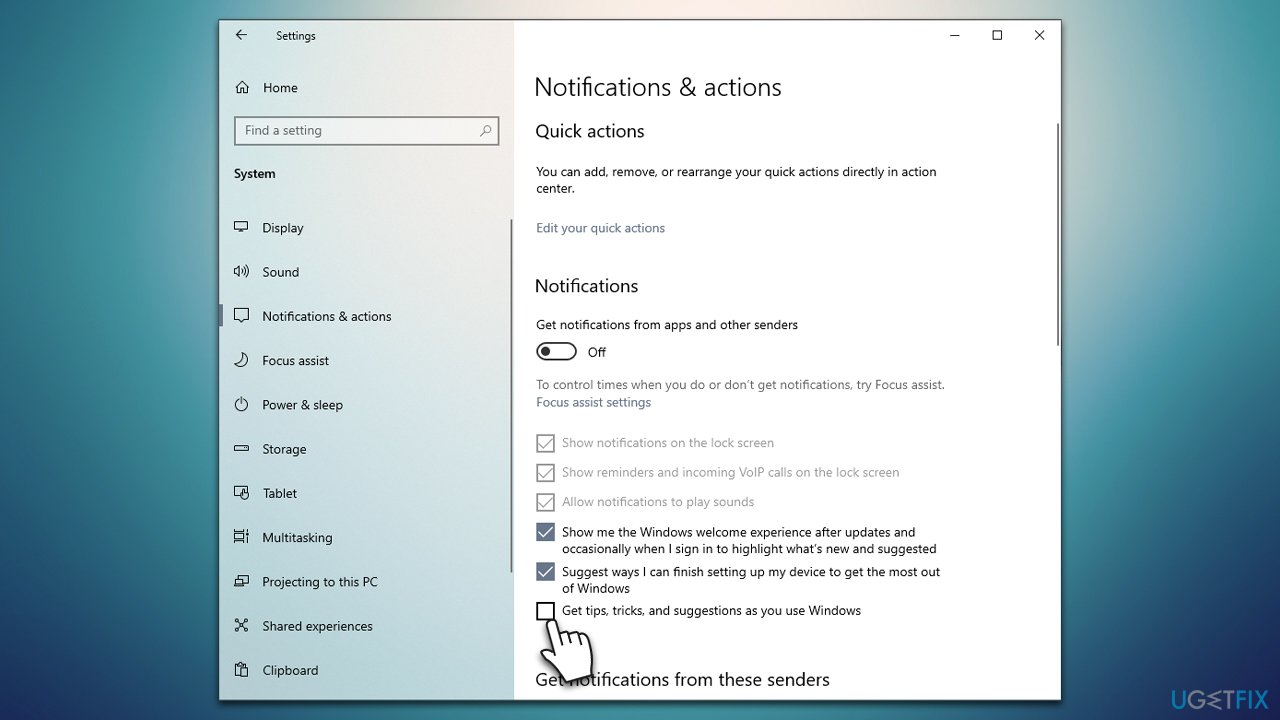
- Select Notifications & actions on the left
- Here, unmark the Get tips, tricks, and suggestions as you use Windows option. (Note: this option could be in the Personalization settings for some users, depending on the Windows version. Check Solution 2).
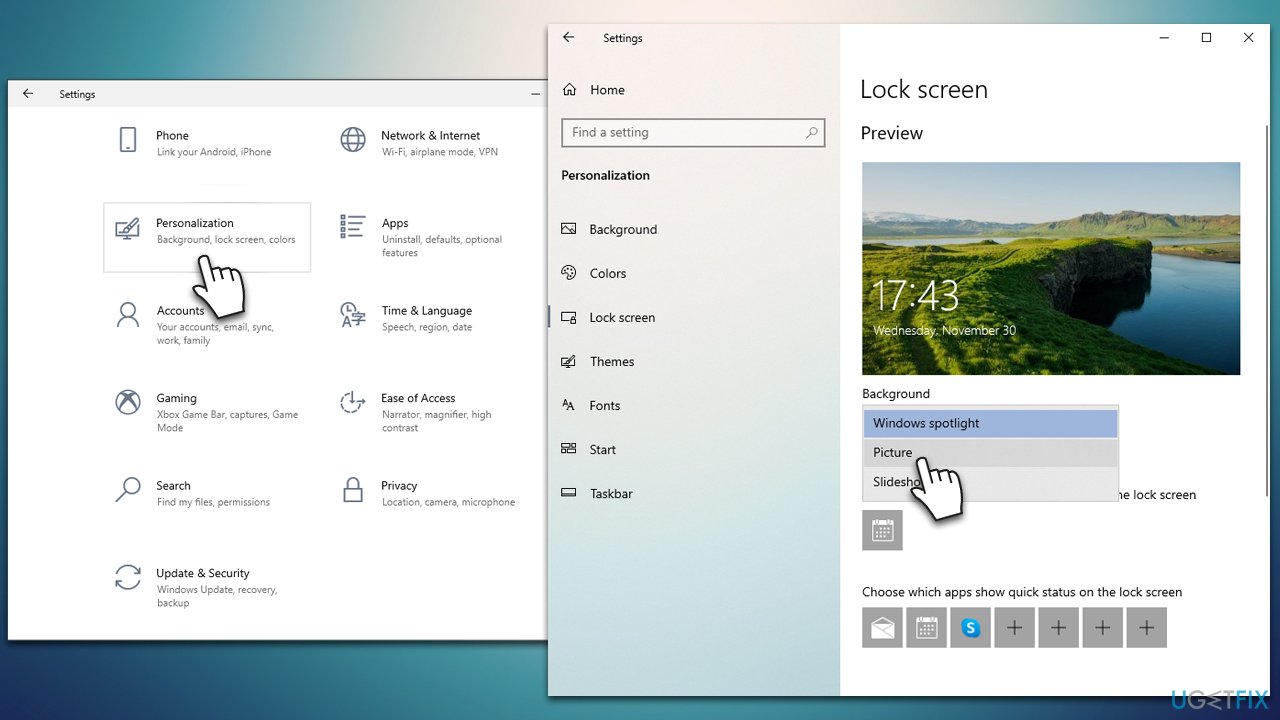
2. Turn off Windows Spotlight
This option will allow you to choose your own pictures to be shown on the Windows login screen:
- Right-click on Start and pick Settings or type Settings in Windows search and press Enter
- Select Personalization
- Go to the Lock screen section
- Under Background, select Picture from the drop-down menu
- You can either choose from Windows pictures or Browse your own.
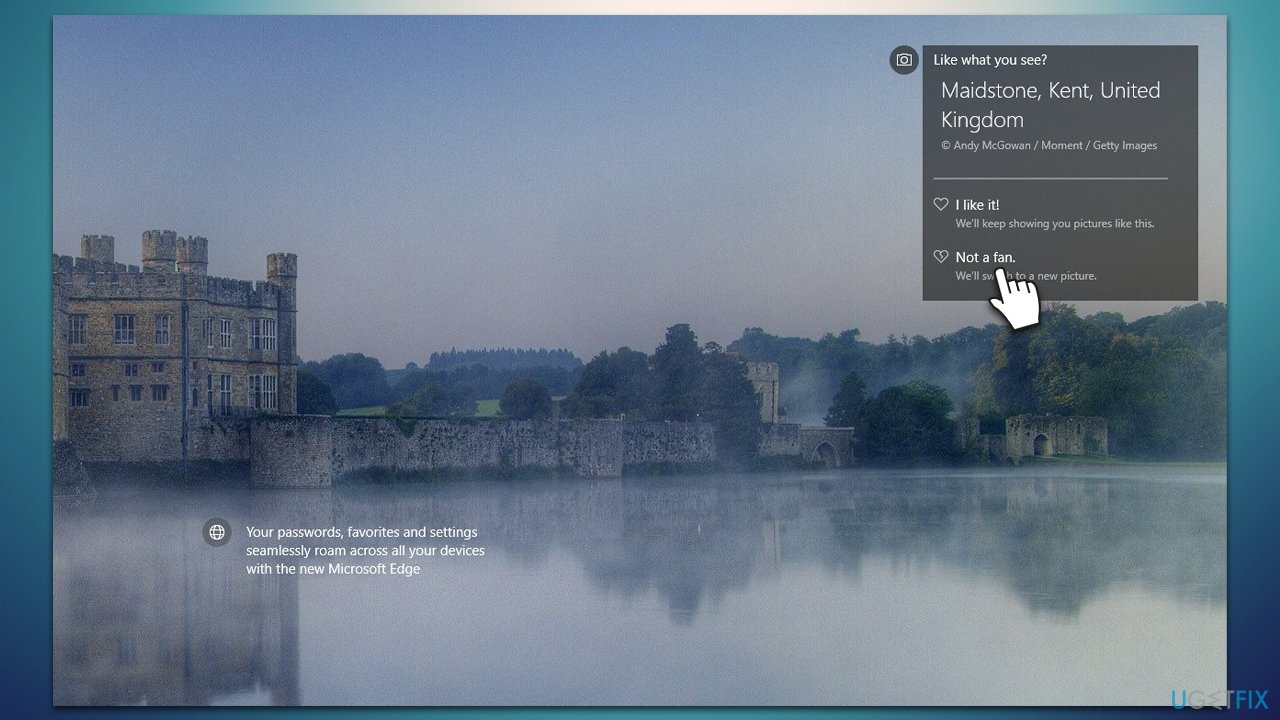
3. Use the "Not a fan" option to dismiss the image
If you don't like the picture that's currently being shown on the login screen, you can move on to the next one easily. Typically, the same image is used for several days until it rotates to the next one. If you don't like it, you can change it, and Windows won't show it again to you:
- On the login screen, hover your mouse over the Image icon to show more details
- Here, select Not a fan - We'll switch to a new picture.
Bottom line
To remove login screen recommendations and suggestions from Microsoft, you can adjust your settings to disable ads and customize your lock screen. If these methods do not resolve the issue, consider checking for additional updates or exploring third-party solutions.
Frequently asked questions
To disable login screen recommendations on Windows 10, go to Settings > Accounts > Sign-in options, and turn off 'Show account details such as my email address on the sign-in screen.'
Yes, in Windows 11, you can remove suggestions by navigating to Settings > Accounts > Sign-in options and disabling 'Show suggestions for sign-in.'
To prevent app suggestions on the login screen in both Windows 10 and Windows 11, go to Settings > Personalization > Lock screen and uncheck 'Get fun facts, tips, and more from Windows and Cortana on your lock screen.'




Report an issue
What's wrong with this guide? We review every report and update or remove content.
Report received — thank you. We'll review and fix it.
You need a free account to submit a report.
Be the first to comment