How to fix
Remove specific Safari history items
on Windows
Easily erase specific Safari history items on your Windows 10 or Windows 11 device. Boost privacy and clean up your browsing with expert-tested tips!

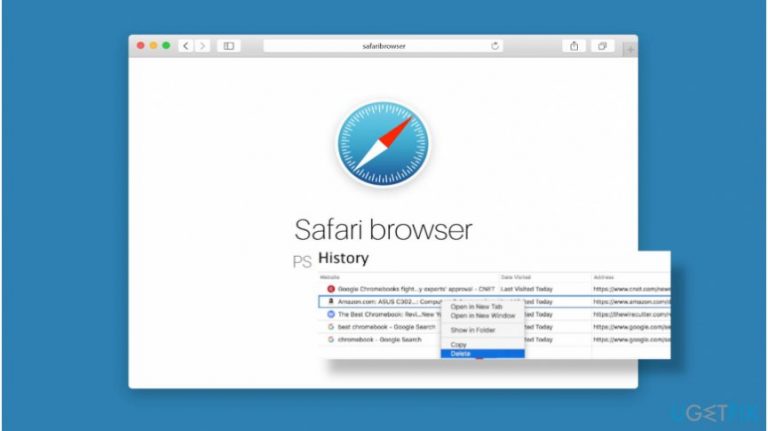
Why does How to remove specific Safari history items occur?
- Web browsing history may cause embarrassment due to visits to inappropriate websites.
- Regular removal of history is recommended to prevent third-party cookies from tracking.
- Older Mac devices may not support the removal of specific history items.
- Removed items can reappear after visiting the website again.
- Restored items may come back if the system is restored from a backup.
Repairs Windows system files, removes malware, and restores a clean OS state — without reinstalling.
I believe it’s easy, but I can’t find a way to delete separate pages from Safari web browsing history. Could you please provide me with a quick guide?
Removal of specific Safari history items is a feature that many of Safari’s users are still not familiar with even though the feature “Clear browsing data,” be it Google Chrome, Mozilla Firefox, Internet Explorer, or Safari, is already well acquired and widely used by most of the users. Clearing full web browsing data is useful for a couple of reasons. First of all, web browsing history may push people into shame because of visits to disgraceful websites. Furthermore, regular removal of web browsing history is highly recommended in preventing third-party cookies spying on you[ref en-1].
To prevent unwanted websites from resurfacing on Safari when typing in URL, removal of specific Safari history items from Mac an iOS is a great solution. Therefore, we will provide a step-by-step guide for help. Removal of specific history items on Safari is not difficult. Although it is possible that some very old Mac devices[ref en-2] may not support specific item removal from Safari’s history, the newer versions that are currently used by most Mac users will have the feature.
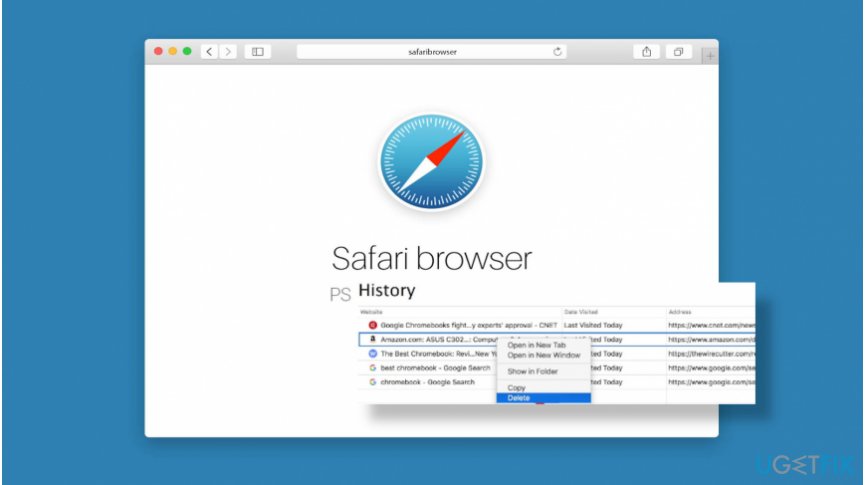
It’s important to stress the fact that the removal of specific items on Safari’s web browsing history does not apply for further visits. The feature does not serve as a filter of displayed or not displayed web browsing history items. Therefore, after the next session on a website that you want to remove from Safari will reappear in web browsing history. Besides, removed items from Safari web browsing history will be successfully restored after Mac’s backup is enabled to restore the system to the previous state. In this case, you’ll have to repeat the steps to remove specific Safari history items
Method 1. Delete specific websites from Safari on iOS
If you are using an iOS device, such as iPhone, iPod or iPad and struggle to find a feature on Safari to remove specific web browsing items, you should follow these steps:
- Launch the Safari app on your device.
- Tap the bookmark icon on the bottom right corner.
- Locate a clock icon, which stands for History.
- Now you should see a full list of web browsing history items. Locate the websites that you want to remove.
- Swipe the website from left to right and tap Delete.
- Finally, tap the Done button positioned at the bottom right corner.
Method 2. Remove separate URLs from Safari on Mac
- Open the Safari web browser on your Mac.
- At the top of the Start screen, you should see a toolbar that stands for Safari's History menu. Find Show History option and click on it.
- You can also open Safari's web browsing history with a shortcut Alt-Command-2.
- Scroll through the list of websites that you have visited and find the one that you opt for deleting.
- Press and hold the Control key and left-click with the mouse on the selected website.
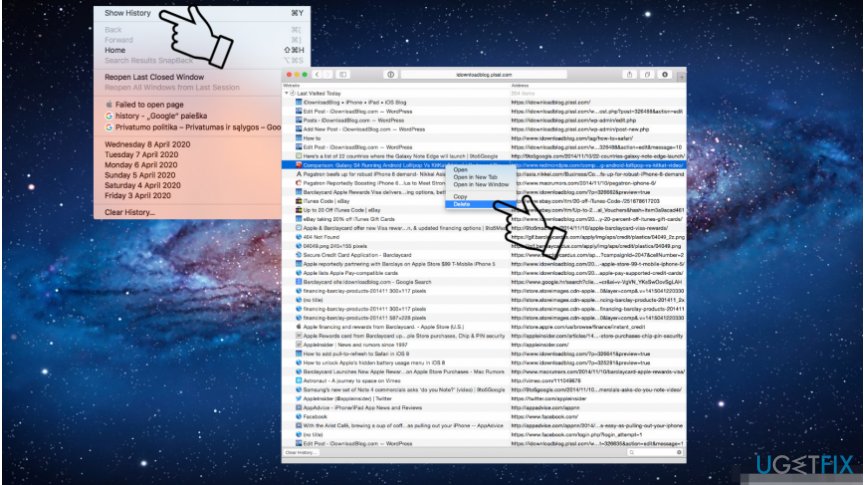
Safari history removal - Alternatively, you can right-click on the selected item.
- When the drop-down menu shows up, select Delete.
In case visiting some websites that you don't want your children or spouse to know about are common, continuous removal of specific items on Safari web browsing history may be a tiresome experience. Even more, you may forget to clean history one day. To prevent unwanted consequences, we recommend you to use Safari's private browsing mode[ref en-3]. A private browsing window ensures that AutoFill information or URL address bar isn't saved. Besides, privately visited websites are not stored in iCloud, which is why they will not appear on other synced devices. To enable Safari private browsing session you should:
- Open Safari and select File on the toolbar at the top of the screen.
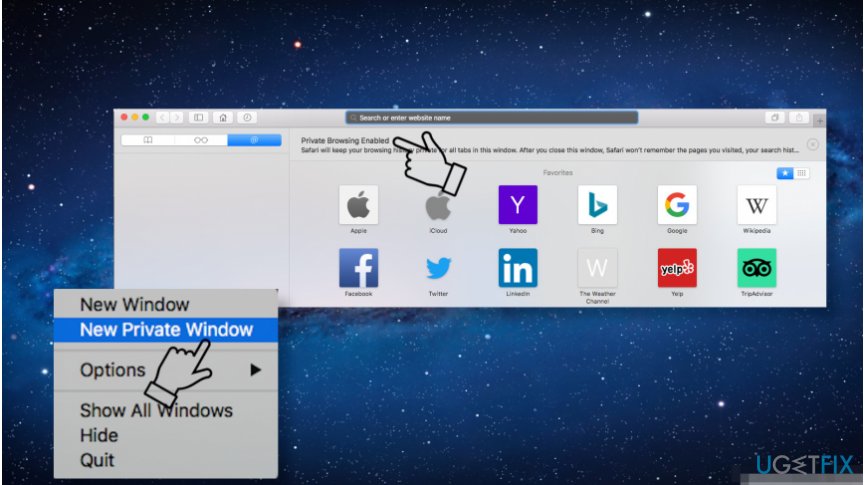
Safari pprivate browsing mode - Select New Private Window.
Bottom line
To remove specific Safari history items, users can follow the step-by-step guide provided for both Mac and iOS devices. If these methods do not resolve the issue, consider seeking additional support or resources.
Frequently asked questions
Yes, you can remove specific Safari history items by opening Safari, going to the History menu, and selecting 'Show All History' to delete individual entries.
On Windows 11, you can clear specific Safari history items by accessing the History section and using the 'Delete' option next to the entries you want to remove.
No, removing specific Safari history items on Windows 10 or Windows 11 will not affect your bookmarks; they remain intact.




Report an issue
What's wrong with this guide? We review every report and update or remove content.
Report received — thank you. We'll review and fix it.
You need a free account to submit a report.
Be the first to comment