How to fix
Remove “Subscription expired. Update payment to keep Microsoft 365” notification
on Windows
Eliminate the "Subscription expired" notification in Windows 10 and 11 effortlessly. Get expert tips for a smooth Microsoft 365 experience, updated 2025.


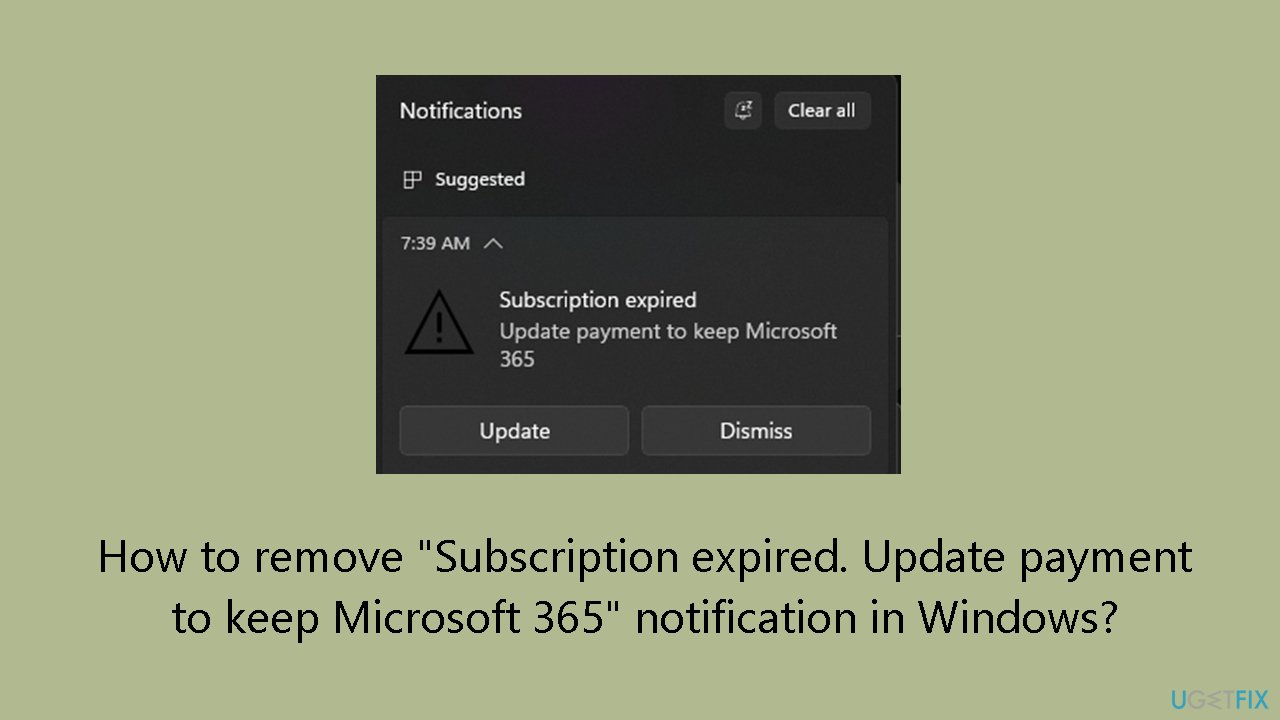
Why does How to remove “Subscription expired. Update payment to keep Microsoft 365” notification in Windows occur?
- Payment information may be correct but not recognized by the system
- Notification persists despite updating payment details
- Users may have outdated Office apps
- Issues with the Microsoft 365 subscription status
- Invasive notifications causing unnecessary anxiety
Repairs Windows system files, removes malware, and restores a clean OS state — without reinstalling.
Hello. I keep receiving a "Subscription expired. Update payment to keep Microsoft 365" notification on my Windows PC. I checked the payment information and everything seems correct. What should I do?
Some users have reported encountering an issue where they receive a persistent notification on their Windows system indicating, "Subscription expired. Update payment to keep Microsoft 365." It's interesting to note that a few individuals reported that their debit card information was correct and up to date when they checked the given link. In addition, there are instances where individuals assert that they have successfully updated their payment details with Microsoft, but the message persists.
Inconvenience and confusion may result from this issue for users who have previously updated their payment data. The ongoing message may cause them to unnecessarily worry about whether their subscription is still active even though their payment details have been updated and provided correctly.
Users of Microsoft 365 need to have a flawless experience free from invasive and misleading notifications. In addition to interfering with the user experience, the problem could cause needless anxiety, particularly in cases where customers have already verified that their payment details are current.
Some users have stated that the problem still exists even after successfully updating their payment information, while others have tried to fix the issue by changing their payment details once more. In these situations, consumers could look for different answers or think about contacting Microsoft support for help.
In this guide, you will find 3 steps that should help you fix "Subscription expired. Update payment to keep Microsoft 365" notification in Windows. If you experience any other OS issues, you can run a maintenance tool like [d1] that can fix most system errors, BSODs, corrupted files, and registry issues. Otherwise, follow the step-by-step instructions provided below.
Method 1. Repair Office Apps
- Open the Control Panel from the Start menu.
- Navigate to Apps and features.
- Locate your Office version in the list and single-click on it.
- Click on the Modify/Repair option at the top of the screen.
- Choose the Online Repair option from the available options.
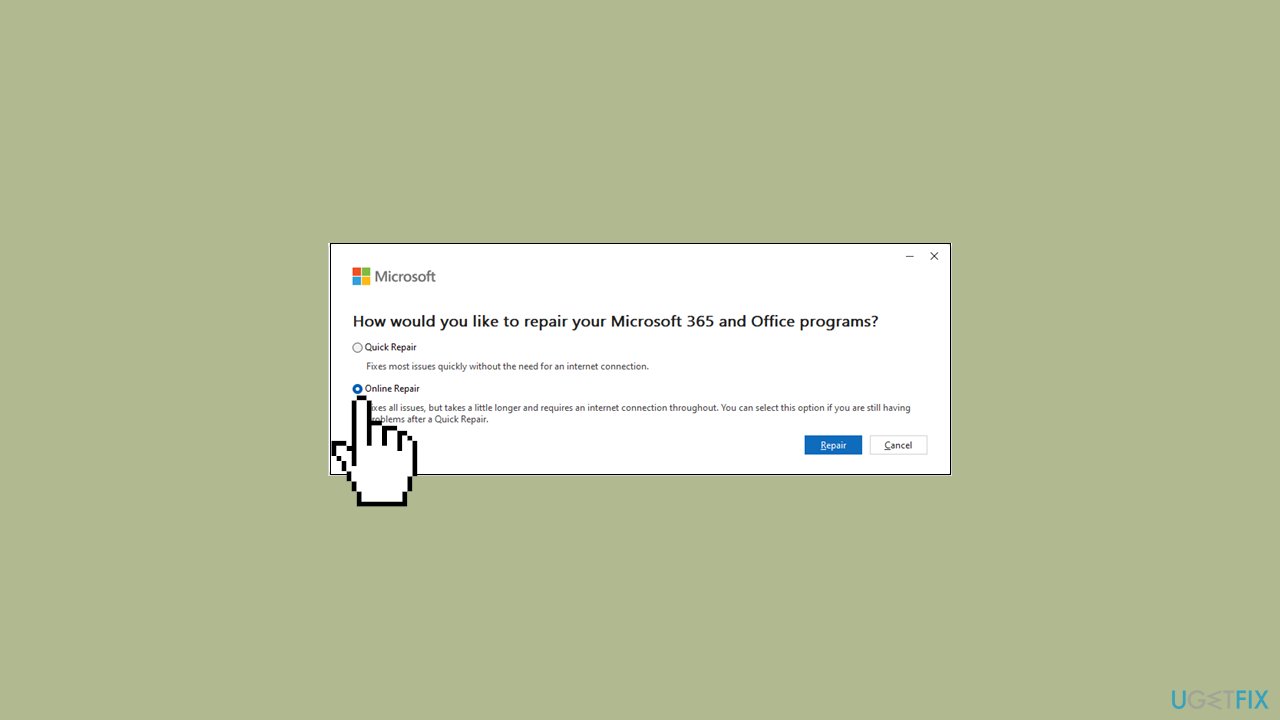
- Follow the on-screen instructions for the online repair process.
- Once the repair is completed, open any Office application.
- Check if the issue has been resolved, if not, continue to the next step.
Method 2. Change the Subscription Payment Method
- Sign in to Services and Subscriptions using your Microsoft account.
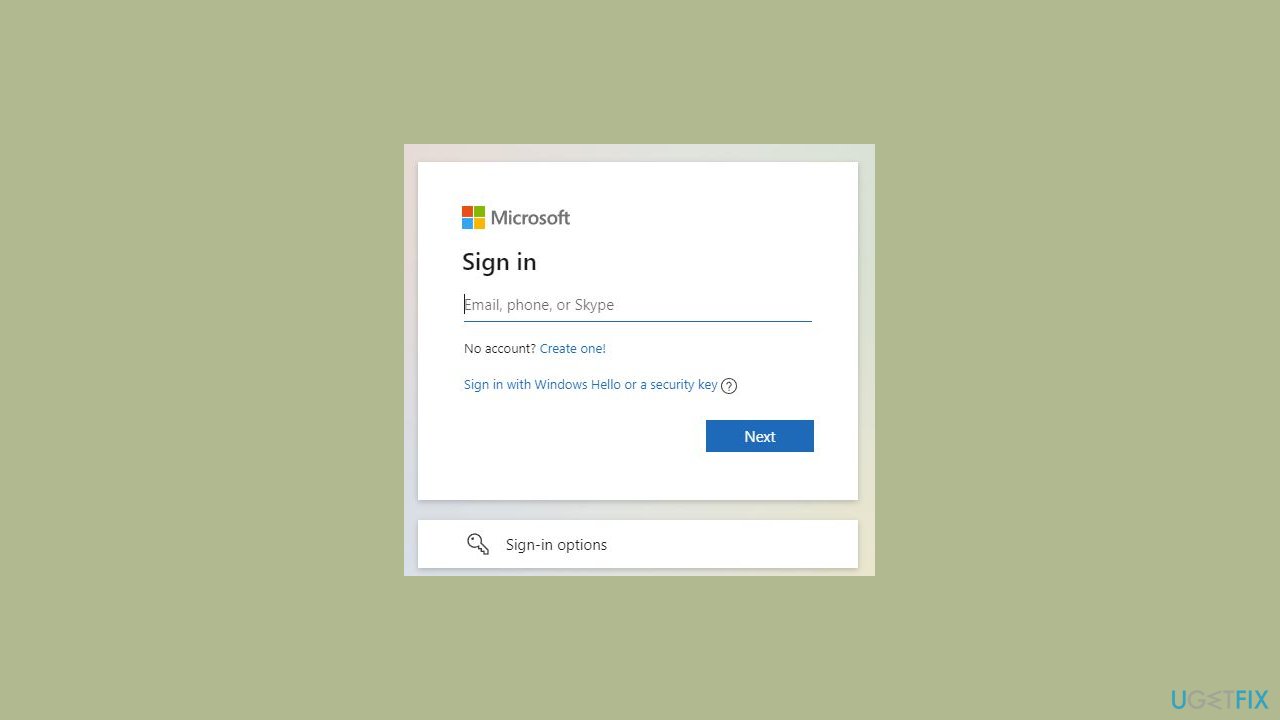
- Locate the subscription in the list, click on Manage, and then choose Change how you pay.
- In the Change how you pay section, view your current payment options.
- If the desired option is not visible, select Add a new way to pay from the list.
- Follow the provided instructions to add the new payment method.
Method 3. Contact Microsoft Support
- Visit the Microsoft Office Support page.
- Describe your issue (e.g., Change payment method for my subscription) and click Get Help.
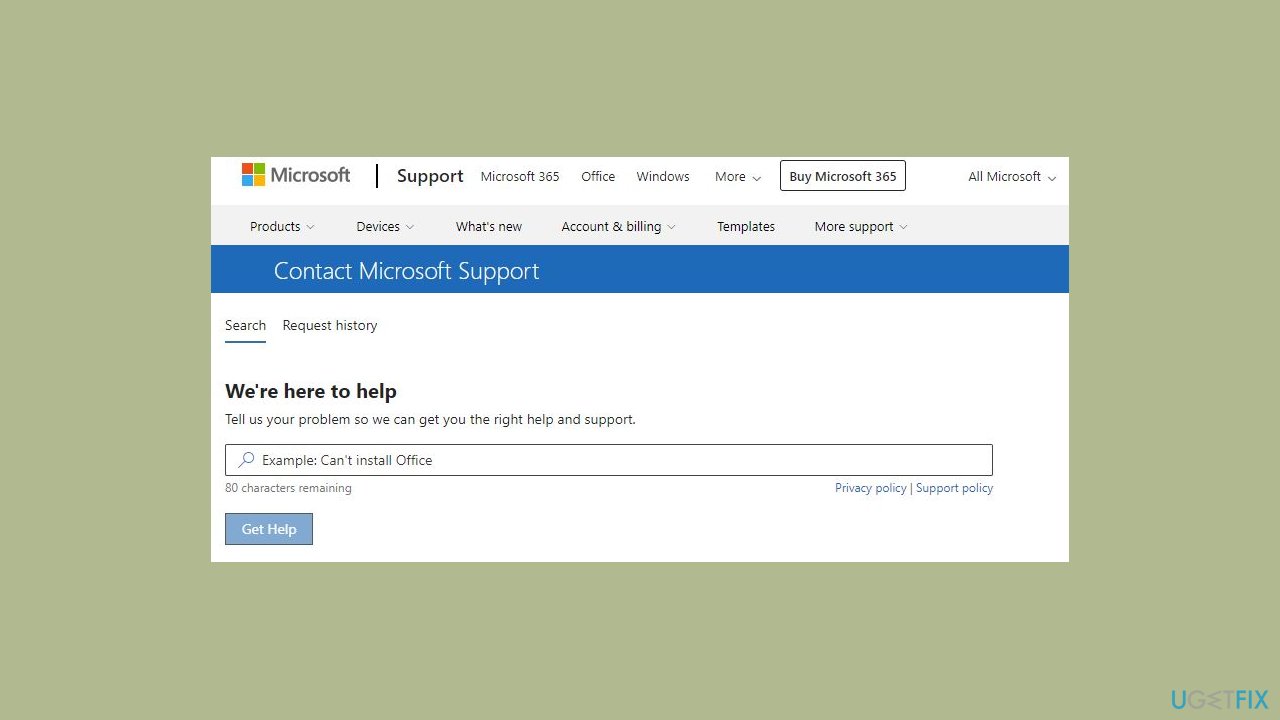
- Scroll down to choose Contact support.
- Specify your product (Microsoft 365 and Office) and category (manage my subscription), then click Confirm.
- Click Chat with support agent and confirm your selection.
- Finally, click Start Chat to initiate the chat with a support agent.
Bottom line
To remove the 'Subscription expired. Update payment to keep Microsoft 365' notification, you can repair Office apps through the Control Panel, ensure your payment details are updated, or contact Microsoft support for assistance. If these steps do not resolve the issue, consider running a maintenance tool to fix system errors.
Frequently asked questions
You can disable the notification by going to Settings > System > Notifications & actions and turning off notifications for Microsoft 365 applications.
Yes, you can uninstall Microsoft 365 from your system via Settings > Apps > Apps & features, which will also remove the notification.
If the notification continues, try signing out and back into your Microsoft account in any Office app or perform a repair of the Microsoft 365 installation through Settings > Apps.




Report an issue
What's wrong with this guide? We review every report and update or remove content.
Report received — thank you. We'll review and fix it.
You need a free account to submit a report.
Be the first to comment