How to fix
Remove “System requirements not met” watermark
on Windows
Easily eliminate the "System requirements not met" watermark on Windows 10 and 11 with our expert-tested guide for a seamless experience. Fixed in minutes!

Why does How to remove “System requirements not met” watermark on Windows occur?
- Unsupported hardware
- Lack of TPM 2.0
- Installation on a virtual machine
- Stricter hardware requirements imposed by Microsoft
Repairs Windows system files, removes malware, and restores a clean OS state — without reinstalling.
Hello. I keep seeing the "System requirements not met" message in the bottom right corner of my Windows desktop. Is there a way to remove the watermark?
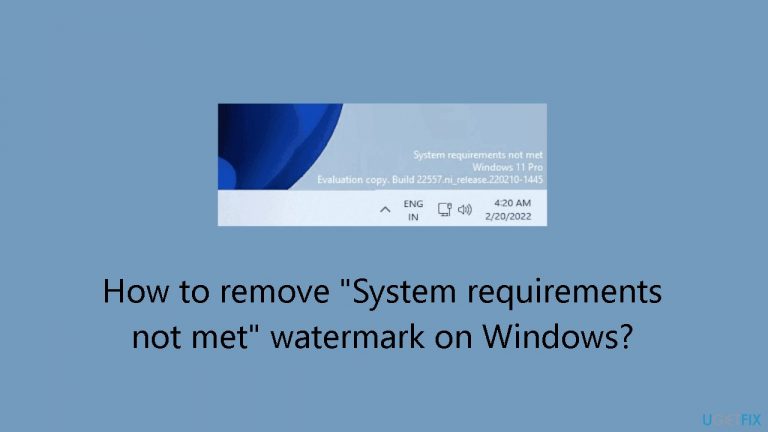
If you use Windows 11 on hardware that isn't supported, you can see a "System requirements not met" watermark that stays in the lower left corner of your screen. Although users running the OS on a virtual machine might not be too concerned about this, most users find the watermark to be a visible annoyance. With Windows 11, Microsoft has imposed stricter hardware requirements, one of which is TPM 2.0 requirements. The installation procedure will come to an immediate stop if these conditions are not met.
Initially, there were a number of ways to get around these limitations and install Windows 11 on hardware that wasn't supported. Initially, Microsoft permitted these installations but cautioned users about possible security risks and the lack of future upgrades. Since then, though, the company has decided to adopt a more assertive stance by adding a permanent watermark. Users are constantly reminded by this watermark that their system does not fulfill the required specifications.
Apart from the watermark, a similar notification might also surface within the Settings application, accentuating the unsupported properties of the hardware. Although Microsoft intends to convey the restrictions and possible dangers related to using Windows 11 on incompatible computers, consumers might find the watermark bothersome and unwanted, which could negatively affect their entire experience.
For those who decide to stick with Windows 11 despite the unsupported hardware, removing the watermark becomes a tempting alternative. The necessity to remove the watermark becomes more evident, whether it's due to program needs or personal taste. Users frequently look for ways to keep their desktop interfaces looking cleaner and to hide the watermark, such as changing registry settings or using the group policy editor.
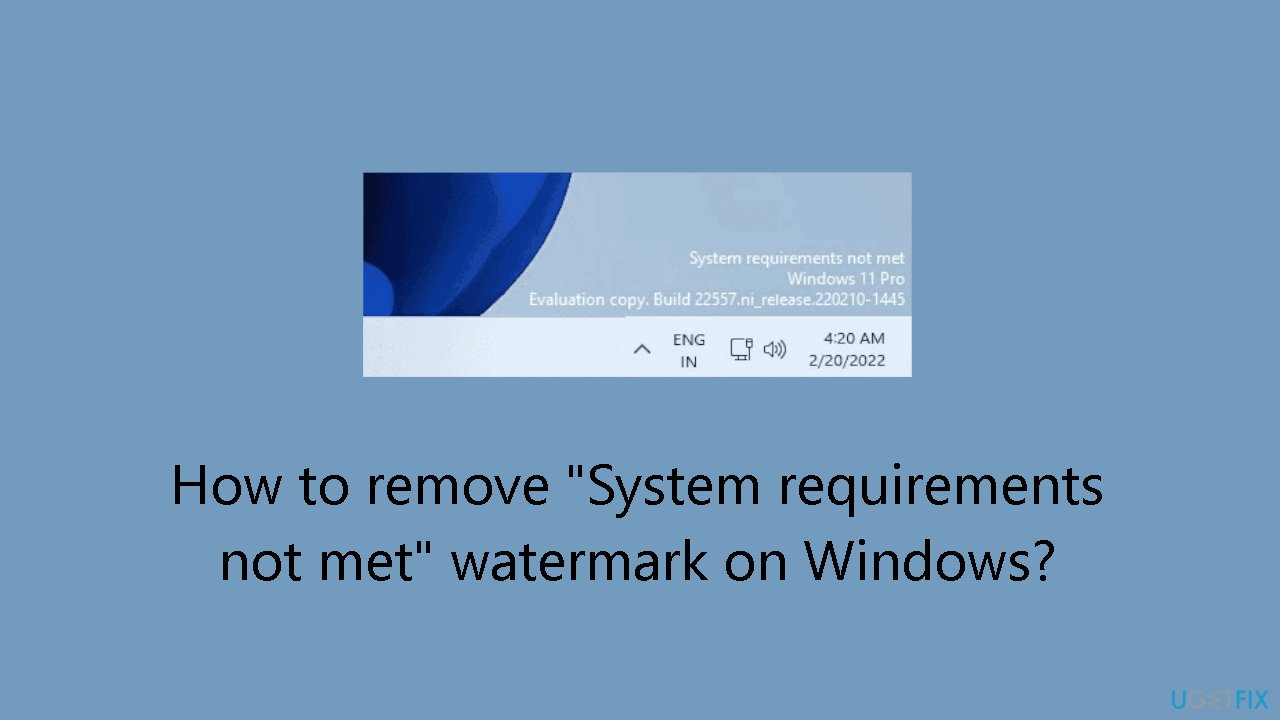
In this guide, you will find 2 methods that should help you hide the "System requirements not met" watermark on Windows. Follow the step-by-step instructions provided below.
Method 1. Use the Registry Editor
- Press the Windows key + R to open the Run dialog.
- Type regedit and click OK to open the Registry Editor.
- In the Registry Editor, navigate to:
HKEY_CURRENT_USER\Control Panel\UnsupportedHardwareNotificationCache
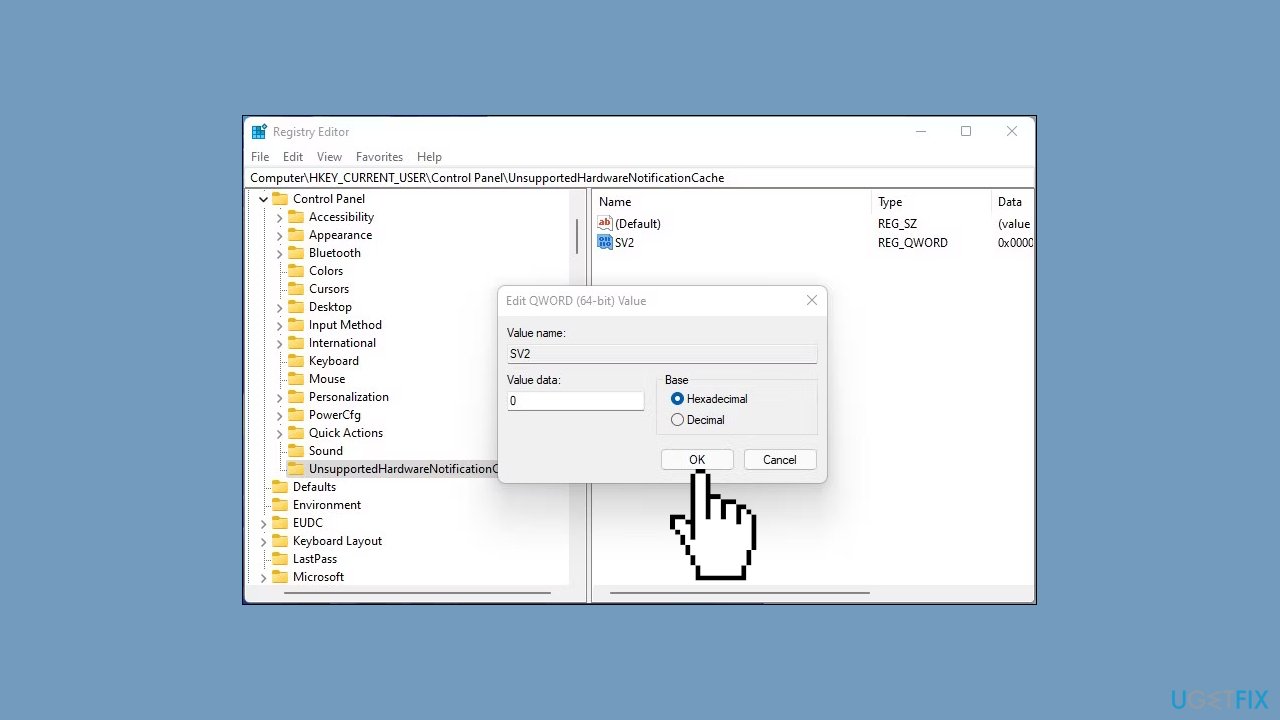
- In the right pane, right-click on the SV2 DWORD value and select Modify.
- Enter 0 into the Value data field.
- Click OK to save the changes.
- Close the Registry Editor and restart your PC to apply the changes.
If UnsupportedHardwareNotificationCache key doesn't exist:
- In Registry Editor, right-click the Control key (HKEY_CURRENT_USER\Control Panel) and select New > Key.
- Rename the key as UnsupportedHardwareNotificationCache.
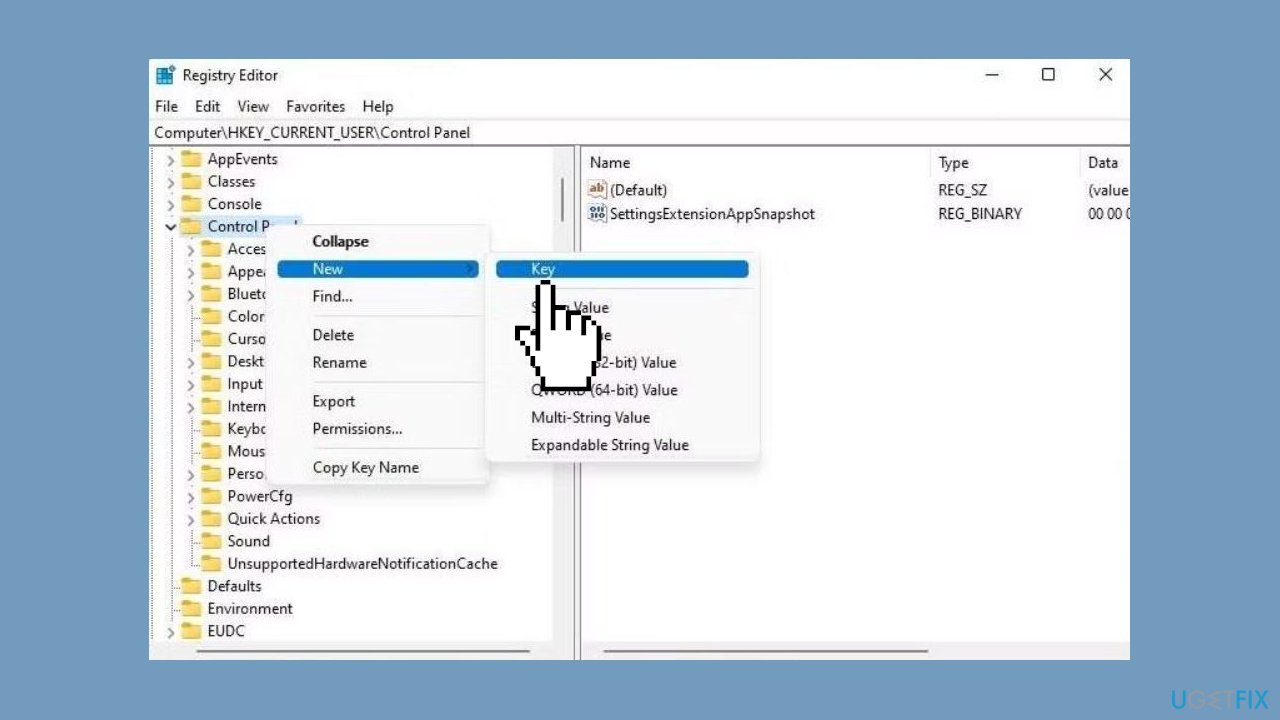
- Right-click on the new key and select New > DWORD (64-bit) value.
- Rename the value as SV2.
- Modify the SV2 DWORD value and set its Value data to 2.
- Click OK to save the changes.
Note: The watermark may reappear with new updates, so repeat these steps after installing updates to keep your desktop clean.
Method 2. Use the Group Policy Editor
- Press the Windows key + R to open the Run dialog.
- Type gpedit.msc and click OK to open Group Policy Editor.
- Click Yes if prompted by User Account Control.
- In Group Policy Editor, navigate to:
- Local Computer Policy > Computer Configuration > Administrative Templates > System
- In the right pane, scroll down and locate the Hide messages when Windows system requirements are not met policy.
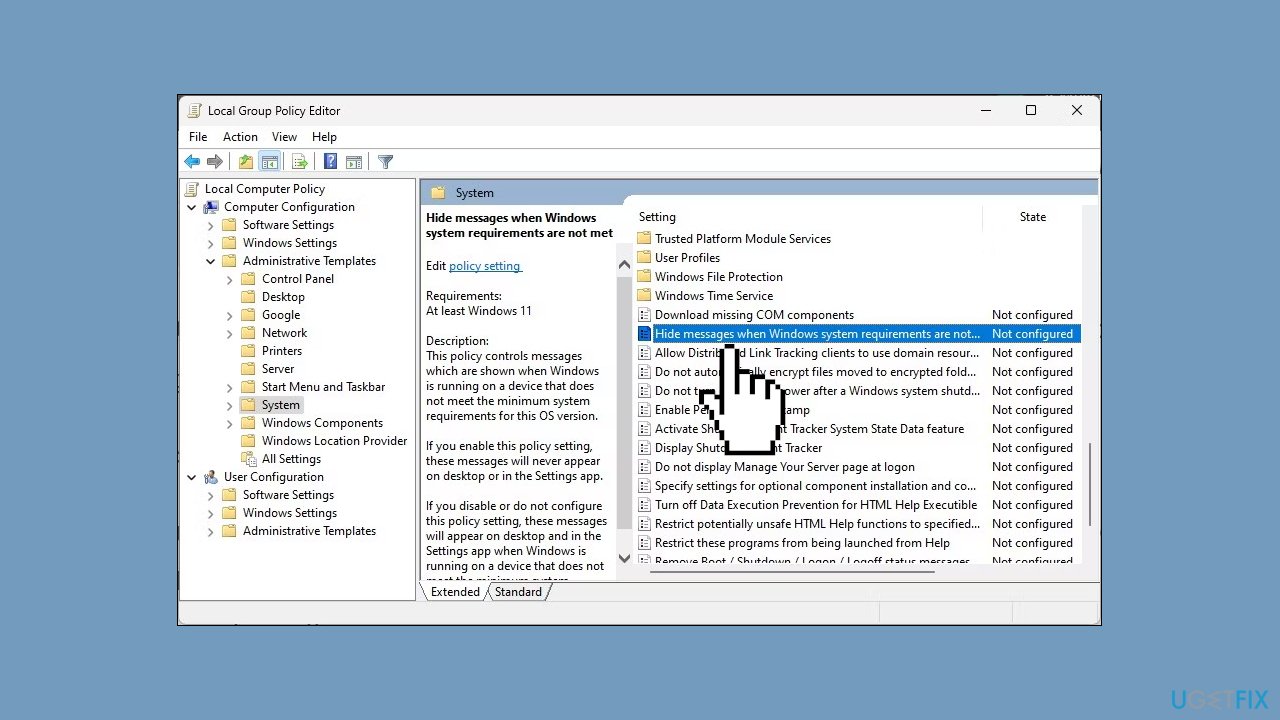
- Select and double-click on the policy to open its properties.
- Select Enabled to enable the policy setting.
- Click Apply and OK to save the changes.
- Restart your computer to apply the changes.
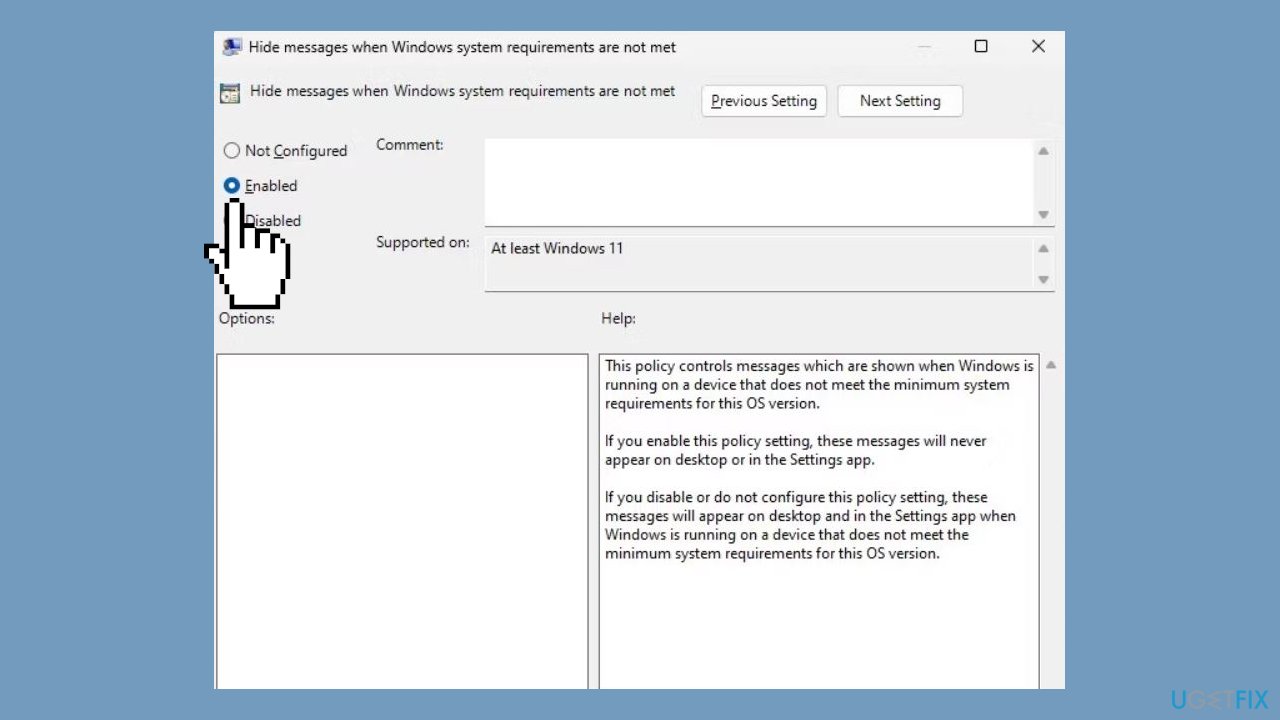
To revert changes:
- If you need to revert the changes, open the Hide messages when Windows system requirements are not met policy again.
- Set it to Not Configured.
Bottom line
This guide provides two methods to hide the 'System requirements not met' watermark on Windows, including using the Registry Editor and the Group Policy Editor. If these methods do not work, users may need to consider upgrading their hardware or reverting to a supported version of Windows.
Frequently asked questions
This watermark indicates that your PC does not meet the minimum system requirements for the version of Windows you are using, often due to hardware limitations.
You can remove the watermark by upgrading your hardware to meet the system requirements or by reverting to a version of Windows that your current hardware supports.
While there's no official way to hide the watermark, some users have reported success by adjusting display settings or using third-party software, although this may not be reliable.




Report an issue
What's wrong with this guide? We review every report and update or remove content.
Report received — thank you. We'll review and fix it.
You need a free account to submit a report.
Be the first to comment