How to fix
Remove trending searches from the Search Bar
on Windows
Easily disable trending searches in the Windows 10 or Windows 11 search bar for a cleaner experience. Expert-tested tips inside for quick results!


Why does How to remove trending searches from the Search Bar in Windows occur?
- Users are forced to view trending searches and videos in Windows Search
- Trending searches clutter the view
- Users prefer to keep their own search history
- Windows Search integrates trending content into the search feature
- Complaints about reduced overall experience due to trending content
Repairs Windows system files, removes malware, and restores a clean OS state — without reinstalling.
Hi, can you please help me with something that bothers me on Windows quite a bit? When I open Windows search box, it is filled with trending videos and trending searches. How do I remove that? I want to keep my own search history, though.
Windows Search is a feature in the Microsoft Windows operating system that allows users to search for files, folders, and other information stored on their computers. It was first introduced in Windows Vista and has since been improved in later versions of Windows.
The feature uses an index of the files and folders on a user's computer to provide fast and relevant search results. When they type a query into the search bar, Windows Search looks for matches in the indexed content and displays them in a list ranked by relevance.
One of the main benefits of Windows Search is that it's integrated into the operating system, making it available in a number of different places, including the Start menu, File Explorer, and taskbar. This makes it easy for users to access and use the search feature without launching a separate application.
Despite its usefulness, Windows Search has its downfalls that not all people are fond of. For example, numerous complaints about users suddenly being forced to view trending searches and videos in Windows Search, cluttering the view and reducing the overall experience for many.

As such, many people were unsatisfied with how trending searches were inserted into their operating systems. Luckily, there are two things you can try to remove trending searches and videos from Windows Search, some of which might not be the most optimal ones, although we leave it to you to decide how you want to proceed.
If you are having constant issues with Windows, such as errors, crashes, etc., we recommend you scan your system with powerful PC repair and maintenance software [d1]. It is not only a great tool when it comes to fixing various system issues but also can assist you in clearing clutter and privacy-related data with ease.
Tip 1. Disable Search Highlights
One of the simpler solutions here is to disable Search Highlights. Here's how:
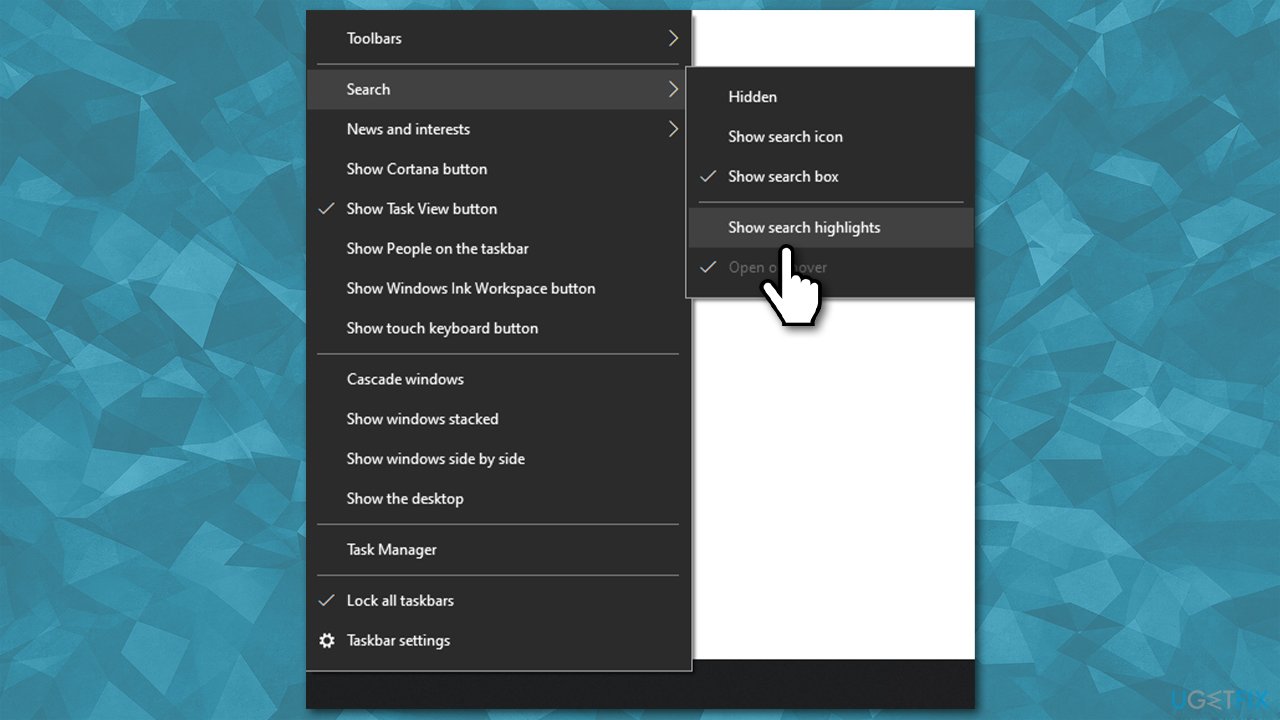
Windows 10
- Right-click on the taskbar.
- Place your mouse over the Search section.
- Now make sure that the Show search highlights option is unticked.
Windows 11
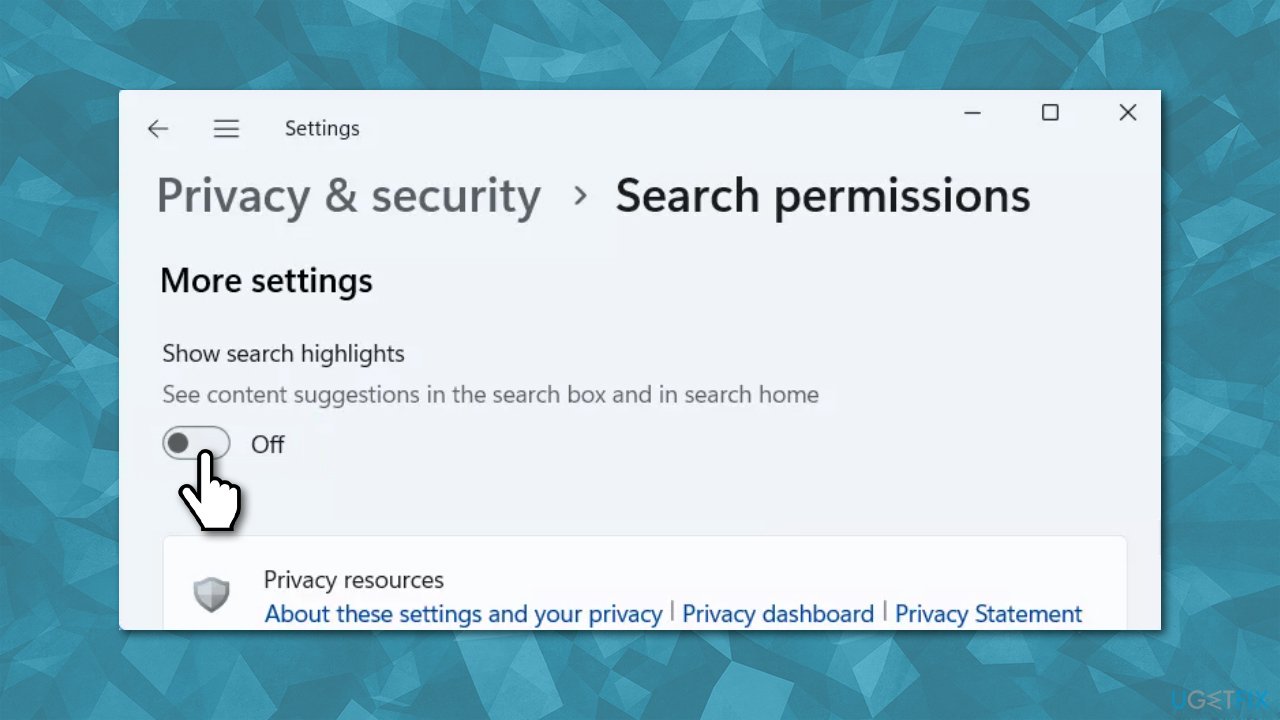
- Click on Windows Search.
- At the top-right corner of the window, you will see three vertical dots - click them.
- Select Search settings.
- Under the More settings section, find the Show search highlights option and toggle it off.
Tip 2. Disable Bing search results [workaround]
Trending searches and videos are related to Bing - it shows the most recent trends from the web. If you don't use or need this function in your Windows search bar, you can disable it entirely via Registry Editor (you can turn it back on by changing the value to the original one later if you want).
Before proceeding, make sure you back up your Registry database.
- Type regedit in Windows search and press Enter.
- When User Account Control shows up, click Yes.
- In the Registry Editor, navigate to the following location:
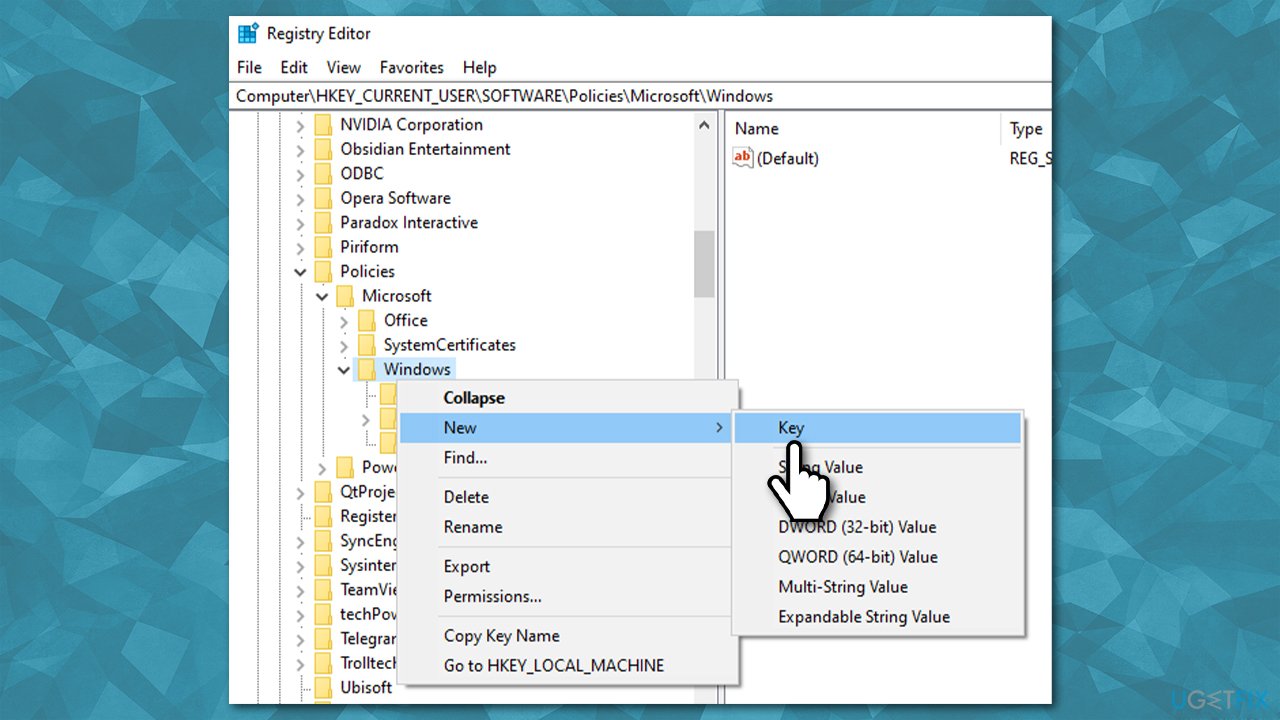
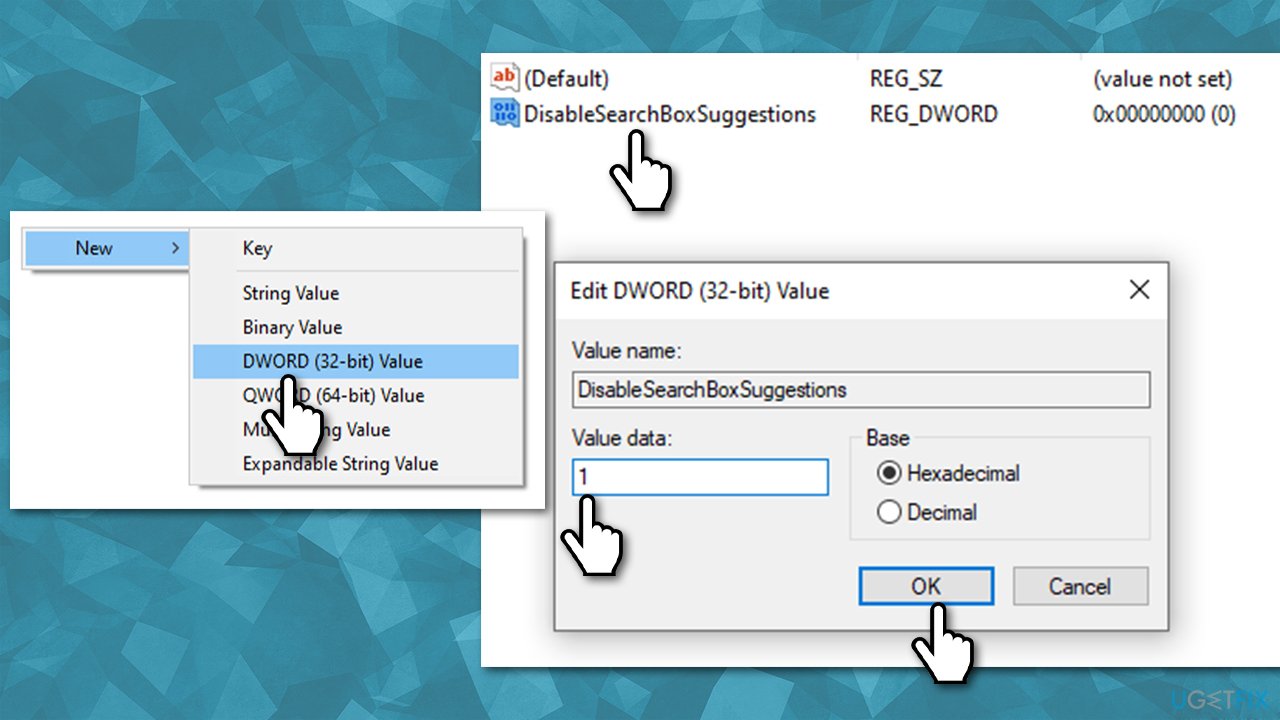
HKEY_CURRENT_USER\SOFTWARE\Policies\Microsoft\Windows\Explorer - On the right side, you should see DisableSearchBoxSuggestions.
- Note: If Explorer entry does not exist, right-click on Windows and select New > Key - name it Explorer. Then, right-click and empty space in the right pane and select New > DWORD (32 bit) value, and name it DisableSearchBoxSuggestions.
- Double-click it and set the value to 1.
- Click OK and close down Registry Editor.
Bottom line
To remove trending searches and videos from Windows Search, you can try adjusting your settings or using specific tools. If these methods do not resolve the issue, consider scanning your system with PC repair and maintenance software for further assistance.
Frequently asked questions
To disable trending searches in the Windows 10 Search Bar, go to Settings > Search > Permissions & History, and toggle off the 'Show search suggestions as you type' option.
Yes, in Windows 11, you can remove trending searches by navigating to Settings > Privacy & security > Search permissions and turning off 'Show search suggestions.'
No, removing trending searches will not affect your search results; it simply stops suggestions from trending topics appearing as you type.




Report an issue
What's wrong with this guide? We review every report and update or remove content.
Report received — thank you. We'll review and fix it.
You need a free account to submit a report.
Be the first to comment