How to fix
Remove your login password
on Windows
Easily remove your login password in Windows 10 or 11 to streamline your access. Get expert-tested tips that simplify your setup in minutes.

Why does How to remove your login password in Windows occur?
- Users may forget how they set up their password
- Not all login options are available on all systems
- Users may not need a password for personal computers
- Corporate environments typically require password protection
- Many users struggle with the process of removing the password
Repairs Windows system files, removes malware, and restores a clean OS state — without reinstalling.
Hello, I have recently realized that I don't need a password on my Windows laptop - all it does is just make me waste time on another step before I can use my PC. I can't remember how I set up the password (I do remember it, though), so I have no clue how to remove the password from my system. Any advice?
Windows system security is treated in high regard by its maker Microsoft, hence plenty of security measures are in place when it comes to the OS' operation. Whenever users reinstall their system or they install it for the first time, they are offered to set up a password, a PIN, use a fingerprint, or even a face recognition option.
It is worth noting that not all login options are available on all systems; for example, the fingerprint is more common on laptops where the fingerprint scanner is usually built-in. For PCs, users typically stick to passwords or PINs, as it is much easier to navigate.
While these account protection options are extremely important for the general security of a computer user, not all users are. For example, computers that are used in the corporate environment are usually password-protected to secure not only workers' privacy but also guard important private data of the company. In the meantime, somebody who lives alone would not need the password or the PIN that much, seeing how nobody else is at home.
That being said, many people struggle with Windows login password removal, as they can't remember how they set it up in many cases. Therefore, we provide several methods on how to remove your password from Windows login - you can check them all out and find which one works the best for you.
Protip: if you are having issues with a Windows computer that are technical, for example, you can't install an update, or your PC keeps crashing with BSODs, you can employ an automatic repair tool [d1]. Not only can it fix various system inconsistencies, but it can also remove already installed malware and remove junk, corrupted registries, internet trackers, and other useless files for you.
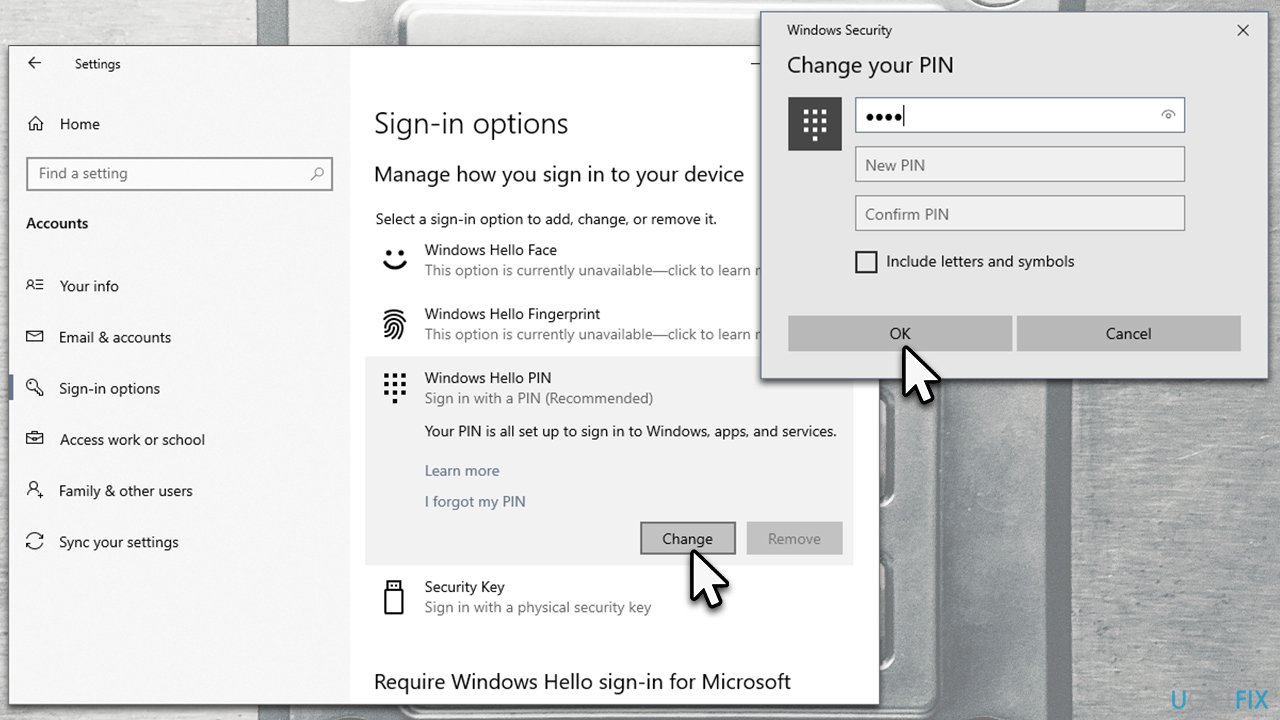
Method 1. Remove the password from your account
This is the easiest and quickest way to remove your password or PIN from Windows. Follow these steps:
- Right-click on Start and pick Settings
- Select Accounts option
- Go to the Sign-in options on the left of the window
- On the right side of the window, select either Password or PIN - whichever you use currently
- Click Change
- Enter your password/PIN at the top and leave the remaining sections blank:
New Password/PIN
Confirm Password/PIN - Click OK/Next.
Method 2. Create a new local account
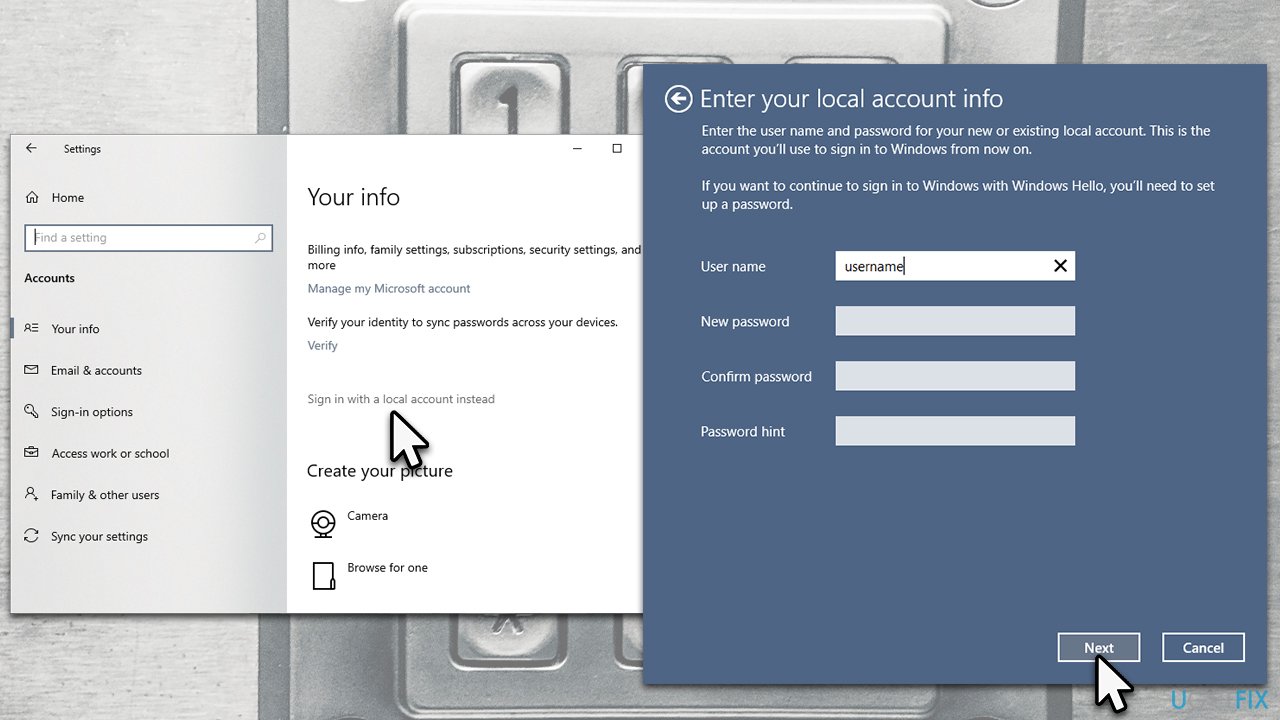
One of the easiest ways to remove the password from Windows is by creating a local Windows account. Proceed with the following steps:
- Right-click on Start and pick Settings
- Select Accounts option
- On the right side of the window, click Sign in with a local account instead
- Once prompted, click Next
- When asked, enter your Windows password
- You can use the same username here or replace it with something different. Your goal is not to type anything into the following fields:
New password
Confirm Password
Password hint - Now click Next
- Finally, sign out and then sign back in - you won't require a password to log in to Windows anymore.
Method 3. Change User Account settings
This method might not be possible for everyone, depending on which version of Windows you are using.
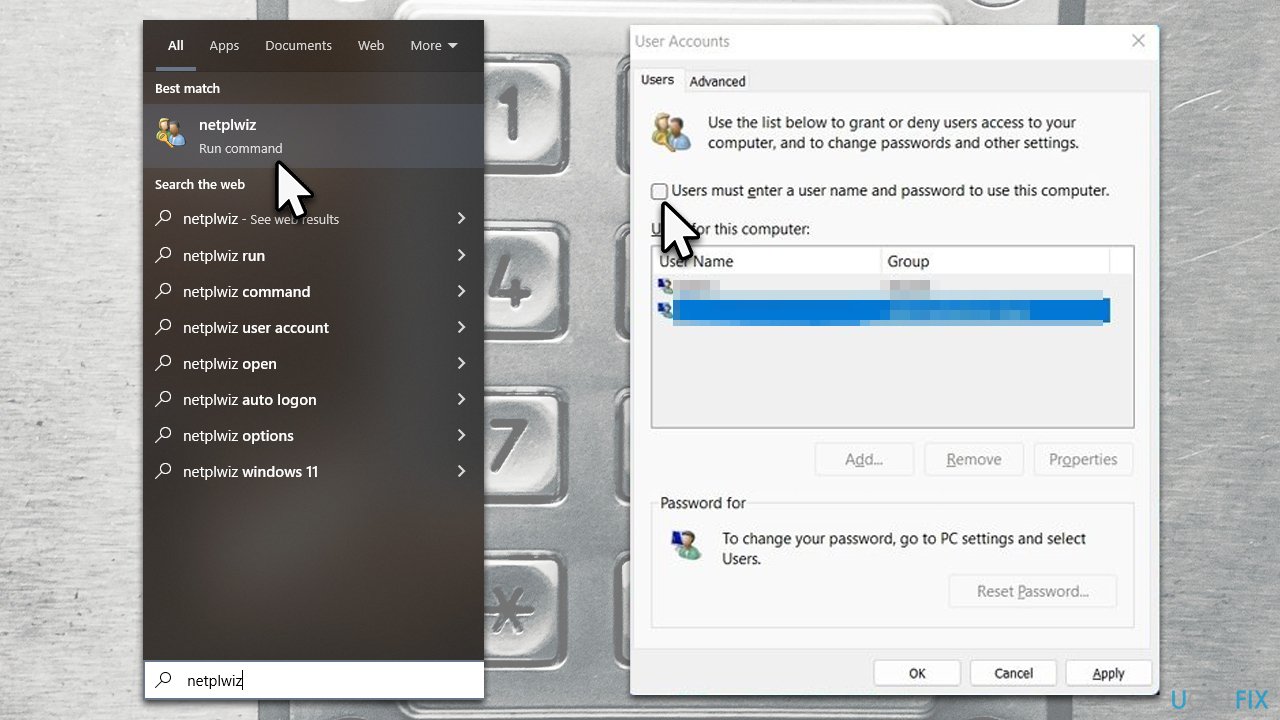
- Type in netplwiz in Windows search and press Enter
- In the Users tab, untick the Users must enter a user name and password to use this computer
- Click Apply and OK.
Method 4. Use Command Prompt
If none of the methods above are useful to you, use specific commands via Command Prompt. Follow these steps:
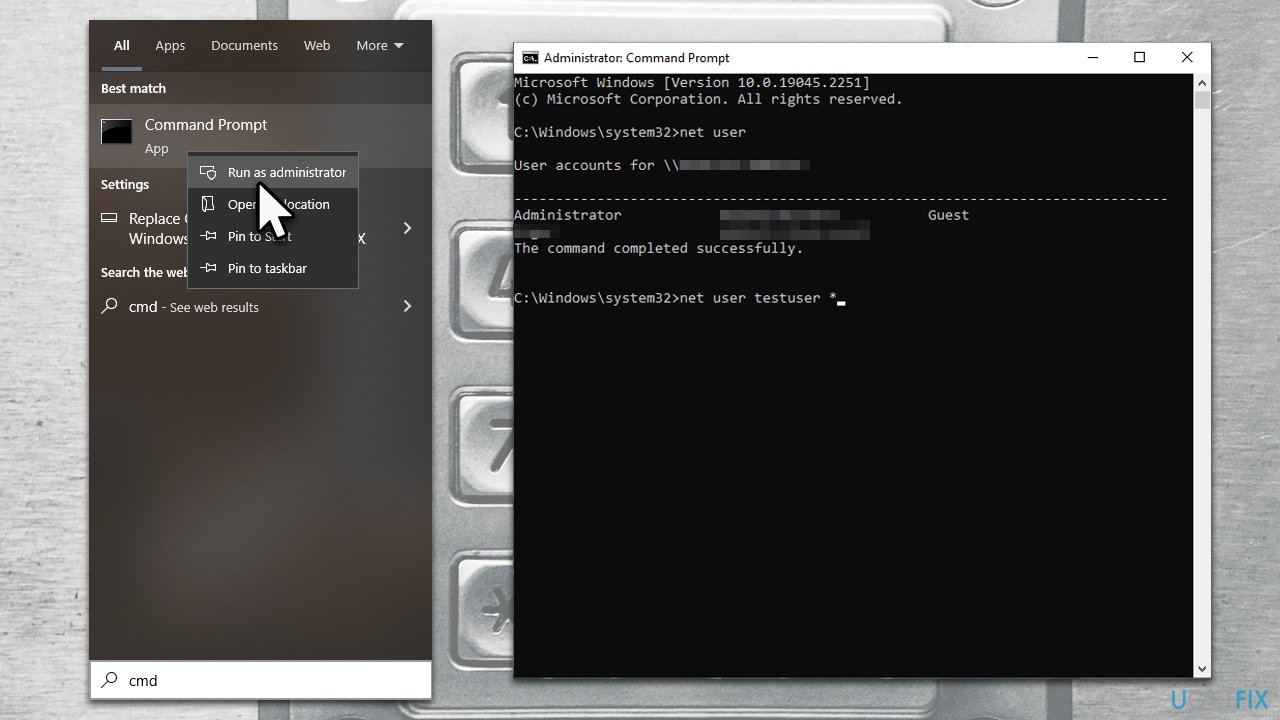
- Type cmd in Windows search
- Right-click on Command Prompt result and select Run as administrator
- In the new window, type in the following command and press Enter:
net user - In the next command line, replace USERNAME with your real username:
net user USERNAME * - Next, press Enter two times to remove the password
- Close down Command Prompt.
It is important to note that keeping passwords on when using any accounts, not just Microsoft's, is extremely important for one's privacy. Please remember to never reuse your passwords and always use two-faction authentication when available. The best practice would be to employ password-managing software that can create safe passwords for you without you needing to remember any of them.
Bottom line
To remove your login password in Windows, you can follow several methods such as using the User Accounts settings or changing your sign-in options. If these methods do not work, consider using an automatic repair tool to address any underlying issues.
Frequently asked questions
To remove your login password in Windows 10, go to Settings > Accounts > Sign-in options and select 'Password' under 'Manage how you sign in to your device,' then click 'Change' and follow the prompts to remove your password.
Yes, in Windows 11, you can remove your login password by navigating to Settings > Accounts > Sign-in options, selecting 'Password,' and then choosing 'Change' to set your password to blank.
Before removing your login password, consider that it may reduce your device's security, especially if you use Windows 10 or Windows 11 on a shared or public computer.




Report an issue
What's wrong with this guide? We review every report and update or remove content.
Report received — thank you. We'll review and fix it.
You need a free account to submit a report.
Be the first to comment