How to fix
Reset Start Menu Layout
on Windows
Easily reset your Start Menu layout on Windows 10 to restore functionality and improve access to your favorite apps. Expert-tested and updated 2025.

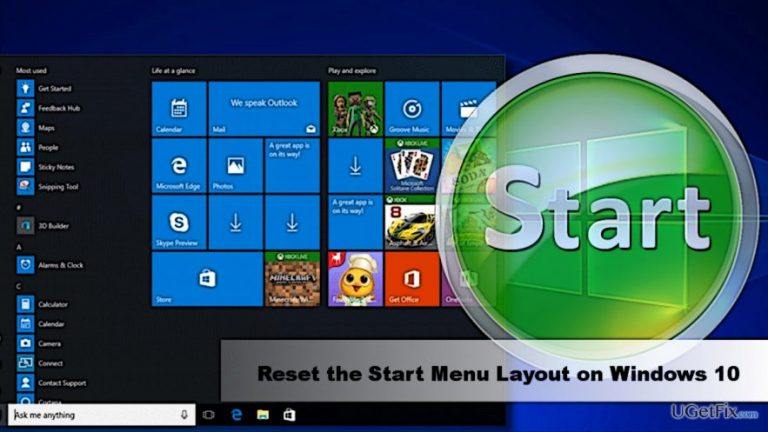
Why does How to Reset Start Menu Layout on Windows 10 occur?
- Start Menu database becomes erratic
- Start Menu layout gets messy
- Issues with user account settings
- Corrupted TileDataLayer folder
- Missing Local account
Repairs Windows system files, removes malware, and restores a clean OS state — without reinstalling.
I’m using Windows 10 since its release. Over time, my Start Menu has gotten all messed up, so that I could barely use it. Is it possible to clean it somehow?
Microsoft received lots of criticism related to the Start Menu when Windows 8 was released. Most of the users missed the classic Start Menu with the buttons and access to the mostly used features. On the grounds of such complaints, Microsoft introduced an updated version of Start Menu in Windows 10, which now combines the familiarity of the classic Windows 7 menu and the one presented in Windows 10.
On Windows 10, Start Menu includes three “tabs.” The one on the left contains quick access links to PC, Settings, File Explorer, and Power. In the middle, people can see the installed apps. Finally, the tab on the right provides the list of Live Tiles. All the Start menu layout can be found in the TileDataLayer folder. Sometimes the database makes Start Menu erratic and messy, thus preventing people from using it normally. In this case, it’s advisable to reset Start menu layout.

- Press Windows key + I and select Family & other people.
- Click Add someone else to this PC.
- Click on the I don't have this person's sign-in information link.
- Now press Add a user without a Microsoft account link.
- Enter the required information and hit Next.
Besides, make sure that you know well how to enable the built-in Administrator account. You can find the tutorial on this page.
Resetting Start menu layout on Windows 10
Once you are ready with the accounts, please reset the Start menu layout on Windows 10 by following these steps:
- Sign-out from your account and sign-in to the Local account that you have just created.
- Once you set the environment, sign-out of the local account and sign-in to the Administrator account.
- Open File Explorer and open the View tab.
- Mark the Hidden items option and navigate to this directory:
C:\\Users\\BROKEN-START-USERNAME\\AppData\\Local\\TileDataLayer. NOTE: Replace the BROKEN-START-USERNAME with the name of your user account. - Right-click on the Database folder and select Rename.
- Enter the Database.bak name and press Enter.
- Now navigate to the TileDataLayer folder while log on with the Local account:
C:\\Users\\WORKING-START-USERNAME\\AppData\\Local\\TileDataLayer. NOTE: replace the WORKING-START-USERNAME with the name of the local user account. - In the TileDataLayer folder, find Database folder and right-click on it.
- Select Copy and then navigate to the following directory:
C:\\Users\\BROKEN-START-USERNAME\\AppData\\Local\\TileDataLayer. NOTE: Replace the BROKEN-START-USERNAME with the name of your user account. - Right-click on the empty space inside the folder and select Paste.
- Now sign-out of the Administrator account and sign-in to the original account.
- When the corrupted Start menu is fixed, delete the Database.bak folder. For that, press Windows key + R, type %HOMEPATH%\\AppData\\Local\\TileDataLayer, and hit Enter.
- Right-click on the Database.bak folder and select Delete.
- Finally, disable the built-in Administrator account.
Bottom line
To reset the Start Menu layout on Windows 10, you need to create a Local account and sign in to it. Follow the steps provided to reset the layout effectively. If none of these solutions work, consider further troubleshooting or seeking professional help.
Frequently asked questions
You can reset the Start Menu layout by using PowerShell to reinstall the default apps, which won't affect your installed applications.
No, resetting the Start Menu layout will only revert the Start Menu to its default configuration without altering your user account settings.
Unfortunately, Windows 10 does not provide a built-in feature to backup the Start Menu layout, so it's advisable to take note of your customizations before proceeding.




Report an issue
What's wrong with this guide? We review every report and update or remove content.
Report received — thank you. We'll review and fix it.
You need a free account to submit a report.
Be the first to comment