How to fix
Restore legacy context menu
on Windows
Easily restore the classic context menu in Windows 11 for a familiar experience. Follow our expert-tested guide for seamless tweaks! Fixed in minutes.

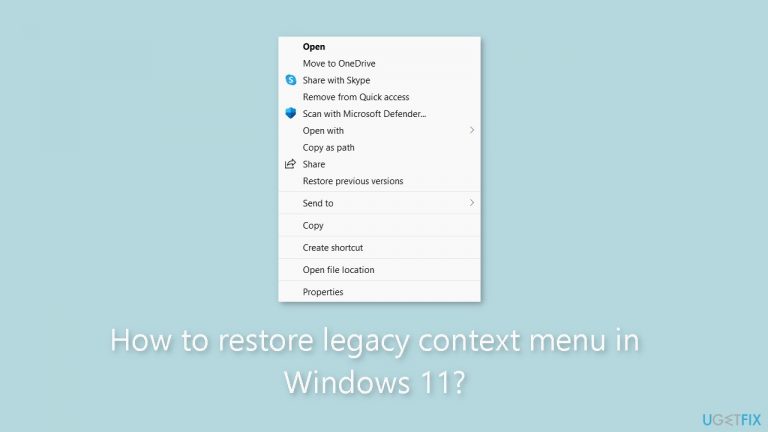
Why does How to restore legacy context menu in Windows 11 occur?
- New context menu is smaller and modern in design
- Legacy context menu contains extra options not available in new menu
- New menu only shows frequently used options, hiding others
- New context menu may take a long time to load or not appear at all
- Some options in the new menu are missing or relocated
Repairs Windows system files, removes malware, and restores a clean OS state — without reinstalling.
Hello. I upgraded to Windows 11 but I do not like the new context menu. Is there a way to get the old legacy context menu back?
Beginning with Windows 11, Microsoft updated the File Explorer context menu. The new context menu is smaller and more modern in design. While this design appears to be sleek, users who prefer the Legacy Context menu have expressed concern.
The Legacy Context menu contains a number of extra options that are not available in the new compact menu. Properties, send to, open with, and other options are available. The new menu only shows the most frequently used options, with the rest hidden behind the "Show more options" entry. While this method is useful for casual users, it can be inconvenient for power users who require quick access to all menu options.
Furthermore, the new context menu may cause problems for some users. Several users, for example, have reported that the new menu takes a long time to load or does not appear at all. Others have pointed out that some options are missing or have been relocated.
Fortunately, there are some alternatives for users who prefer the Legacy Context menu. To restore the Legacy Context menu, you could use a shortcut or the Windows Registry Editor. Another option is to use third-party software that provides additional context menu customization options.
In this guide, you will find 2 methods on how you can restore the old legacy context menu in Windows 11 and how to revert to the new menu if you change your mind. If you experience any other issues with your operating system, you can use a maintenance tool like [d1]. It can fix most system errors, BSODs,[ref en-1] corrupted files, registry[ref en-2] issues, or clear cookies and cache[ref en-3] automatically. Otherwise, follow the step-by-step instructions provided below.
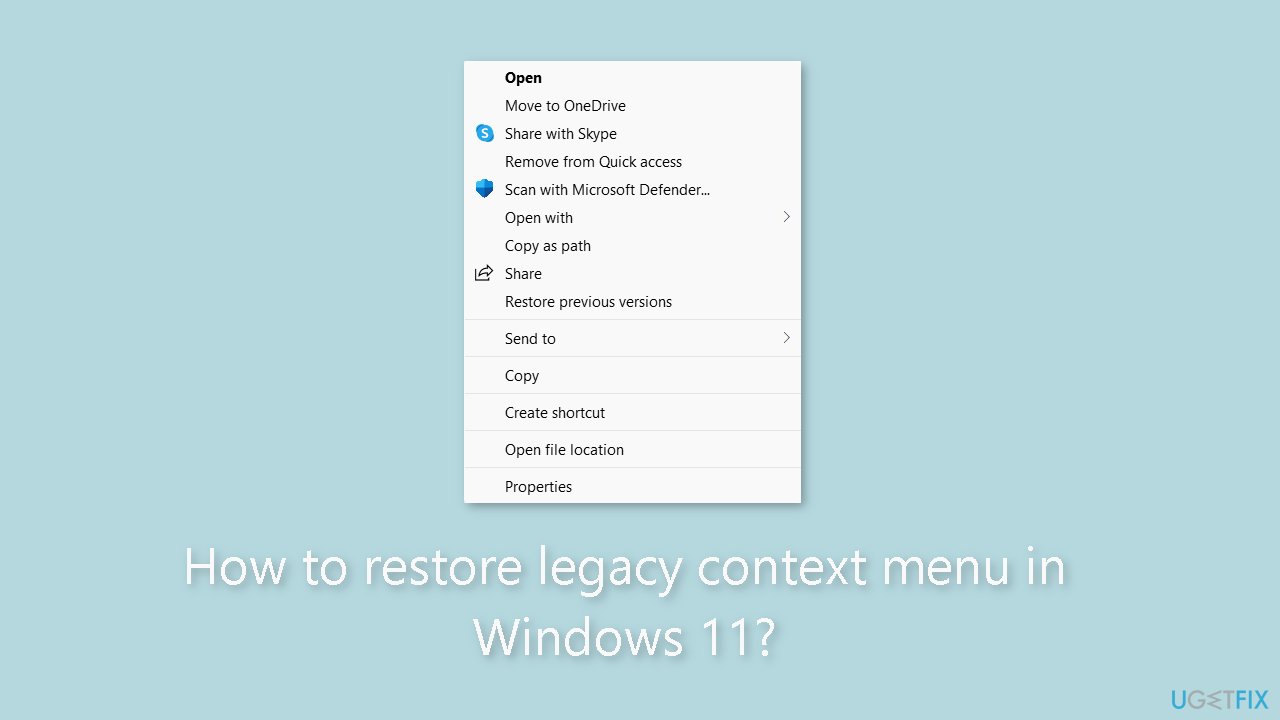
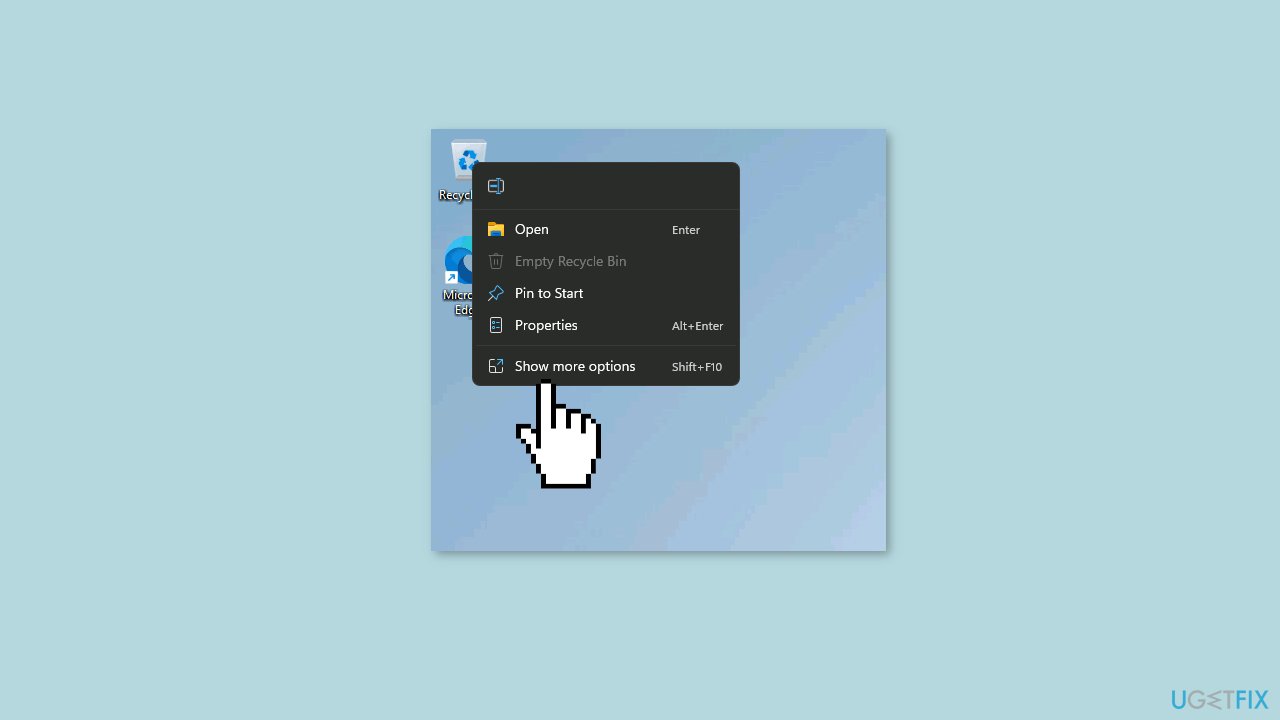
Solution 1. Choose Show more options
- Right-click on a file or folder.
- Scroll down to the bottom of the context menu.
- Click on Show more options to expand the menu, or press Shift + F10.
- The Legacy Context menu will appear.
Solution 2. Enable the Legacy Right Click Context menu by Default
- Right-click the Start button on your desktop.
- Select Windows Terminal from the context menu.
- Once the Windows Terminal window opens, copy the command below:
reg.exe add "HKCU\Software\Classes\CLSID{86ca1aa0-34aa-4e8b-a509-50c905bae2a2}\InprocServer32" /f /ve
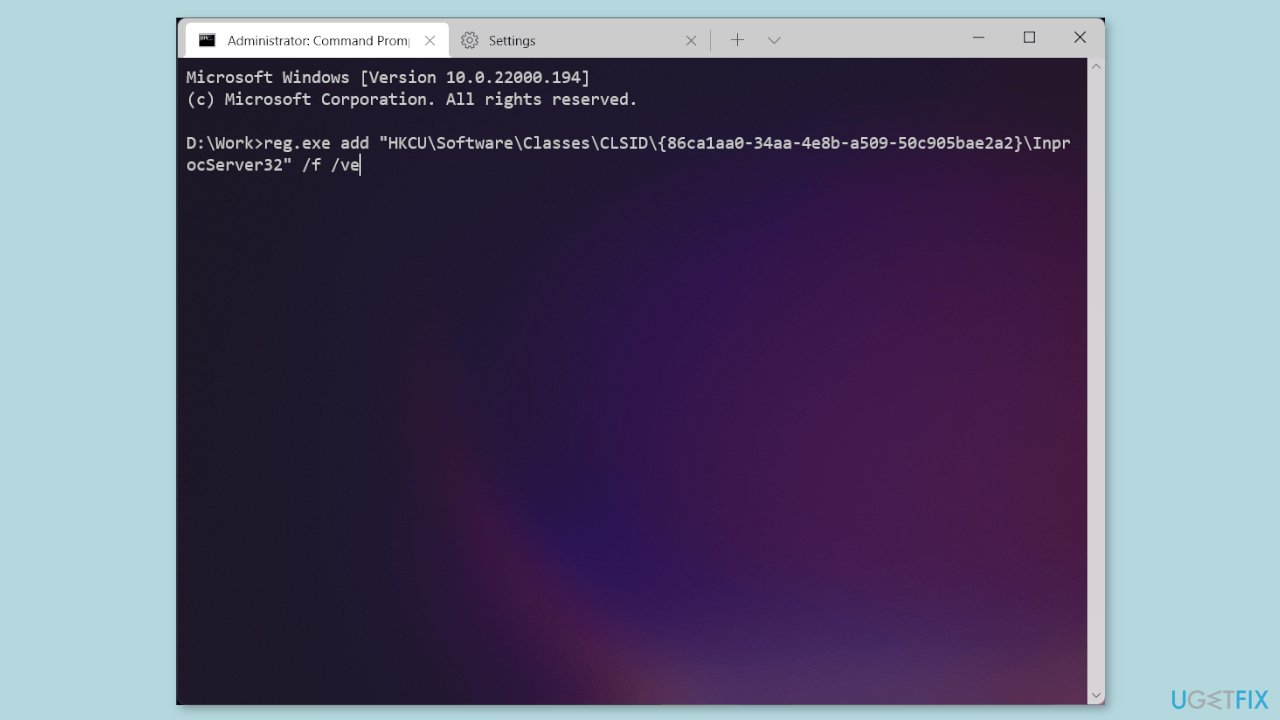
- Paste the command into the Windows Terminal window.
- Press Enter to execute the command.
- Restart File Explorer or your computer for the changes to take effect.
- Once the changes have taken effect, the Legacy Right Click Context menu will appear by default. The Registry change masks the new COM object that executes the compact menus with the Show more options entry. This causes Explorer to revert to the Legacy context menu.
Restore Modern Context Menu
If you ever want to return to the new Windows 11 context menu, you can undo the Legacy Right Click Context menu change using the Windows Terminal:
- Open a Terminal Window.
- Type the command below:
reg.exe delete "HKCU\Software\Classes\CLSID{86ca1aa0-34aa-4e8b-a509-50c905bae2a2}" /f
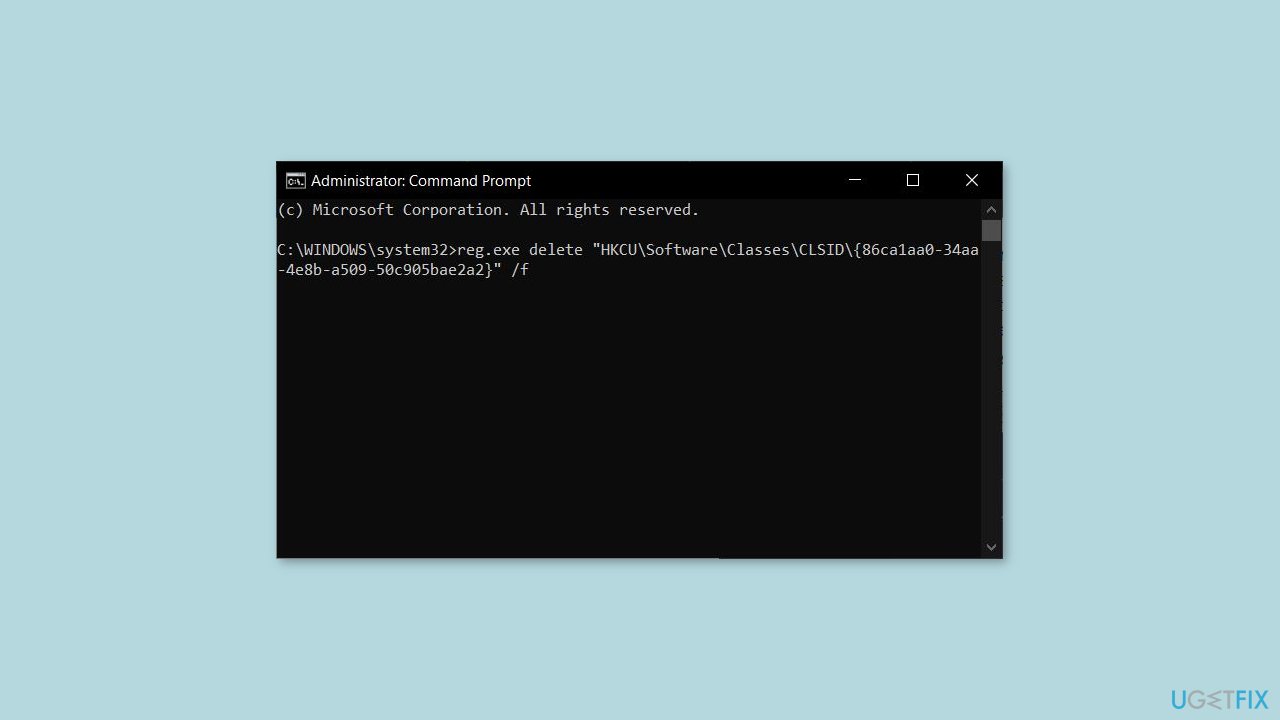
- Press Enter to execute the command.
- Restart File Explorer or your computer for the changes to take effect.
Bottom line
To restore the Legacy Context menu in Windows 11, you can use the 'Show more options' feature or utilize the Windows Registry Editor. Alternatively, third-party software can provide additional customization options. If these methods do not resolve your issues, consider using a maintenance tool to fix system errors.




Report an issue
What's wrong with this guide? We review every report and update or remove content.
Report received — thank you. We'll review and fix it.
You need a free account to submit a report.
Be the first to comment