How to fix
Rotate a video
on Windows
Easily rotate your videos in Windows 10 or Windows 11 with our expert-tested guide. Get the perfect angle in just minutes!

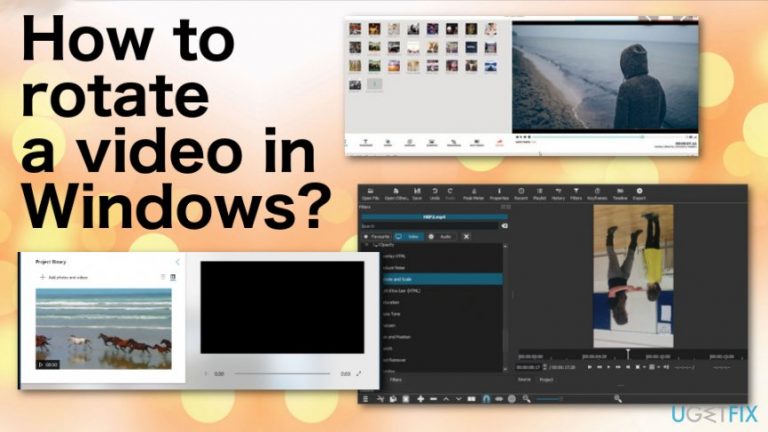
Why does How to rotate a video in Windows occur?
- Holding the phone incorrectly while recording
- Using a smartphone instead of a bulky camera
- Incompatibility between iPhone and Windows devices
- Lack of built-in rotation feature in Windows Media Player
- Potential quality loss from online video rotation services
Repairs Windows system files, removes malware, and restores a clean OS state — without reinstalling.
Hello. I recorded a video on my phone, but it appears that I was holding my phone wrong the whole time once I loaded the footage on the computer. I need to have the normal format of the video to be able to make the movie I was filming for. The problem is that I don't know how to do that. Can you help me somehow?
Rotating videos taken on mobile devices is a pretty common request because nowadays, bulky cameras are replaced by smartphones. You might rotate the device to choose different angles and framings for the photo or video. Unfortunately, that is not always good for the playback later on, or the finished product of you try to make a movie out of the videos you took.
Users online[ref en-1] have been concerned because many people have iPhones and Windows devices, so compatibility becomes an issue too.[ref en-2] However, in most cases, it should be easy to rotate the footage by 90 degrees or on any other side you need. File formats shouldn't create any issues with the playback, especially with the format or shape of the video footage.
There is also no relation between cyber infections[ref en-3] and such issues with the rotation of the video. If you wonder how to rotate a video in Windows, we have a few methods for you, and they involve different media players that you may already have and use. Most of them have built-in video tilting function. 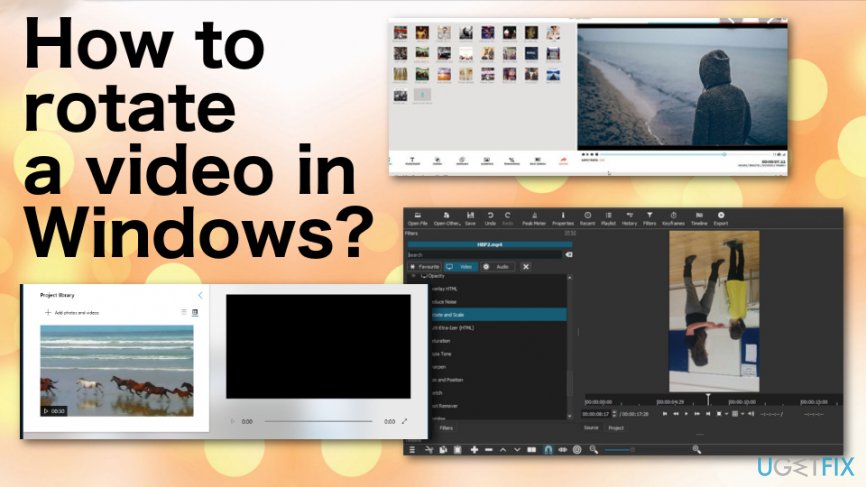
How to rotate a video in Windows
The issue is common for years, and rotating the video is not that difficult, but Windows Media Player is not offering the way to rotate a video in Windows, so people continue to complain. It is an odd issue, but there are a few ways to correctly rotate footage yourself that include open-source software and other techniques. You can also find online sites that offer such service, but that may affect the quality and generally be dangerous to do since the internet can be an unsafe place.
Go through steps below to find the best option for you, or try a few methods to achieve the needed format of your video. Even though this is not an issue of PUP or cyber infection, you may need to repair some system files to have a properly optimized device. You can do that with [d1] that may indicate issues with system settings or files ad fix them.
Rotate a video with VLC media player
- Open the video in VLC.
- Then choose Tools menu to find Effects and Filters or use the Ctrl+E shortcut.
- When the windows open, choose the Video Effects tab and click Geometrotry.
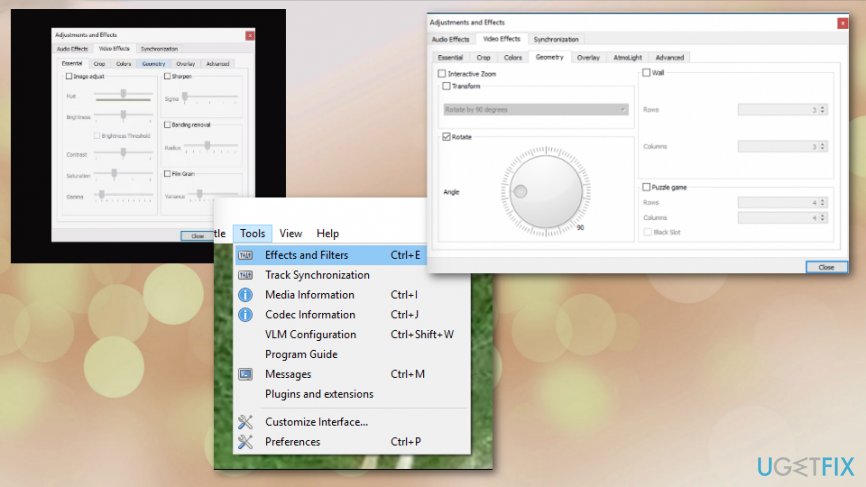
How to rotate a video in window vlc tools - Select the checkbox by the Transform.
- Choose the needed rotation from the drop-down menu.
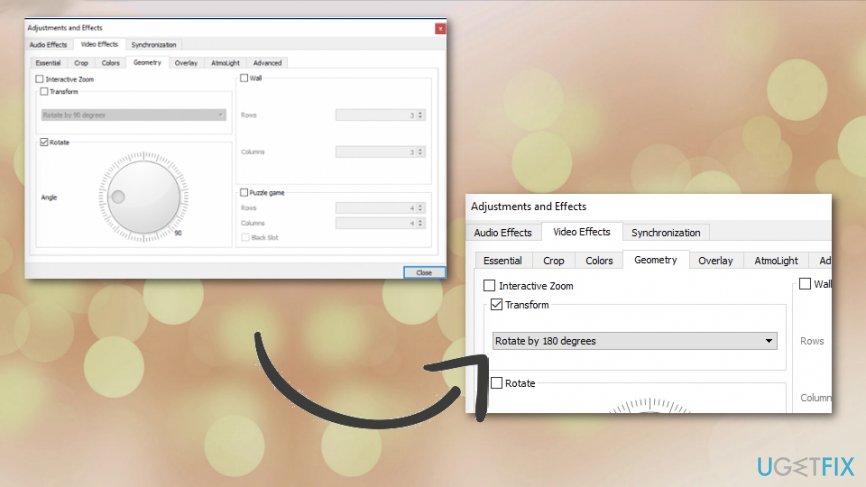
How to rotate a video in window vlc rotation
After this, the video is okay to watch. To change it permanently:
- Save the video by opening Tools, then Preferences and choose the All settings at the bottom.
- Then go to Stout stream and click on Transcode.
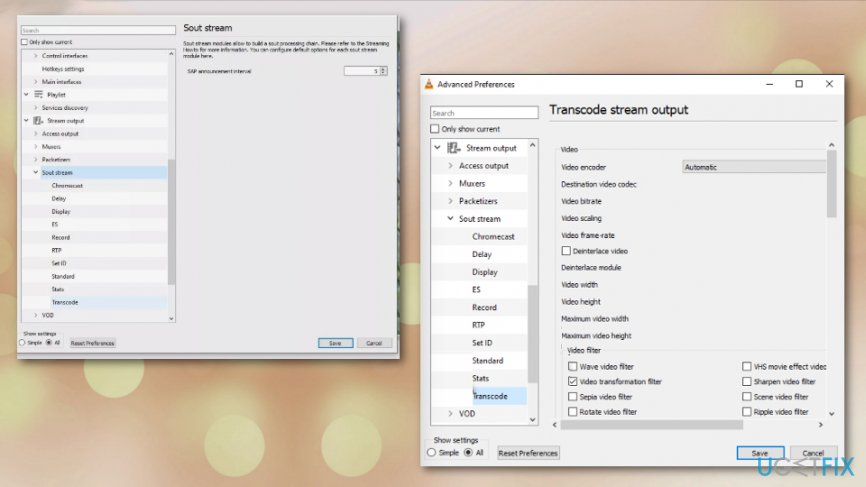
How to rotate a video in window vlc stream - Select a Video transformation filter and click Save.
- Open the Media menu and choose Convert/Save.
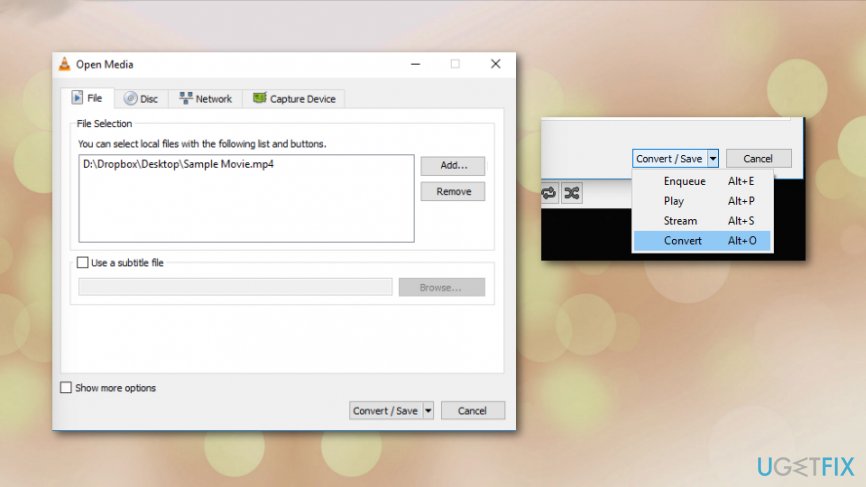
How to rotate a video in window vlc convert - Click the Add button and select the file you just converted.
- Save the file in the wanted location.
Use the Windows Movie Maker to rotate a video in Windows
- There is a Windows Essential 2012 tool that can be installed and used for getting the Movie Maker.
- Select Photo Gallery and Movie Maker when you install the pack.
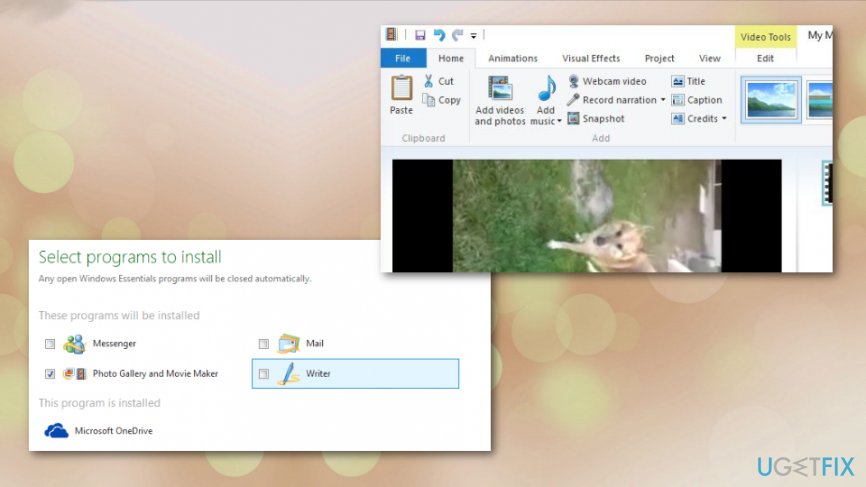
How to rotate a video in window movie maker - When you open the video in concern, you can choose the Home menu and in the section Editing and find buttons allowing to rotate the video.
- Save the movie and select Recommended for this project.
Bottom line
Rotating a video in Windows can be achieved using various media players with built-in video tilting functions or open-source software. If these methods do not work, consider seeking professional help or using dedicated video editing software.
Frequently asked questions
Open the video in the Photos app, click on the 'Edit' icon, and use the rotate buttons to adjust the orientation of your video.
Yes, you can use the built-in Photos app in both Windows 10 and Windows 11 to rotate your videos easily.
Unfortunately, the Photos app only allows you to save the rotated video in the same format as the original; you cannot change the format during rotation.




Report an issue
What's wrong with this guide? We review every report and update or remove content.
Report received — thank you. We'll review and fix it.
You need a free account to submit a report.
Be the first to comment