How to fix
Set Up Do Not Track Settings
on Windows
Discover how to enhance your privacy on Windows 10 or Windows 11 with Do Not Track settings. Expert-tested tips for optimal configuration!

Why does How to Set Up Do Not Track Settings on Mac OS X occur?
- Users are concerned about online privacy
- Cyber security specialists discuss data tracking activities
- Users want to minimize targeted ads
- Websites may not respond to Do Not Track settings
- Some data collection is necessary for website functionality
Repairs Windows system files, removes malware, and restores a clean OS state — without reinstalling.
I have just bought Mac computer. I am not sure if it’s possible to set up Do not track settings on Chrome and Safari web browsers?
Nowadays more and more computer users are concerned about their online privacy. Cyber security specialists widely discuss questionable data tracking activities. Thus, users started paying more attention to their online privacy.
While some users are afraid of being spied by unknown third-parties or cyber criminals, others want to minimize the amount of targeted ads showing up on the browser. For this reason, “Do Not Track” feature becomes important. As soon as you enable it, the websites receive an alert that you do not want to be tracked by third-parties.
However, some websites may not respond to “Do Not Ask” function and continue collecting some browsing-related information. This information might be needed to improve website’s security, provide targeted ads or have statistical data about the audience.
Despite this fact, you can still enable this feature and hope that your visited sites will react to it as you want. You can manage Do Not Track settings on four popular Mac OS X browsers, such as Safari, Google Chrome, Mozilla Firefox, and Opera.
These settings are managed individually for each of the browsers. The instructions below will explain to you how to complete this task.
Managing Do Not Track Settings on web browsers installed on Mac OS X
Turn on Do Not Track option in Safari
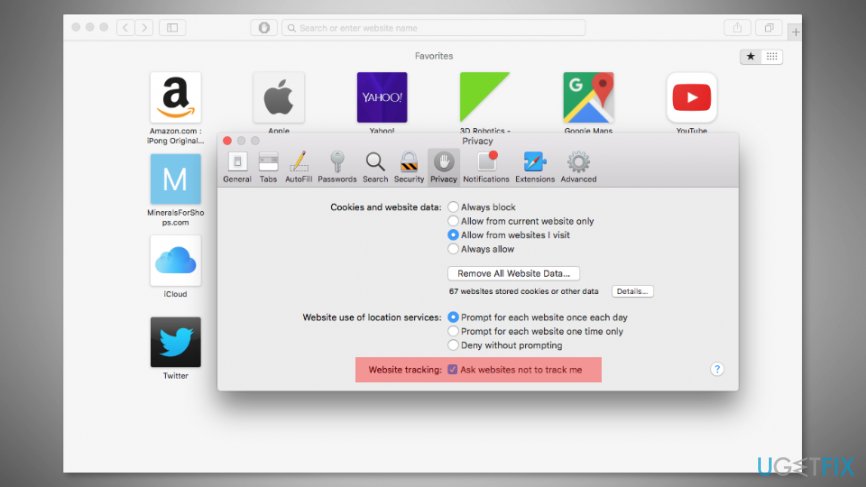
- Open Safari.
- Click Safari menu option at the top of the screen and choose Preferences… from the drop-down menu.
- Click Privacy icon in the appeared Preferences dialog.
- In the list of options find the entry saying “Ask websites not to track me” and mark the tick next to it.
- Close the settings menu by closing red X button on the right top corner.
Enable Do Not Track on Mozilla Firefox
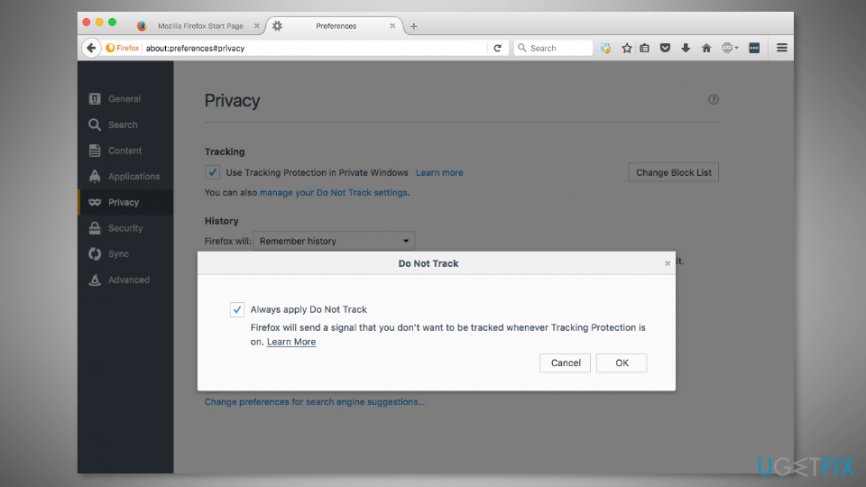
- Open Mozilla Firefox.
- Click Firefox option in the top menu bar. From the appeared drop-down menu, choose Preferences…
- The new Firefox tab will be opened. Click Privacy in the left panel.
- Under the Tracking option, click “manage your Do Not Track settings.
- In the appeared dialog mark the tick near “Always apply Do Not Track.”
- Click OK to confirm the changes.
Set up Do Not Track settings in Google Chrome
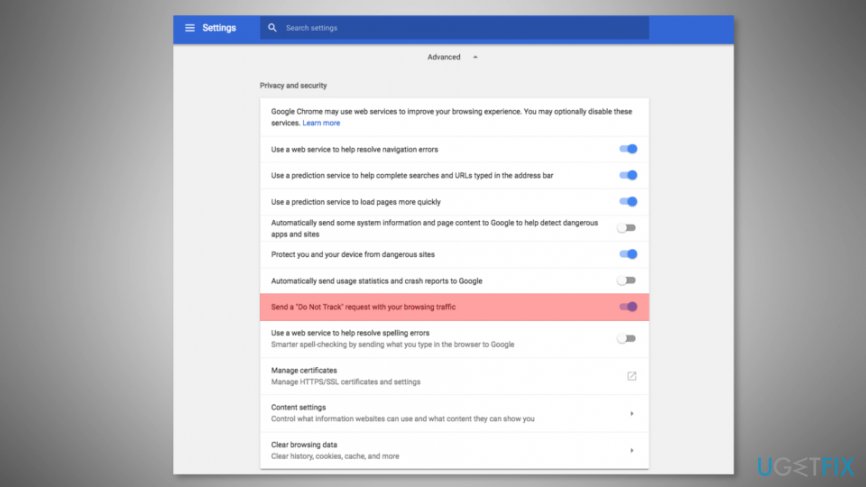
- Open Chrome.
- Click Chrome (on the top menu bar) and open Preferences…
- Browser’s settings will be opened. Scroll down till the end until you see “Advanced” option. Click on it.
- The list of advanced options will be expanded. There find “Send a “Do Not Track” requires with your browsing traffic.” Turn on this feature.
- Close the settings tab.
Turning on “Do Not Track” on Opera
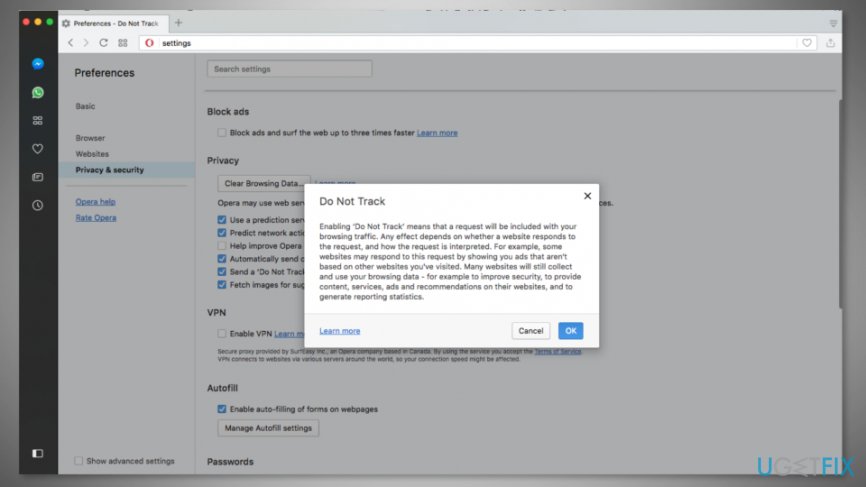
- Open Opera.
- Access Preferences… by clicking Opera option in the taskbar at the top of the screen.
- Go to Privacy & security section located in the left menu.
- Under the Privacy section, you have to mark the tick near "Send a ‘Do Not Track’ request with your browsing traffic."
- Click OK in the appeared dialog box.
You can always disable this feature on each of the browsers by accessing their Privacy settings and removing the tick you have just marked.
Bottom line
To set up Do Not Track settings on Mac OS X, you can enable the feature in Safari by accessing Preferences and marking the appropriate option. For Mozilla Firefox, you can manage the Do Not Track settings through the Privacy section in Preferences. If these steps do not work, consider checking for updates or using additional privacy tools.
Frequently asked questions
Yes, you can enable Do Not Track settings in Windows 10 or Windows 11 by going to Privacy settings in the Settings app and adjusting the tracking options.
In Windows 10, you can find the Do Not Track option under Settings > Privacy > Activity history, where you can manage tracking settings.
While most major browsers on Windows 11 offer a Do Not Track feature, its effectiveness depends on website compliance and user settings.




Report an issue
What's wrong with this guide? We review every report and update or remove content.
Report received — thank you. We'll review and fix it.
You need a free account to submit a report.
Be the first to comment