How to fix
Set Up Windows Hello Fingerprint Sign-In
on Windows
Unlock your Windows 10 or Windows 11 device with ease using fingerprint sign-in. Follow our expert-tested guide for a smooth setup and enhanced security.

Why does How to Set Up Windows Hello Fingerprint Sign-In occur?
- Device does not have a fingerprint sensor
- Windows Hello settings not modified for domain users
- Fingerprint scanning option disabled for Microsoft or local accounts
- PIN not set up before enrolling in Windows Hello
- Incompatible hardware for Windows 10
Repairs Windows system files, removes malware, and restores a clean OS state — without reinstalling.
Hello, guys! Could you please help me to set up fingerprint on Windows 10?
Microsoft introduced Windows Hello feature in Windows 10 OS. It’s a security-oriented feature, which makes the access to the Windows 10 devices more personal. Windows Hello supports biometric authentication – the technology, which allows people to log into Windows 10 using face, iris or fingerprint. Indeed, this relatively new feature is far more secure that the traditional password as counterfeiting the unique iris or fingerprint is hardly possible.
In this post, we will refer to Windows Hello using Fingerprint. This option can work on devices that use fingerprint sensors (a device, which cans an image of the fingerprint and saves its registered copy) and contain compatible hardware. Usually, if the PC, smart phone, tablet or another device with an in-built fingerprint sensor is fully compatible with Windows 10, there are no problems with the hardware compatibility. In addition to the required equipment, one need to set up fingerprint and add it to your account. If you haven’t done that yet, this article will explain how to do that.
NOTE: Domain users cannot sign-in to Windows 10 with a fingerprint by default unless the device user modifies Windows Hello settings and enable fingerprint scanning. Microsoft and local account users can sign-in to Windows with a fingerprint by default, except those cases when the option is disables.
Setup a Fingerprint for your Account
If a Fingerprint hasn’t been added to your account yet, please follow these steps:
- Press Windows key + I and click/tap Accounts.
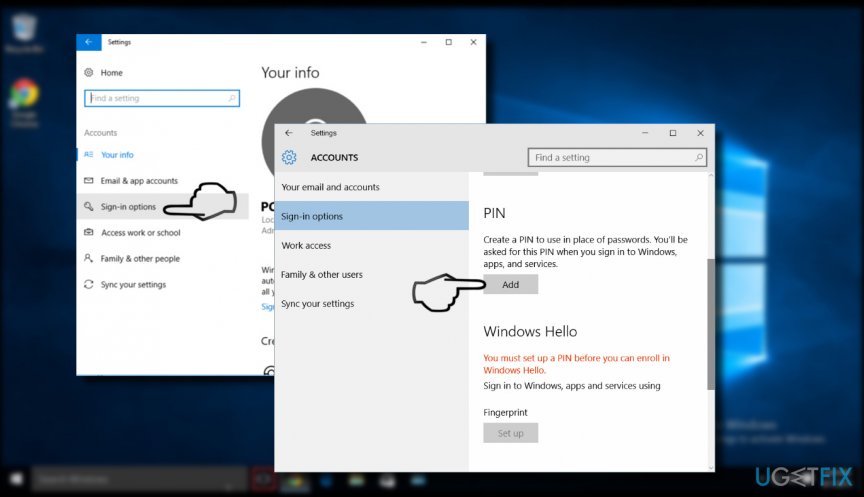
- Open Sign-in options and find Windows Hello section on the right.
- Select Set up for Fingerprint.
- If you get the “You must set up a PIN before you can enroll in Windows Hello” prompt, Select Sign-in options on the left pane and click/tap Get started.
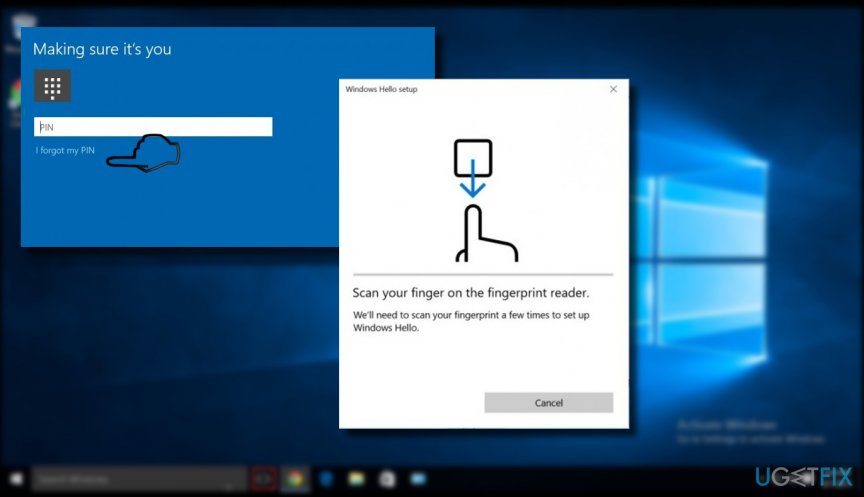
- Enter your PIN to verify your identity.
- Scan your fingerprint on the fingerprint sensor. You may need to repeat the procedure several times to set up with Windows Hello properly.
Add a Fingerprint to your Account
- Press Windows key + I to open Settings.
- Click/tap on the Accounts.
- Open Sign-in options and find Windows Hello section on the right.
- Select Set up for Fingerprint and click/tap Get started.
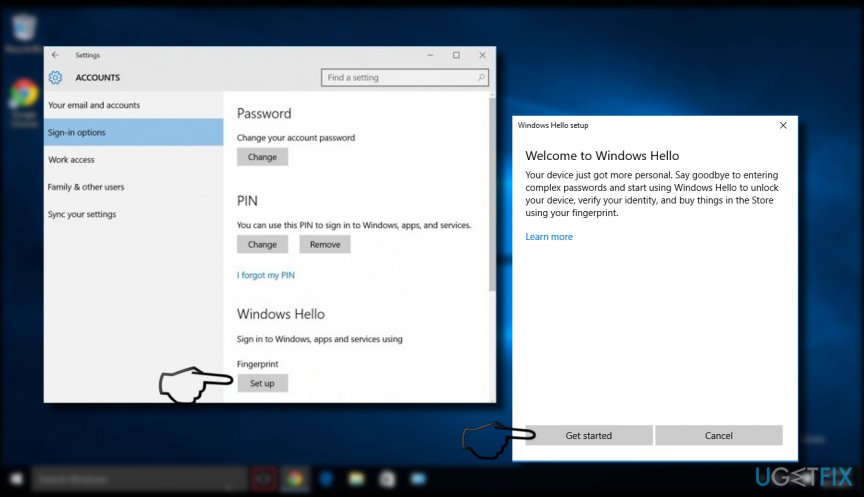
- To verify it’s you, enter your PIN or scan your fingerprint.
- Click/ tap Close.
IMPORTANT: Neither fingerprint nor PIN will work when trying to boot the system into Safe Mode. Safe Mode requires password only.
Bottom line
To set up fingerprint sign-in, ensure your device has a fingerprint sensor, modify Windows Hello settings if you're a domain user, and set up a PIN if prompted. Follow the steps to scan your fingerprint and add it to your account. If none of these solutions work, consider checking for hardware compatibility or contacting support.
Frequently asked questions
To enable Windows Hello fingerprint sign-in on Windows 10, go to Settings > Accounts > Sign-in options, and under 'Windows Hello Fingerprint', click 'Set up' and follow the prompts to register your fingerprint.
Yes, Windows Hello fingerprint sign-in is supported on Windows 11 devices; you can set it up similarly by accessing Settings > Accounts > Sign-in options.
If your fingerprint isn't recognized, try re-registering your fingerprint in the Sign-in options, or make sure your fingerprint reader is clean and functioning properly.




Report an issue
What's wrong with this guide? We review every report and update or remove content.
Report received — thank you. We'll review and fix it.
You need a free account to submit a report.
Be the first to comment