How to fix
Speed Up Google Chrome
on Windows
Boost Google Chrome's performance on Windows 10 or 11 with expert tips and tweaks. Enhance speed effortlessly—fixed in minutes!

Why does How to Speed Up Google Chrome occur?
- Excessive usage of extensions
- High resource consumption
- Poor Internet connection
- System or application errors
- Possible malware infection
Repairs Windows system files, removes malware, and restores a clean OS state — without reinstalling.
Hello computer experts. I have tried many browsers over the years, but I always found Google Chrome to be the best one for me. Chrome’s interface, apps, and other features are irreplaceable. However, the issue with this browser is killing me! The problem is that every time I launch Chrome, pages load slowly, some websites crash or freeze and overall performance is really poor! I do not understand the reason for these changes because it used to be completely fine some time ago. Please help me to save my favorite browser as I want to keep using it! Thanks.
Google Chrome is one of the most popular browsers around the world currently. Starting with just 0.2% popularity in January 2009, Chrome grew to a whopping 62% usage amongst users across all platforms in 2017. Since then, its popularity remained incredibly stable, pushing other browsers down. According to research, it does not seem like the famous browser is leaving this position anytime soon.
Google Chrome is considered to be the best web browser on the market these days due to the user-friendly interface, support of apps and extensions, enhanced security level, and many other functions. Nevertheless, this web browser is not considered to be speedy enough.
It is often accused of sucking up system’s resources and sluggishness when loading pages. Specialists claim that Google Chrome may get slow due to the excessive usage of extensions, plug-ins, and web apps. Besides, high resource consumption is typical for this browser, so its combination with a poor Internet connection may result in slow page loading time, crashes, and freezes
In most cases, the slow performance of Chrome is related to system or application errors. However, there is also a chance that your computer is struggling to cope because of malware infection. Viruses like trojan horses exhibit little to no symptoms of infection. Most of them are relatively minor, including a slow performance of programs.
Therefore, there might be a chance that your Google Chrome browser is being slow because of malware. If you don't have reputable security software installed, hurry up and get [d1]. Not only it can make sure that viruses are not causing these problems, but it can also prevent future malware outbreaks.
Regardless of the cause, our security experts prepared a detailed guide that should help you to fix your beloved browser. Please keep reading and good luck!
Tip 1. Keep your Google Chrome up to date
Typically, Google Chrome updates itself on every restart. However, some users might not close down their browsers at all for a prolonged time. Thus, follow these steps to update your browser:
- Click on the green arrow in the top of the right corner (it is converted from Options menu)
- Once the menu opens, click Update Google Chrome
- Click on Relaunch
- Your Chrome is now updated!

Tip 2. Clear your browsing data
There multiple parameters that are stored in Chrome, such as URLs visited, phrases typed, website cookies, plugin data, and similar information. This is done to speed up your browsing. However, sometimes these catches might end up too large and can potentially slow down your browser. On the other hand, it is not advised clearing your search history too often, as it defeats the purpose of having the cache in the first place.
- Click on Options
- Hover over More tools and then click on Clear browsing data
- In this window, you can choose the period of time you want to eliminate data from
- Select the preferred parameters and click on Clear browsing data
Tip: only clear settings that take a significant amount of space. Typically, Cached images should be first to be deleted.
Tip 3. Disable useless and potentially unwanted extensions, plug-ins, and applications
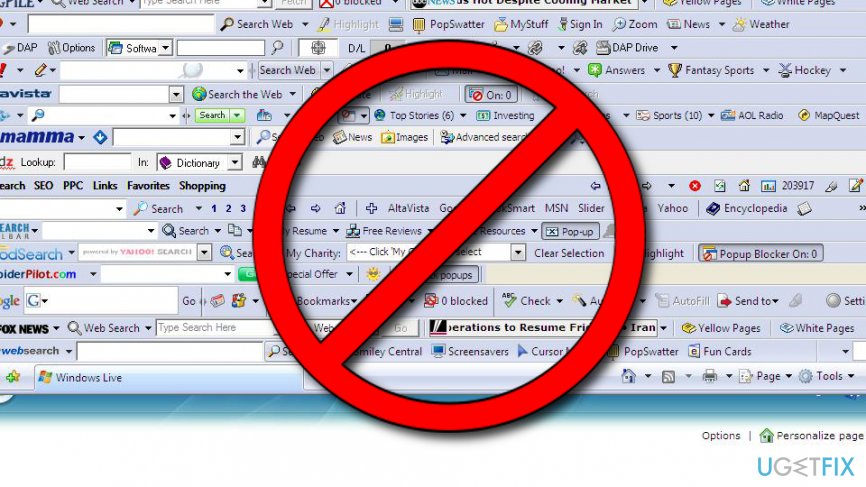
It has been noticed that excessive usage of extensions has a significant impact on Google Chrome’s performance. The more extensions you use simultaneously, the slower Chrome works. Besides, the fact that there are hundreds of ad-supported web browser extensions circulating the Internet.
Thus, if you have accidentally installed ad-supported third-party extensions, web browsing might become unbearable. The same could be said about web browser plug-ins and web apps, so the first thing you can do to increase Chrome’s speed is to disable useless/suspicious extensions, plug-ins, and web apps. To do that, follow these steps:
- Launch Google Chrome and go to the Options.
- Select More tools and open Extensions.
- Untick the extensions that you are not willing to use anymore or click on the Trash icon alongside them.
- After that, type chrome://plugins in the address bar and untick the plug-ins you don’t want to run.
- Finally, type chrome://apps in the Chrome’s address bar and remove ticks from the boxes alongside useless apps.
Tip 4. Disable automatic resource pre-fetcher
Resource pre-fetcher is one of the smart Google Chrome’s features, which predicts what pages you are about to visit before you type the name of the site. This function has a background database of the website you tend to visit and loads those pages in the background before you enter them. The purpose of such service is to increase page loading speed. Unfortunately, but sometimes this functionality may do the contrary, which is why it’s advisable to turn it off. For this purpose, you should:
- Open Google Chrome and click Options (three vertical dots at the top right corner of the screen).
- Select Settings and then Show advanced settings.
- Untick Prefetch resources to load pages more quickly option and close the window.
- In case you decide to re-enable this function, repeat these steps and place a tick back.
Tip 5. Use Data Saver extension
Specialists claim that a Data Saver application can be very helpful in speeding up Chrome. In fact, this option can help if the primary source of the problem is not the web browser, but rather the Internet connection. The fact that Google Chrome uses a massive amount of data for loading pages, the slow Internet may turn your web browsing experience to hell. In this case, you may try to download Data Saver from the Google Web Store.
Tip 6. Enable Simple Cache for HTTP
Google Chrome may work slower than it used to before due to the cache. New versions of Google Chrome feature Simple Cache feature, which is an advanced caching technology, which distributes the files in a particular order to create space. To enable Simple Cache function, you have to:
- Open Google Chrome and type chrome://flags/#enable-simple-cache-backend in the address bar.
- After that, click Enable and select Relaunch Now.
Tip 7. Disable hardware acceleration to speed up Chrome
Google Chrome has hardware acceleration function. This feature allows passing the most graphics-intensive tasks through your GPU, meaning your hardware is dedicated to handling the load. However, in some cases, this function might interfere with normal work of the browser. Therefore, try disabling it and see if it helps:
- Click Options
- Tap on Settings and then pick Advanced settings
- Find System section
- Untick Use hardware acceleration when available
- Restart Chrome
Bottom line
To speed up Google Chrome, consider reducing the number of extensions, checking your Internet connection, and ensuring your system is free of malware. If these fixes do not resolve the issue, it may be necessary to reinstall Chrome or seek further technical assistance.
Frequently asked questions
To clear cache and cookies, open Chrome, click on the three dots in the upper right corner, go to 'More tools', then 'Clear browsing data'. Select 'Cookies and other site data' and 'Cached images and files', then click 'Clear data'.
You can optimize your Windows settings by disabling background apps and ensuring that your system has enough RAM allocated for Chrome, which can be adjusted in the Task Manager under the 'Startup' tab.
Disabling hardware acceleration can sometimes improve performance in Chrome on Windows 10 or Windows 11 if your graphics drivers are outdated or if you experience rendering issues.




Report an issue
What's wrong with this guide? We review every report and update or remove content.
Report received — thank you. We'll review and fix it.
You need a free account to submit a report.
Be the first to comment