How to fix
Start Remote Desktop Session
on Windows
Unlock seamless access to your Windows 10 or Windows 11 device with our expert-tested guide on starting a Remote Desktop session. Fixed in minutes!

Why does How to Start Remote Desktop Session on Windows occur?
- Weak Remote Desktop Protocols allow malware developers to break into systems
- Incorrect Windows Firewall settings may block RDC access
- Improper Remote Desktop settings not configured on the computer
- Lack of user permissions for Remote Desktop access
- Unawareness of computer name for RDC connection
Repairs Windows system files, removes malware, and restores a clean OS state — without reinstalling.
I am new to using RDC on Windows 10. How do I change the password? Thanks in advance.
Remote Desktop Connection (RDC) is an integral part of all previous and latest Windows versions. Its key benefit is that you can access your work’s computer or family’s PC when you are in another location[ref en-1].
In order for the remote connection to be successful, certain settings must be modified to allow access. Below you will see steps how to configure them. Speaking of Mac users, they can also experience the benefits of such connection.[ref en-2]
Microsoft specifically designed Microsoft Remote Desktop which is available on Apple store. While this app has benefits, there are drawbacks as well. Weak Remote Desktop Protocols[ref en-3] are the key factor allowing malware developers break into systems and infect users with ransomware. Currently, active ACCDFISA v2.0 ransomware is a perfect example illustrating the case.
Note. If another person attempts to access your computer via RDC for the first time, asks to indicate your computer name, but you do not know where to find it, follow this step.
Click on the Start and type System. In the window, you should see the computer name at the beginning of technical specifications description.
Allow RDC access via Windows Firewall
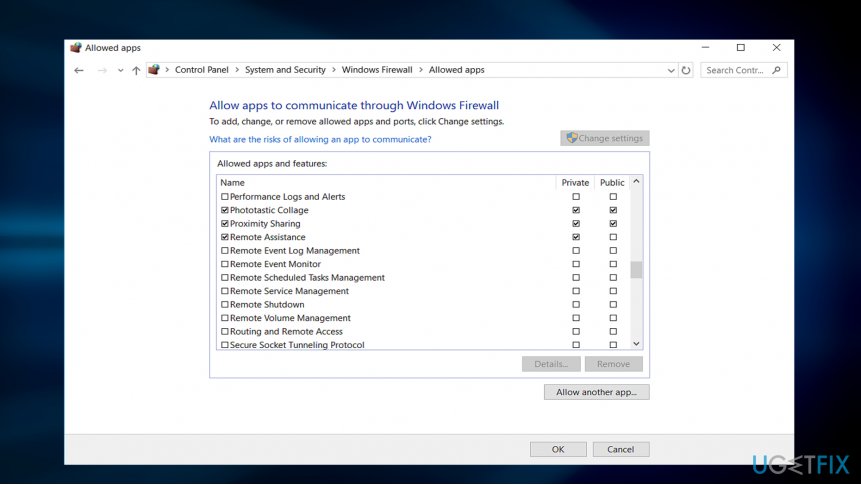
- On the remote computer, click Start and enter Control Panel.
- Enter System and Security.
- Click Allow a program through Windows Firewall under Windows Firewall.
- Click Change settings and then check the box next to Remote Desktop.
- Click OK for the changes to take effect.
Set RDC settings on Windows
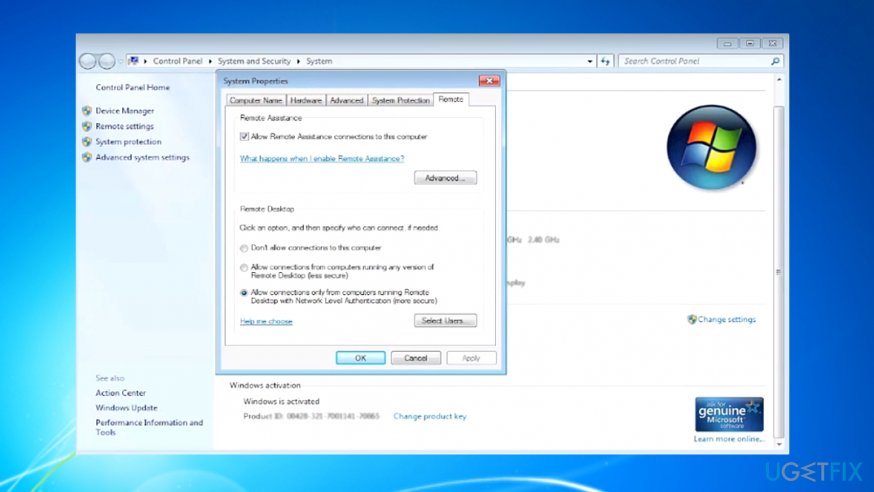
- Click the Start button and right-click on Computer, opt for Properties.
- Choose Remote settings.
- Type the necessary information if the message asking for the administrator password.
- Under Remote Desktop, choose one of the three options.
- Click Select Users.
- In the Remote Desktop Users dialog box, click Add.
- In the Select Users or Groups dialog box, do the following.
- To specify the search location, opt for Locations, and then choose the wanted location. In Enter the object names, type the name of the computer name that you want to add, and then click OK.
- The name appears in the list of users in the Remote Desktop Users dialog box. Click OK twice in a row.
The user account must have a password before you can run Remote Desktop to connect to another computer.
- Click Start and select Control Panel.
- Double-click User Accounts.
- Select Change your Windows Password under User Accounts.
- Click Create a password for your account and follow the instructions on the screen.
Begin Remote Desktop session on Windows 7
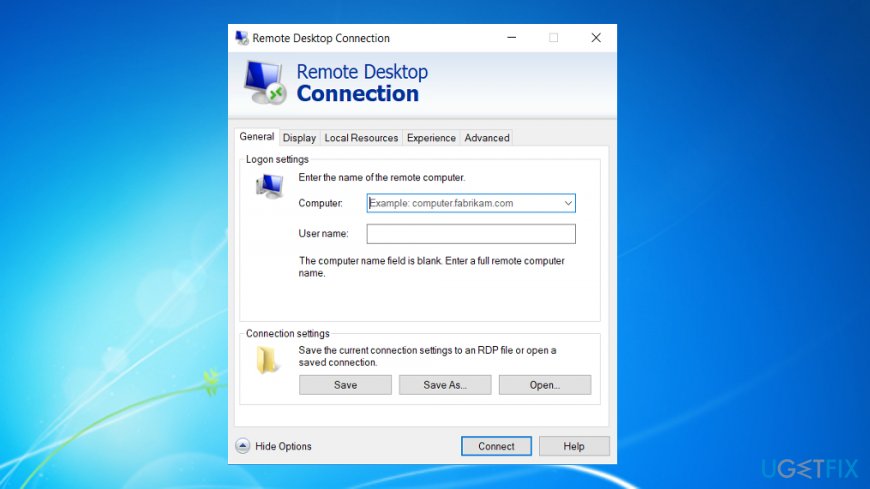
- Click on the Start button.
- In the search box, type Remote Desktop Connection. Launch the program.
- In the Computer box, type the computer name you want to access to. Later on, click Connect. Alternatively, type the IP address instead of the computer name. If the person, whose computer you want to connect to, does not know it, tell them to open their browser, type "my IP address" in the search box. They should click on the first website –entry http://whatismyipaddress.com. It will indicate the IP address.
Allow RDC access on Windows 10
Remote Desktop session is called as Remote Assistance, so do not get puzzled if you cannot find the option.
Firstly, repeat the step 3 from the first instructions so that Windows Firewall would allow Remote Assistance access.
On Windows 10, you can configure the settings faster.
1. Click on the Start button and enter advanced system settings.
2. Once the window opens, navigate to Remote tab.
3. Place the checkmark on Allow Remote Assistance connections to this computer. If you click on Advanced, you can customize the session and set the time limit.
Start Remote Desktop Connection on Windows 10
In order to launch the RDC session, click on the Start button and type remote. Choose Remote Desktop Connection.
Set up RDC password
- Click Start and choose Control Panel.
- Double-click User Accounts.
- Opt for Change your Windows Password under User Accounts.
- Click Create a password for your account and follow the instructions on the screen.
Change RDC password
Due to security reasons, it is crucial to set a complex password. Change it regularly.
- During Remote Desktop session, press CTRL+ ALT+ END key combination.
- This launches task menu on the remote server instead of on your local PC.
- Choose Change a Password menu option to change your password on the remote server.
Bottom line
To successfully start a Remote Desktop session, ensure that the Windows Firewall allows RDC access and that the Remote Desktop settings are properly configured. Additionally, verify that the correct user permissions are set for Remote Desktop access. If these steps do not resolve the issue, consider checking for other network-related problems.
Frequently asked questions
To enable Remote Desktop, go to Settings > System > Remote Desktop and toggle on the 'Enable Remote Desktop' option.
No, Remote Desktop is only available on Windows 10 Pro, Enterprise, and Education editions, as well as Windows 11 Pro and higher.
Ensure that Remote Desktop is enabled on the target machine and check that the firewall allows Remote Desktop connections.




Report an issue
What's wrong with this guide? We review every report and update or remove content.
Report received — thank you. We'll review and fix it.
You need a free account to submit a report.
Be the first to comment