How to fix
Stop fans from constantly running
on Windows
Stop your Windows 10 or Windows 11 fans from constantly running with these proven tweaks. Optimize performance and enjoy a quieter experience—expert-tes…

Why does How to stop fans from constantly running in Windows occur?
- Background processes
- High CPU usage
- Outdated drivers
- Inadequate ventilation
- Malware or virus
Repairs Windows system files, removes malware, and restores a clean OS state — without reinstalling.
Hello. The fans in my Windows PC are running constantly every time I turn it on even if there are no applications in use. This is starting to worry me. Is there anything I can do to fix this?
Fans are an essential part of a computer's cooling system. They aid in the regulation of your device's temperature and the prevention of overheating, which can result in serious hardware damage. However, if your computer's fans are constantly spinning, this could indicate a problem. The constant hum of the fans is not only annoying, but it can also affect the performance of your computer. In this article, we'll look at how to stop fans from running constantly in Windows.
The constant operation of your computer's fans indicates that it is working hard to keep itself cool. This can be caused by a number of factors, such as background processes, high CPU[ref en-1] usage, outdated drivers, or inadequate ventilation. In some cases, the problem may be caused by malware or a virus.
When your computer's fans are constantly running, it can affect system performance by slowing it down, decreasing battery life, and causing it to overheat. Overheating is especially dangerous because it can damage your computer's components, such as the processor and graphics card.
To address the issue of fans constantly running in Windows, there are several possible solutions. In this guide, you will find 6 of them. However, you can also try using a maintenance tool like [d1] that can automatically fix most system errors, BSODs,[ref en-2] corrupted files, registry[ref en-3] issues, or clear cookies and cache. Otherwise, follow the step-by-step instructions below.
Solution 1. Install Windows Updates
- Press the Windows key + R to open the Run box
- Type ms-settings:windowsupdate in the text box and press Enter
- Click the Check for updates button
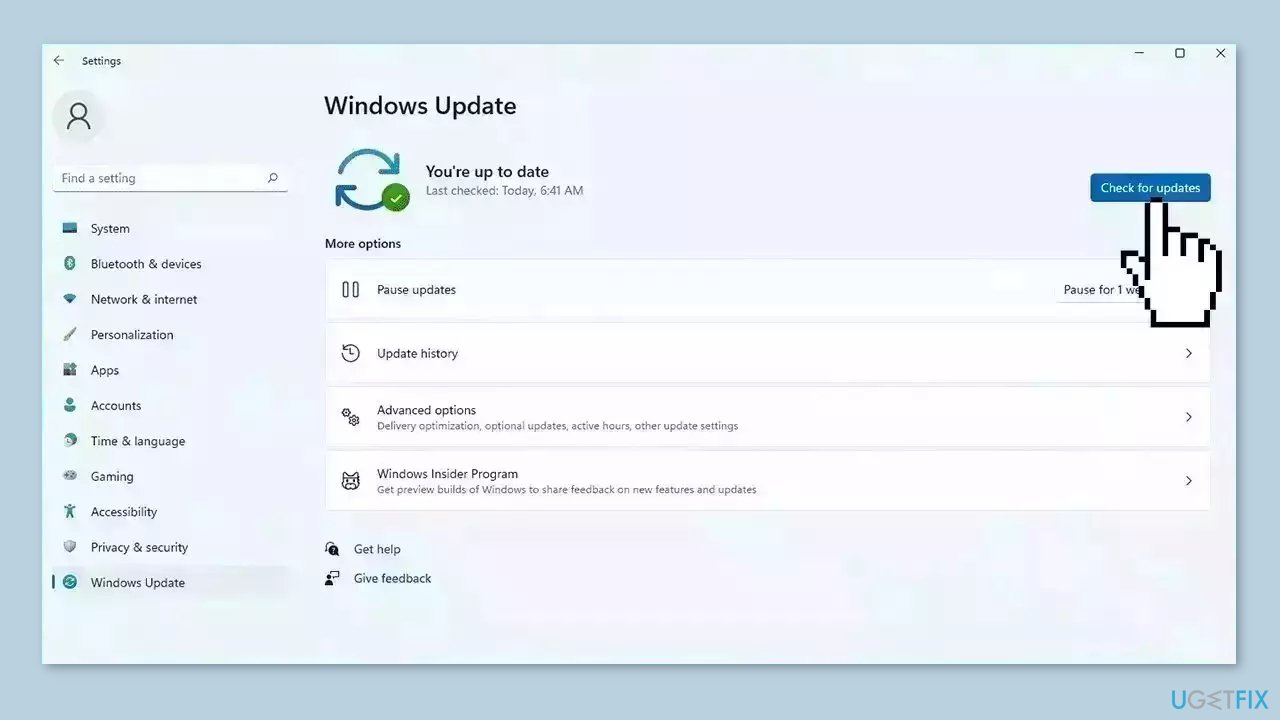
- If a new update is available, click the Download & Install all button.
- Restart your computer after the process is finished and check to see if the problem is fixed
Solution 2. Update Drivers
Outdated or malfunctioning drivers can also cause your computer to work harder than it needs to, which can result in your fans running constantly. In this case, you can fix it automatically by using [rev id="DriverFix"], which will scan your PC for missing and out-of-date device drivers. Or you can update them manually:
- Open Settings
- Click on Update & Security
- Click on Windows Update
- Click the Check for updates button
- Click the View optional updates option
- Click the Driver updates tab
- Select the driver you want to update
- Click the Download and install button
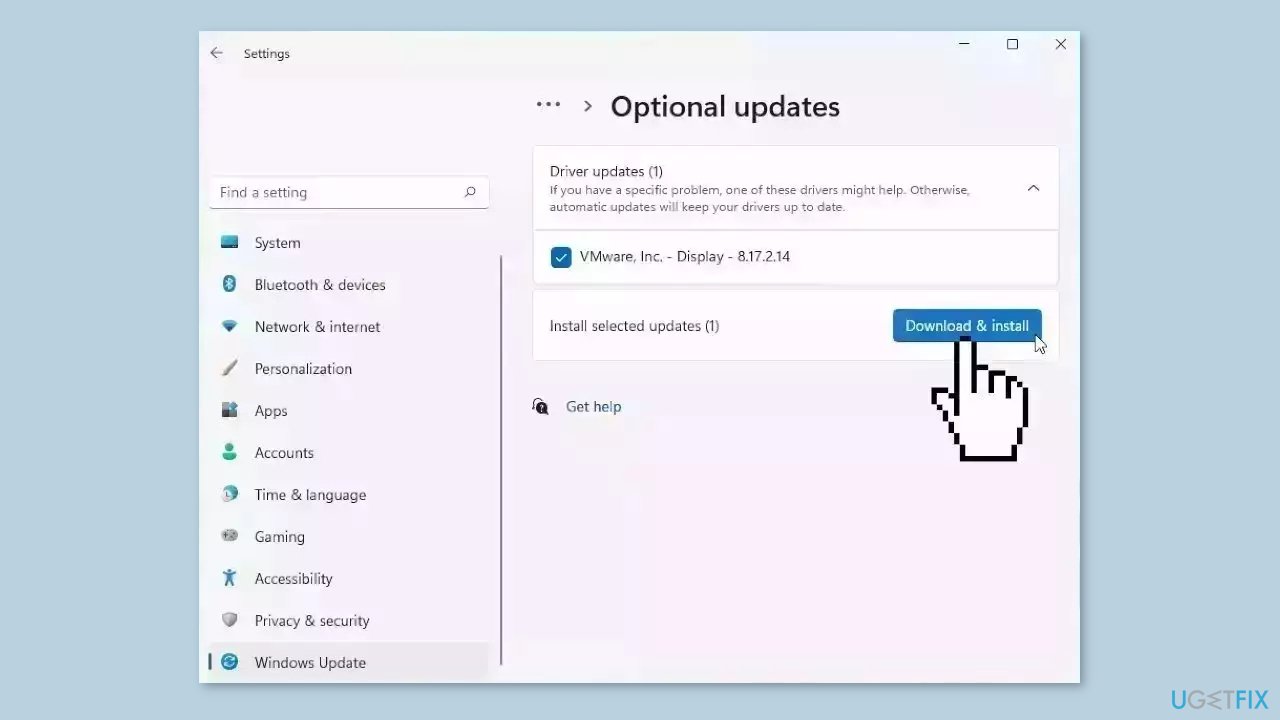
If the View optional updates link is not available after checking for updates, then Windows Update does not have any new drivers or any updates for other products at that particular time.
Solution 3. Close Background Apps
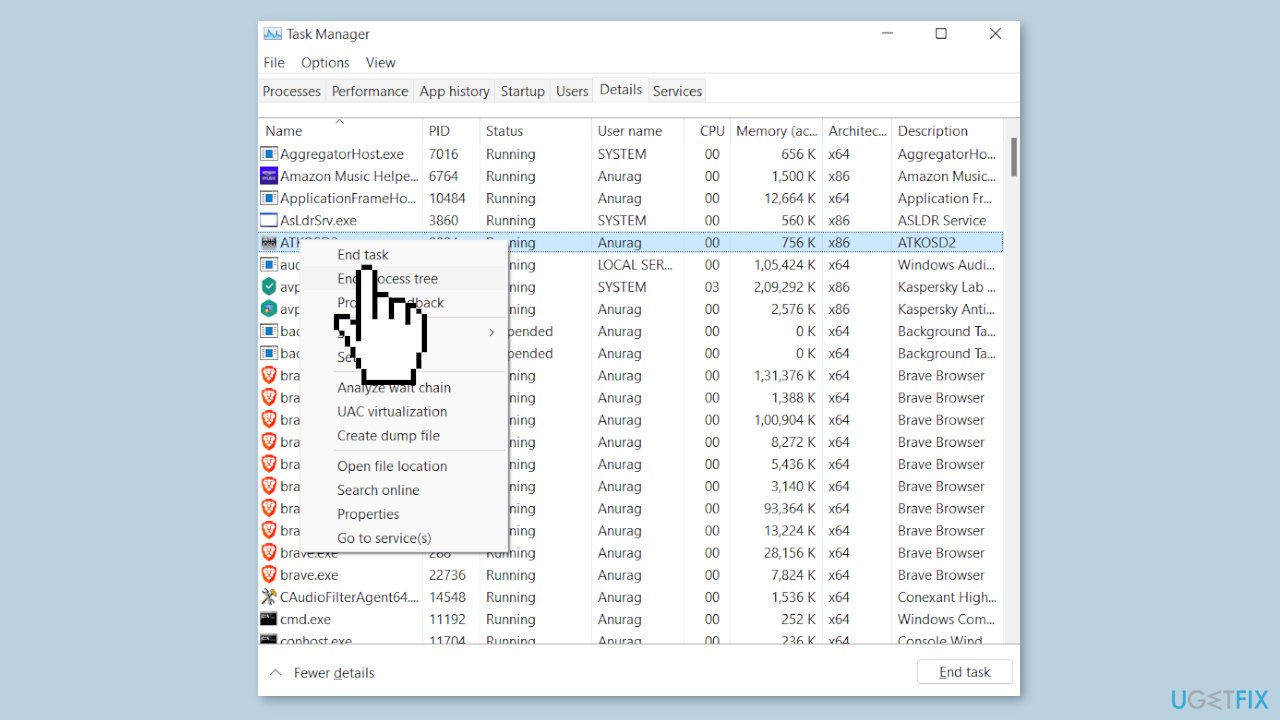
One of the most common reasons why fans run constantly is due to background processes running on your computer. Some programs may consume a lot of CPU resources, causing your computer to work harder and generate more heat. To check for such processes:
- Open the Task Manager by pressing Ctrl + Shift + Esc or right-click on the taskbar and select Task Manager.
- Look for processes that are using a lot of CPU resources.
- If possible, close those processes to reduce the workload on your computer.
Solution 4. Disable Updates from more than one place
- Open the Settings app by pressing Windows + I.
- Click on Update & Security.
- Click on Advanced options.
- Under Delivery Optimization, click on Delivery Optimization settings.
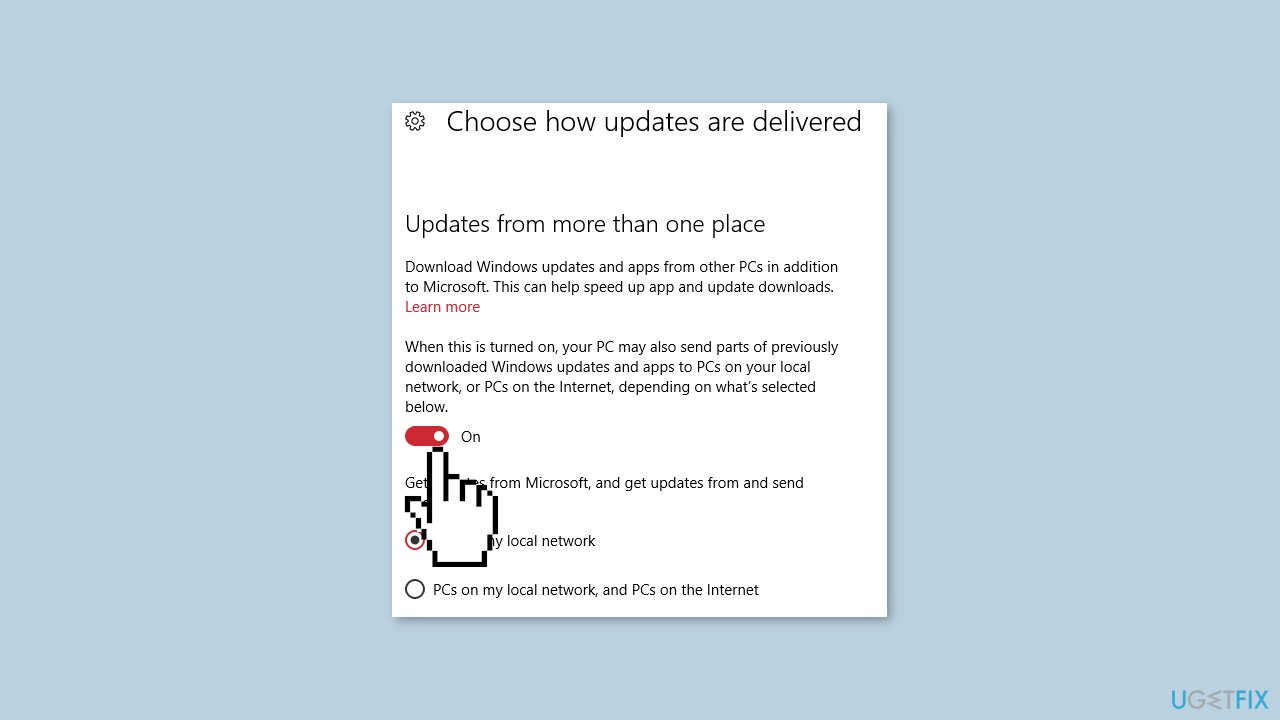
- Toggle off the Allow downloads from other PCs option.
- If you want to disable updates over the internet as well, toggle off the Download from other PCs option under Updates from more than one place.
Solution 5. Modify Power Settings
Windows has built-in power settings that can help reduce the workload on your computer, which can result in your fans running less frequently. To access power settings:
- Press the Windows key + I to open Settings.
- Select System.
- Click on Power & sleep.
- On the right-hand side, click on Additional power settings.
- Select Balanced (recommended).
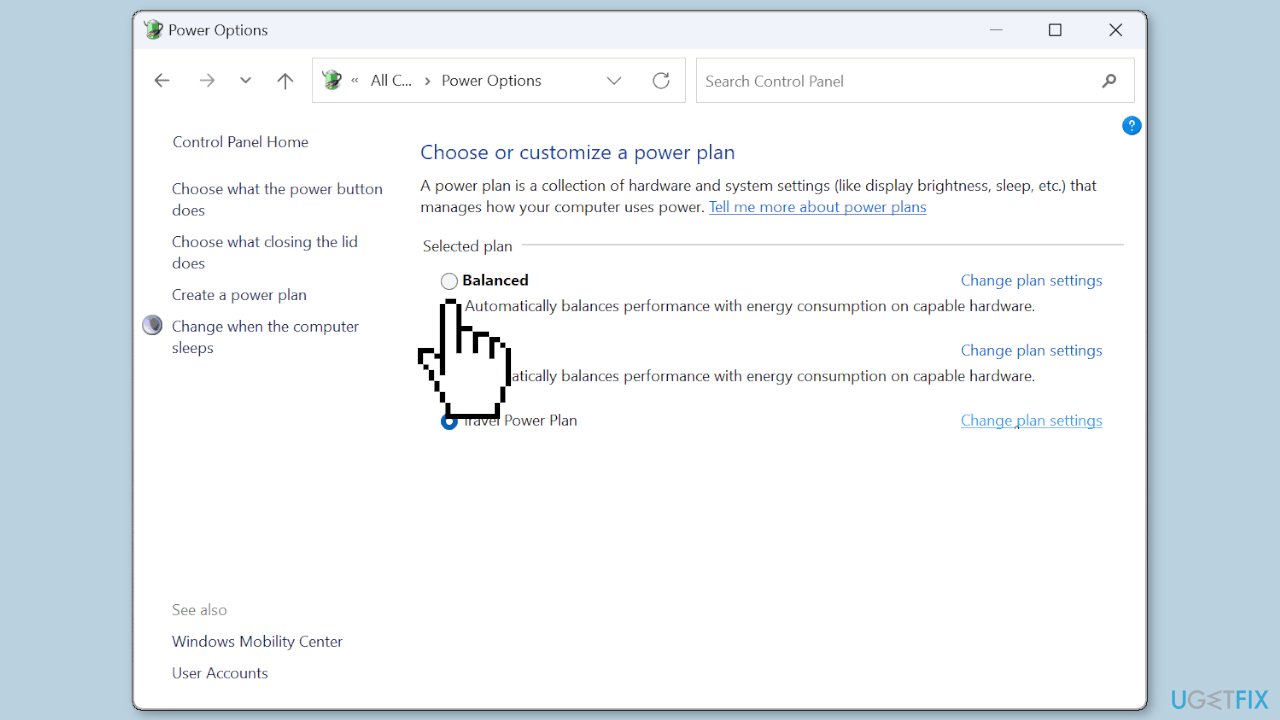
- Click on Change plan settings.
- Set the Turn off the display and Put the computer to sleep options to a lower value, such as 10 minutes, to reduce the workload on your computer.
Solution 6. Clean your Device
Dust and debris can build up inside your computer, obstructing airflow and forcing your fans to work harder to keep your device cool. To begin cleaning the insides of your computer, turn it off and unplug it from the power source. Then, remove your computer's side panel and use compressed air to blow out any dust and debris. A soft brush can also be used to remove any stubborn dust. While cleaning, avoid touching any components inside your computer.
Bottom line
To stop fans from constantly running in Windows, you can install Windows updates, update drivers, and check for background processes. If these solutions do not resolve the issue, consider using a maintenance tool to fix system errors.
Frequently asked questions
Fans may run continuously due to high CPU usage, overheating, or improper power settings. Checking for background processes and adjusting power options can help mitigate this issue.
You can adjust power settings by going to Control Panel > Hardware and Sound > Power Options, then selecting 'Change plan settings' and optimizing your plan for performance or balance.
Yes, you can use third-party software like HWMonitor or Core Temp to monitor your CPU temperature, helping you identify if overheating is causing your fans to run constantly.




Report an issue
What's wrong with this guide? We review every report and update or remove content.
Report received — thank you. We'll review and fix it.
You need a free account to submit a report.
Be the first to comment