How to fix
Stop Mail app switching to New Outlook
on Windows
Discover how to prevent the Mail app from switching to New Outlook in Windows 10 and Windows 11. Expert-tested solutions for seamless email management!

Why does How to stop Mail app switching to New Outlook in Windows occur?
- New Outlook was introduced and began transitioning users in 2023
- Users did not consent to the switch from Mail app to New Outlook
- Mail app users prefer its simplicity and functionality over New Outlook
- The Mail app keeps switching back to New Outlook despite user preferences
- Feedback prompts make reverting to Mail app a multi-step process
Repairs Windows system files, removes malware, and restores a clean OS state — without reinstalling.
I don't want to use the New Outlook instead of the convenient Mail app. New Outlook is overloaded with things I don't need and simply feels bad, so I want to keep using the Mail app. How do I do this?
On the official page of the New Outlook, Microsoft promises users to "bring the latest features, intelligent assisted capabilities and a new modern and simplified design to your Outlook app." However, not all people like change and they are content with what is already there - including the Mail app.
Mail app was a great addition to the latest Windows versions such as Windows 10, as it allows users to compile all email accounts into one place. It has a neat and simple interface, which many people prefer.
The New Outlook app was first introduced in 2022, and in 2023 started slowly transitioning people to use it; i.e., users one day turned on their PCs, clicked the Mail app, and saw the New Outlook instead. Many people found it pretty intrusive, as they never accepted or asked for the change.
Luckily, there is an easy way to go back to the Mail app - all you need to do is click a switch located at the top-right corner of the window. While this method works for users, they noticed that the Mail app keeps eventually switching to New Outlook continually, and would like a more permanent solution. To go back, users once again are asked to provide feedback, which if they don't want to do, have to select the box, making it into a several-step process.
While it is impossible to completely fix the issue where the Mail app is switching to Outlook, there are a few workarounds available. Please check out the instructions below. We also recommend using a powerful PC repair and maintenance utility [d1] when facing various Windows issues.
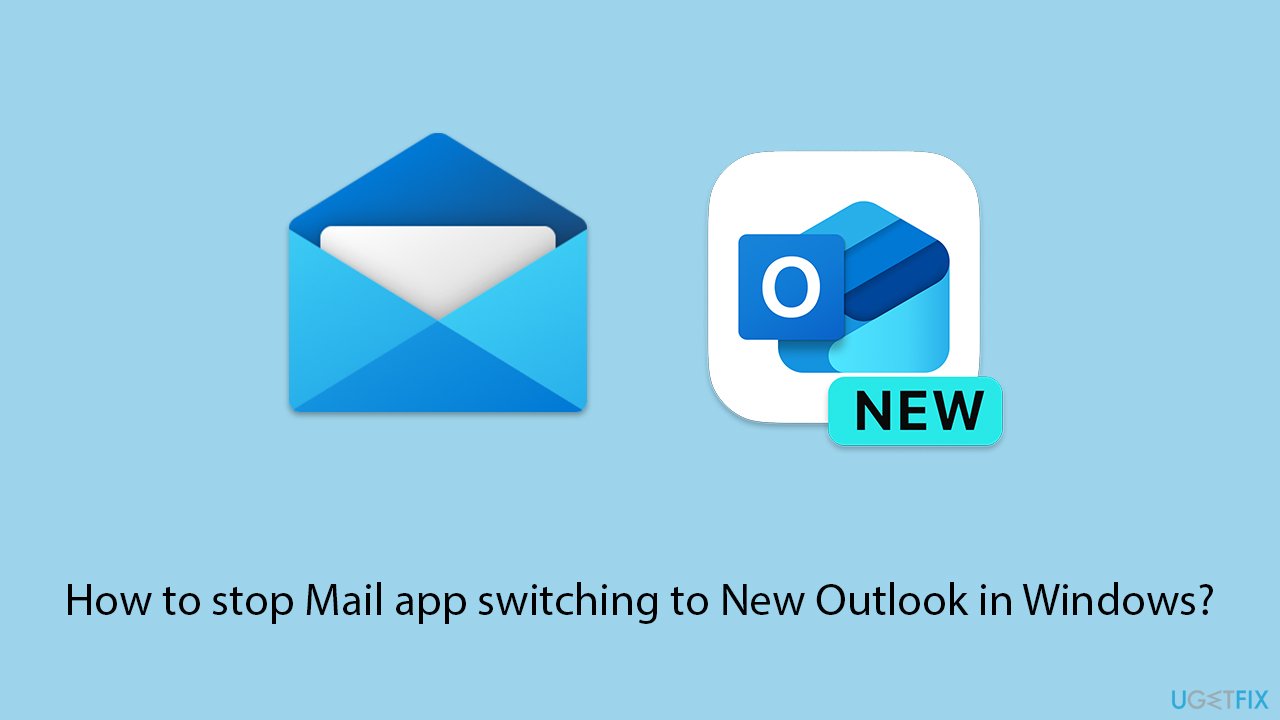
Step 1. Block new Outlook in Firewall
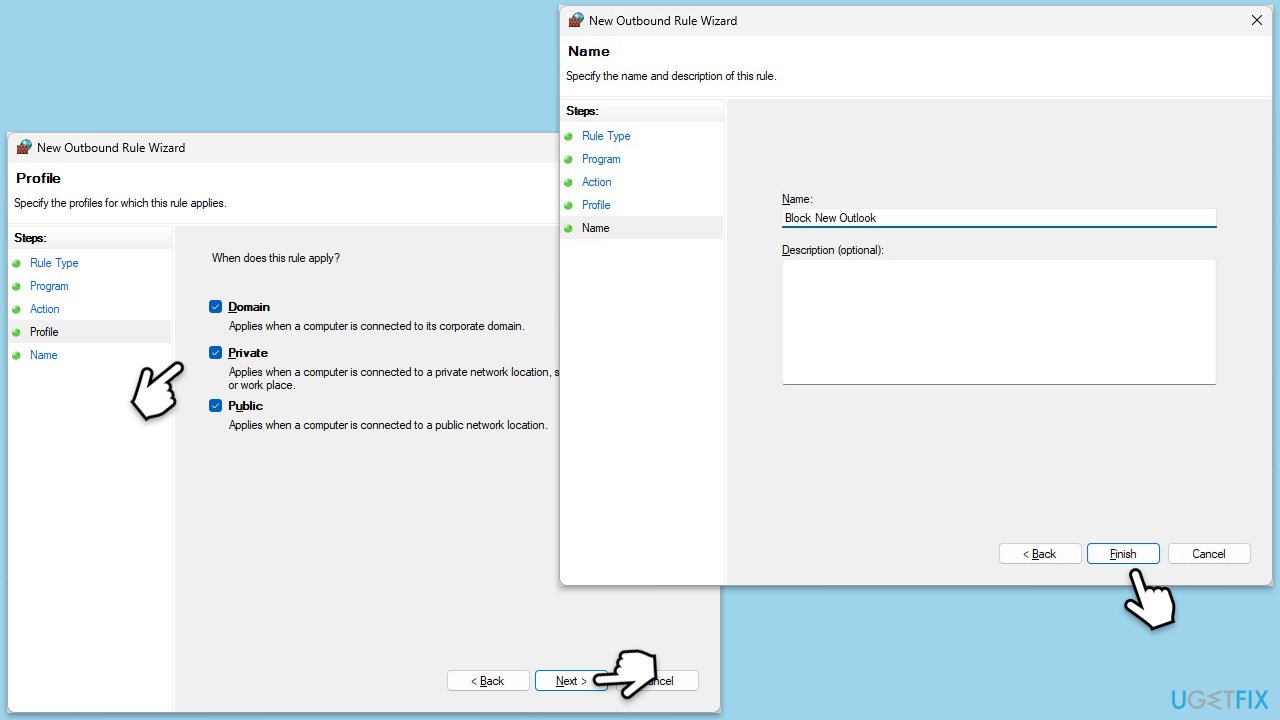
To prevent New Outlook from coming back, let's first block it in the Firewall by creating an Outbound Rule
- Type Firewall in Windows search and pick the Windows Defender Firewall with Advanced Security option from the list.
- Select Outbound Rules.
- In the Actions section on the right, click New Rule.
- Select the Program section on the left.
- Ensure This program of path is selected and then click Browse.
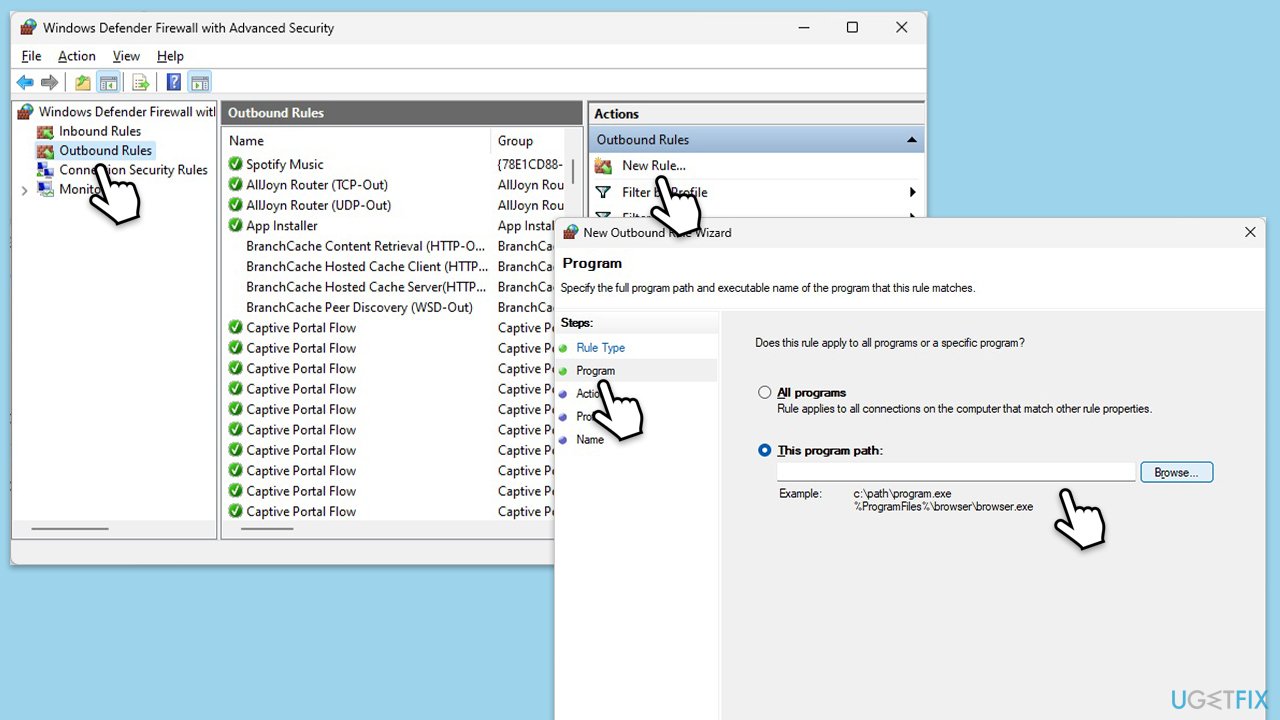
- Navigate to the following location in Windows (note that the version may vary):
C:\Program Files\WindowsApps\Microsoft.OutlookForWindows_1.2024.625.0_x64__8wekyb3d8bbwe - Select olk.exe and click Open (alternatively, you can simply enter the full path into the field).
- Click Next.
- Select Block the connection.
- Under Profile, mark Domain, Private, and Public , and click Next.
- Choose a name, for example, "Block New Outlook" and click Finish.
Step 2. Uninstall the New Outlook
The other step is to uninstall the New Outlook from your system. Follow these steps:
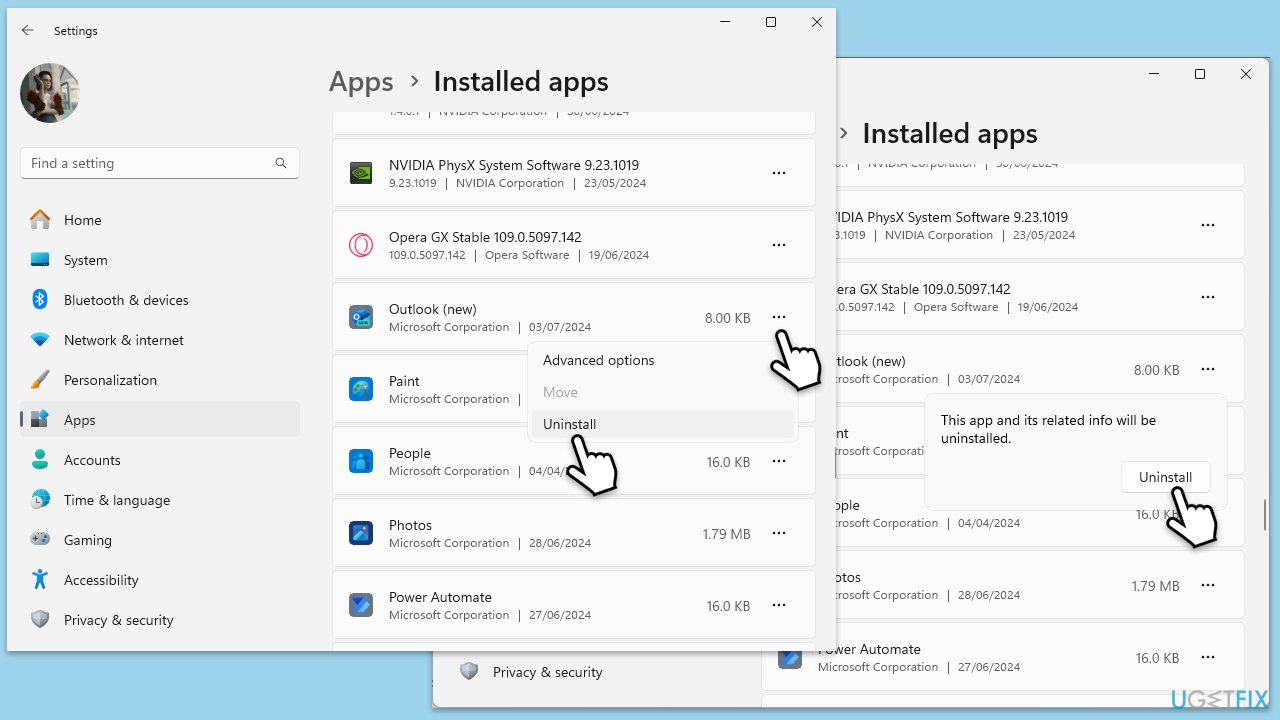
- Right-click on Start and select Installed apps/Apps & Features.
- Scroll down to locate the Outlook (New) entry.
- Click on three horizontal dots or select the app (depending on your Windows version).
- Click Uninstall and confirm your choice.
- Follow the on-screen instructions to remove New Outlook from your system.
For the best result, we recommend using a third-party uninstaller program such as Revo Uninstaller or CCleaner to remove any traces from the system fully.
Bottom line
To stop the Mail app from switching to New Outlook, users can block New Outlook in the Firewall and provide feedback to Microsoft. If these solutions do not work, consider using a powerful PC repair and maintenance utility to address the issue.
Frequently asked questions
To stop the Mail app from switching to New Outlook, go to Settings > Accounts > Email & accounts, and ensure that the 'Manage my Microsoft account' setting is turned off.
Yes, you can revert by uninstalling the New Outlook app through Settings > Apps > Apps & features, then reinstall the classic Mail app from the Microsoft Store.
Check the Mail app settings under Accounts and ensure that any options related to using New Outlook are disabled.




Report an issue
What's wrong with this guide? We review every report and update or remove content.
Report received — thank you. We'll review and fix it.
You need a free account to submit a report.
Be the first to comment