How to fix
Stop Microsoft Edge from installing automatically
on Windows
Stop Microsoft Edge from auto-installing on your Windows 10 or Windows 11 device with expert tips. Easy tweaks for a smoother experience, fixed in minutes.

Why does How to stop Microsoft Edge from installing automatically in Windows occur?
- Microsoft bundles Edge updates with Windows updates
- Certain Windows functions depend on Microsoft Edge components
- Users prefer different web browsers
- Uninstallation does not remove all Edge components
- Registry modifications may be needed
Repairs Windows system files, removes malware, and restores a clean OS state — without reinstalling.
Hello. I uninstalled Microsoft Edge from my Windows PC but it keeps reinstalling automatically by itself. Is there any way to fix this?
The issue of Microsoft Edge automatically reinstalling on Windows PCs has been a topic of concern for some users. The Microsoft Edge web browser is pre-installed on Windows operating systems. It was created by Microsoft. It offers a number of features and enhancements in terms of speed, security, and compatibility with current web standards. It is intended to replace the earlier version of Internet Explorer.
While some users have reported successfully uninstalling Microsoft Edge from their Windows PC, they have encountered a persistent problem where the browser reinstalls itself automatically. Users who favor using different web browsers or who have specific reasons for not having Microsoft Edge on their systems may find this problem to be inconvenient.
There are several potential reasons for this automatic reinstallation. One possibility is that Microsoft bundles Edge updates with Windows updates, and these updates might reinstall the browser even if it has already been uninstalled. Additionally, Microsoft Edge may need to be reinstalled since certain Windows functions and programs depend on certain Microsoft Edge components.
Users may be impacted by this issue in different ways. For individuals who have already made the conscious decision to use a different web browser and do not want Microsoft Edge taking up space on their PC, it can first and foremost be a hassle. Additionally, it may deplete important system resources and impair overall system performance.
Making modifications to the Windows Registry or utilizing third-party applications to block the installation are two possible ways to stop Microsoft Edge from automatically reinstalling. The Windows Registry can be risky to alter, and doing so could have unanticipated repercussions. As a result, users should approach cautiously.
In this guide, you will find 2 methods that should help you fix Microsoft Edge installing automatically in Windows. If you have any other OS issues, you can use a maintenance tool like [d1] that can fix most system errors, BSODs,[ref en-1] corrupted files, and registry[ref en-2] issues. Otherwise, follow the step-by-step instructions below.
Method 1. Use Command Prompt to Block Microsoft Edge
- Open the Start menu.
- Search for Command Prompt.
- Right-click the top result.
- Select the Run as administrator option.
- Type the following command to navigate to the extracted folder and press Enter:
cd c:\PATH\TO\EXTRACTED\FILE
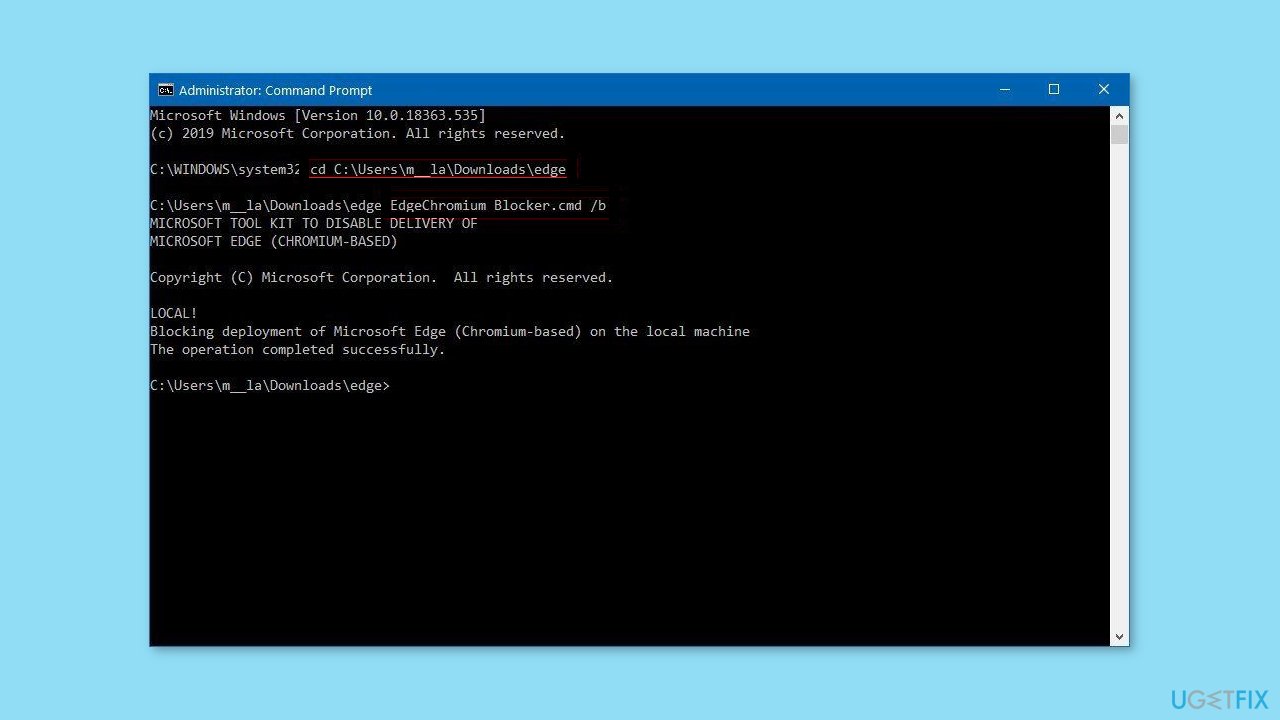
- Example: cd C:\Users\m_la\Downloads\edge.
- Type the following command to stop Windows Update from installing Microsoft Edge and press Enter:
EdgeChromium_Blocker.cmd /b
- Once you complete the steps, Windows Update won't download and install the new version of Microsoft Edge based on the Chromium engine automatically on Windows.
Method 2. Modify the Windows Registry
- Open Start.
- Search for regedit and click the top result to open the Windows Registry Editor.
- Browse the following path:
HKEY_LOCAL_MACHINE\SOFTWARE\Microsoft
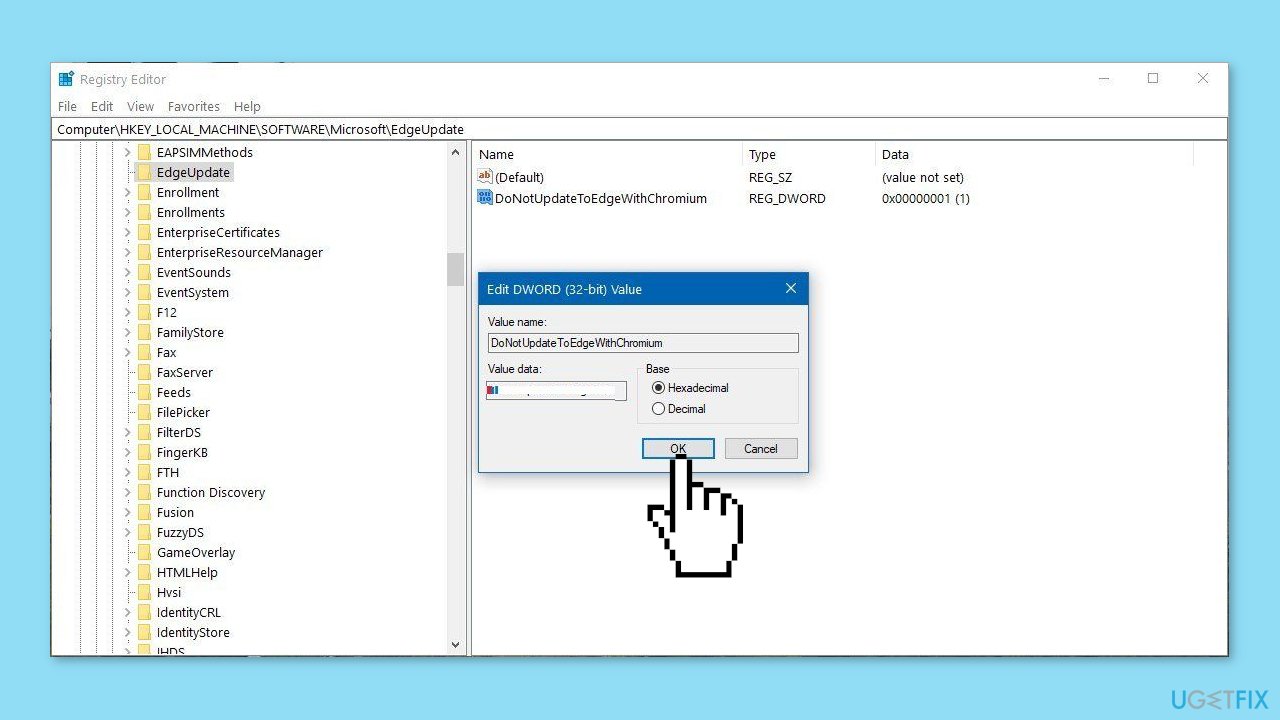
- You can copy and paste the path in the Registry's address bar to quickly jump to the key destination.
- Right-click the Microsoft (folder) key, select New, and click on Key.
- Name the key EdgeUpdate and press Enter.
- Right-click the newly created key, select New, and click on DWORD (32-bit) Value.
- Name the key DoNotUpdateToEdgeWithChromium and press Enter.
- Double-click the newly created DWORD and set the value from 0 to 1.
- Click the OK button.
Bottom line
To stop Microsoft Edge from automatically reinstalling, you can modify the Windows Registry or use third-party applications to block the installation. However, altering the Registry can be risky and may lead to unintended consequences. If these methods do not work, consider using a maintenance tool to address other system issues.




Report an issue
What's wrong with this guide? We review every report and update or remove content.
Report received — thank you. We'll review and fix it.
You need a free account to submit a report.
Be the first to comment