How to fix
Stop Spotify from launching automatically
on Windows
Stop Spotify from launching automatically on Windows 10 or 11 with these quick tweaks. Expert-tested methods ensure a smoother experience, fixed in minu…

Why does How to stop Spotify from launching automatically in Windows occur?
- Spotify is set as a startup app by default
- Users may not want Spotify to open at startup
- Some users only occasionally use Spotify
- Automatic opening can be bothersome for infrequent users
Repairs Windows system files, removes malware, and restores a clean OS state — without reinstalling.
Hello. How do I stop Spotify from opening automatically every time I turn on my Windows computer?
Spotify[ref en-1] is a well-known music streaming service that lets customers listen to their preferred songs and albums on multiple gadgets, including Windows-based laptops. You may access a variety of music from different artists and genres with a Spotify account, make your own playlists, and even find new music depending on your interests.
Spotify's convenient and user-friendly interface,[ref en-2] which makes it simple to browse and play music, is one of its benefits. Additionally, it provides a number of subscription alternatives, including a free edition with advertisements and a premium version with extra features like offline listening and better audio.
However, Spotify has its own set of drawbacks, just like any other program. When installed on a Windows machine, it automatically establishes itself as a startup app,[ref en-3] which is a common problem that some users may experience. This results in the software opening automatically each time you switch on your computer, which some users may find bothersome.
If they use Spotify frequently, it might not be a problem for some people to have it open at startup. Others, though, could find it annoying, especially if they only occasionally use the program and don't want to see it every time they turn on their computer. Disabling Spotify as a Windows startup software in such circumstances can be helpful.
Fortunately, it's simple to remove Spotify from the list of startup apps on Windows.
Method 1. Change Startup and Window Behavior
On Windows, you can customize Spotify's startup behavior by modifying the "Startup and window behavior" setting in the app's settings menu. This allows you to prevent Spotify from opening automatically on boot.
- Press the Windows key + S to open the search menu
- Type Spotify in the search box and select the first result
- In the Spotify app, click the three-dot menu icon in the top left corner and select Edit > Preferences
- Scroll down to the Startup and window behavior section
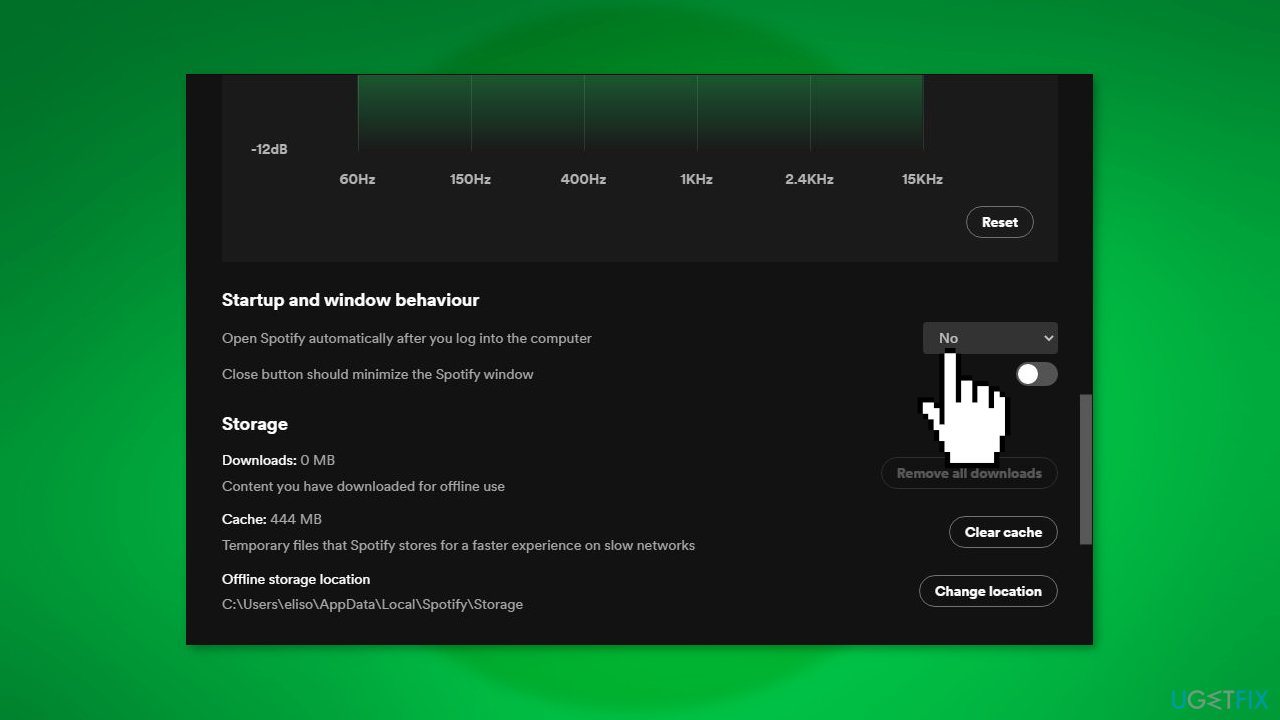
- Click the drop-down menu next to Open Spotify automatically after you log into the computer and select No
- To run Spotify during startup but not launch it full screen, select Minimized instead
Method 2. Use Task Manager
- Use the Ctrl + Shift + Esc keyboard shortcut to open Task Manager
- Switch to the Startup apps tab in the left pane
- Locate and select Spotify from the list, then click the Disable button at the top
- Spotify's status should change to Disabled. It will no longer open during startup.
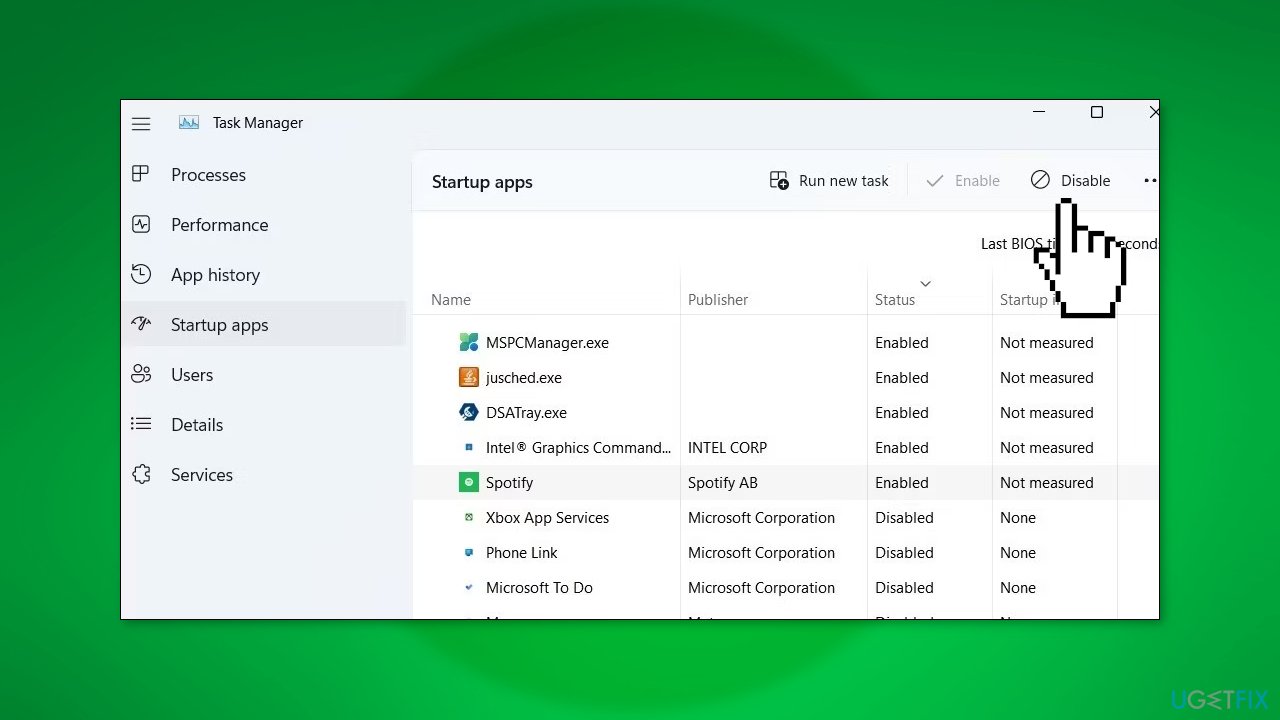
Note: to re-enable Spotify as a startup app later, change its status back to Enabled in Task Manager.
Method 3. Disable Startup via Settings
- Open the Start menu and click the gear icon to launch the Settings app
- Navigate to the Apps tab
- In the right pane, select Startup
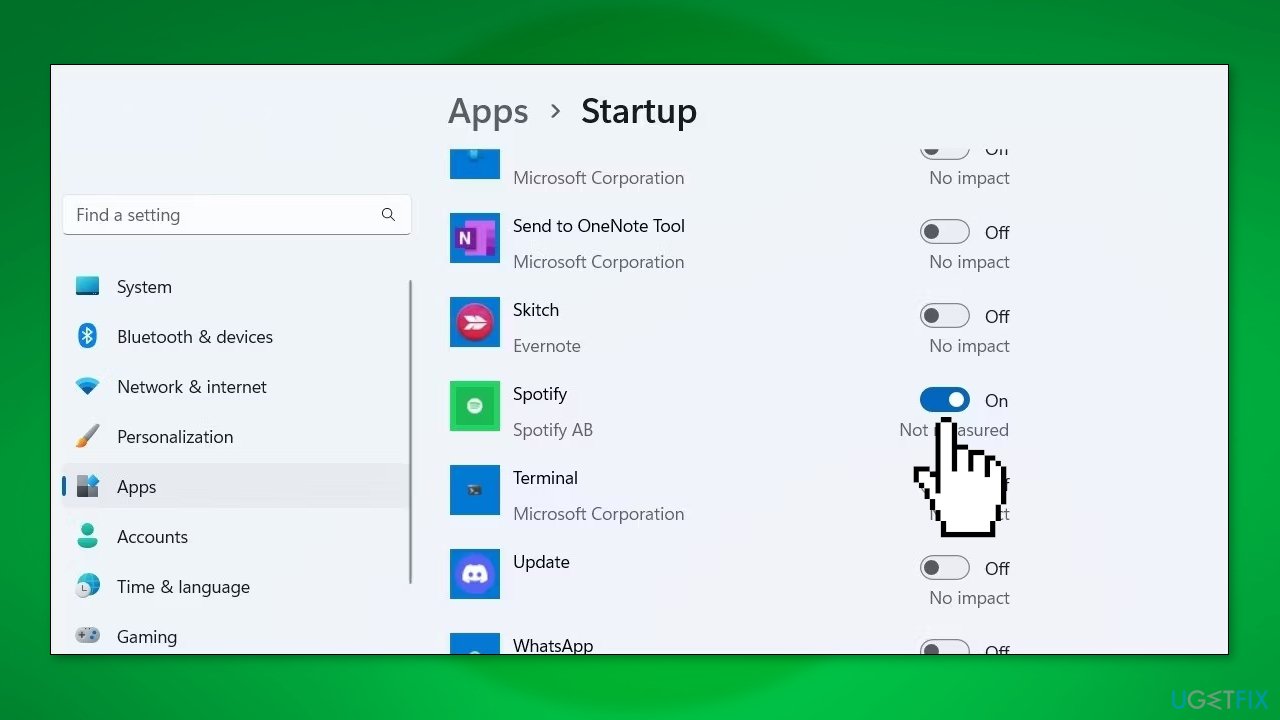
- Scroll down to locate Spotify on the list and disable the toggle next to it
Note: To re-enable Spotify as a startup app later, simply toggle the switch back on. This method can be useful for managing the startup behavior of multiple apps on Windows.
Bottom line
To stop Spotify from launching automatically, you can change the startup behavior in the app's settings. This involves navigating to the 'Startup and window behavior' section in the preferences. If these methods do not work, consider checking your system's startup settings or reinstalling the app.
Frequently asked questions
To stop Spotify from launching automatically on Windows 10, right-click the taskbar, select Task Manager, go to the Startup tab, find Spotify, and click Disable.
Yes, in Windows 11, you can open Settings, navigate to Apps, then Startup, and toggle off Spotify to prevent it from launching automatically.
If Spotify continues to launch automatically, check the app's settings by opening Spotify, going to Settings, and ensuring the 'Open Spotify automatically after you log into the computer' option is turned off.




Report an issue
What's wrong with this guide? We review every report and update or remove content.
Report received — thank you. We'll review and fix it.
You need a free account to submit a report.
Be the first to comment