How to fix
Switch from using PIN to password
on Windows
Easily switch from PIN to password on Windows 11 to enhance your security. Follow our expert-tested guide for a hassle-free experience.


Why does How to switch from using PIN to password in Windows 11 occur?
- Increased security concerns
- Preference for longer and more complex passwords
- Compliance requirements from organizations
- Forgotten PIN without a Microsoft account
Repairs Windows system files, removes malware, and restores a clean OS state — without reinstalling.
Hello. I want to use a password instead of a PIN to sign into Windows 11. How can I do that?
Windows 11 provides users with a number of sign-in options, including the use of a PIN or password. While using a password instead of a PIN is generally thought to be quicker and more convenient, some users may prefer it for a variety of reasons.
For increased security, users might want to switch to a password. A password can be more difficult to guess or crack than a PIN because it can be longer and more complicated. Additionally, for compliance purposes, some organizations might mandate the use of a password.
If a user has forgotten their PIN and does not have a Microsoft account connected to their device, they may also want to switch to a password. If that's the case, using a password might be the only way to get into the device.
Windows Hello is a biometric authentication feature that enables users to sign into their devices with their PIN, fingerprints, or facial recognition. Compared to conventional password-based authentication, Windows Hello has a number of benefits, including increased convenience and security. Additionally, Windows Hello is made to integrate easily with other Windows features like Microsoft Edge and Windows Defender.
Resetting the PIN or making a new password are two options available to users who want to switch from using a PIN to a password. The precise procedures for switching to a password, however, might change based on the user's device and configuration.
In this guide, you will find 2 ways you can switch from using PIN to password in Windows 11. If you need to fix any system-related issues, try using a repair tool like [d1]. It can fix most system errors, BSODs,[ref en-1] corrupted files, registry[ref en-2] issues, or clear cookies and cache.[ref en-3] Otherwise, follow the step-by-step instructions below.
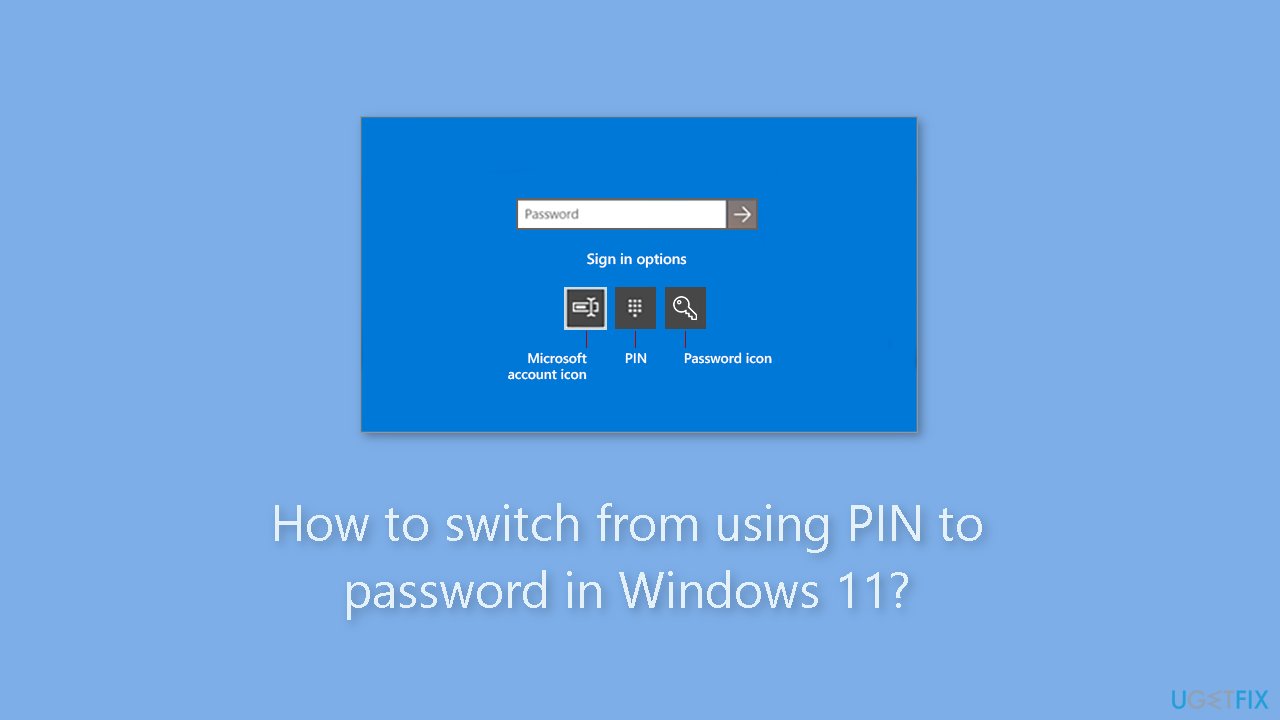
Method 1. Disable Windows Hello Sign-in Only
- Open the Settings app on your Windows device.
- Navigate to Accounts > Sign-in options.
- Turn off the option that says For improved security, only allow Windows Hello sign-in for Microsoft accounts on this device.
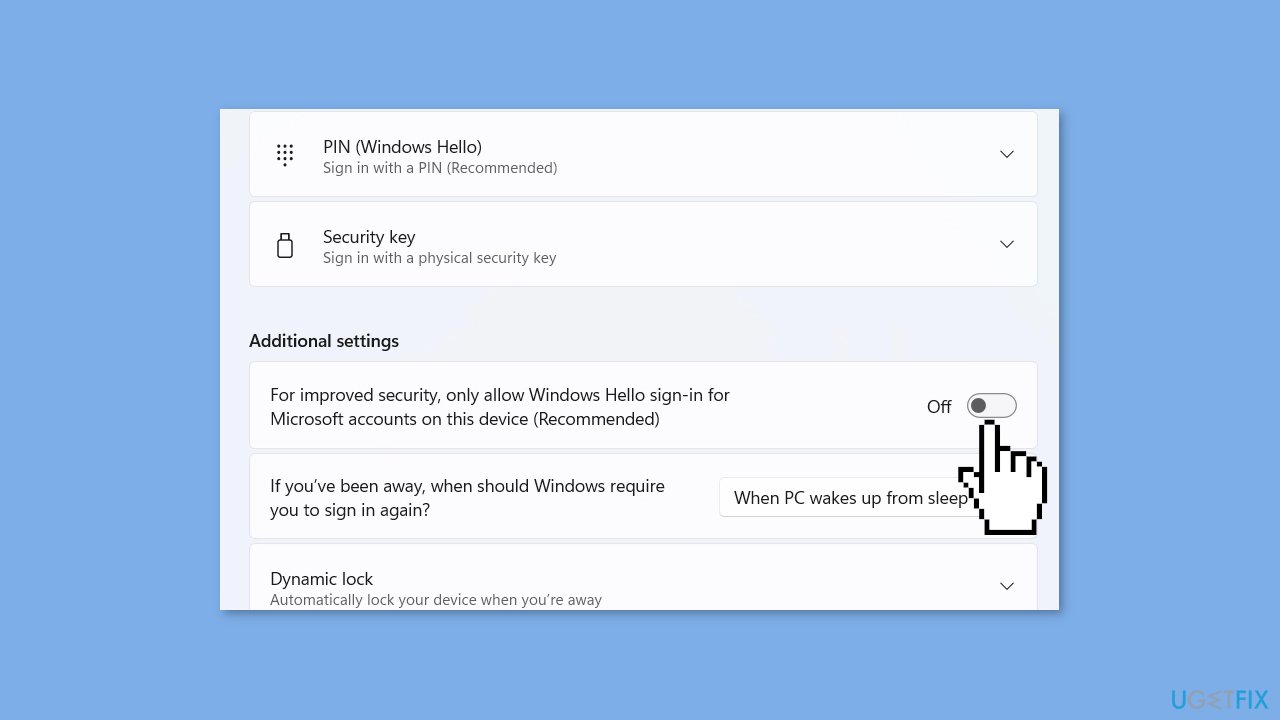
- Exit the Settings app.
- Restart your device to apply the changes.
- On the Windows login screen, click on the Sign-in options link.
- Click on the password icon.
- Type in your Microsoft account password.
- Hit the Enter key to sign in.
Note: if you are using fingerprint recognition, simply place your finger on the fingerprint scanner when you are at the lock screen to sign in.
Method 2. Create a new Password
- Click on the Start button in the bottom left corner of the screen.
- Click on the Settings icon (gear icon) in the Start menu.
- Click on Accounts.
- Click on Sign-in options.
- Under the Manage how you sign in to your device section, click on the Change button next to PIN.
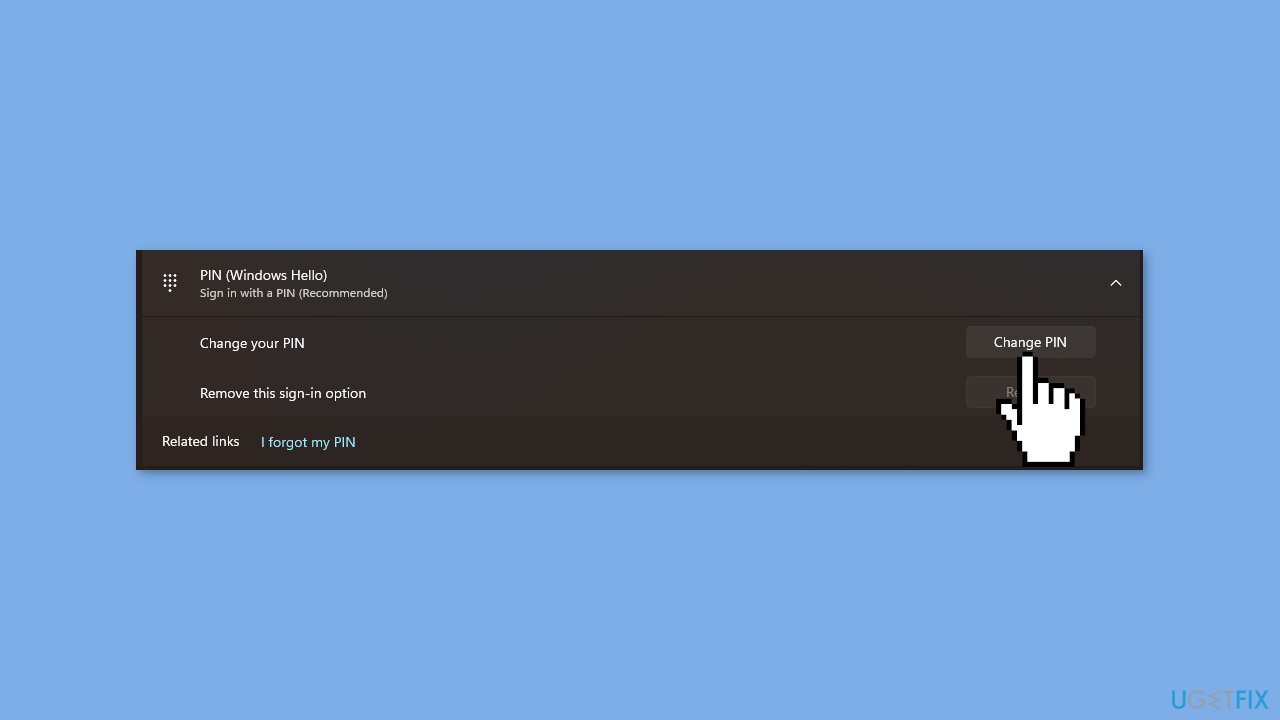
- Enter your current PIN when prompted.
- Click on the Forgot PIN link at the bottom of the PIN setup screen.
- Enter your Microsoft account password when prompted.
- Create a new password when prompted.
- Click on the OK button to save the new password.
Note: once you have completed these steps, you will no longer be able to use the PIN to sign in to your Windows 11 device, and you will need to use your new password to sign in.
Bottom line
To switch from using a PIN to a password in Windows 11, you can disable Windows Hello sign-in or reset your PIN. If these methods do not resolve the issue, consider using a repair tool to fix system-related problems.
Frequently asked questions
Go to Settings > Accounts > Sign-in options, then under 'PIN (Windows Hello)', click on 'Remove'. After removing the PIN, you can set a password for your account.
Switching from a PIN to a password may slightly alter your security, as PINs are designed to be device-specific, while passwords can be used on multiple devices.
Yes, you can use a password instead of a PIN, but keep in mind that Windows Hello is optimized for PIN usage for quicker and more secure logins.




Report an issue
What's wrong with this guide? We review every report and update or remove content.
Report received — thank you. We'll review and fix it.
You need a free account to submit a report.
Be the first to comment