How to fix
Switch users
on Windows
Easily switch users in Windows 10 or 11 with our expert tips. Optimize your experience for seamless multitasking. Fixed in minutes!

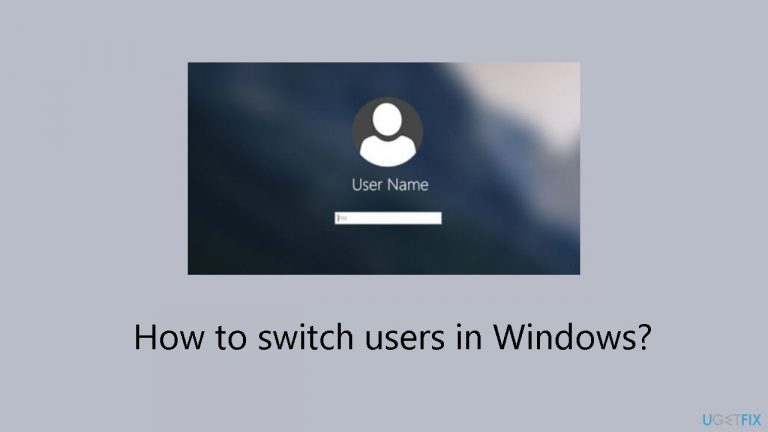
Why does How to switch users in Windows occur?
- Need to switch between different user accounts
- Requirement for security and privacy in shared environments
- Management of both regular and administrator accounts
- Desire to improve productivity in collaborative settings
- Need to quickly lock the current user account
Repairs Windows system files, removes malware, and restores a clean OS state — without reinstalling.
Hello. I was wondering how to switch to a different user on my Windows PC. Thanks for the help.
When it comes to Windows OS, being able to quickly switch between users is an essential function that may significantly improve user experience, especially for those who manage both regular and administrator accounts or work in shared workplaces. Knowing how to switch users quickly and effectively is essential whether you share your computer with family, coworkers, or just switch between accounts for different purposes.
The main way to quickly swap users in Windows is to utilize the Windows key + L shortcut. This keyboard combination accomplishes two things at once: it locks the account of the current user instantly and offers a smooth way to switch users right from the lock screen. For users looking for a quick way to switch between various accounts on the same system, this shortcut works well and saves time.
It becomes clear how important it is to know how to swiftly swap users in situations where security and privacy are critical. Even in shared computing situations, users can protect their personal information from prying eyes by quickly shutting their account. Moreover, the capacity to quickly switch between users on systems that have both administrator and regular accounts guarantees effective work execution without needless pauses or disruptions.
The convenience of quick user switching becomes more noticeable in collaborative contexts, in addition to security benefits. Consider a shared home computer or an office workstation. The ability to move between user accounts with ease facilitates task delegation, increases productivity, and reduces interruptions while switching between users.
In this guide, you will find 5 steps that should help you switch users in Windows. You will also find instructions on what to do if the computer is locked. If you experience any other OS issues, you can run a maintenance tool like [d1] that can fix most system errors, BSODs, corrupted files, and registry issues. Otherwise, follow the step-by-step instructions below.
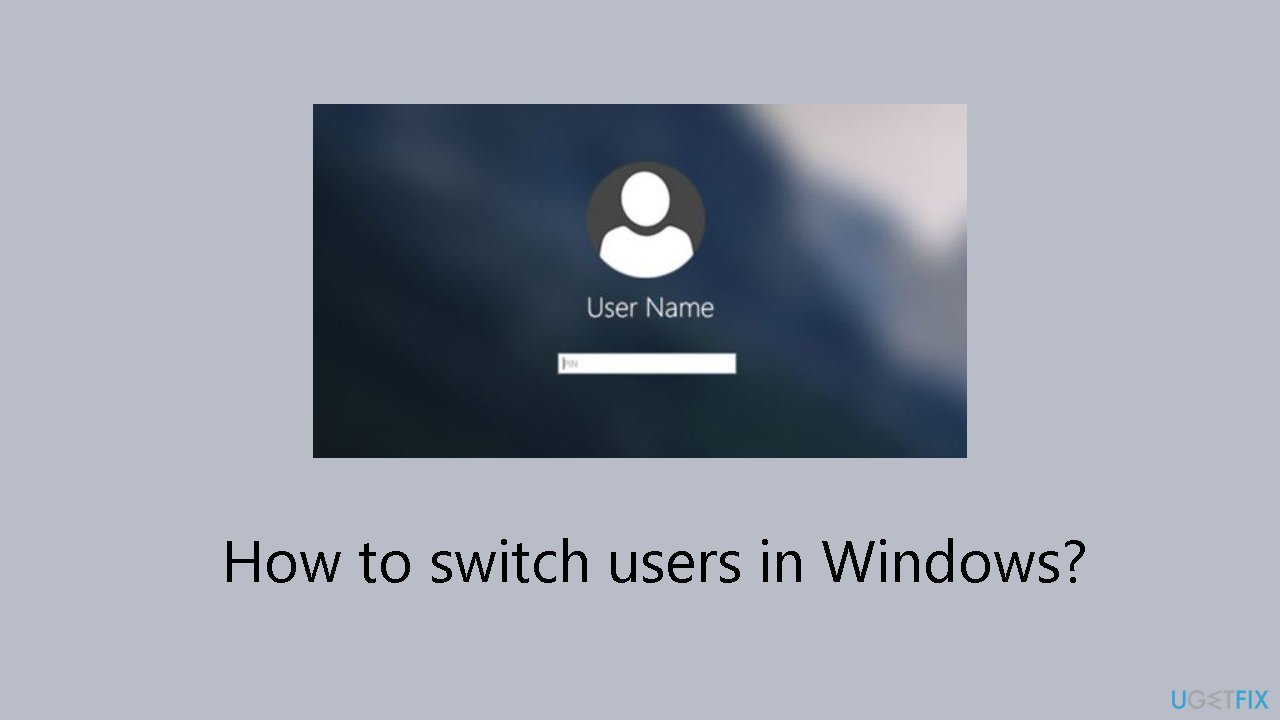
Method 1. Use the Keyboard Shortcut
- Press the Windows key + L to lock your current user account.
- Locate the desired user account in the bottom left corner of the login screen. Click on it to switch to it.
- If the account is password protected, enter the password beforehand.
Method 2. Use the Start Menu
- Open the Start Menu.
- Click on your user account.
- Lastly, select the account you want to switch to.
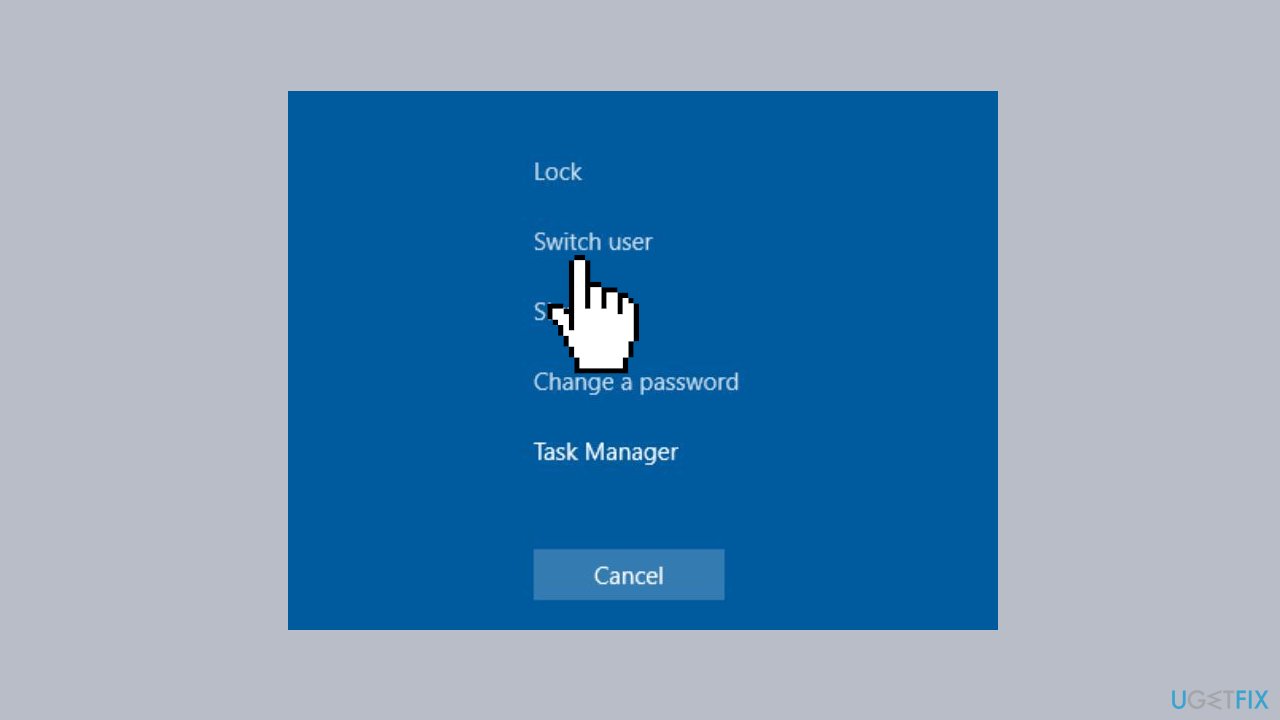
Method 3. Use Ctrl + Alt + Del Shortcut
- On your keyboard, press Ctrl + Alt + Del.
- Next, choose Switch user.
- Select the desired account from the lock screen.
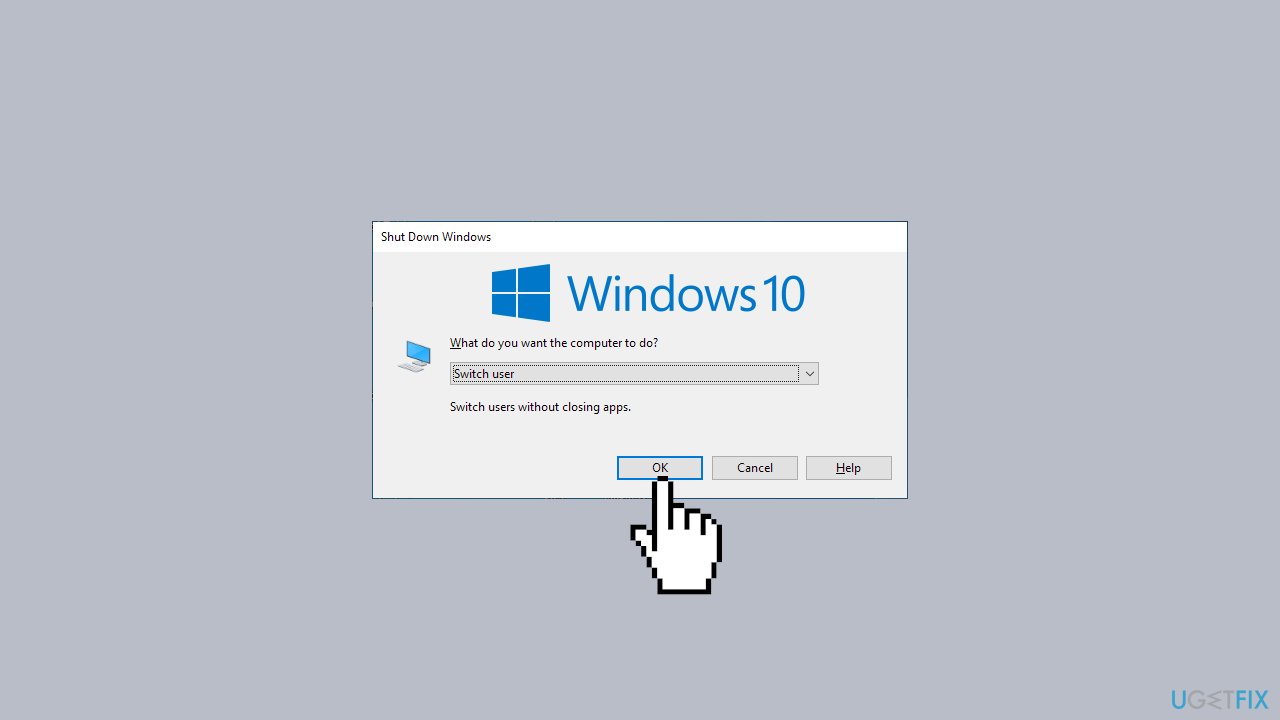
Method 4. Use Alt + F4 Shortcut
- Go to your Desktop and press Alt + F4.
- From the dropdown menu, select Switch user and click on OK.
- Select the user account you want to switch to from the sign-in screen.
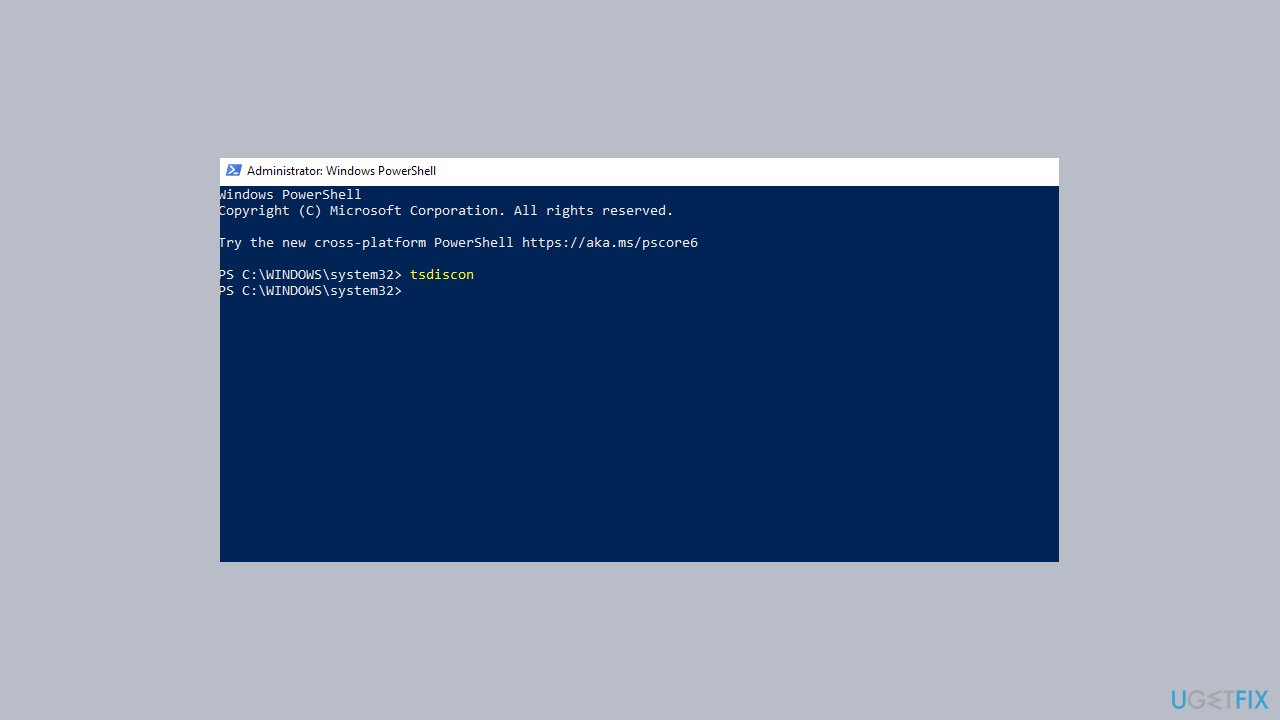
Method 5. Use the Windows PowerShell
- Press the Windows key + X and select PowerShell (Admin).
- Next, run the following command:
tsdiscon
- Select the account you want to switch to.
Method 6. Switch Users on a Locked Computer
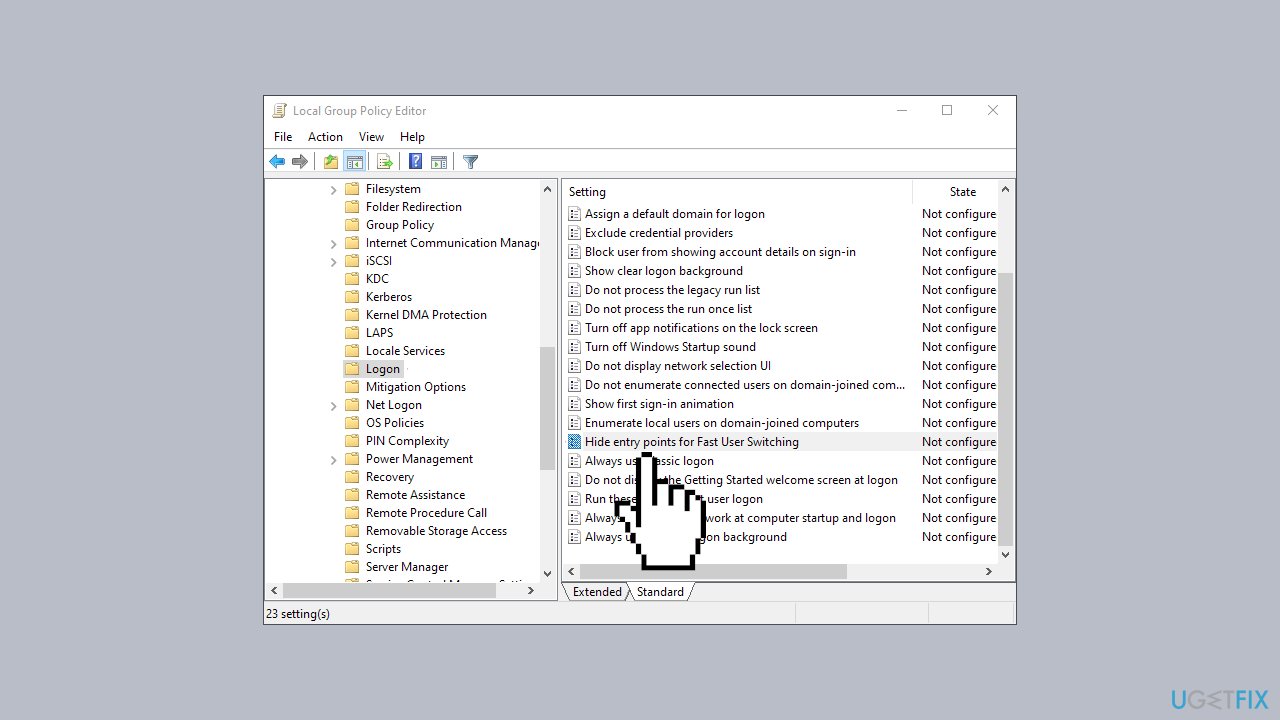
- Press the Windows key + R and enter gpedit.msc.
- Next, select Hide entry points for Fast User Switching. You can find it at the following location:
Local Computer Policy\Computer Configuration\Administrative Templates\System\Logon
- Set it to Not Configured or Disabled and save changes.
Bottom line
To switch users in Windows, you can use the keyboard shortcut by pressing the Windows key + L. This locks the current account and allows for a smooth transition to the lock screen for user selection. If you experience any other OS issues, consider running a maintenance tool to fix system errors.
Frequently asked questions
To switch users in Windows 10, click on the Start menu, select your user icon, and choose 'Switch account' followed by the account you want to log into.
Yes, in Windows 11, you can press 'Ctrl + Alt + Del' and select 'Switch user' to quickly access another account.
If the user switching option is missing, check your user account settings in Windows 10 or Windows 11 to ensure that multiple accounts are enabled and active.




Report an issue
What's wrong with this guide? We review every report and update or remove content.
Report received — thank you. We'll review and fix it.
You need a free account to submit a report.
Be the first to comment