I am really bothered with this issue. Video lags behind audio. It happens to all my videos. Sometimes its’s vice versa: the sound comes after a visual scene. Where should I be looking for a solution?
Unsynchronized video and audio might be the result of various misconfigured settings of one or another application. It might be also an internal bug in the operating system.
First, you need to identify where and when the issue appears. If you are having playing videos properly in one browser, try reinstalling Flash Player in the browser. For example, you can restart in in Chrome like this:
Type chrome://plugins into the search bar and press Enter.
Locate Flash in the list and click Disable below the link.
Now visit the following link: http://get.adobe.com/flashplayer/
Unmark checkboxes to install optional programs.
Click on the Download now button.
After a file will be downloaded, run the file and follow instructions.
Windows audio video sync failure
Furthermore, make sure that your system has installed latest Windows updates. Perhaps during a major installation of a program or an update, your audio and video drivers have become corrupted. Here are a couple of solutions you might try. In addition, you should ensure that your system is malware-free. In some cases, elaborate trojans meddle with the audio or video settings. Scan the system with [d1].
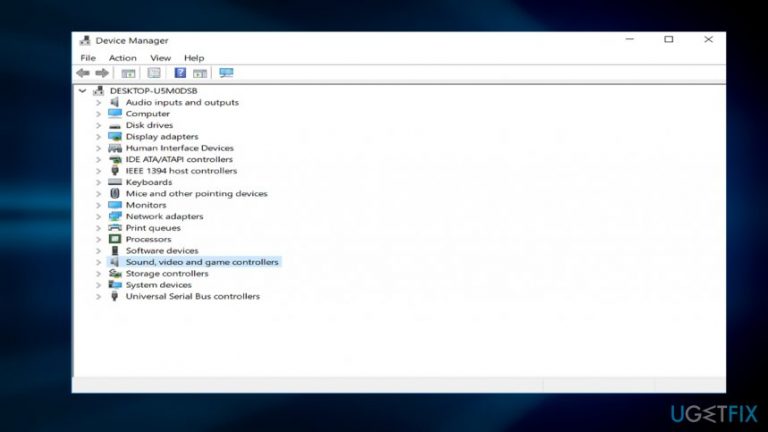
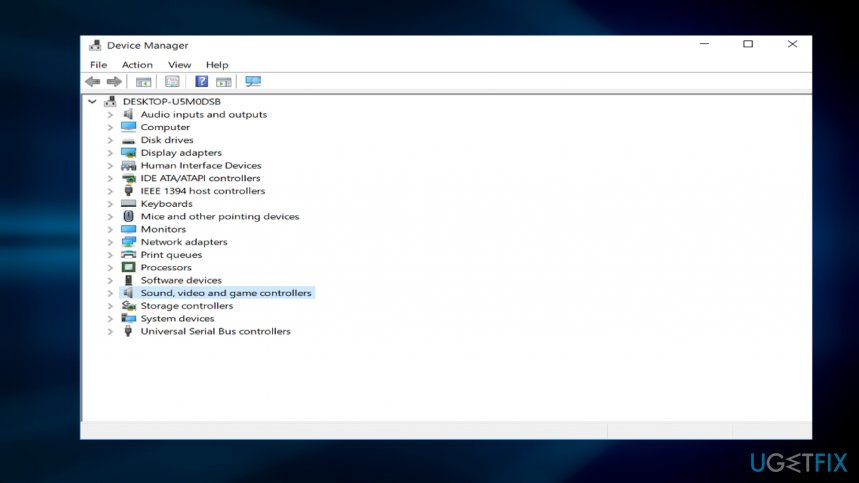
Option 1. Reinstall audio driversDevice manager1
You might try uninstalling audio drivers. Note that Windows 10 users have a privilege. After they uninstall the audio drivers and reboot the system, the OS will automatically download and install the necessary drivers.
Type Device Manager in the search box.
Launch the program.
Find sound, video and game controllers. Expand it.
Right click on each entry and choose Uninstall.
Close the program and restart the device.
Option 2. Change video settings in the account of a video streaming siteNetflix
If you notice the audio and video synchronization failure only in one video streaming sites or app, you may check the following solution. The merits for this solution go to rhagedorn user. Let us take Netflix as an example.
In the Netflix account, go to the bottom.
Click on Help Center.
Choose Internet Connection Speed Recommendations.
Select Video Quality.
Choose Medium (optional).
Remove the checkmark from the box indicating Prefer HTML5 player instead of Silverlight.
Exit the window.
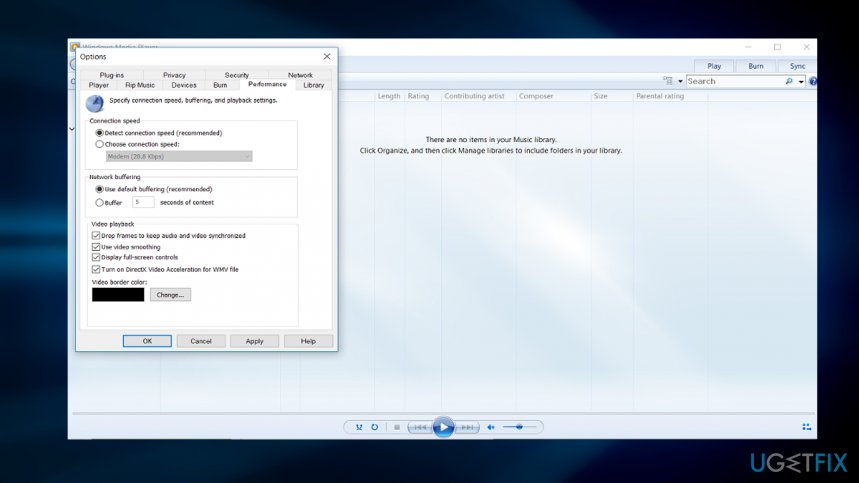
Option 3. Organize Windows Media PlayerWindows media player
If you notice unsynchronized audio and video only on Windows Media Player, you might optimize certain settings:
Launch Windows Media Player, click on the Organize tab and choose Options.
Go to Performance tab. Opt for Drop Frames to Keep Audio and Video Synchronized, mark the box to activate the function. Place the checkmark on the Turn on DirectX Video Acceleration for WMV files box.
Click Apply and then OK. Restart Windows Media Player and open a video file.
Note that if your Internet speed is lower than 15-50 Mbps, watching movies on the highest HD settings might result in the audio and video synchronization failure.
Bottom line
To fix the synchronization issue, you can reinstall audio drivers, check video settings in specific streaming accounts, and ensure your system is malware-free. Additionally, reinstalling Flash Player and updating Windows may help. If none of these solutions work, consider seeking further technical support.
Frequently asked questions
You can adjust audio delay in Windows 10 using VLC Media Player by going to Tools > Track Synchronization and adjusting the audio track delay to match the video.
In Windows 11, check your audio playback settings by right-clicking the speaker icon in the taskbar, selecting 'Playback devices', and ensuring your audio device is set as default.
Windows 10 and 11 do not have a dedicated built-in tool for fixing audio-video sync, but you can use the Windows Media Player's playback settings to adjust sync manually.
Microsoft 365Office troubleshootingOutlook errorsTeams and SharePoint issuesOneDrive sync
Tom Bradshaw focuses on Microsoft 365 and business software troubleshooting. His guides resolve the most common productivity-blocking issues in Word, Excel, Outlook, Teams, SharePoint, and OneDrive — the tools that professionals depend on daily. Tom draws on years of supporting business environments to provide solutions that work in real-world conditions: fixing Outlook profile corruption, recovering unsaved Excel files, resolving Teams audio failures, clearing SharePoint sync errors, and repairing broken Office installations. His guides are practical, tested, and written for users who need the fix fast.







Report an issue
What's wrong with this guide? We review every report and update or remove content.
Report received — thank you. We'll review and fix it.
You need a free account to submit a report.
Be the first to comment