How to fix
Take a 360-Degree Photo and Upload It to Facebook
on Windows
Capture stunning 360-degree photos on Windows 10 or Windows 11 and share them on Facebook effortlessly. Expert-tested tips for perfect uploads!

Why does How to Take a 360-Degree Photo and Upload It to Facebook occur?
- Not using a compatible device for capturing 360-degree photos
- Not knowing how to take a panorama photo
- Using an unsupported Android device
- Not having the Google Camera App installed on non-Samsung devices
- Not utilizing the Google Street View app for 360-degree photos
Repairs Windows system files, removes malware, and restores a clean OS state — without reinstalling.
I’ve noticed my Facebook friends posting 360-degree photos. I’m on vacation in Vietnam, so you can imagine how many magnificent views I have to share. Could you please be so kind and explain to me how to make and post 360-degree photos to Facebook? Thanks a lot!
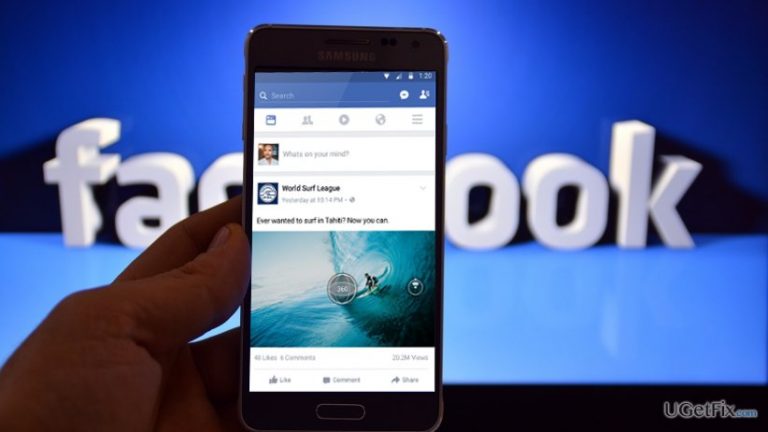
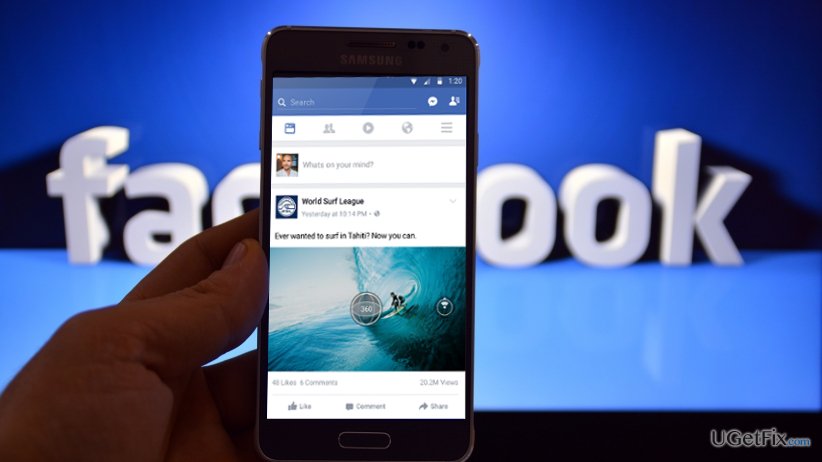
Although posting 360-degree photos to Facebook is still a quite rare phenomenon, each active Facebook user will definitely find several friends posting exclusive 360-degree snapshots. These pictures are much more interactive as the usual ones because the viewer can see the different parts of the photo by moving or tapping the phone or tablet. While most people think that posting a 360-degree photo to Facebook requires a specific device (e.g. Ricoh Theta S, Giroptic 360 Cam, 360Fly or another camera) and knowledge, actually almost all users of newer tablets and phones can easily capture a 360-degree picture and post it to Facebook right away. As Facebook reports, all devices newer than iPhone 4S, iPad Mini 2, iPad Air, iPad Pro, Samsung Galaxy S5 or Galaxy Note 3 are suitable for capturing your surroundings is a single or several shots. Unfortunately, 360-degree photo capturing may not work on series of Android devices, actually on non-Samsung ones, but users of those devices have a solution – to use the Google Camera App.
How to Take a 360-Degree Picture and Upload It to Facebook?
Take a simple panorama photo
If you are using a smartphone, we can bet that you have tried taking a panorama photo, haven’t you? If you didn’t try that, then you should simply open the camera and find an option to take panorama photo. Then you will have to move your camera slowly over the area that you want to capture.
Use Google Street View App
Smartphone users can select from various apps that enable 360-degree photo taking. At the moment of writing, Google Street View app us by far the most popular, so we will explain how to use it too. This app is available for both Android and iOS devices.
- Download Google Street View app to your device.
- Open it and tap the Camera button (bottom-right corner).
- Select Camera option to start creating the 360 photo.
- Line the white circle with the orange one and then move your phone around to take more pictures.
- When you capture all needed sides, hit the check mark to save everything.
- 360 photo making is a quite difficult task, which is why you should be patient and wait when the process is being executed.
- Once ready, you will get a notification saying 1 ready to publish.
- Open the photo and swipe up from the bottom to top.
- Tap the Share button and then Share Privately.
- Now select if you want to save the photo to the phone or post it directly to Facebook.
Upload a 360 Photo to Facebook
Posting a 360-degree photo to Facebook does not differ from posting any other photo from your phone.
- Log in to your Facebook account.
- Tap Photo at the top of the screen.
- Select a picture you want to upload (360 photos are marked with a small globe icon).
- Tap Done and drag the image around to choose the starting point.
- Enter the location, tag a friend, assign it to a particular album or perform other usual steps.
- Finally, tap Post.
Hopefully, your Facebook friends will enjoy the 360-degree views that you are going to share!
Bottom line
To take and upload a 360-degree photo to Facebook, you can capture a panorama photo using your smartphone's camera or use the Google Street View app. If you encounter issues, ensure your device is compatible and consider downloading the necessary apps. If none of these solutions work, you may need to seek further assistance or check for device updates.
Frequently asked questions
To enable 360-degree photo support, ensure your Windows 10 or Windows 11 system has the latest updates and install the Photos app from the Microsoft Store if it's not already present.
Facebook supports 360-degree photos in JPEG format, so make sure to save your images as JPEGs before uploading them from Windows 10 or Windows 11.
For optimal quality, adjust your camera settings to the highest resolution and ensure your Windows 10 or Windows 11 system has sufficient graphics capabilities to handle 360-degree images.




Report an issue
What's wrong with this guide? We review every report and update or remove content.
Report received — thank you. We'll review and fix it.
You need a free account to submit a report.
Be the first to comment