How to fix
Take a screenshot
on Windows
Capture your screen effortlessly on Windows 10 with our quick tips and tricks. Enjoy expert-tested methods that ensure you never miss a moment!

Why does How to take a screenshot on Windows 10 occur?
- New users may not be familiar with screenshot methods
- Windows 10 has multiple screenshot tools available
- Users may not know about keyboard shortcuts for screenshots
- Third-party applications may complicate the process
- Built-in tools like Snipping Tool and Snip & Sketch are underutilized
Repairs Windows system files, removes malware, and restores a clean OS state — without reinstalling.
Hello, I am new to Windows and computers in general. I was wondering how to take a screenshot on Windows? Thanks in advance.
Windows is an intricate operating system that allows a variety of operations - running of various applications, watching a video, listening to the music, taking screenshots, and much more. In other words, there is a lot that can be done with Windows OS, and, as a new user, there is a lot to learn. In this article, we will go over several methods on how to take a screenshot on a PC in several different ways, resulting in different outcomes.
First of all, what is a screenshot? A screenshot is a picture of your current screen view, a window, or a customized area. The image can be taken in several different formats, but the default one is PNG. Besides built-in functions and tools, users can also employ third-party applications that would allow taking screenshots on Windows much easier. However, we generally advise users not to stuff their systems with programs that might be of potentially malicious nature (adware).[ref en-1]
Therefore, we advise users to stick to built-in options such as Snipping Tool or Snip & Sketch, with the latter app being the most recent addition to taking screenshots on Windows - it was released with Windows 10 October 2018 update and was also improved over time.[ref en-2] Nevertheless, there are several other ways in which screenshots can be taken on Windows 10 by merely using keyboard shortcuts.
Without any further delays, let's find out how to take a screenshot in Windows 10 in various ways.
Use Print Screen button
A keyboard[ref en-3] works by an old principle that is prevalent since 1800s typewriters - you press the button, which then types out a symbol on the screen. With the help of a keyboard, you can use a variety of button combinations to call up particular functions.
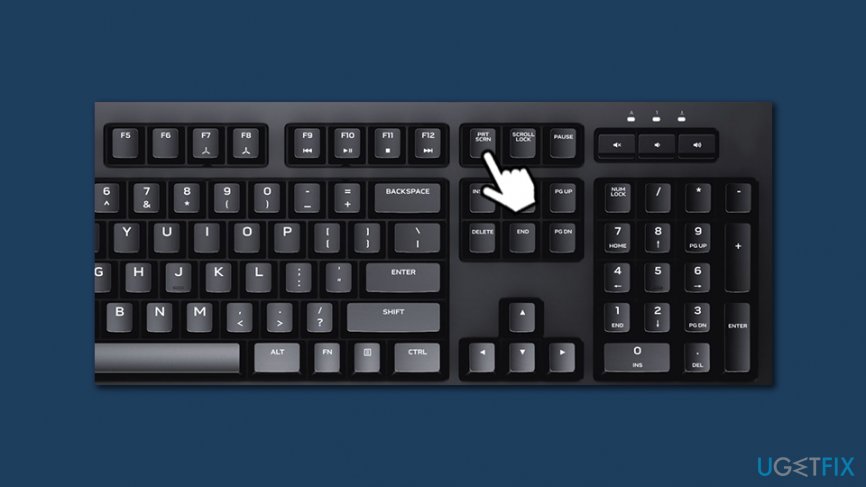
Some functions, however, are used so often that they are assigned a particular key within the keyboard. Luckily, taking screenshots is one of those - it is called Print Screen, and it is usually located at the top-right corner of the keyboard - next to the F12 key. The name of the key can also vary slightly, as the name is too large to fit, hence you might encounter PrtSc, PrntScrn, PrtScn, and similar naming. Note that some keyboards, particularly those that are used for gaming, do not include the Print Screen button.
Note: if you are using a laptop running Windows 10, you might have to press the Fn button along with other screenshot-taking button combinations or the Print Screen button.
Copy the screenshot to any application
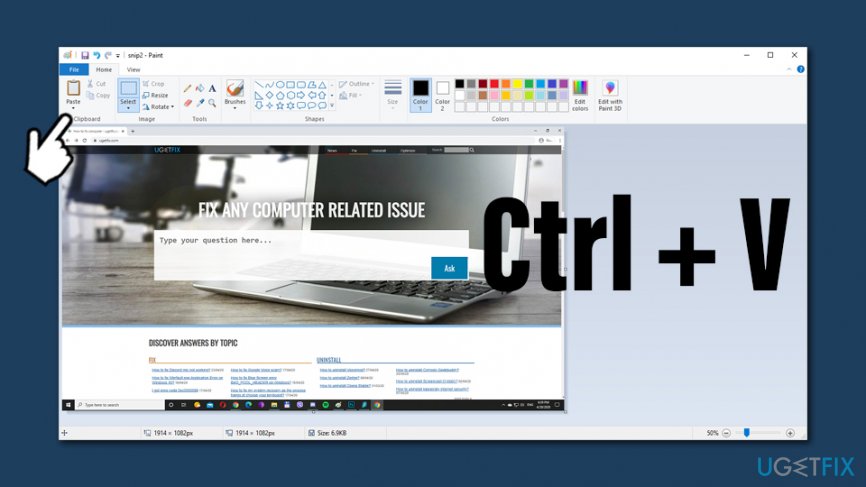
Once you press the button, nothing will happen visually, although your screencap was taken and placed on the clipboard. All you have to do is materialize it, and you can use any type of image editing program for that, including Photoshop, Gimp, Fotor, Pixlr, or a built-in Paint.
- Open the window you would like to take a screenshot of
- Press Print Screen
- Open image-editing application
- Press Ctrl + V or go to Edit > Paste (on Paint, simply click the Paste button)
- You should see the screenshot of your screen, including the taskbar
How to take a screenshot on windows 10 make screenshot on paint
Save your screenshot automatically
Another option to save a screenshot of an entire screen is to simply press the Windows button + Print Screen. This will automatically save a .png image into a predetermined location. As soon as you perform this combination, your screen will blink for a second - this time you will be clearly shown visually about the screenshot taking process.
If you did not change anything, all such saved screenshots would be placed into your default pictures folder, which is located in C:\\Users\\[username]\\Pictures\\Screenshots. Simply access to this location, and all the taken screenshots will be called as follows:
- Screenshot
- Screenshot (1)
- Screenshot (2)
- Screenshot (3)
- Screenshot (5), etc.
To change the location where your screenshots are saved to, follow these steps:
- Go to C:\\Users\\[username]\\Pictures folder
- Right-click on Screenshots and select Properties
- Go to the Location tab
- Next, you can type in the location you would like to save your screenshots in, or click on Find target and navigate to the location of your choice.
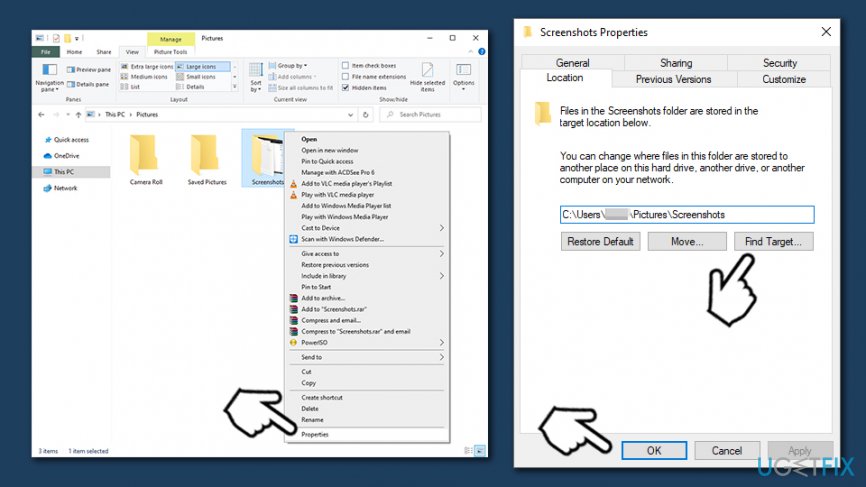
How to take a screenshot on windows 10 automatically save screenshots
Take a screenshot of a Window
Most commonly, users do not want to take a screenshot of a full screen but rather a program or a browser window. For that, you should press the Alt + Print Screen on your keyboard - the screencap of your active window will be copied to a clipboard. Then, open an image editing application and press Ctrl + V to copy it.
Use Snipping Tool
Snipping Tool is a built-in application that allows users to take screenshots in Windows 10 in an effortless manner - it has been around since Windows Vista times, and is still used by many.
Snipping Tool can take screenshots of full screen, a part of the screen, a window, or can perform the free-form snipping. To start using the tool, follow these steps:
- In Windows search, type in Snipping Tool
- Hit Enter to open it; additionally, you can pin it to Start or the taskbar by right-clicking on the app and selecting the appropriate option
- Now, you should select the mode you want to use it in - click on Mode and select from the following options:
Free-form snip
Rectangular snip
Window snip
Full-screen snip - You can also pick Delay option - this will allow to capture drop-down menus and similar items
- Once you are ready to take a screenshot, click on New and then take a screenshot - it will be opened in a new window
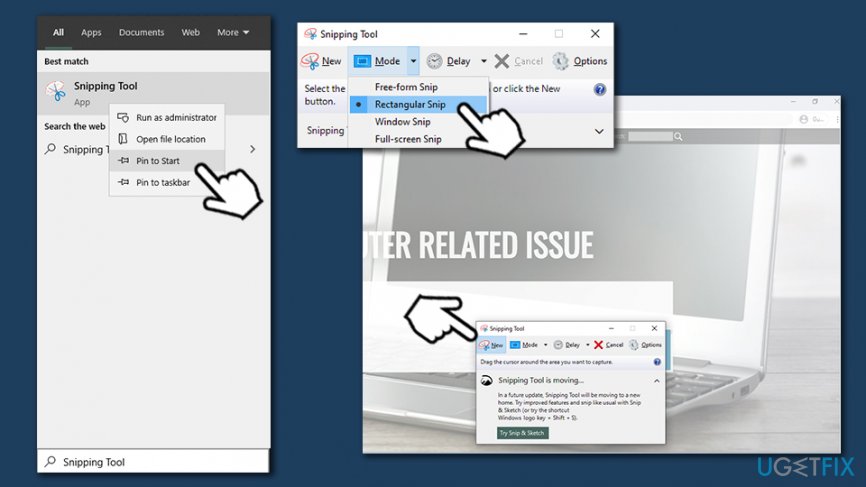
How to take a screenshot on windows 10 use snipping tool - To save the screenshot, press Ctrl + S or go to File > Save as and pick a location
Use Snip & Sketch
While Snipping Tool was a dominant application for taking screenshots, Microsoft is trying to replace it with its new app called Snip & Sketch - a modern take on its predecessor. The former did not allow users to save screenshots automatically, and Snip & Sketch is also much more convenient to use (note, you can also open the tool with Win + Shift-S combination on your keyboard).
- Type in Snip & Sketch into Windows search and press Enter
- Once the window opens, press New
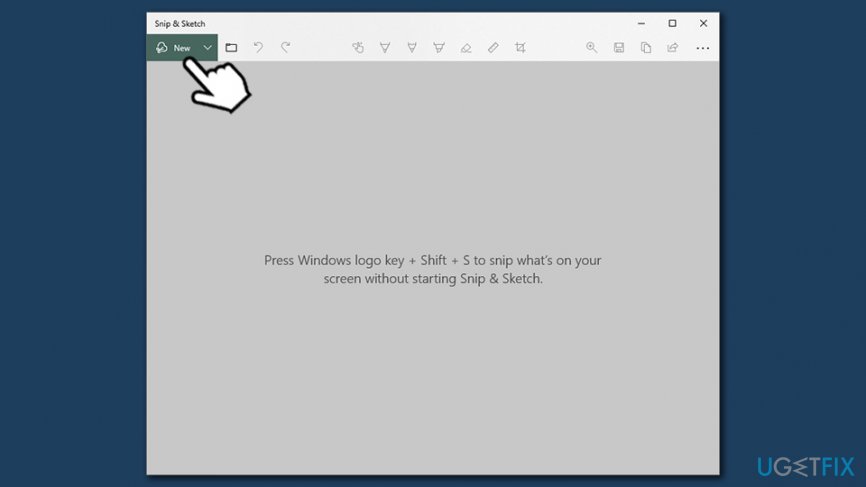
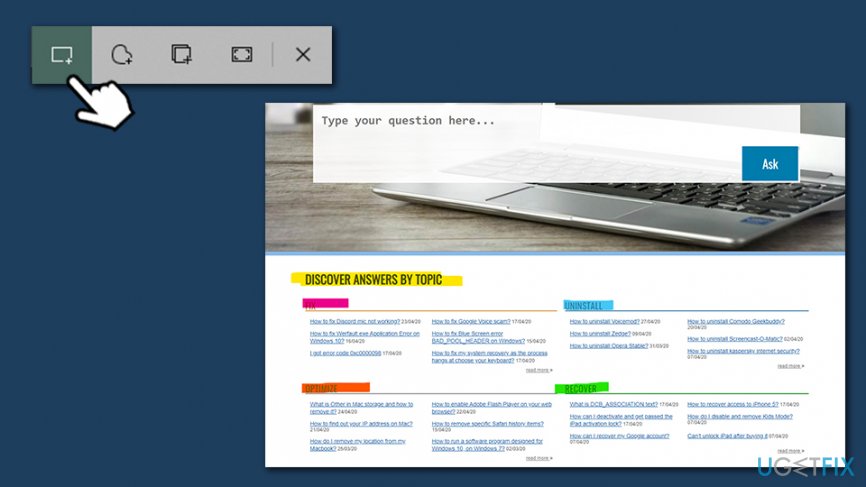
How to take a screenshot on windows 10 use snip and sketch - The tool will disappear, and you will be able to choose from different modes, similarly as you can do in Snipping Tool
- Once you take a screenshot, it will be copied to a clipboard and you can also save it with the help of Ctrl + S combination on your keyboard
Besides making a screenshot, Snip & Sketch allows you to use several additional features such as a ruler, and you can also make markings with the help of a pen, pencil, or a highlighter. This can be particularly useful when taking screenshots for school or work. Additionally, you can also share the screenshot via a convenient and built-in Share button.
Hopefully, we answered your question on how to make a screenshot on Windows 10. As you can see, there are several different methods and tools that can be applied to different situations.
Bottom line
To take a screenshot on Windows 10, you can use the Print Screen button, Snipping Tool, or Snip & Sketch. If these methods do not work, consider checking for updates or consulting additional resources for further assistance.
Frequently asked questions
You can use the 'PrtScn' key to capture the entire screen, 'Alt + PrtScn' to capture the active window, and 'Windows + Shift + S' to open Snip & Sketch for a custom screenshot.
Screenshots taken with 'Windows + PrtScn' are automatically saved in the 'Screenshots' folder located within the 'Pictures' library.
Yes, after taking a screenshot with 'Windows + Shift + S', a notification will appear, allowing you to click on it to open the screenshot in the Snip & Sketch app for editing.




Report an issue
What's wrong with this guide? We review every report and update or remove content.
Report received — thank you. We'll review and fix it.
You need a free account to submit a report.
Be the first to comment