How to fix
Turn off location services
on Windows
Easily disable location services on Windows 10 for enhanced privacy. Follow our expert-tested guide and tweak your settings in minutes.

Why does How to turn off location services on Windows 10 occur?
- User granted permissions to apps for location tracking
- Some computers lack GPS capability
- Location can be identified via IP address or Wi-Fi positioning
- Location services enhance user experience with apps like Maps and Weather
- Potentially unwanted programs may misuse location data
Repairs Windows system files, removes malware, and restores a clean OS state — without reinstalling.
Hi, I have recently noticed that many Windows apps are tracking my location. Even though I am aware that I was the one who granted these permissions, there are some apps that I wouldn't like to use location services. Can you help me to turn off location services on Windows 10?
Windows 10 built-in location services is a feature which allows some or all applications to track your location. On the contrary to smartphones, some computers don't have GPS[ref en-1] capability. Although, they can identify your location by Internet Protocol (IP)[ref en-2] address or Wi-fi positioning.
Location services in Windows 10 are required for users to enjoy their digital experience when using such features as Maps, Weather or while receiving search query results that would be more accurate for the user. Note that your location is stored on Windows database and is provided to the apps which request it.
Even though the user's location is considered to be non-personally identifiable information, you should take appropriate care of it. Be aware that if your computer is infected with a potentially unwanted program (PUP)[ref en-3], it might access such details and misuse them for advertising or other purposes.
Luckily, Windows location services can be turned off quickly. There are two options to turn off location services on Windows 10 — you can either disable location tracking for a specific account on your computer or all of them. For that, check the instructions appended below and learn how to turn off location services on Windows 10.
Ways to disable location services on Windows 10 computers
Before you proceed with the instructions showing how to turn off Windows location services, you should be aware that once you do so, you will no longer be able to use Cortana and see your location in Maps application. If you change your mind and believe that you need location services, you can check your PC with [d1] for PUPs that might be misusing this information.
Method 1. Disable location services for one Windows account
- Press on the Start Menu and select Settings;
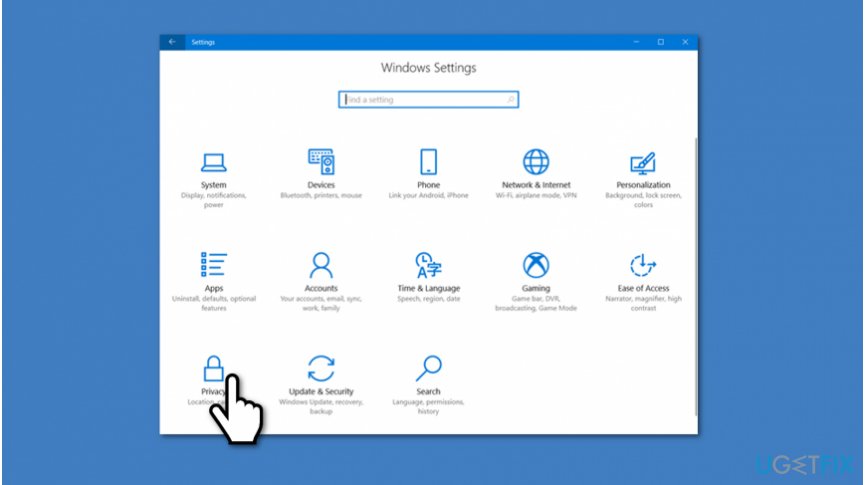
Windows settings privacy - Go to Privacy;
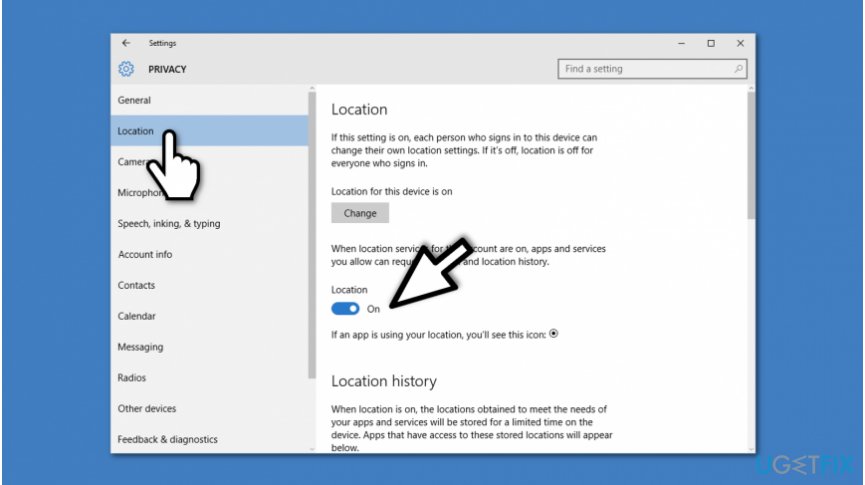
Windows location services - Select Location on the left panel;
- Click on the switch to turn off location tracking.
Method 2. Turn off location tracking for all Windows accounts
- Click on the Start Menu and hit Settings;
- Press on Privacy and click on Location;
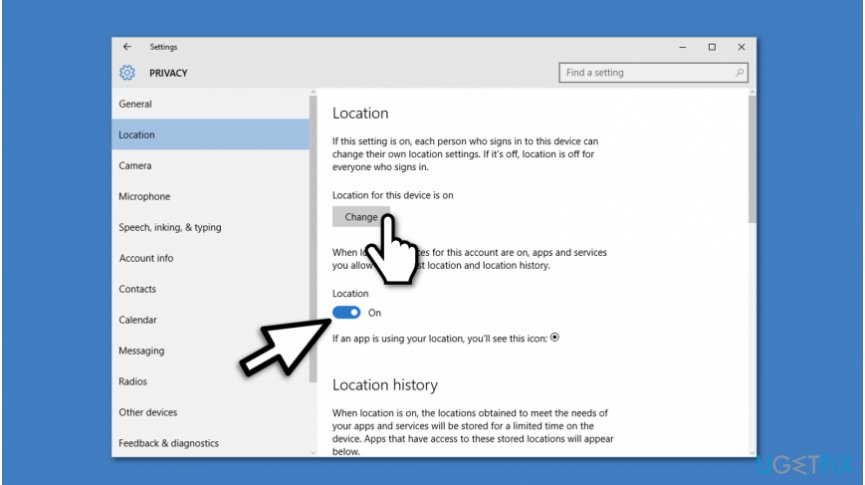
Disable windows location services for all accounts - Press the Change button and turn the switch off to disable location tracking.
Bottom line
To turn off location services on Windows 10, you can disable location tracking for a specific account or for all accounts. Follow the instructions in the article to adjust these settings. If you still encounter issues, consider checking your PC for potentially unwanted programs.
Frequently asked questions
To completely disable location services on Windows 10, go to Settings > Privacy > Location and toggle off the 'Location service' option.
Yes, you can turn off location tracking for specific apps by navigating to Settings > Privacy > Location and adjusting the permissions for each app individually.
Disabling location services may limit the functionality of certain apps that rely on location data, such as maps or weather applications.




Report an issue
What's wrong with this guide? We review every report and update or remove content.
Report received — thank you. We'll review and fix it.
You need a free account to submit a report.
Be the first to comment