How to fix
Turn off OneDrive notifications
on Windows
Easily disable OneDrive notifications in Windows 10 or 11 for a clutter-free experience. Quick fixes to streamline your settings, expert-tested!

Why does How to turn off OneDrive notifications in Windows occur?
- Persistent barrage of notifications
- Obtrusive 'On this day' notifications
- Interference with focus and productivity
- Frequent interruptions during crucial work periods
- Messages that are not immediately important
Repairs Windows system files, removes malware, and restores a clean OS state — without reinstalling.
Hello. Is there a way to disable OneDrive notifications? They are driving me crazy!
Microsoft's cloud storage service, OneDrive, is well-liked by users in large part due to its generous 5 GB of free storage space offer and its powerful data synchronization and backup features. The persistent barrage of seemingly pointless OneDrive notifications, particularly during work hours, is a problem that frequently annoys users. One of these messages, the "On this day" notification, which prompts users to reflect on their prior experiences, is the subject of the majority of complaints. While some users might find this feature appealing, many find it to be obtrusive and irritating while going about their regular business.
The problem of obtrusive OneDrive notifications can have a big impact on users in a few different ways. First of all, these messages interfere with focus and productivity, especially when they appear during crucial periods of work or key activities. When messages that are not immediately important to them are frequently interrupting users, it may be difficult for them to remain focused and productive. This may result in less productivity and might have an impact on how well they perform in general at work.
Although Microsoft has worked to enhance user experience and customization in its products, offering more efficient and understandable ways to handle OneDrive notifications might significantly increase customer happiness. In order to solve this problem and further improve the usability of OneDrive, a balance must be struck between providing useful services and respecting users' need for uninterrupted work.
In this guide, you will find 5 different methods to disable OneDrive notifications. You can also use a maintenance tool like [d1] if you experience any OS problems. It can fix most system errors, BSODs,[ref en-1] corrupted files, registry[ref en-2] issues, or clear cookies and cache.[ref en-3] Otherwise, follow the step-by-step instructions below.
Method 1. OneDrive Settings
- Open OneDrive and sign into your account.
- Click the OneDrive icon on the taskbar.
- Click the gear icon.
- Select Settings.
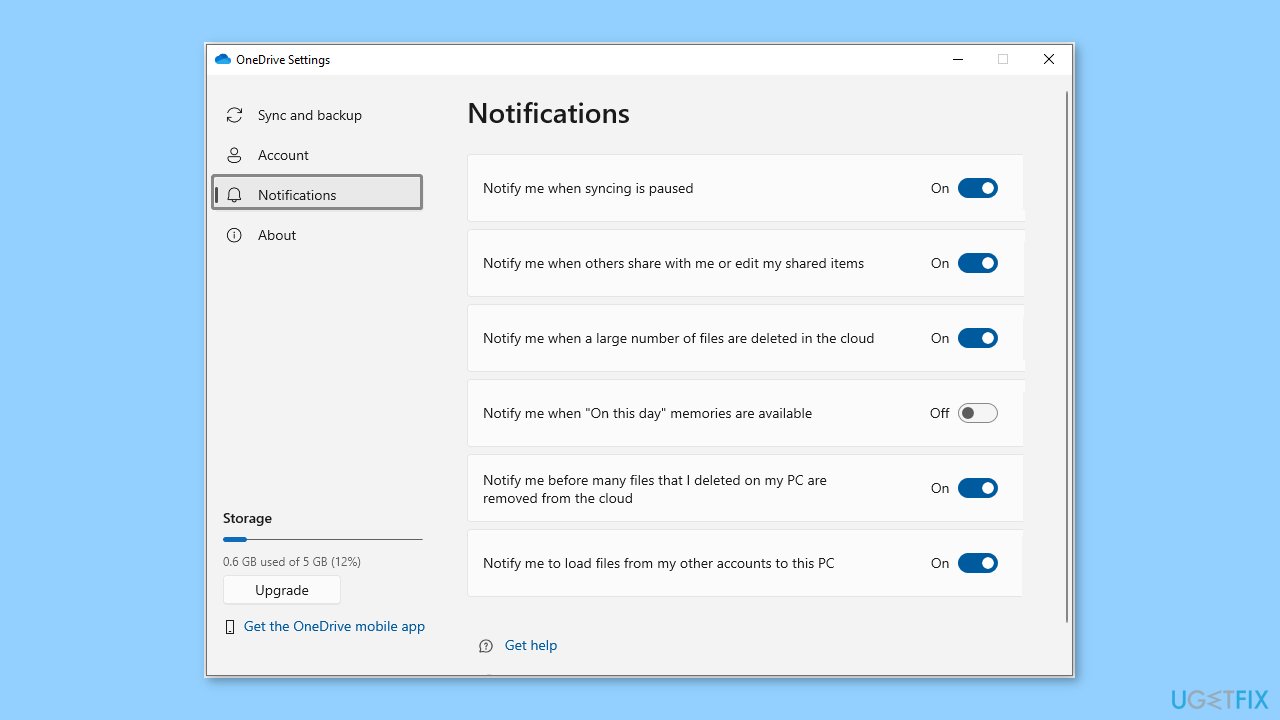
- In the OneDrive Settings window, go to the Notifications tab.
- Customize the notification options in the right panel.
Method 2. OneDrive Web
- First, log into your OneDrive account.
- Second, click Settings, then Options, and finally Notifications.
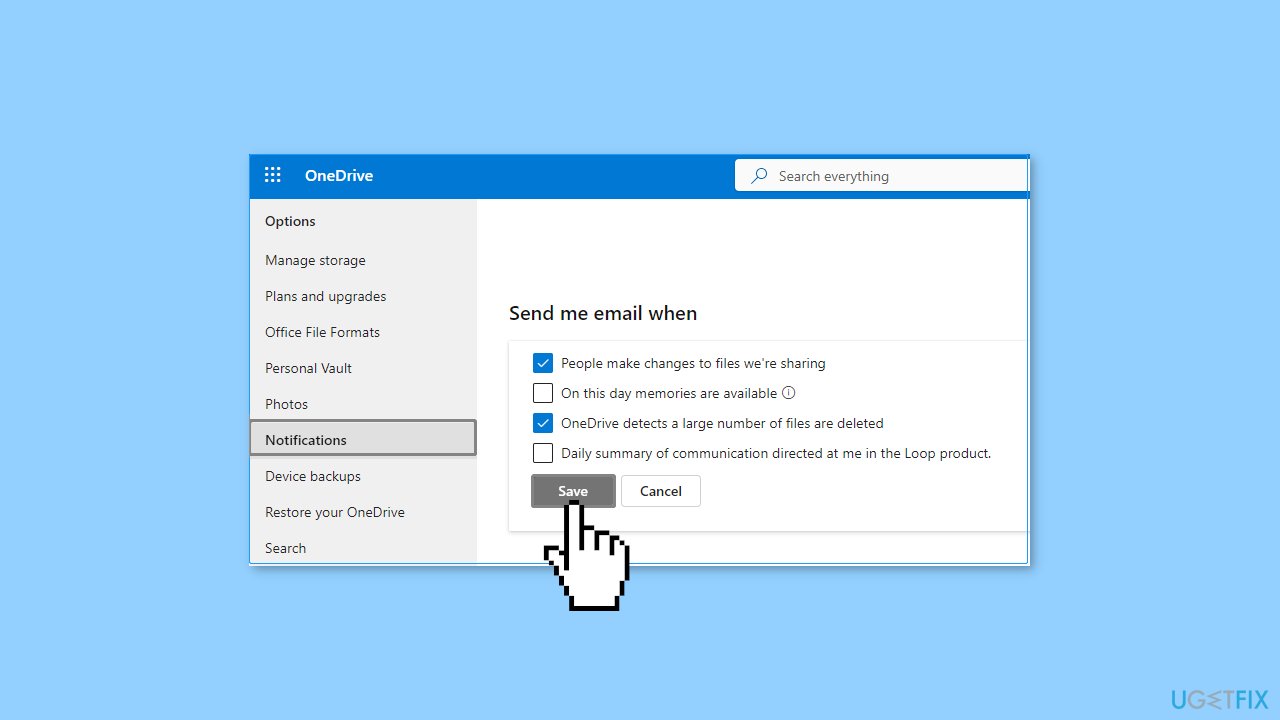
- On the notifications page, uncheck the unwanted notification emails.
- Click the Save button to apply this change.
Method 3. Windows Registry Editor
- Press the Windows key + R.
- Type regedit in the text box and press Enter.
- If a UAC window pops up, select the Yes option.
- In Registry Editor, navigate to the following path: Computer\HKEY_CURRENT_USER\SOFTWARE\Microsoft\OneDrive\Accounts\Personal.
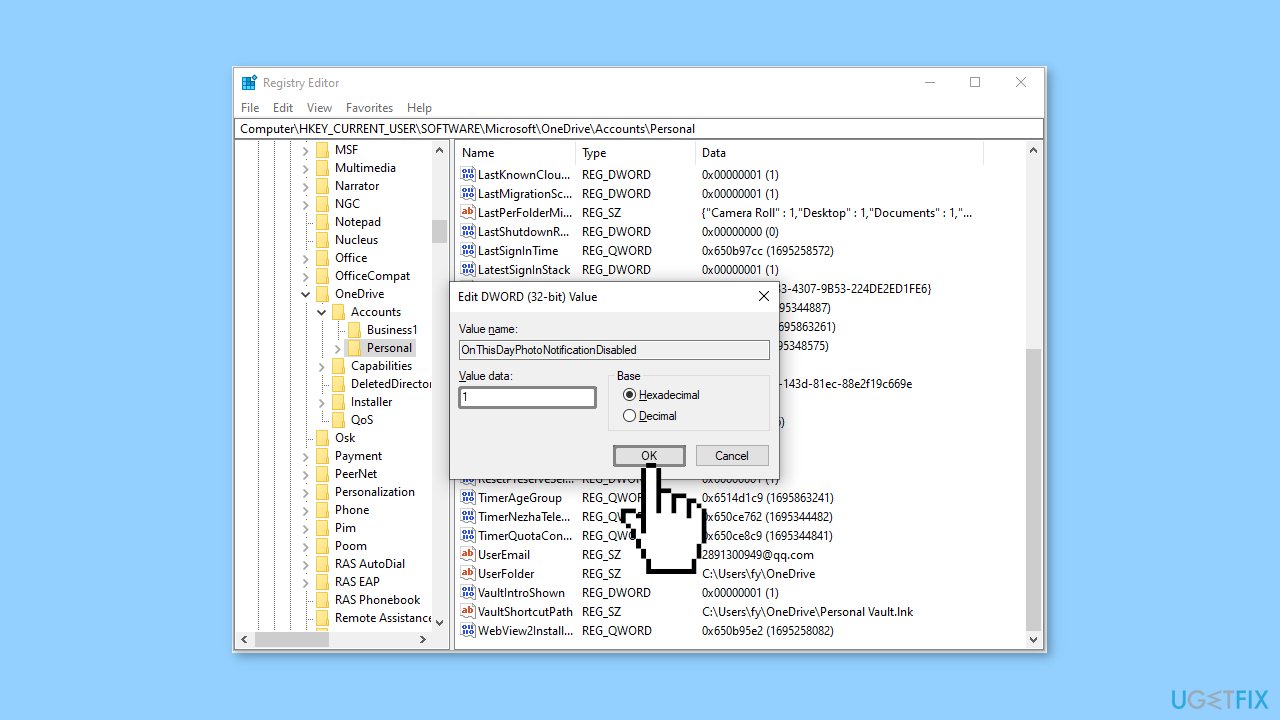
- Right-click on the Personal folder and select New > DWORD (32-bit) Value.
- Name the newly created value to OnThisDayPhotoNotificationDisabled.
- Double-click OnThisDayPhotoNotificationDisabled and set its value data to 1.
- After that, click OK.
Method 4. Windows Settings
- Press the Windows key + I to open Windows Settings.
- Select the System option.
- Go to the Notifications & actions tab.
- Under the Get notifications from these senders section, switch the button next to Microsoft OneDrive to Off.
Method 5. Disable OneDrive on Startup
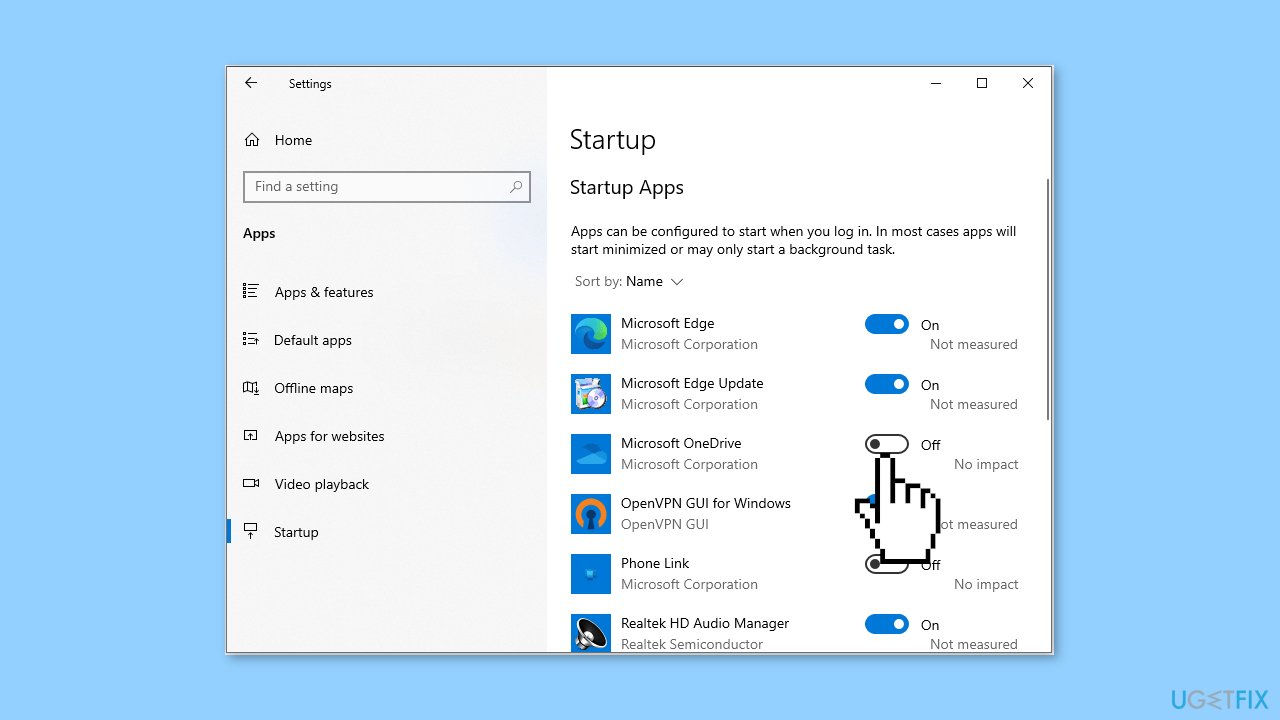
- Open Windows Settings by pressing the Windows key + I or using the Windows search box.
- Click Apps, then Startup.
- In the right panel, find Microsoft OneDrive and switch the button next to it to Off.
Bottom line
This guide provides 5 different methods to disable OneDrive notifications, including adjusting settings within the OneDrive application. If these methods do not resolve the issue, consider using a maintenance tool to address potential OS problems.
Frequently asked questions
To disable OneDrive notifications in Windows 10, right-click the OneDrive cloud icon in the system tray, select 'Settings', then uncheck the 'Show notifications' option under the 'Settings' tab.
Yes, in Windows 11, you can turn off OneDrive notifications by right-clicking the OneDrive icon in the taskbar, selecting 'Settings', and then unchecking the 'Show notifications' box in the 'Settings' tab.
No, disabling OneDrive notifications will not affect file syncing; it simply stops alerts from appearing while your files continue to sync in the background.




Report an issue
What's wrong with this guide? We review every report and update or remove content.
Report received — thank you. We'll review and fix it.
You need a free account to submit a report.
Be the first to comment