How to fix
Turn off overtype
on Windows
Easily disable overtype mode in Windows 10 for a smoother typing experience. Enjoy enhanced productivity with our expert-tested guide!


Why does How to turn off overtype in Windows 10 occur?
- Users accidentally toggle the overtype mode using the Insert key.
- The overtype function is not disabled in all applications after changes are made.
- The issue is prevalent in specific applications like Google Chrome.
- Changes to disable overtype may revert after a reboot.
- Users report difficulty in permanently disabling overtype in Microsoft Word.
Repairs Windows system files, removes malware, and restores a clean OS state — without reinstalling.
Hello. I have an issue with Windows 10 computer and the overwrite function. I tried to disable it on Word and Office, but nothing happens. It happens with other applications when I compose emails and try to click in the text to insert a word or letter automatically selected space or letter causes the overtype on the text. How to turn off this overtype function in any Windows app?
The issue with the overtype seems to bother many users[ref en-1] and appears in different programs and sites on various Windows devices. In most cases, the issues start when people want to use the toggling mode with Insert key but a web browser or application gets stuck and the key is not working. This particular issue is specific to the Google Chrome browser, as users state online.[ref en-2]
Other problems related to the question of how to turn off overtype in Windows related to turning off the overtype issue. People want to turn off the overtype because it interferes won't normal working on Word program or Office tools, email services. Sometimes people manage to disable overtype but only in one application or until the new reboot when all those changes get reversed and the function starts disturbing users again.
To turn off overtype may be one issue that needs to be fixed on each application particularly, especially for Windows 10 users because those people report the issue the most. Generally, the computer has two separate modes. The first one is the insert mode and then there is an overtype mode. Insert mode works as a default one and is the mode when you type insert the text where the cursor is placed.
The overtype replaces the text instead of displacing it. In other words, it is typing over it. You can toggle between the tho and pressing the keyboard keys to allow this function. You should be able to permanently turn off the overtype in Microsoft Word, but users report that it is difficult and complains about the issue in many other apps. 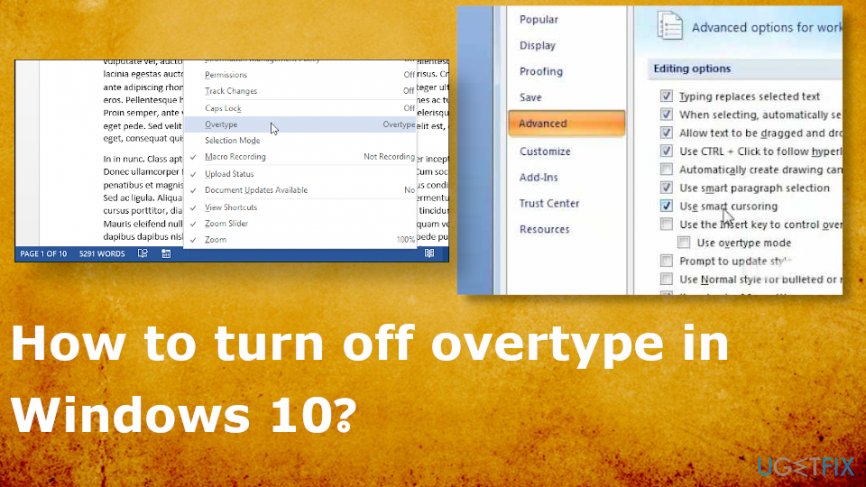
How to turn off overtype in Windows 10
It should be an easy change between the two and issues shouldn't come up. However, people have no idea how to turn off overwrite when it is not permanently disabled as they try to fo. In Windows 10 pressing the Insert key, apparently doesn't work. It may be because the toggle is not turned on by default or other functions are affected.
This is not malware[ref en-3] or Windows 10 update issue, so there are a few general solutions, but no danger that device may face. It involves settings in particular. However, if the incompatibility issues are the reason for your problems, scanning the machine with [rev id='Reimage"] can be a solution.
Change overtype settings to access overtype mode by pressing Insert
To be able to turn off insert key on keyboard, you should change some settings. You need to repeat these steps on existing Word documents or on the normal document template if you want to change the function in every new document from now on.
- Press Alt + F, so the Word option opens.
- Press A to select the Advanced and then press Tab.
- Click Alt + O and move to the Use the Insert key to control overtype mode box.
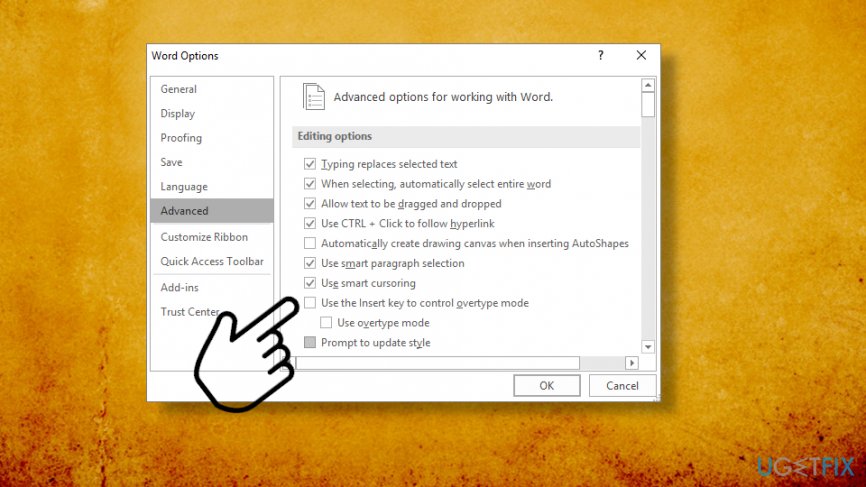
How to turn off overtype in windows 10 insert - Press Spacebar to select the checkbox.
- Press Enter.
You should be able to turn the Overtype mode off and on by pressing Insert from now on.
Turn off overwrite in Windows permanently
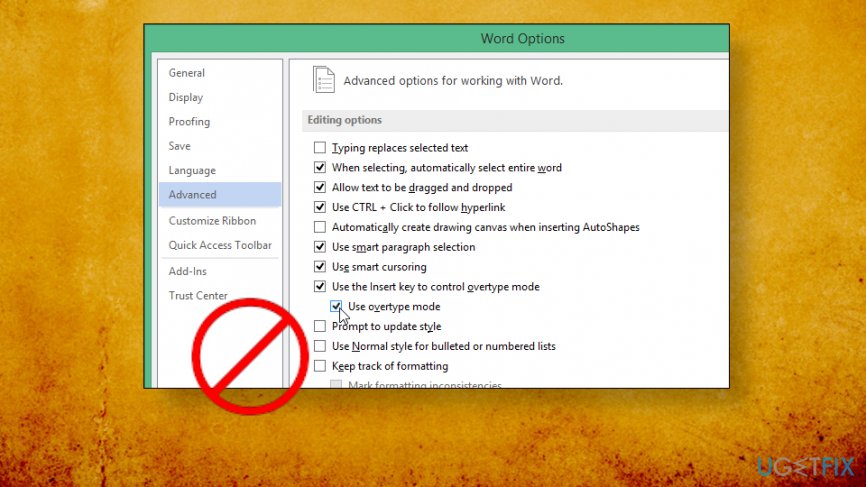
- Select the File tab and go to Options on Word.
- Select the Advanced tab.
- Disable the checkbox by Use the Insert key to control overtype mode. Click OK.
- Make sure to disable the box Use Overtype Mode.
How to turn off overtype in windows 10 disable overtype
Bottom line
To turn off overtype in Windows 10, users should check the settings in each application, particularly in Microsoft Word and email services. If the issue persists, it may be necessary to explore application-specific settings or consult additional resources. If none of these solutions work, consider seeking further technical support.
Frequently asked questions
You can toggle overtype mode off by pressing the 'Insert' key on your keyboard. If your keyboard doesn't have this key, you can adjust the settings in the application you are using.
Windows 10 does not have a global setting for overtype mode; it is usually managed by individual applications like Microsoft Word. Check the application’s options or preferences to disable it.
If overtype mode keeps reactivating, ensure that the 'Insert' key isn't stuck or malfunctioning, and check for any third-party software that might be overriding your keyboard settings.




Report an issue
What's wrong with this guide? We review every report and update or remove content.
Report received — thank you. We'll review and fix it.
You need a free account to submit a report.
Be the first to comment