How to fix
Uninstall Windows Builds and Updates
on Windows
Discover efficient ways to uninstall Windows 10 and Windows 11 builds and updates, optimizing your system performance. Expert-tested solutions await!

Why does How to Uninstall Windows Builds and Updates occur?
- Updates may cause errors
- Software crashes
- Internet connectivity issues
- Missing drivers
- Blue Screen of Death (BSOD)
Repairs Windows system files, removes malware, and restores a clean OS state — without reinstalling.
In my Windows usage practice, the system builds and updates caused lots of problems. Therefore, I would like to know if it’s possible to uninstall updates. Thanks in advance!
Windows 10[ref en-2] users don’t have a full control over the installation of Windows builds and updates. Microsoft has set Windows Updates service to work in the background by default. Therefore, if a computer is connected to the Internet all the time, all available updates and builds will be downloaded and installed automatically. While installing updates is a crucial part of the system’s maintenance, sometimes Windows updates may be more harmful than helpful.
None of the updates or builds released by Microsoft was perfect. Within a couple of days of release, people start complaining about errors, software crash, Internet crash, drivers missing, BSOD,[ref en-3] and similar problems that emerge right after the installation of the update. That’s a common practice, which causes people’s anger as instead of patching the existent bugs, the updates often cause the new ones.
If you want to stop automatic updates, you can do that if you are running Windows 10 Pro or higher versions. The instructions are provided in this post. If, however, you have recently installed a build or update, which broken your PC or initiated minor malfunctions, there is a possibility to roll it back and wait until it gets fixed.
How to Uninstall Windows Builds and Updates?
Method 1. Uninstalling Windows Builds
Microsoft releases Major Updates, so-called Builds, on a regular basis. For example, Windows 10 Version 1511, Version 1703 or Version 1607. Unfortunately, Windows 10 Builds can’t be rolled back unless you are a Windows Insider. Windows Insiders can test the new builds before they become available for the other Windows users.
Therefore, if the new build is too buggy, the Windows Insider can uninstall the new build and report Microsoft about the errors. To uninstall the build, the following steps have to be performed:
- Press "Windows key + I" to open Settings.
- Select "Update & Security" and click "Recovery."
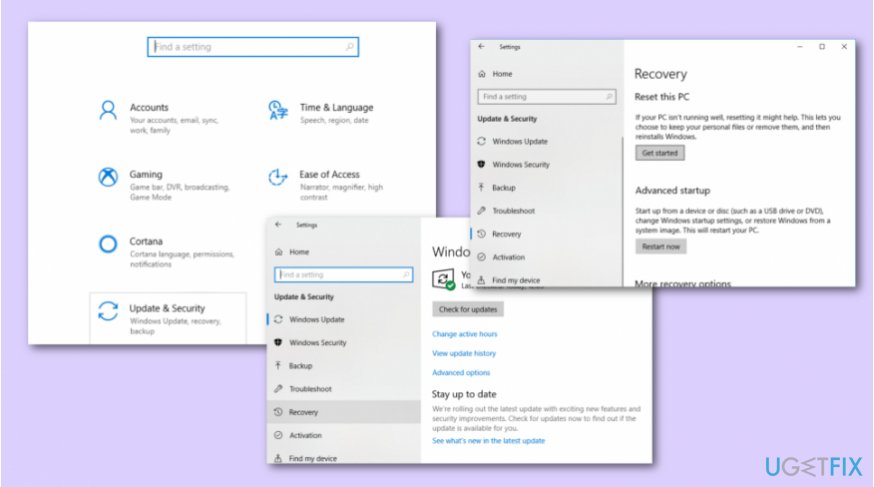
Fixing step - Click "Get started" button under "Go back to an earlier build."
- Then you will have to wait for a while for the system to restore the settings and restart.
NOTE: as soon as Microsoft releases a patch or an update to the built that you’ve rolled back, the system will download it automatically. However, the new build may fail to download if you haven’t upgraded to the new build for too long or if the “Previous Windows installation(s)” files were removed.
Method 2. Removing Windows Updates
Windows Updates can be installed both manually and automatically. If the system detects available updates, it will install them without informing the user. However, if the user wants to make sure if the system is up-to-date, he/she can install the updates via Windows Update applet or official Microsoft’s[ref en-1] website.
If, however, the latest update broke something, it’s easy to uninstall the update manually. All Windows versions allow rolling back the updates, except that the removal of some of the security updates and crucial cumulative updates are forbidden.
- Click "Windows key + I" to open "Settings."
- Select "Update & Security" and open "Advanced Options."
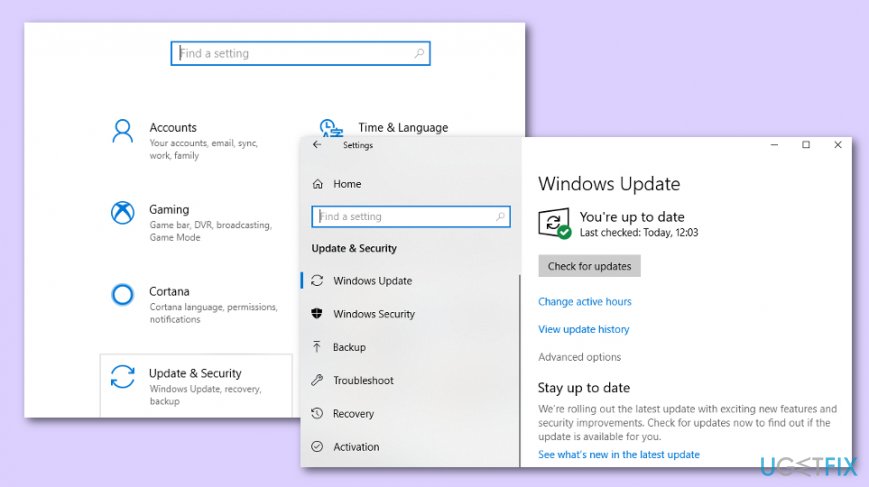
Fixing step - Select "View your update history" and click "Uninstall Updates."
- The system will open the list of updates in Control Panel applet. Select the update that you want to remove and select "Uninstall."
If you are not allowed to uninstall the update, try using a Restore Point. However, there is one important condition - to enable a System Restore point,[ref en-4] you have to have the Restore point created before. To check that, type "system restore" in the search bar and open it. Select the latest Restore point and press "Next."
Method 3. Uninstall Windows Updates by using Factory Restore
If you find out that there is no possibility to restore your Windows computer to an older version of Windows, you should try looking through these steps:
- Find Settings and select Update & Security;
- Furthermore, choose the Recovery option;
- Select Get Started;
- After that, choose Restore factory settings.
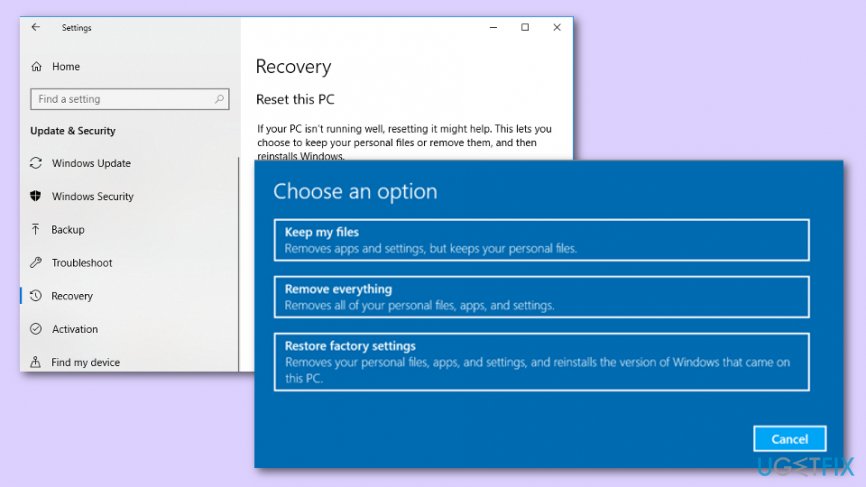
Fixing step
Bottom line
To uninstall problematic Windows builds or updates, you can access the Settings, navigate to Update & Security, and use the Recovery option to roll back to an earlier build. If you are a Windows Insider, you have the ability to uninstall new builds before they are released to the public. If these methods do not resolve the issues, consider seeking additional technical support.
Frequently asked questions
To uninstall a Windows update on Windows 10, go to Settings > Update & Security > Windows Update, then click on 'View update history' and select 'Uninstall updates' to remove the desired update.
Yes, you can roll back to a previous build in Windows 11 by going to Settings > System > Recovery and selecting 'Go back' under the 'Previous version of Windows' section.
If uninstalling a Windows update leads to problems, consider restoring your system to a previous restore point or reinstalling the update through Windows Update.




Report an issue
What's wrong with this guide? We review every report and update or remove content.
Report received — thank you. We'll review and fix it.
You need a free account to submit a report.
Be the first to comment