How to fix
Use AirDrop on iPhone and Mac
on Windows
Discover how to optimize file sharing in Windows 10 and 11 like AirDrop. Expert-tested tips for seamless connectivity and efficiency, updated 2025.

Why does How to use AirDrop on iPhone and Mac occur?
- Misconfiguration of settings
- Wi-fi not turned on
- Bluetooth not turned on
- AirDrop settings not set to the correct mode
- Distance between devices too far
Repairs Windows system files, removes malware, and restores a clean OS state — without reinstalling.
Hello! I have started using iPhone and wondering what is the easiest way to transfer photos or other files to my MacBook? I've heard about the AirDrop function, but I am not aware how to use it. Could you please help me?
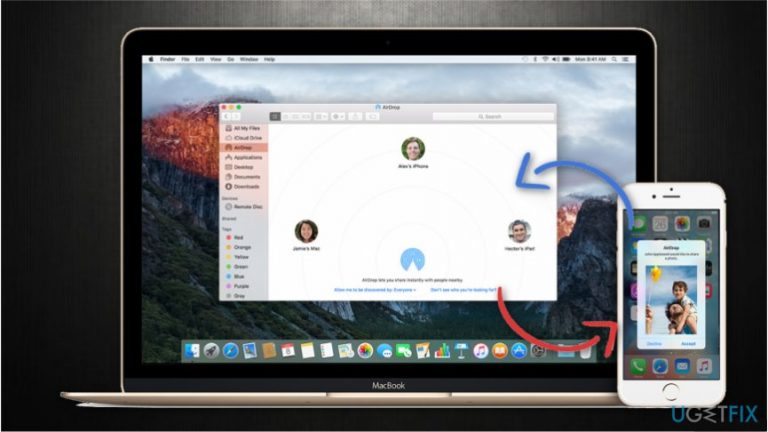
AirDrop[ref en-1] is one of the easiest ways to share photos and more files from iPhone to Mac and other Apple devices. Additionally, it gives the ability to share your location or website's link instantly as well as contact information, music from iTunes, and Passbook passes. The best thing about AirDrop is that it is inbuilt and you don't need to download any extra apps.
People who want to transfer files between two iPads or iPhones are merely required to keep the close distance so that the Bluetooth[ref en-2] connection would work. Those who want to share files from or to Mac computer will need to enable Wi-fi as well. Instructions on how to turn on AirDrop are provided below.
However, be careful when accepting files sent from unknown people. You can never be sure of their intentions, and it is vital to protect your device from the potentially dangerous transfers. If you keep AirDrop always enabled, it is wise to change the parameters of who can transfer files to you — pick Friends Only mode rather than Everyone to avoid transfers from people you don't know[ref en-3].
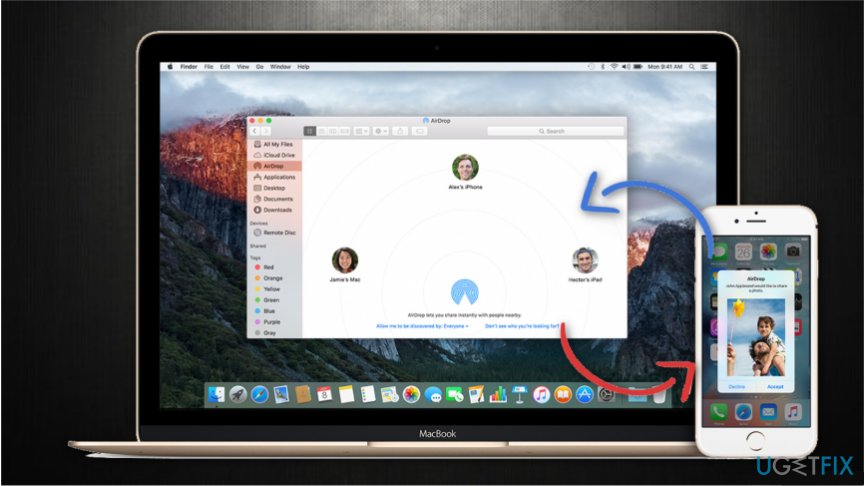
Instructions on how to use AirDrop on Mac and iPhone
The guide below briefly explains how to share photos from iPhone to Mac using AirDrop and vice versa. However, attentively follow the instructions since most of the issues why AirDrop doesn't work on Mac or iPhone might be caused by misconfiguration of settings.
Transfer photos from iPhone to Mac with AirDrop
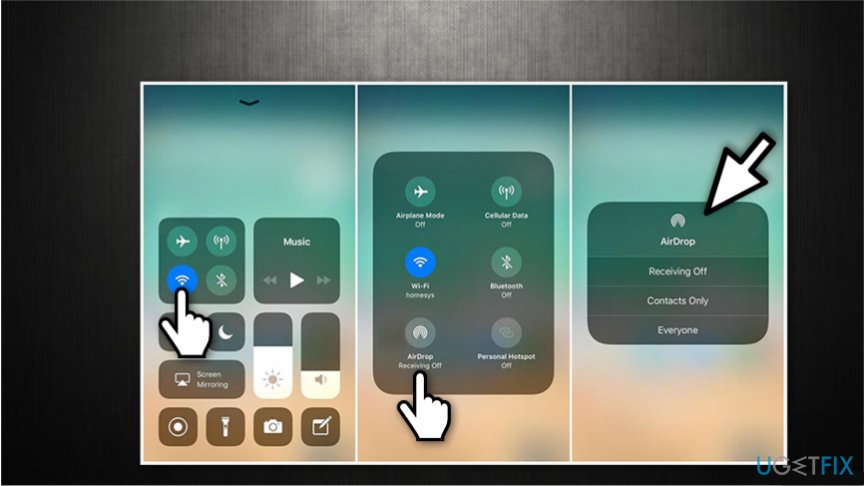
- Swipe downwards to open Control Centre
- Hold your finger and push it harder on any of the four icons at the top-left corner.;
- Click on AirDrop and select your preferences (Everyone or Contacts Only);
- Check if Wi-fi and Bluetooth is turned on;
- Open Photos and click on the one you want to share;
- On the bottom-left corner, tap on the Share icon.
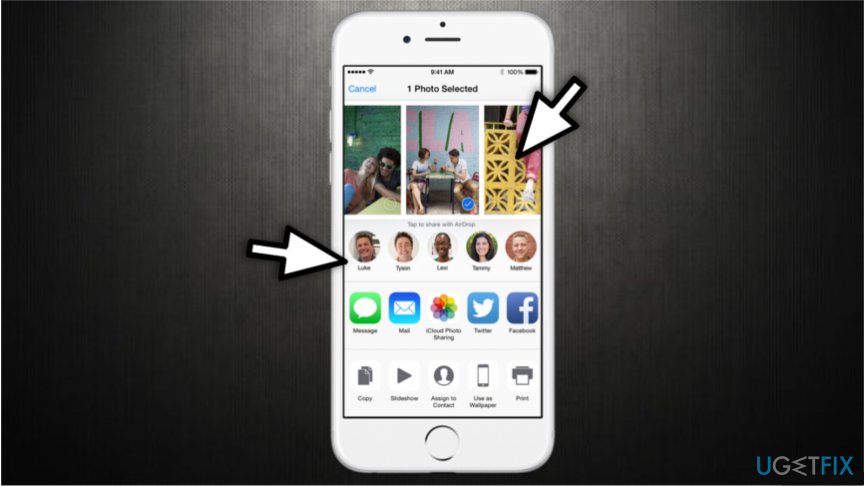
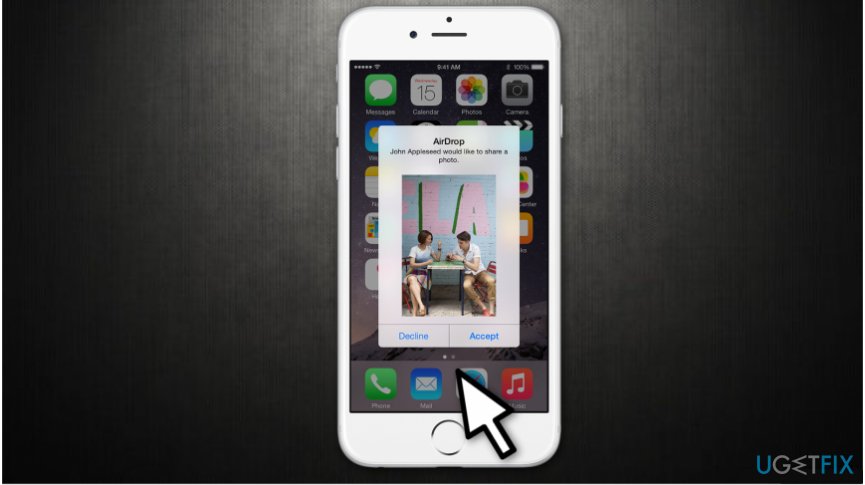
Share photos using airdrop on iphone - Select the person you want to share the photo with and wait for approval;
- The photo is successfully transmitted once you see Sent under person's icon.
NOTE: For those who are not using iPhone 10 — avoid steps 1&2. Instead, swipe upwards and simply click on AirDrop icon.
Use AirDrop to share photos from Mac to iPhone

- Make sure that your Mac is connected to the same Wi-fi as the iPhone;
- Open Finder;
- In Favorites panel on the left, select AirDrop;
- Click on Allow me to be discovered by and select Everyone or Contacts only;
- Check that iPhone has also enabled AirDrop and is not asleep;
- Once you see the icon of the person you want to share the file with, drag and drop the it on the icon;
- Wait for the approval from the iPhone (the owner needs to accept the file transfer).
Share files from mac to iphone using airdrop - Sent will appear under the icon once the file is transferred.
Bottom line
To resolve AirDrop issues, ensure that both Wi-fi and Bluetooth are enabled on your devices, and check your AirDrop settings to select the appropriate sharing mode. If problems persist, verify that your devices are within close proximity and restart them if necessary.




Report an issue
What's wrong with this guide? We review every report and update or remove content.
Report received — thank you. We'll review and fix it.
You need a free account to submit a report.
Be the first to comment