
How to use an external camera for Windows Hello?
Prefer to fix it yourself? The manual steps follow.
On this page
I have an issue with the Windows Hello feature and external camera. When the laptop's lid is closed, the support is not working. The device is plugged in via USB, and the camera is compatible with this because it works when the computer is running normally. The operating system is not allowing the feature to respond. Can I somehow change settings to use Windows Hello with the external camera?
To use an external camera for Windows Hello, the device need to be compatible with the Windows Hello feature. People encounter various issues with this function and report their concerns online, including the issue with the closed lid of the laptop and not responding to Windows Hello or the general issue with external camera usage.
The function might not use the external camera for face recognition if the operation of the camera is occupied and the system in general tries to use the built-in camera of the system, and some errors occur. Issues can arise when the camera usage fails. Windows update can be responsible for this.
There are various problems when the camera might be used with other programs, but the use of an external camera for Windows Hello is failing. You can try to reboot the system before doing anything else or disable all devices to connect them again newly.
Compatibility issue is also important in this case. The device should be suitable with the Windows Hello function, but other system issues like corrupted files or faulty third-party apps can lead to system problems. The tool finds and fixes those issues for you.
Other fixes might include temporary changes, troubleshooting, so you can connect the external camera for Windows Hello and use it as you want, even though the lid is closed. Upgrading the machine is always a good idea, especially when you find other system problems bothering you, so check if the version of your OS is the latest and not containing any bugs before moving to the methods listed.
1. Disconnect devices from your system
- Shut down the computer and detach other devices from your machine.
- Make sure to directly attach your camera to the system via an active USB port.
- Power on the machine and check if the camera is working fine.
- Add other pieces one by one.
2. Disable the internal camera
- Right-click the Windows button to launch the Quick access menu.
- Choose Device Manager.
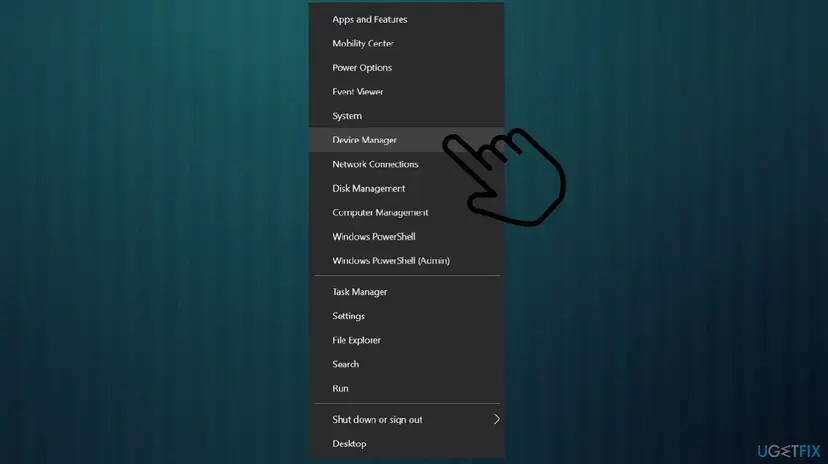
Fix external camera for windows hello device manager - Expand the Cameras section or Imaging Devices and right-click on the camera.
- Choose to Disable the internal camera.
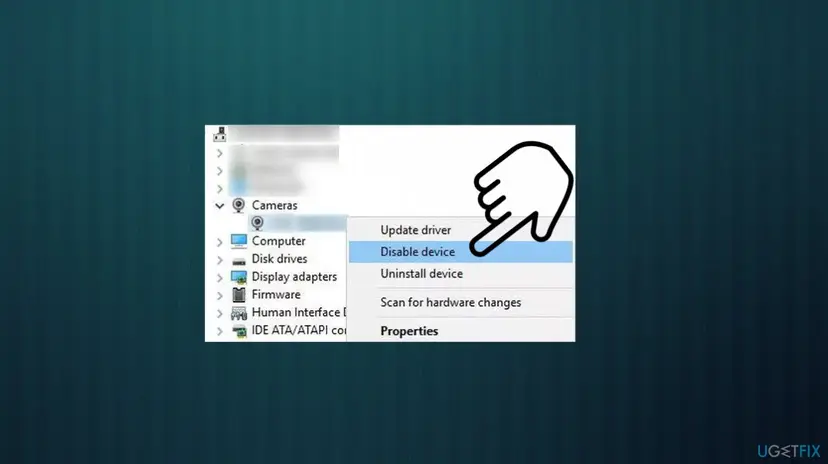
Fix external camera for windows hello disable device - Disable all pieces if there are more than two pieces.
- Expand the Imaging Devices to see if the external camera is enabled.
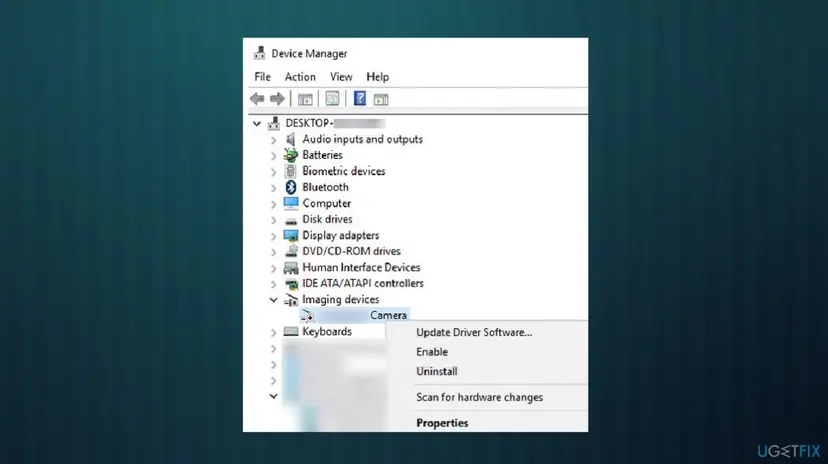
Fix external camera for windows hello device manager enable - Reboot the machine and check if the camera is working.
3. Boot the system into BIOS
- Detach the external camera from the system.
- Click on Restart while holding the Shift key.
- Choose Troubleshoot.
- Then Advanced Options and UEFI Firmware Settings.
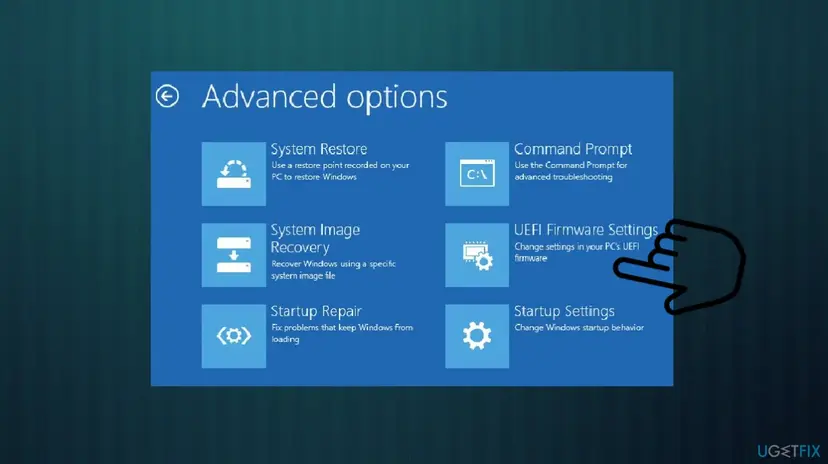
Fix external camera for windows hello bios - Make sure the internal camera is disabled and boot the windows.
- Attach the external camera and start using Windows Hello.
4. Edit registry entries
- Press Win + R to open the Run box.
- Type regedit there and hit Enter.
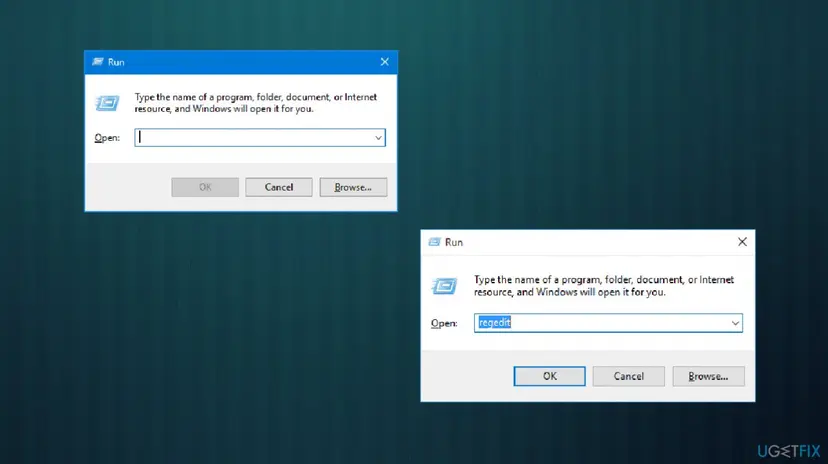
Fix external camera for windows hello regedit - Locate the following key
HKLM\\System\\CurrentControlSet\\Control\\Power - Change the LidNotifyReliable DWORD value from 1 to 0.
- Reboot and check.
Did this fix work?
One click, no account. It tells the next reader which guides are worth their time.
Questions and experiences: use an external camera for Windows Hello
Still broken, or found a fix we did not cover? Ask here: members and our editors answer. Reading is open; writing needs a free account.
…