How to fix
Use Emoji
on Windows
Discover how to effortlessly use emoji on Windows 10 and Windows 11. Enhance your communication with expert-tested tips for a fun typing experience!


Why does How to Use Emoji on Mac occur?
- Keyboard Viewer not enabled
- No tick near Show Keyboard, Emoji, & Symbol Viewers
- Incorrect keyboard shortcuts
- Text field not selected
- Outdated Mac OS version
Repairs Windows system files, removes malware, and restores a clean OS state — without reinstalling.
Where can I find emoji keyboard on Mac?
Emojis are smileys and emoticons that enhance online communication. They became extremely popular in 2011[ref en-1] when they were first introduced in iPhones. Later on, they were included in Android[ref en-2] and other mobile operating systems as well.
The world became instantly obsessed with funny icons, expressions, places, animals, and various objects. The digital images improved online communication and made it more vivid. According to the psychologists,[ref en-3] people fell in love with emojis because they resemble more of a real human communication. The human brain simply associates emoticons with real faces.

Emojis are available in several categories:
- Smileys & People
- Animals & Nature
- Food & Drink
- Activity
- Travel & Places
- Objects
- Symbols
- Flags
Emojis became extremely popular via mobile apps. Currently, the majority of latest smartphones include built-in emoji keyboard. However, users also want to express their feelings with digital images via desktop. Apple was the first that let users access smileys in Mac OS. Following a good example, Microsoft also included it in Windows 8 and further versions of the OS.
However, to use Emoji on Mac, users might need to take few steps and get used to its operation. The instructions below will explain to you where to find and how to use the world’s most popular keyboard.
Opening and using emoji keyboard on your Mac
First of all, you have to check if Keyboard Viewer is enabled to access Emoji keyboard:
- Click Apple icon in the top menu bar.
- Navigate to System Preferences.
- In the appeared window, click Keyboard option.
- You will end up on the Keyboard tab. Make sure that there's a tick near Show Keyboard, Emoji, & Symbol Viewers in menu bar.
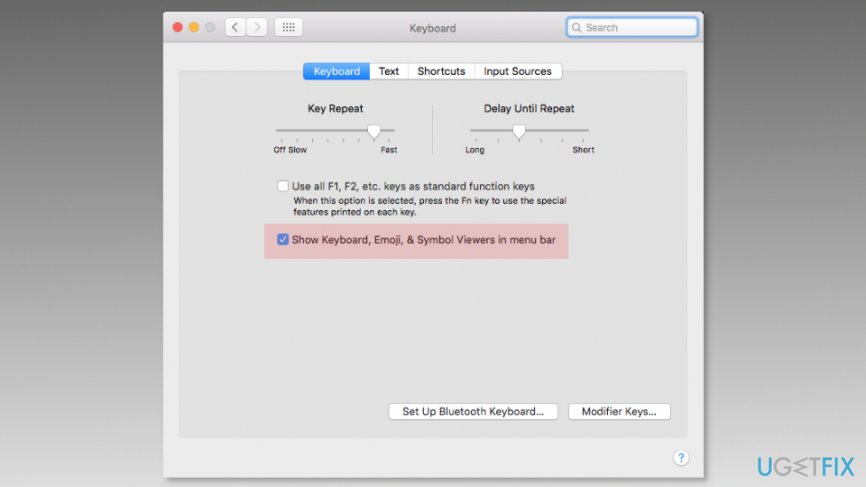
If the tick is already here, you can access emoticons:
- Click with a mouse on the text field where you want to enter the emoji (Twitter post, Facebook Messenger, etc.)
- Press Command, Control, and Space keys on the keyboard to launch characters palette. Additionally, you can click Edit on the top menu bar and navigate to Emoji & Symbols at the end of the drop-down menu.
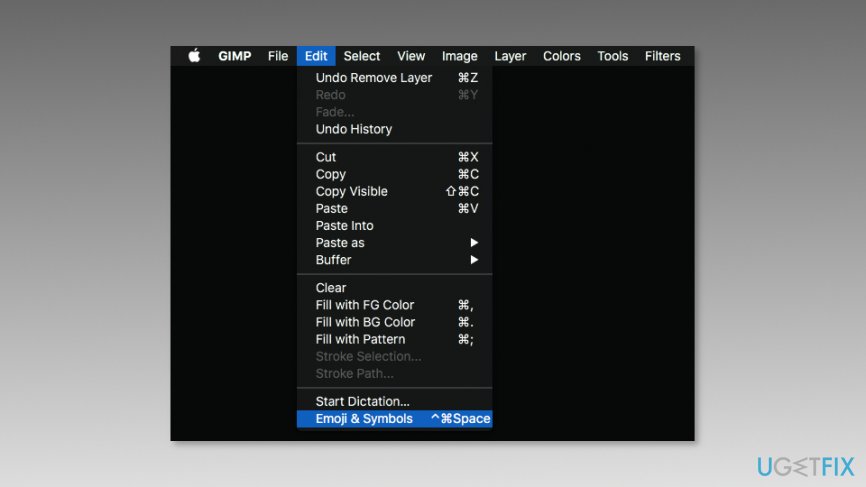
Access emoji and symbols on mac - Expand the palette by clicking the gear icon on the top right corner.
- Once you open Character window, click on the Emoji section located in the left column.
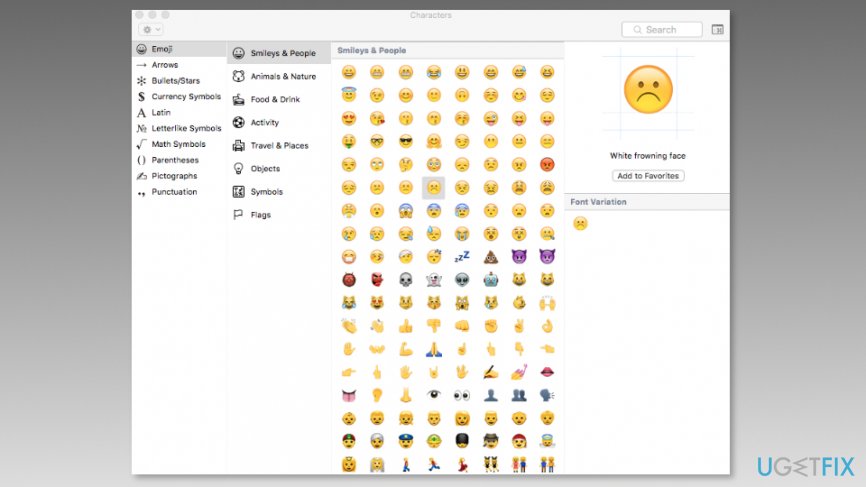
Emoji keyboard on mac - Find the emoji you want to include in the post or message, and it will be posted in the place where you left the cursor.
- Hit close (X) button to close the palette once you finish.
Useful tips for better experience with Emoji keyboard
Mac Emoji keyboard has several useful features that can help to access your favorite characters, icons or objects easier. You can add your beloved characters to favorites and do not browse through hundreds of digital images to find the one you need:
- Open Emoji keyboard and expand the viewer by clicking the gear icon in the top right corner.
- Select the emoji.
- Click Add to Favorites button on the right.
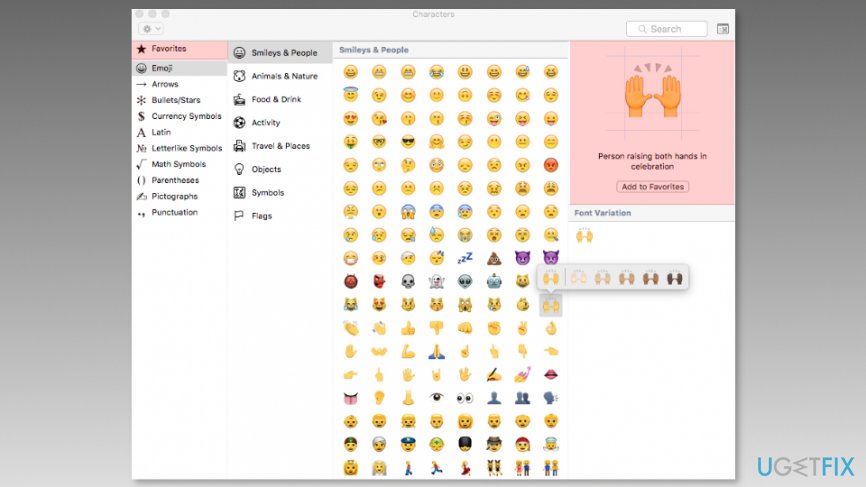
Add emojis to favorites - You will see a new section in the left panel called Favorites. There you will see all the emoticons you use the most.
You should also know that some emojis are hidden. It means, once you click and hold on the particular image, you might see the list of its modifications. This feature is mostly used for human-looking characters and allows choosing preferred skin tone.
Bottom line
To use the emoji keyboard on your Mac, ensure that Keyboard Viewer is enabled by checking the appropriate settings in System Preferences. If you still cannot access emojis, try using the keyboard shortcut Command, Control, and Space after selecting a text field. If none of these solutions work, consider updating your Mac OS or seeking further assistance.
Frequently asked questions
Yes, you can use emoji on Windows 10 and Windows 11 by pressing the Windows key + period (.) or semicolon (;) to open the emoji panel.
Yes, both Windows 10 and Windows 11 feature a built-in emoji picker that you can access from any text field.
You can customize your emoji settings by going to Settings > Devices > Typing and adjusting the options under 'Advanced keyboard settings'.




Report an issue
What's wrong with this guide? We review every report and update or remove content.
Report received — thank you. We'll review and fix it.
You need a free account to submit a report.
Be the first to comment