How to fix
What is Live Wallpaper and how to use it
on Windows
Transform your Windows 10 or 11 desktop with stunning live wallpapers. Discover easy setup tips and tricks. Enjoy a fresh look, expert-tested.

Why does What is Live Wallpaper and how to use it occur?
- Live Wallpaper requires additional programs for animated features
- Static wallpaper does not support animation
- Resource usage of Live Wallpaper can affect CPU performance
- Not all Windows 10 devices support advanced wallpaper functions
- Limited built-in options for Live Wallpaper in Windows 10
Repairs Windows system files, removes malware, and restores a clean OS state — without reinstalling.
Hello, I have heard about Live Wallpaper and Dynamic Wallpaper functions for Windows 10 devices. I know about something like this for iPhone, but do not know what it is or how to set it up. It sounds cool though, so maybe you can explain to me and answer how to use it on Windows devices?
Personalizing your devices can be a fun activity since making anything unique for you is a way of expressing your creativity. Wallpaper is an image, generally, that is on the background of your computer desktop or smartphone. Static wallpaper is the one that contains icons and other Graphical User Interface[ref en-1] elements that the user can move around as he or she wants to.
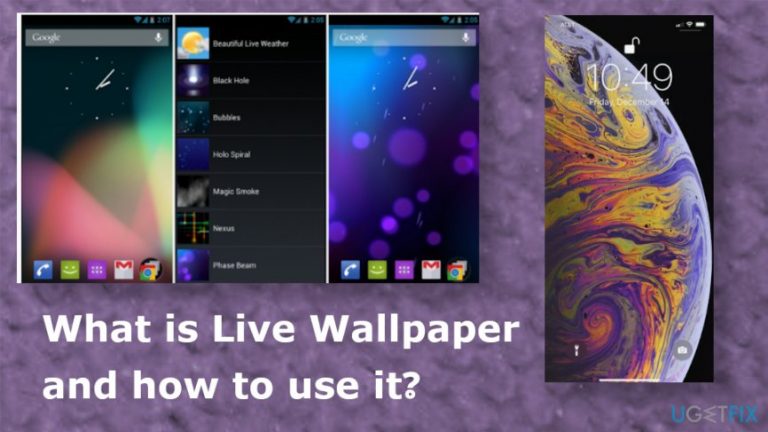
Live Wallpaper is a more advanced and personalizable feature that also is called Dynamic Wallpaper. It can be animated or interactive, and when this feature is enabled on a smartphone it moves as the device is moving. You can set a GIF or a video on the wallpaper, so it is more than one picture or a themed image.
Live Wallpaper Windows 10 feature is a built-in function that users can try. It allows setting any picture or a slideshow as the background of your desktop. Choosing a handful of pictures means that they are interchanging according to your set preferences, and wallpaper picture is never the same.
However, people cannot use all the possible features of Live Wallpaper Windows 10 because animated wallpaper is not included in the built-in functions, so you need an additional program for that. Some people can use these features on Android devices, iPhones, besides Windows 10 supporting machines.[ref en-2] 
What is Live Wallpaper and how to use it
Many sites offer free Live Wallpaper and desktop pictures by promoting desktop slideshow apps or video background programs. You do not need to install the unnecessary tool when you only want to set up the slideshow live wallpaper. However, before any of these unique changes, you should note that such features use resources of the machine, like CPU. Such behavior may become an issue if you rn any other programs on the device.
So when you know what is Live Wallpaper and how to use it, you need to choose the feature and make sure that the device is powerful enough to run Windows 10 and these additional wallpaper features without any performance issues. If you still think about getting a third-party program, be sure to check all the red flags and avoid getting PUPs instead, or losing money for useless apps.[ref en-3]
Enable Slideshow desktop on Windows device
- Right-click anywhere on the desktop and select Personalize option.
- Change the Background dropbox to Slideshow.
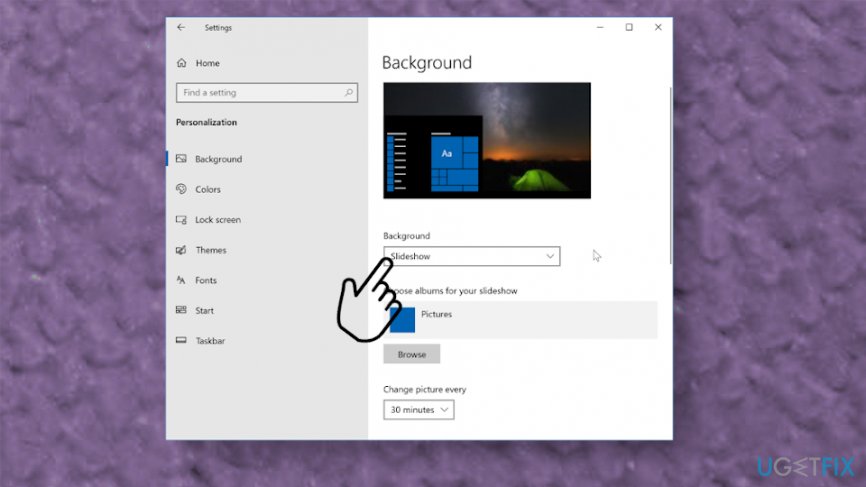
What is live wallpaper and how to use it background - Select the Browse button to choose a particular folder that holds all the photos.
- You can shuffle photos randomly and configure the slideshow with set intervals.
Install Widgets HD
Windows 7 had gadgets and other functions for the desktop, so you can get this app from the Microsoft Store and choose from around 20 gadgets to place on the desktop. Calendar, various clock options, weather, and other applications are available for you.
Enable Windows Ink Workspace to get Sticky Notes desktop feature
This desktop feature may be not as cool as Live Wallpaper on Windows 10, and some people think that this is a feature of old versions only, but built-in sticky notes can be enabled on the latest devices too. You need to enable Windows Ink Workspace fist, though.
- Right-click on the taskbar and select the Show Windows Ink Workspace button.

What is live wallpaper and how to use it sticky notes - Click the Windows Ink Icon that appeared and select Sticky Notes.
- Use the search tool to create new notes or find existing ones.
- Double-click the note to attach it to your current desktop.
Set Android Live Wallpaper
- Go to the home screen and place the finger on the display for a long press.
- When the menu pops-up, select Wallpapers.
- Then choose Live Wallpapers.
- You can now see the list of wallpapers installed on the device already.
- Select one and preview how it will look like.
- Set Wallpaper if you like it.
Set Live Wallpapers on iPhone
- Open Settings and swipe down.
- Tap Wallpaper and Choose a New Wallpaper.
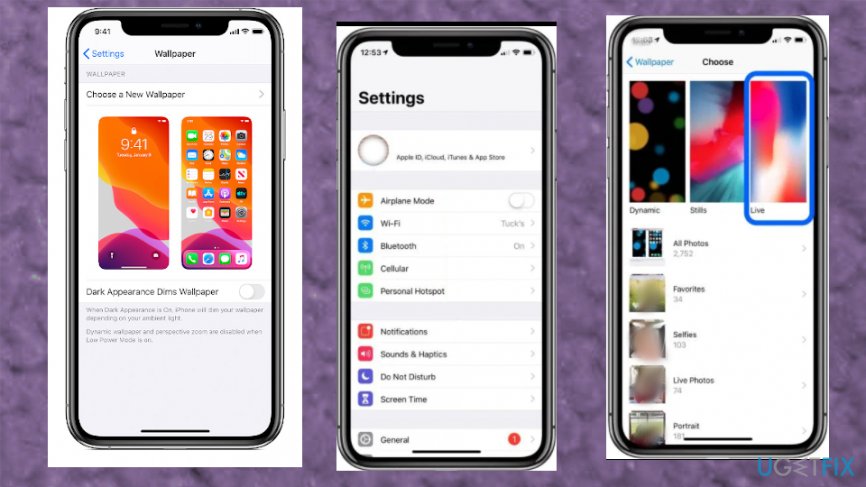
What is live wallpaper and how to use it iphone - Select Live and pick what you want.
- Set to apply the changes to your Lock screen or Home screen.
Use a third-party app to set Live Wallpaper Windows 10 feature or set them on any other device
You can always download free applications from the internet or the App store and so on. Some of them offer a free trial and after that requires money for the service. Be cautious when you download anything because these popular features and functions may be used to trick gullible people into unwanted installations.
Bottom line
To use Live Wallpaper on Windows 10, you can set a slideshow of images as your background. If you want animated wallpapers, consider downloading third-party applications. If none of these solutions work, check for system updates or consult support forums.
Frequently asked questions
Live Wallpaper is a dynamic background feature that allows your desktop to display animated or interactive images instead of static wallpapers, enhancing your visual experience.
You can set up Live Wallpaper by using third-party applications like Wallpaper Engine or Rainmeter, which allow you to customize and apply animated backgrounds easily.
Yes, using Live Wallpaper may consume more system resources, potentially affecting performance, especially on lower-end devices, so it's advisable to monitor your system's responsiveness.




Report an issue
What's wrong with this guide? We review every report and update or remove content.
Report received — thank you. We'll review and fix it.
You need a free account to submit a report.
Be the first to comment